WORKING WITH COST ESTIMATE DATA IN THE COST-R MODULE
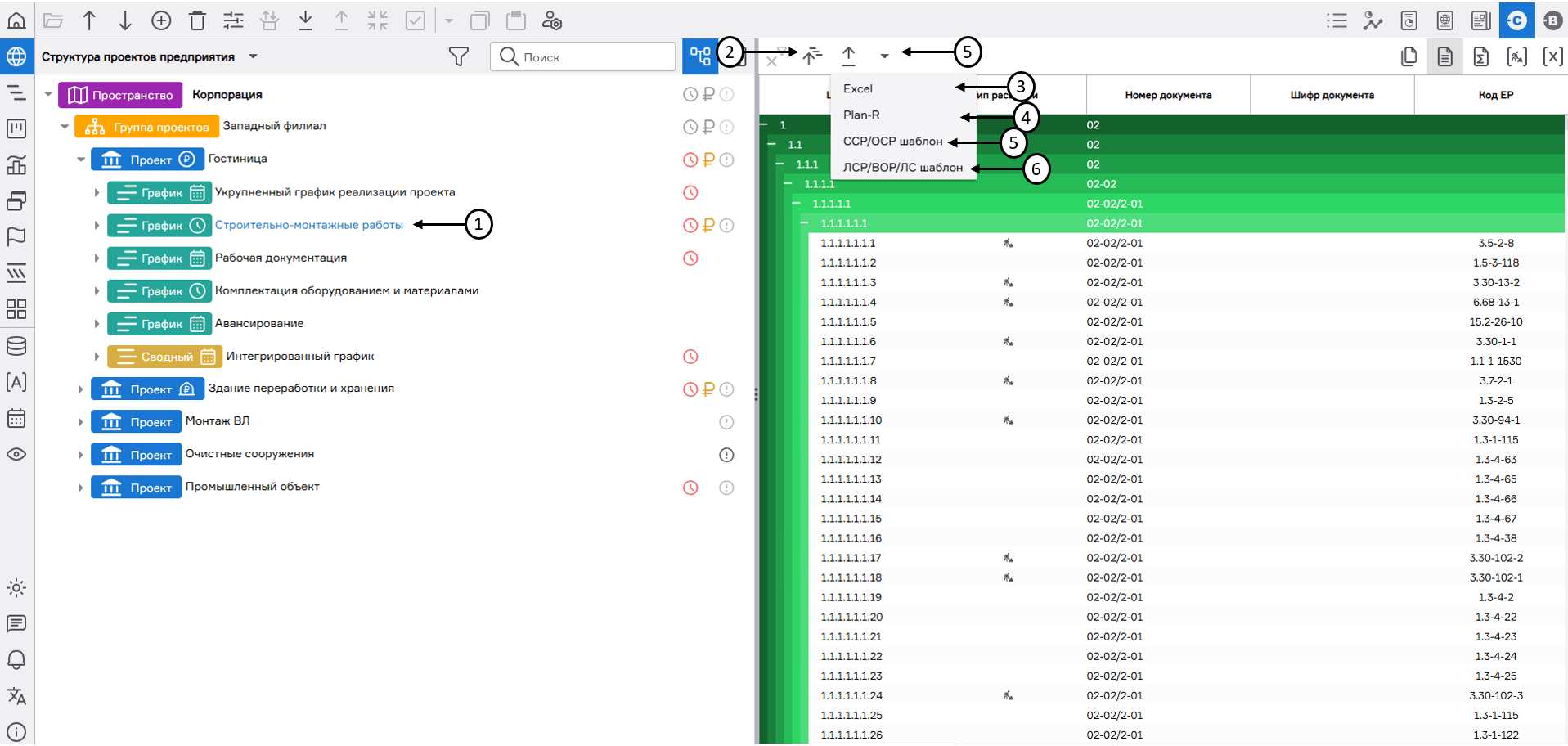
To open COST-R, select a node of the "Project", "Schedule", or "Version" type (1) in the Enterprise Project Structure. Then open the "COST-R" tab (2) and select "Estimate files" (3). To import estimate files, click "Estimate files" (4).
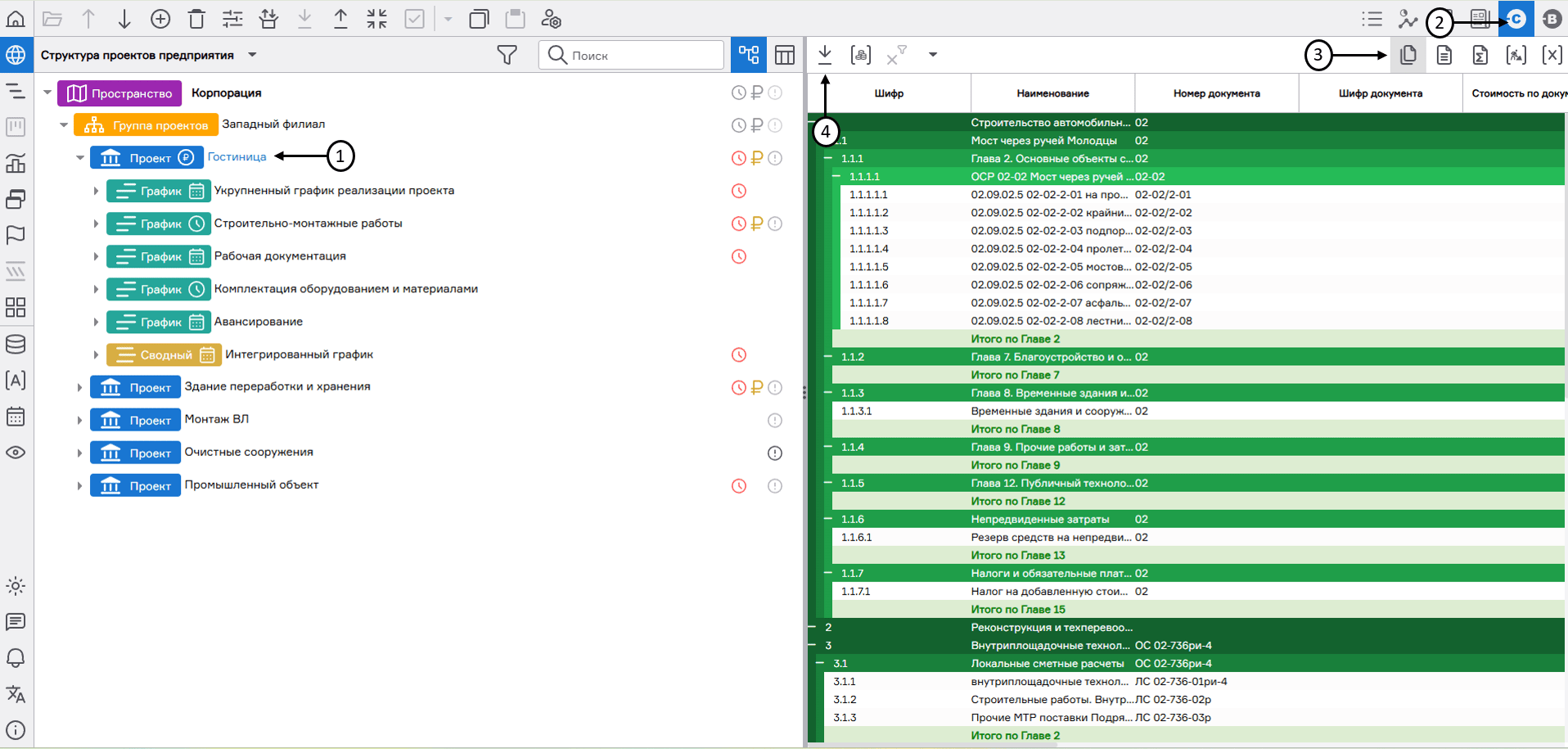 Estimate Files
In the "Manage estimate files" window that opens, click "Upload". In the "Loading estimates" window, select files in xml / kenml / gsfx / xisx format. You can upload a maximum of 1,500 files at a time. After the upload is complete, you can view the list of successfully uploaded files (1) and files with errors, including the reasons for those errors (2). Click "Report" (3) to download an .xlsx report on the estimate upload to PLAN-R. Then click "Close" (4) to return to the "Manage estimate files" window.
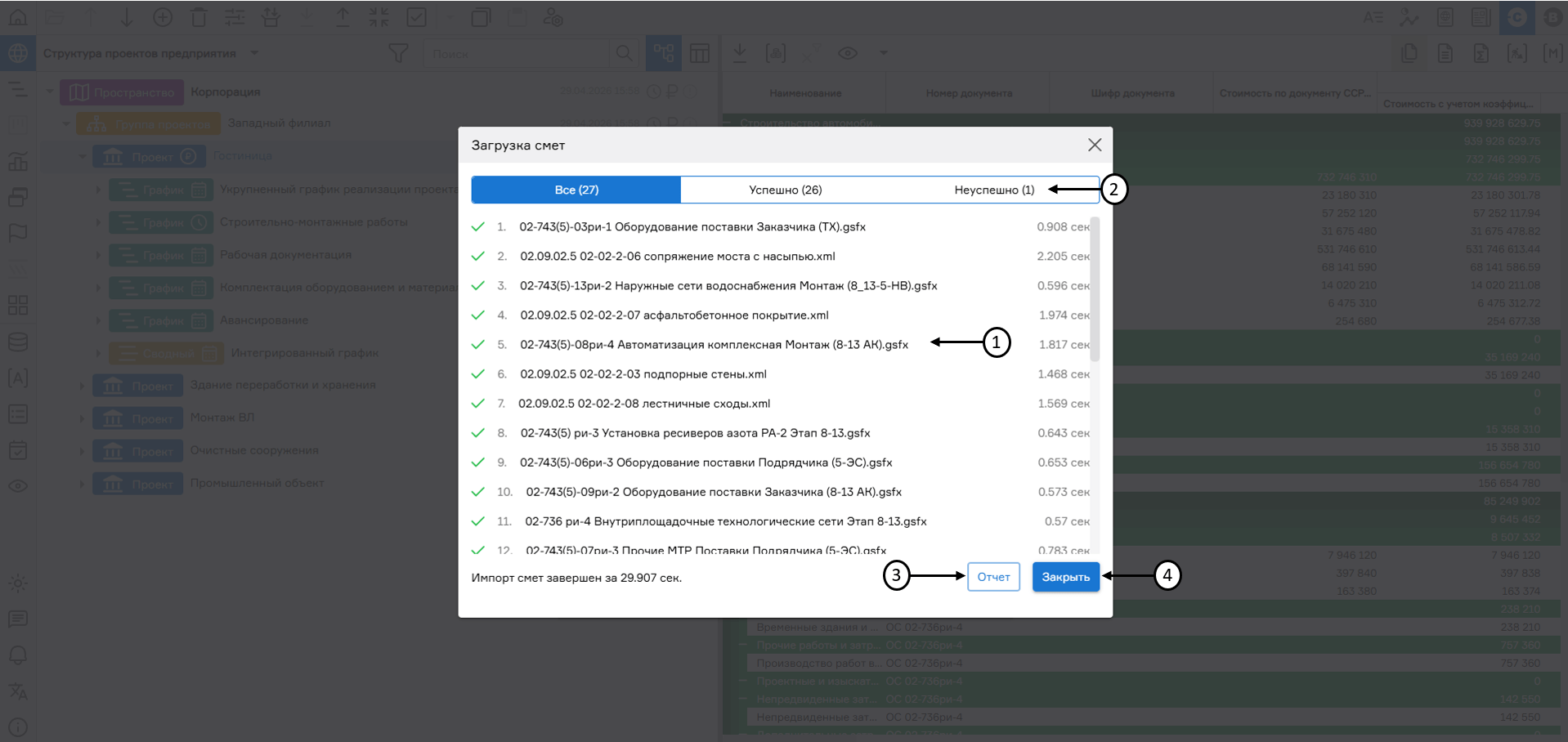 Estimate Upload Window
To delete source data, click "Delete" (1) or "Delete all" (2).
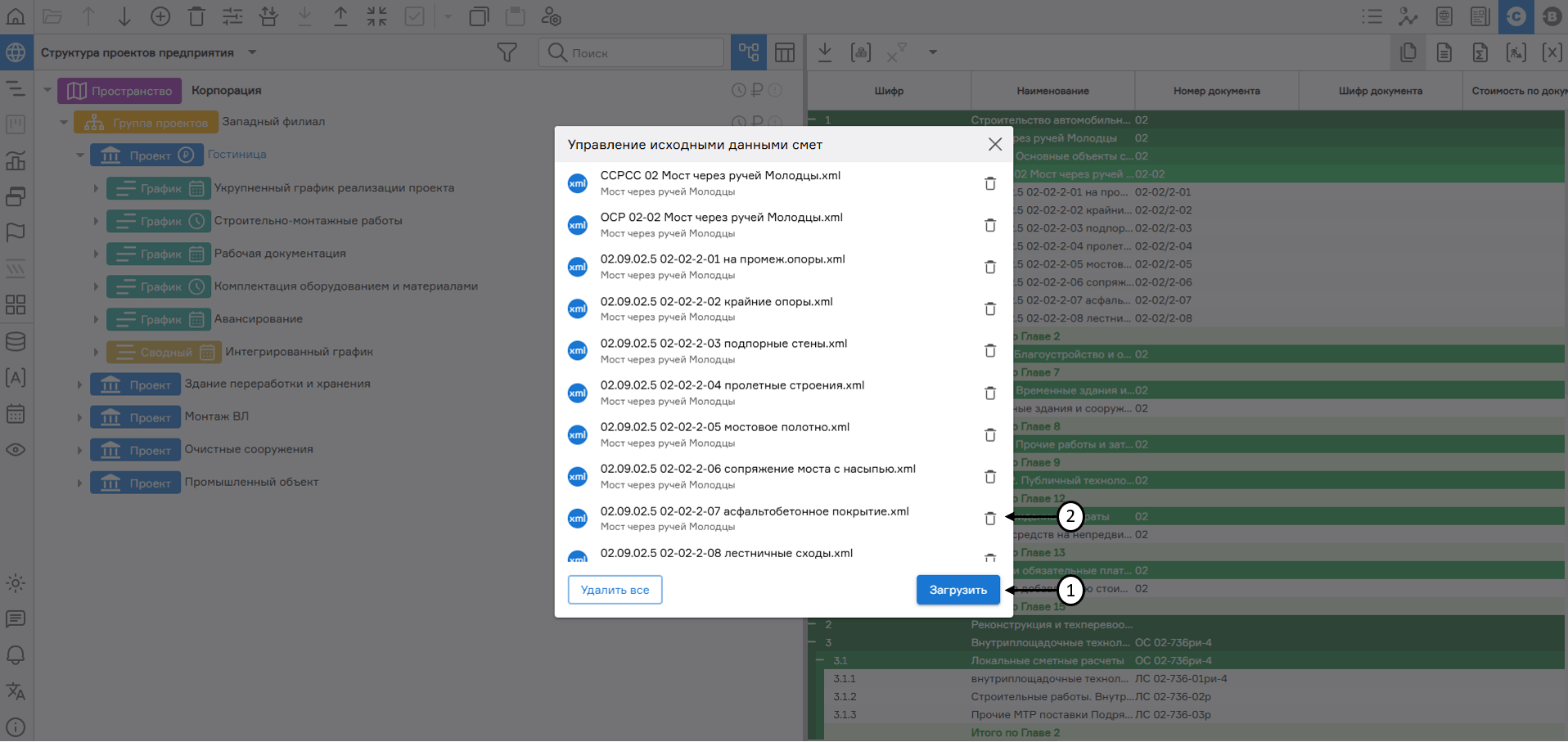 Managing Source Data
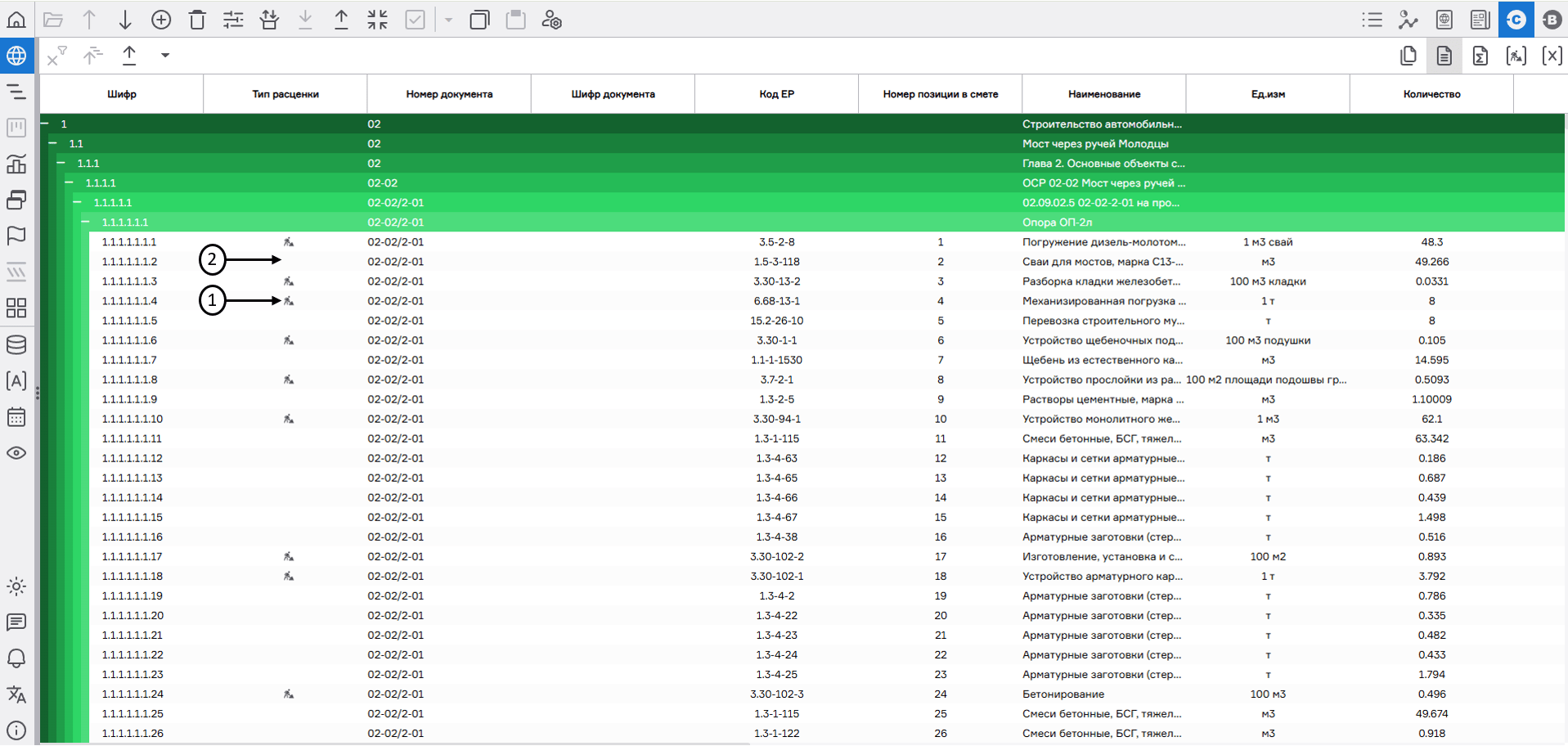
If uploaded estimate files reference object cost estimate (OSR) and/or local cost estimate calculation (LSR) files that have not been imported into COST-R, a warning icon (1) appears in the "Estimate files" table.
You can filter uploaded estimates by any attribute or combination of attributes. Right-click an attribute name and select the required conditions (2). Use the button (3) to clear all filters at once. Click "Views" (4) to configure the columns displayed in the "Estimate files" window.
 Working with Uploaded Estimate Documents
COST-R displays estimated costs at two price levels: base and current, provided that the uploaded documents contain this data.
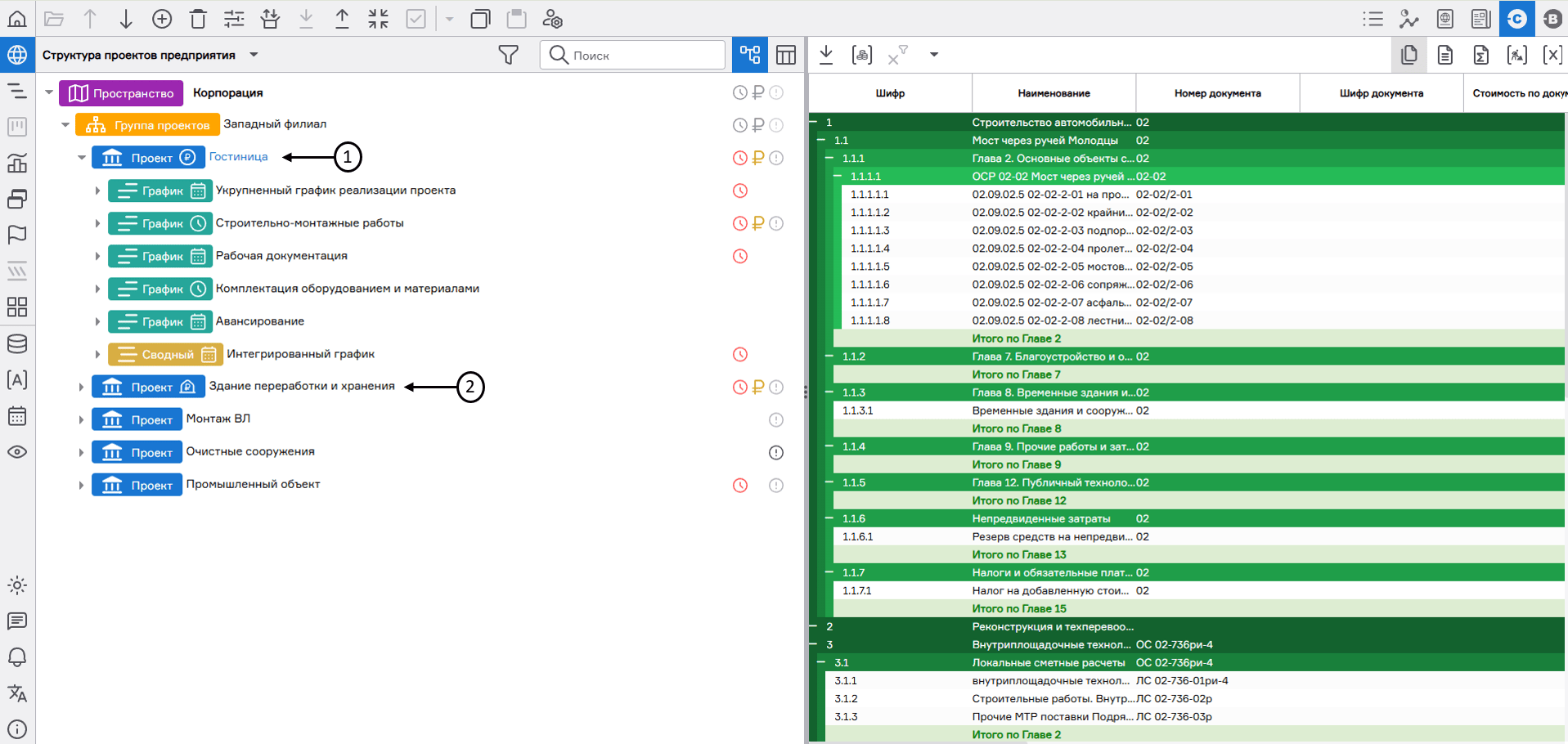 Displaying Current and Base Price Levels in the Project Window Interface
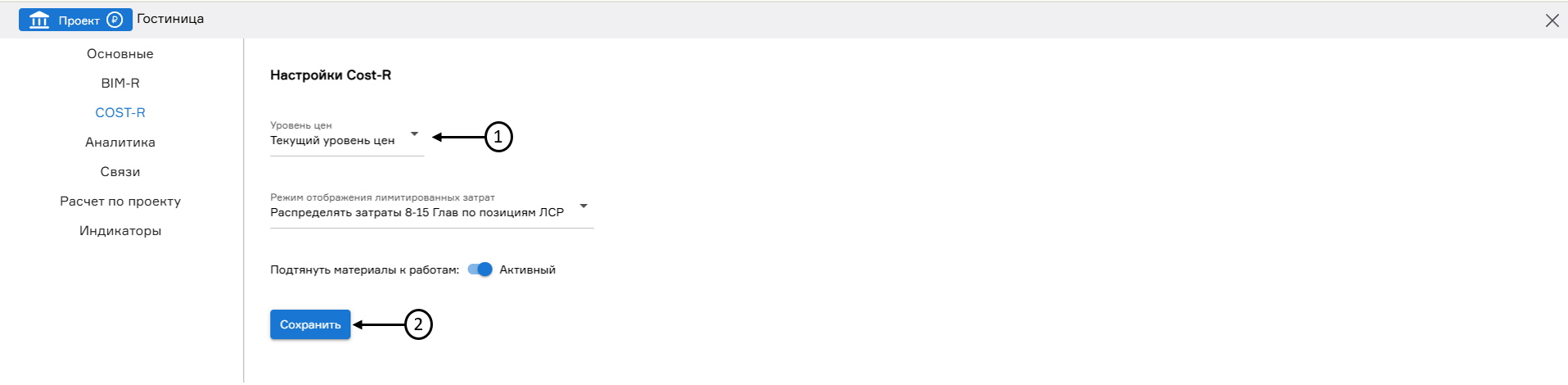
In the "Project" node settings, you can select how limited costs are displayed (1): "Allocate costs of 8-15 Chapters to LSR positions" or "Output costs of 8-15 Heads in rows in the SSR structure".
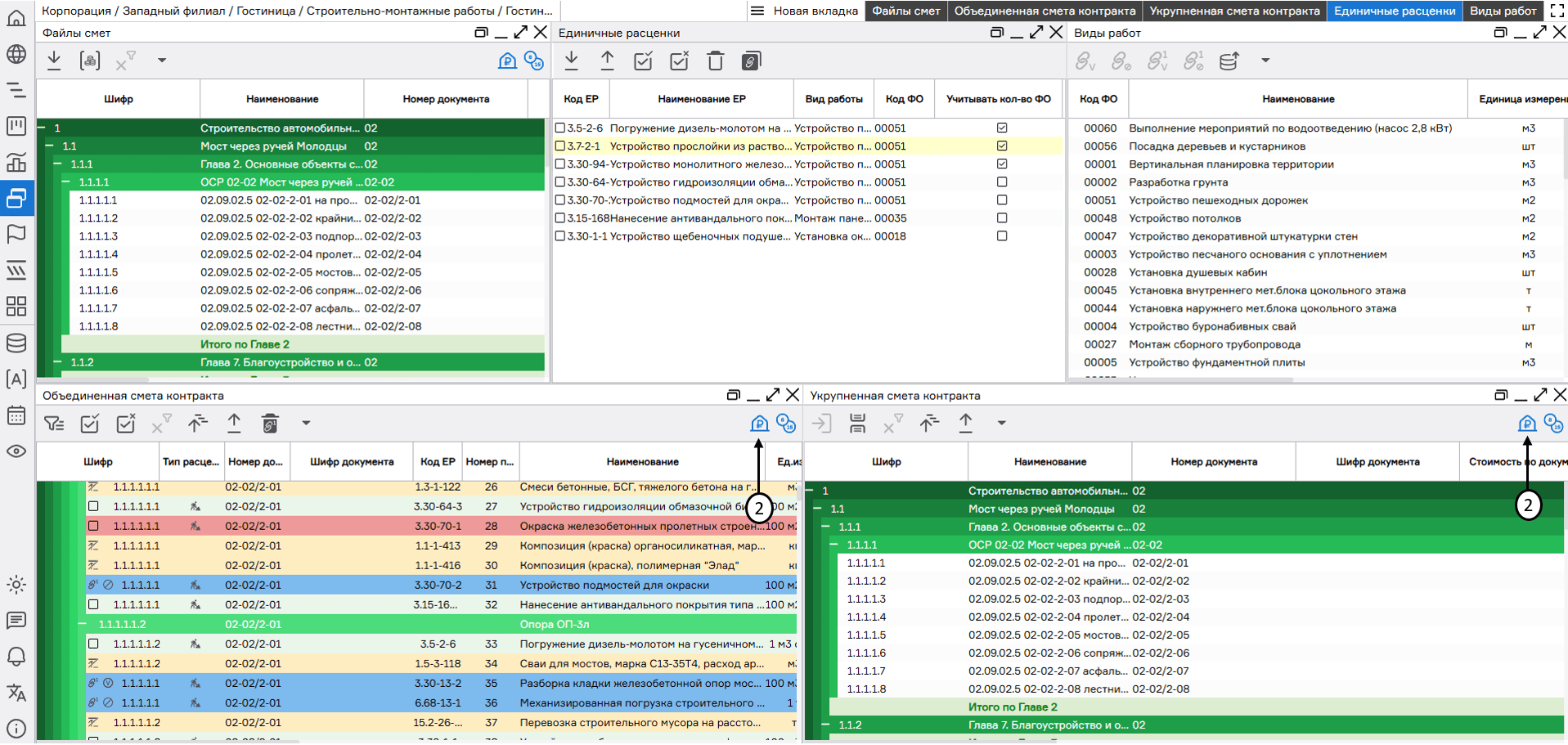 Selecting the Limited Cost Display Mode
If "Allocate costs of 8-15 Chapters to LSR positions" is selected, creating a schedule version from the COE/PDC allocates the costs specified in chapters 8–15 of the summary cost estimate (SSR) to activities corresponding to LSR line items, according to the applicable formulas.
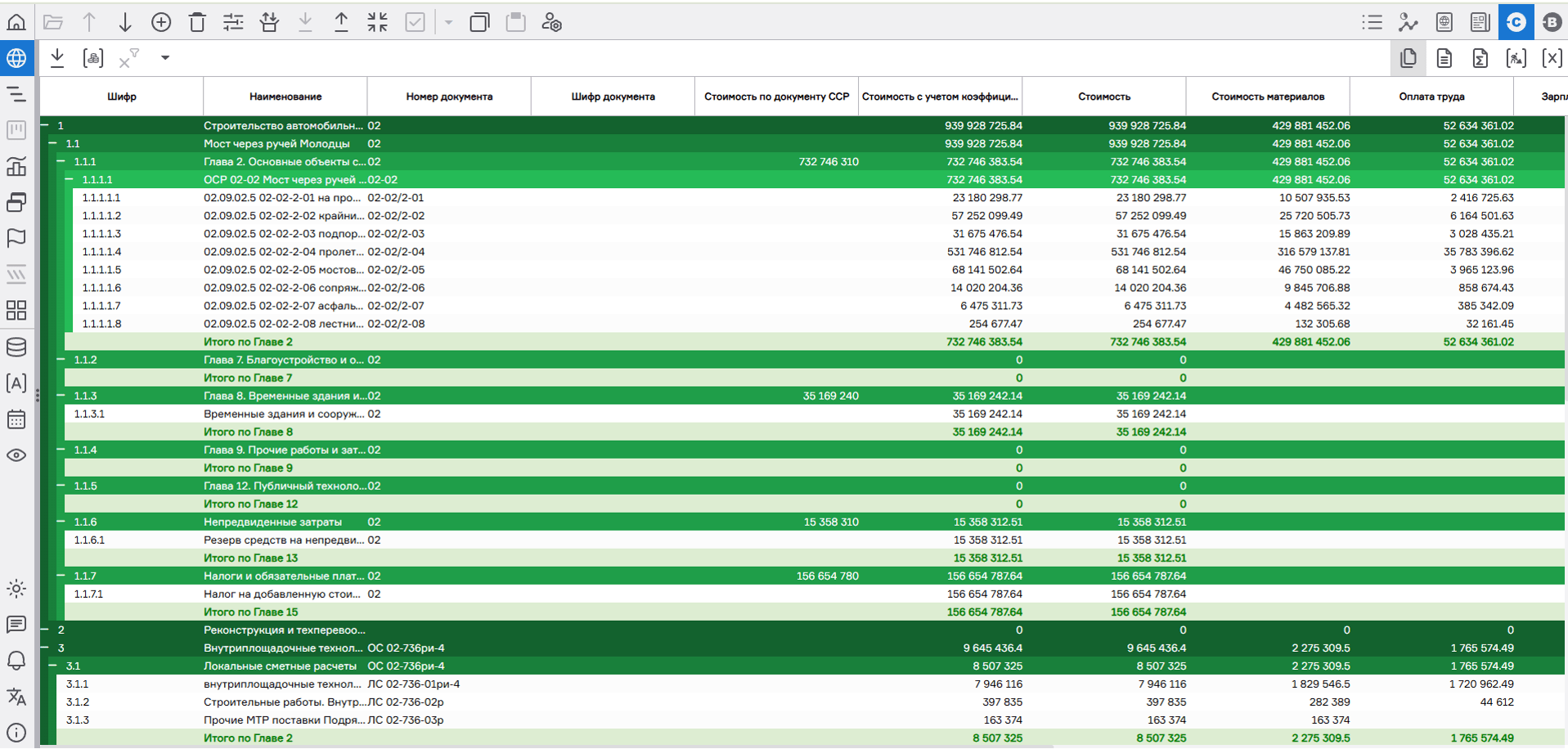 The "Allocate costs of 8-15 Chapters to LSR positions" Mode
If "Output costs of 8-15 Heads in rows in the SSR structure" is selected, creating a schedule version from the COE/PDC displays the costs from chapters 8–15 in the corresponding WBS nodes.
When "Allocate costs of 8-15 Chapters to LSR positions" is selected, a mode indicator appears in the upper-right corner of the COE and PDC (1). A different icon (2) appears when "Output costs of 8-15 Heads in rows in the SSR structure" is selected.
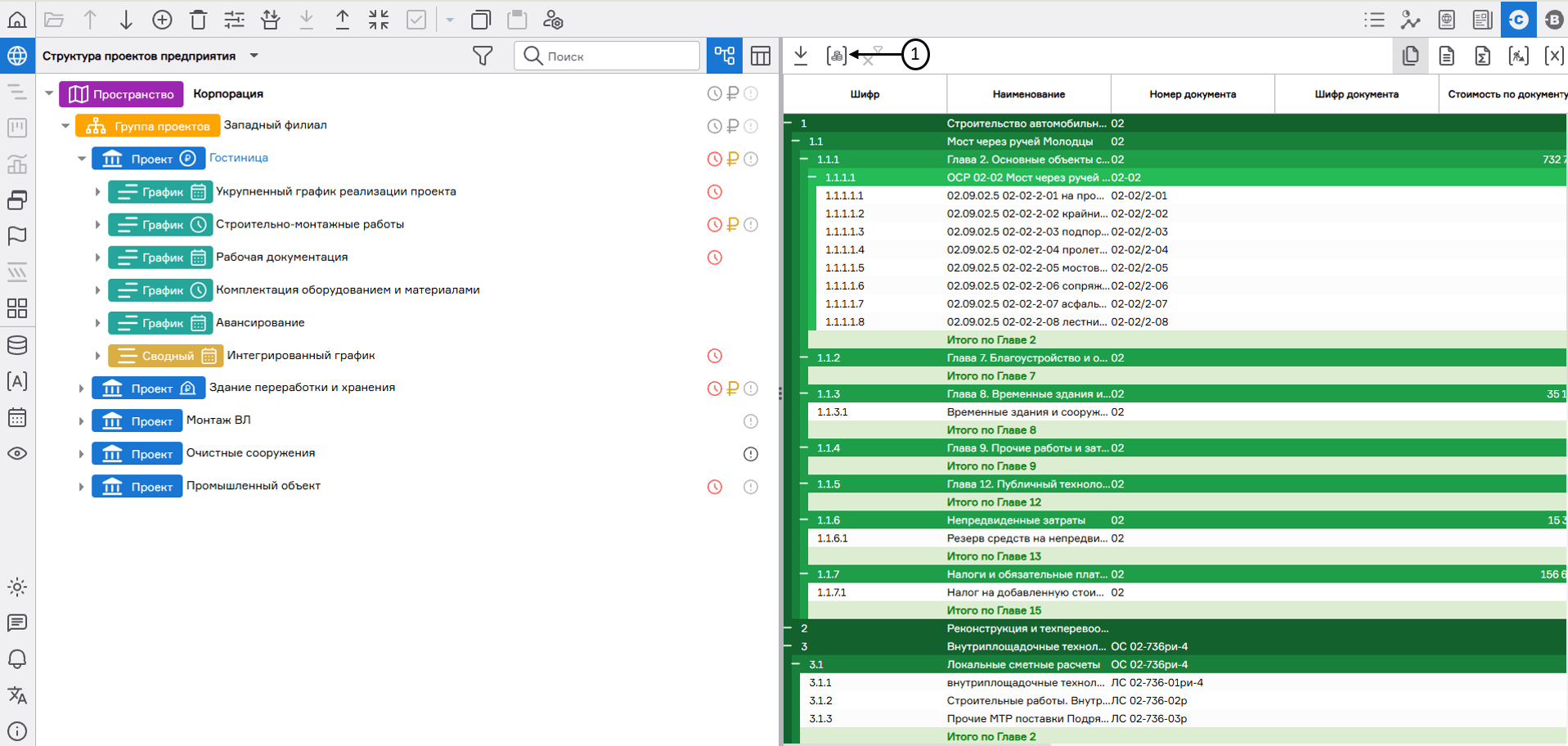 The "Output costs of 8-15 Heads in rows in the SSR structure" Mode
The cost estimate data structure in the "Estimate files" form is based on summary cost estimate chapters and the structure of the uploaded documents. Estimate documents uploaded to COST-R are divided into the following types:
- SSR — summary cost estimate;
- OSR — object cost estimate;
- LSR — local cost estimate calculation;
- LS — local estimate.
 Example Estimate Structure in the "Estimate files" Form
Estimate file settings allow you to assign various cost adjustment coefficients. These coefficients adjust the estimated costs of uploaded estimates. You can assign coefficients to LSR line items according to their cost categories: construction, installation, equipment, and other costs. To open the cost coefficient settings, click "Additional coeffients" (1).
 Additional Coefficients
To create a coefficient, click "Add additional coeffient" (1). In the window that opens, select the LSR line item category to which it should apply (2): "С" — construction work, "М" — installation work, "О" — equipment, "П" — other costs, or "Г" — mining work. You can also select the general category to apply the coefficient to the entire LSR. After selecting the type, enter a coefficient name (3), specify its value (4), and save the changes.
 Adding a New Coefficient
To assign a coefficient to estimates, select the coefficient, select the checkboxes next to the estimates to which it should apply, and click "Assign additional coeffient to selected estimate". Assigned coefficients apply either to LSR line items in the cost categories selected by the user or to the total LSR cost.
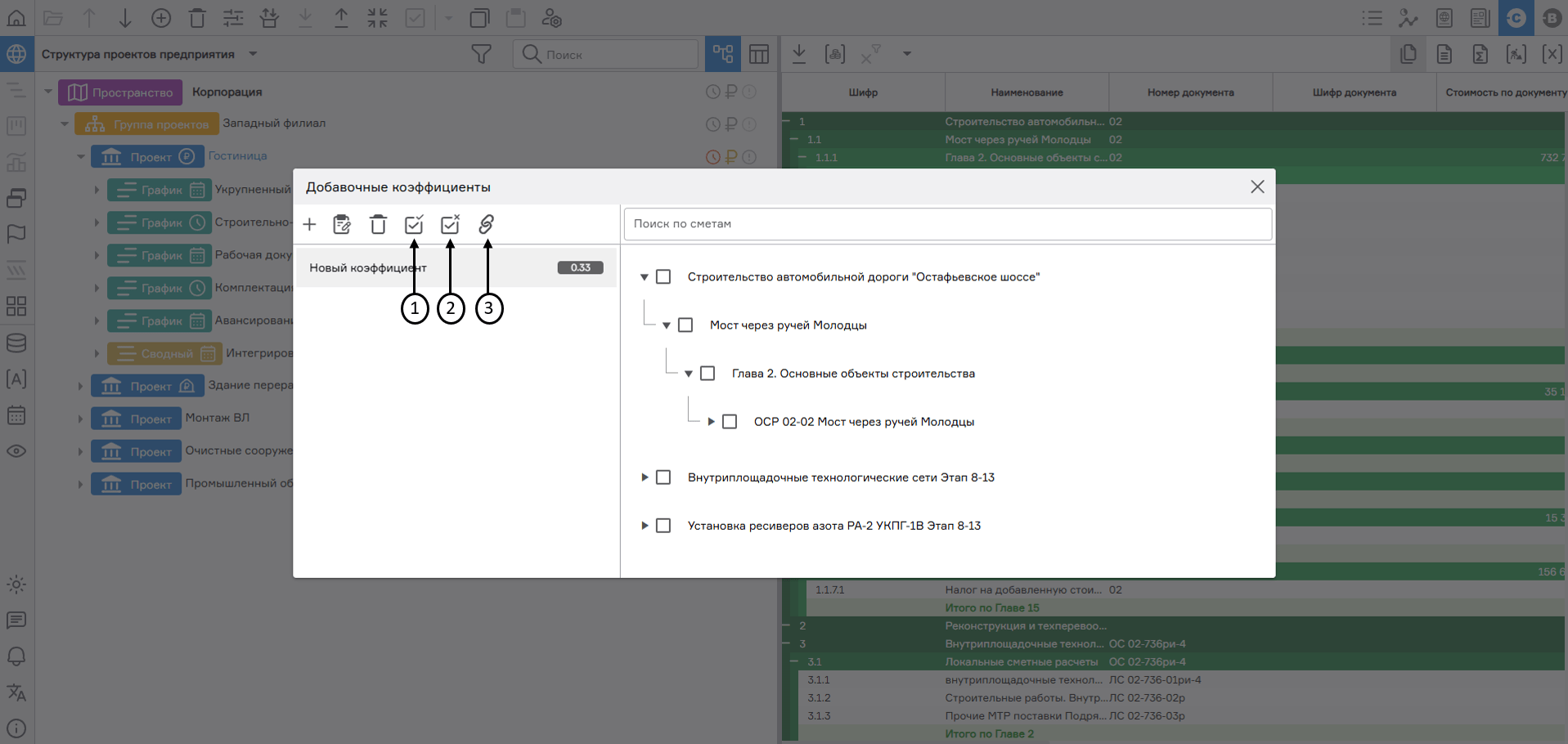
To quickly clear (1) or select (2) estimate checkboxes, left-click the corresponding buttons.
Attention! The coefficient is assigned to an estimate and calculated only after you click "Assign additional coeffient to selected estimate" (3).
 Configuring and Calculating Coefficients
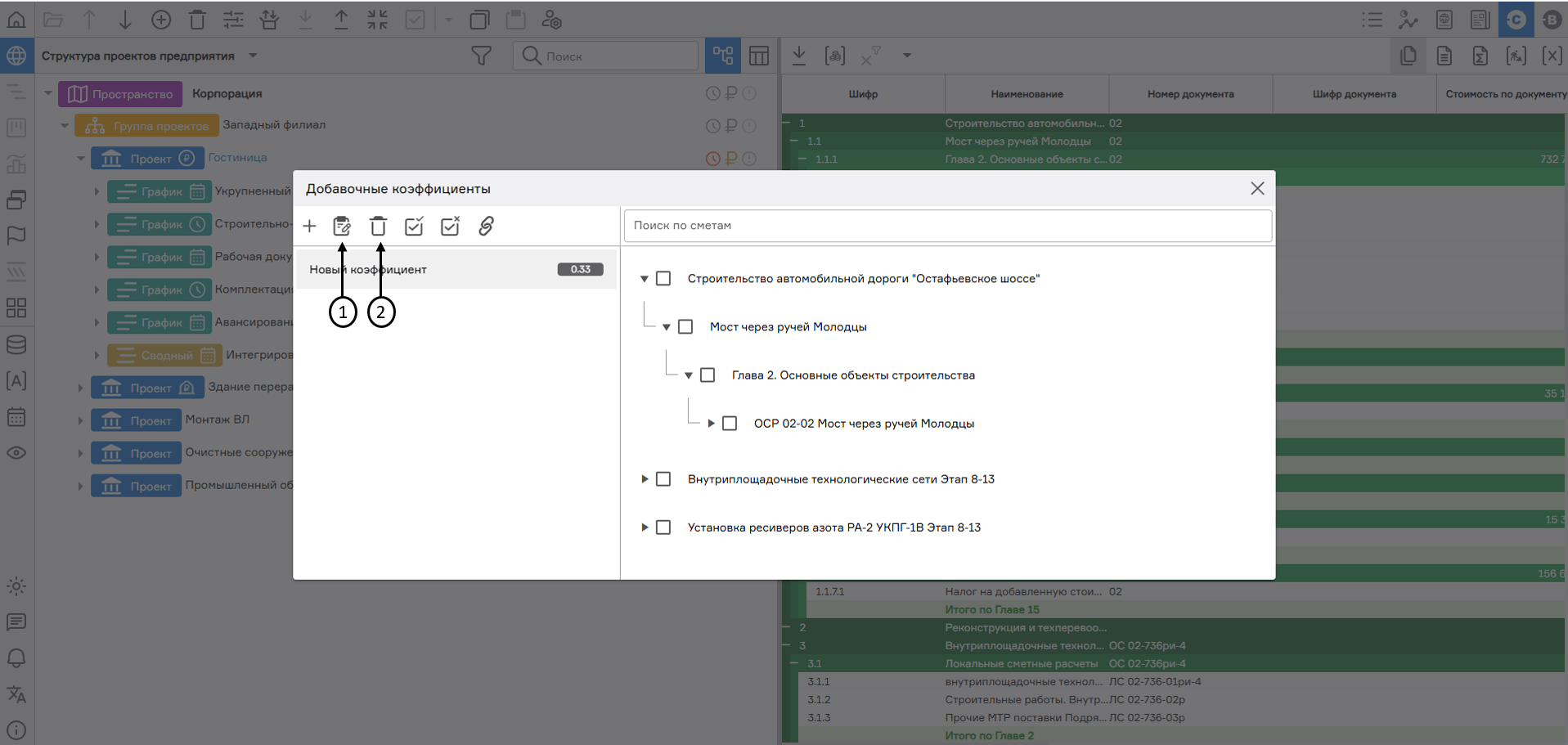
To modify a coefficient, select it and click "Edit additional coeffient" (1). To apply the new value to the LSR, assign the coefficient again. To delete a coefficient, select it and click "Delete" (2).
 Editing Coefficients
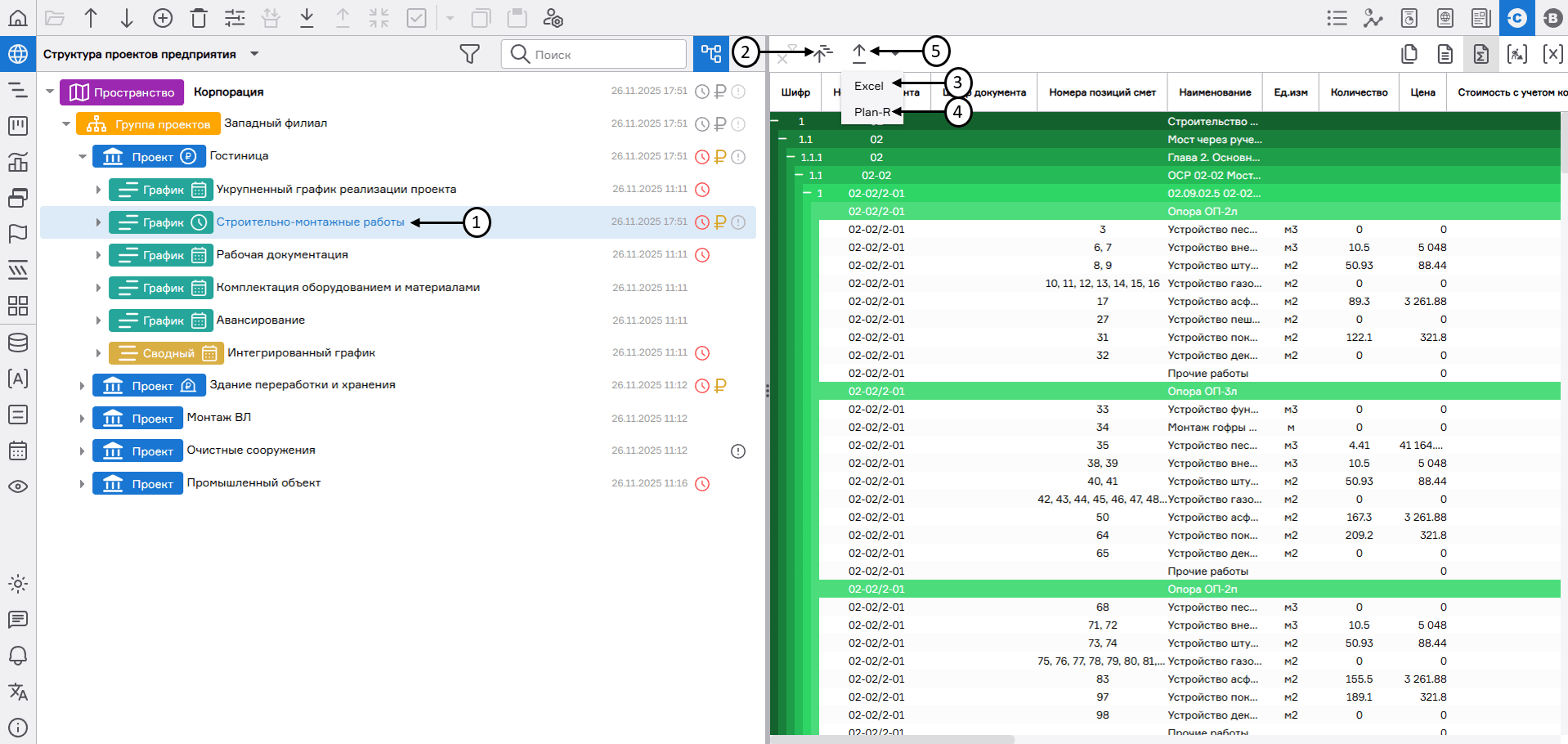
The cost of an LSR line item, including assigned coefficients, is displayed in the "Cost with additionaly coefficients" column.