ACTIVE DIRECTORY INTEGRATION
For use in large corporate environments, PLAN-R supports integration with Active Directory to synchronize user, administrator, and security curator accounts with domain controllers deployed within your organization. Synchronization can be performed manually or automatically at specified intervals. Configuring the integration requires basic knowledge of the LDAP directory structure and AD operation.
To manage domain connections, open the Active Directory section (1). To do this, select the required space and click Details in the Actions column.
 Spaces. Details
In this section, you can add connections (2), synchronize accounts (3), exclude specific users from synchronization (4), copy connections (5), delete connections to your enterprise domains (6), and test a domain connection (7).
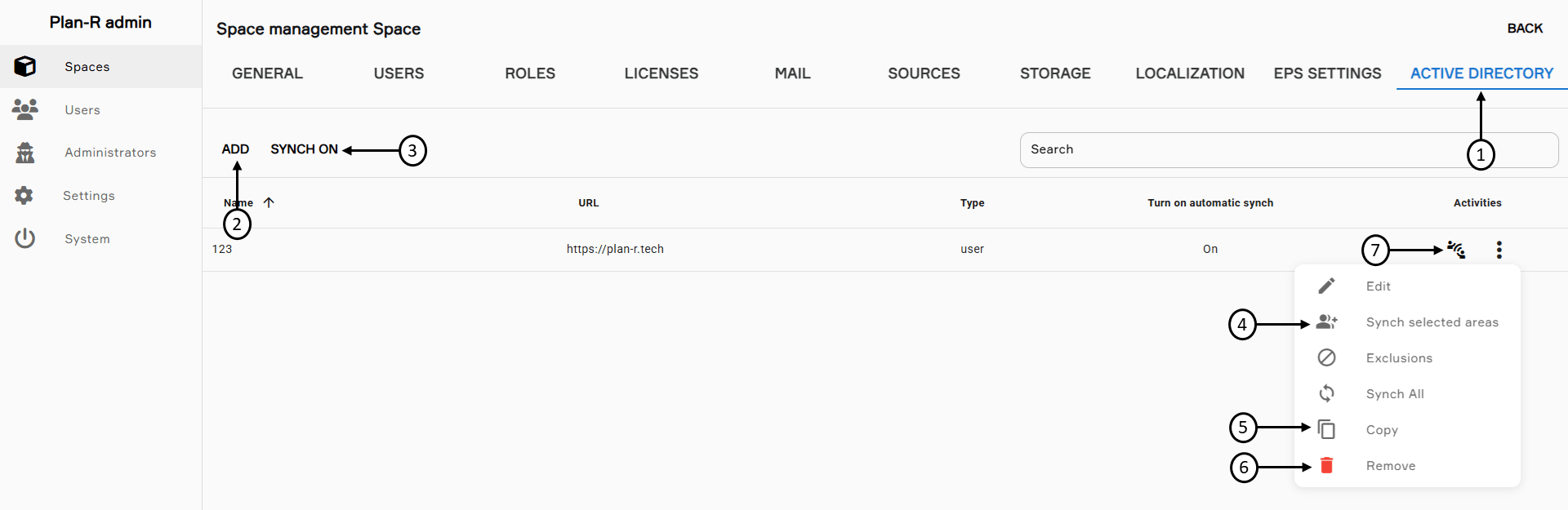 Domain connection settings
To edit a connection, double-click its row in the table. A form opens with the domain connection details, which you can edit.
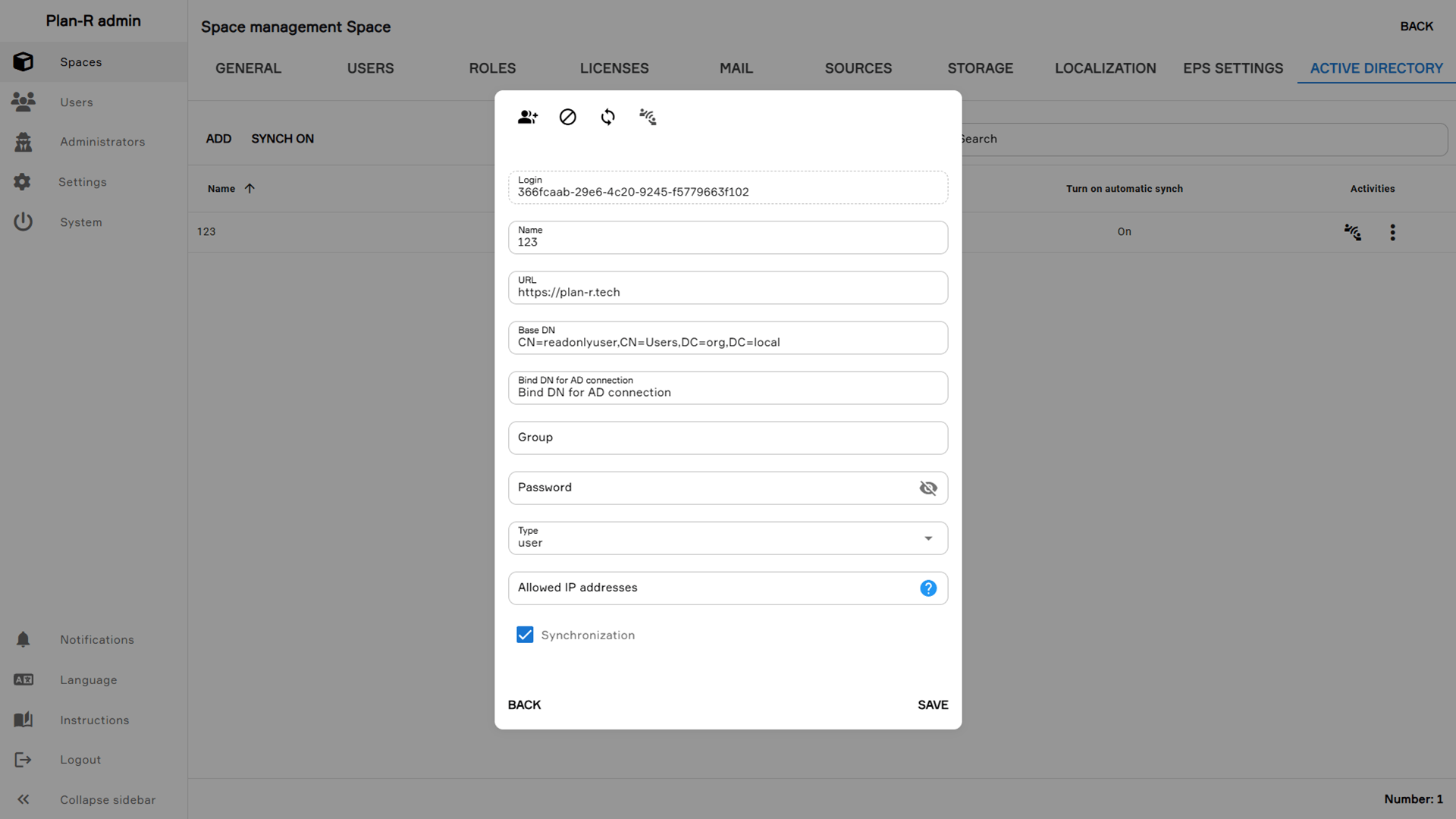 Editing domain connection details
Creating an Active Directory Connection
To add a connection to an enterprise domain, open the Active Directory section (1) and click Add (2). A dialog opens with a form for adding a domain connection.
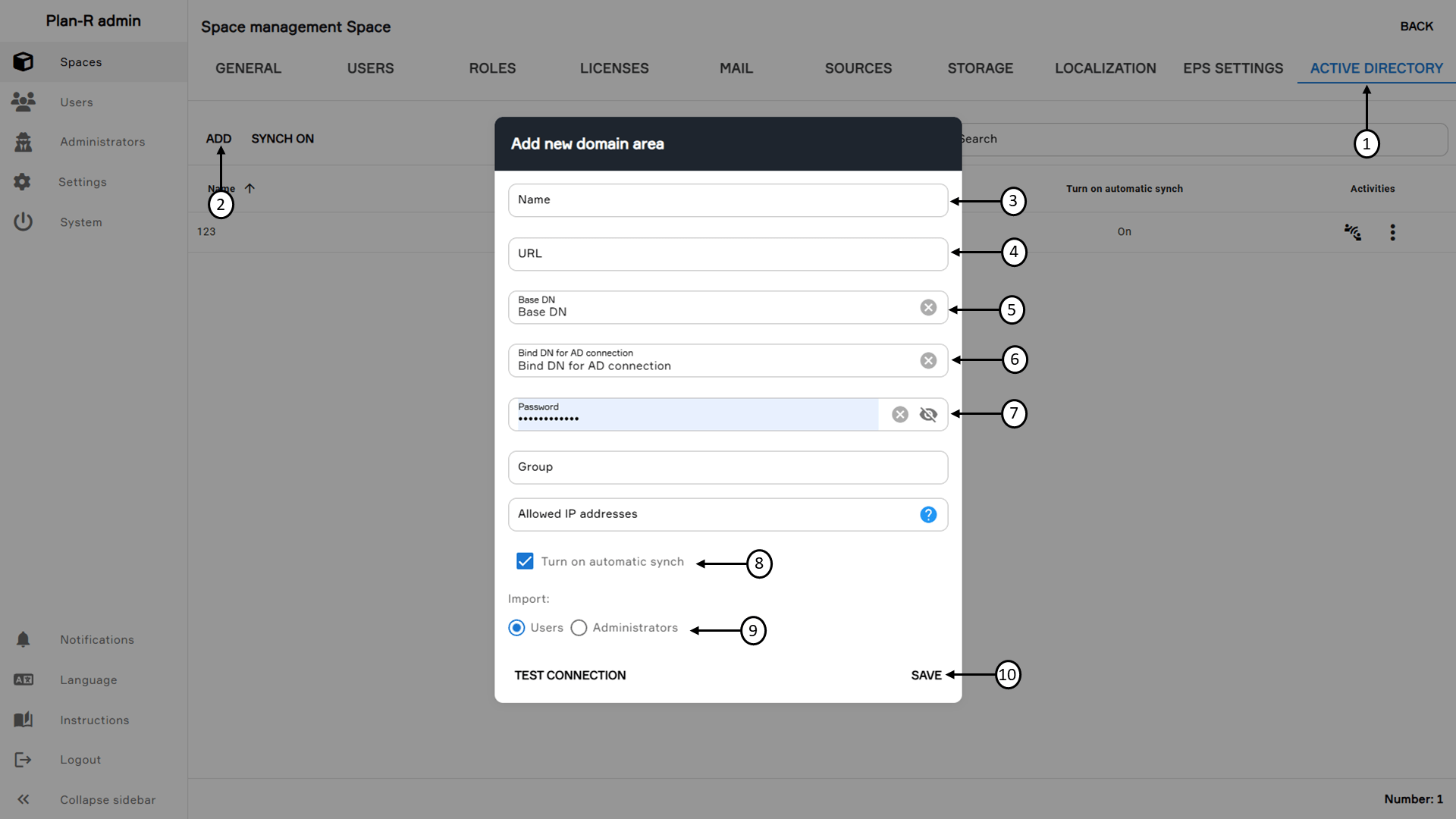 Add domain connection dialog
In the form, enter the name (3), Active Directory server address (4), base DN (5), DN of a service account with read permissions (6), and service account password (7). Optionally, specify the DN of the domain user group to synchronize. If no group DN is specified, synchronization starts at the base DN and proceeds recursively down the LDAP directory tree. To enable automatic synchronization for this connection, select the Enable automatic synchronization checkbox (8). Select the PLAN-R user type (9). Click Save (10) to add the domain connection.
Table 1. Active Directory Domain Connection Parameters
| Field name | Field type | Description | Example |
|---|---|---|---|
| Name | Text | Name of the AD domain connection | Main domain |
| Server address | Text | AD server address. The connection uses the encrypted LDAPS protocol. | ldaps://domain-ad.org.local |
| Base DN | Text | Root DN for the connection | DC=org,DC=local |
| Connection DN | Text | DN of the service account used for the connection | CN=readonlyuser,CN=Users,DC=org,DC=local |
| Password | Text | Service account password | The password is stored encrypted using AES 256. |
| Group | Text | DN of the domain group whose users will be synchronized. If no group is specified, the user search starts at the root DN. | CN=Managers,CN=Users,DC=org,DC=local |
| Account type | Selection | Account type for importing users from Active Directory into PLAN-R. Available values: User, Administrator. |
Attention! Starting with PLAN-R 602.2, configuring an Active Directory connection requires adding the root certificate to the system or disabling certificate validation. Follow the instructions in Adding a Root Certificate to PLAN-R.
To test the connection, click Test connection (1). Click OK (2) to close the connection test dialog.
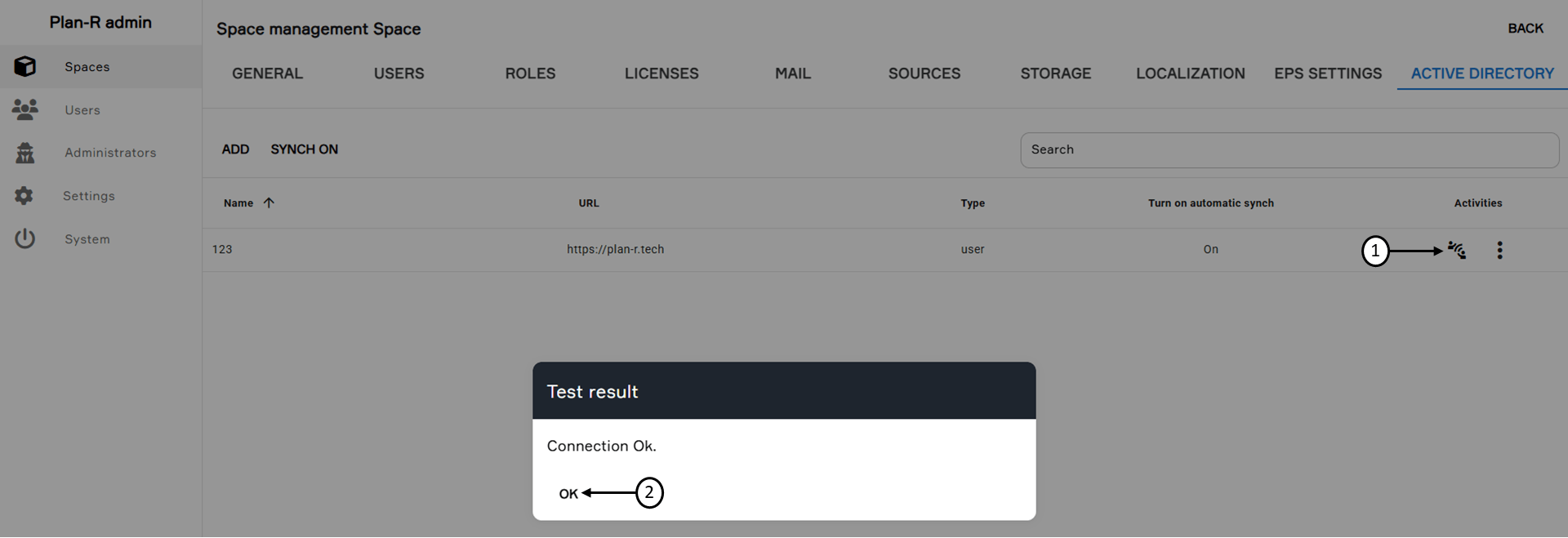 Connection test
If the root certificate has not been added to the system and certificate validation has not been disabled, Test connection returns an error:
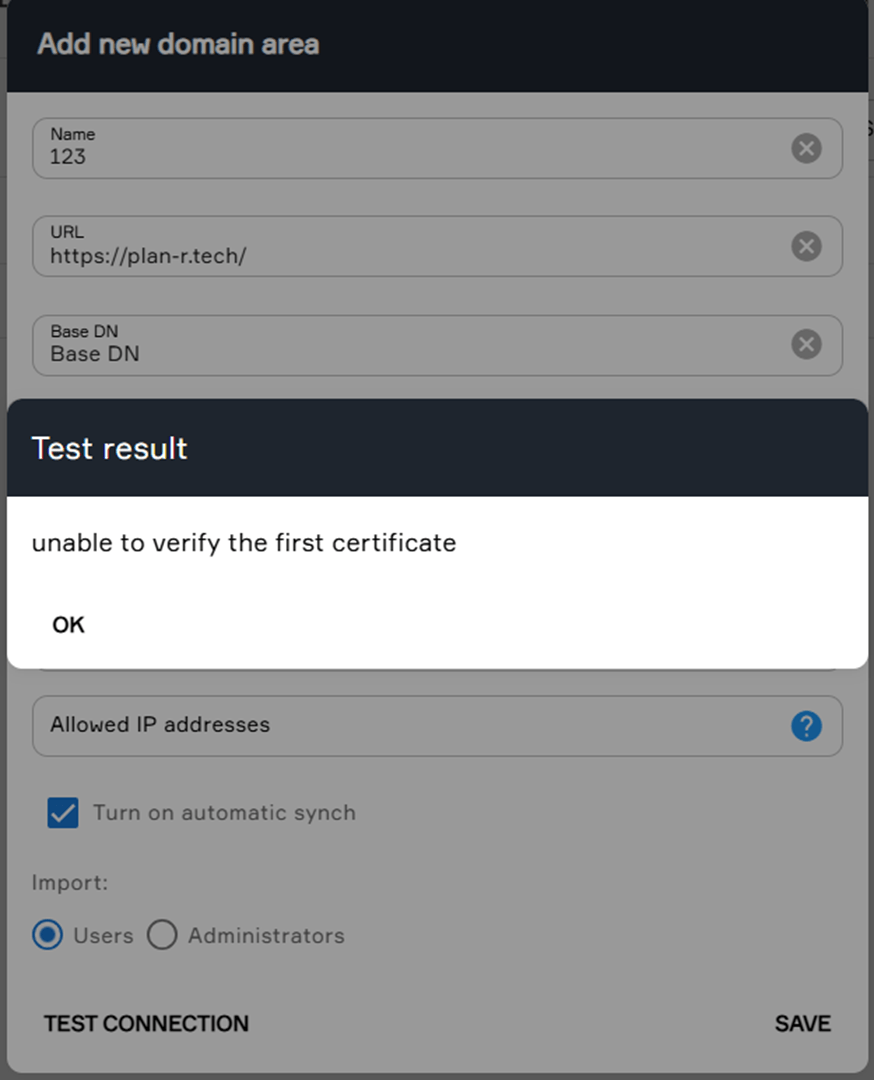 Connection test. Error
The number of connections is unlimited. To reduce synchronization time, avoid configuring connections with a large number of users in an LDAP group, as retrieving user data from the directory can take significantly longer.
Synchronization
The subsystem supports manual and automatic (scheduled) synchronization of user, administrator, and information security curator account data with multiple Active Directory domains based on membership in the corresponding AD security groups, with support for a one-to-many relationship. Each PLAN-R user category can be mapped to one or more AD groups and all their nested child groups. Accounts are synchronized recursively for all security groups included in the group specified in the connection settings.
Account synchronization is performed separately for each configured connection according to its settings.
PLAN-R checks whether an account exists using the unique user identifier (SID), represented by the required LDAP attribute userPrincipalName. If a user belongs to the AD group specified in the connection settings, has not been imported previously, and is not on the exclusion list, their account is added to PLAN-R. If the user has already been imported, their attributes are synchronized with the attribute values in AD.
Table 2. LDAP Attribute Synchronization Matrix
| LDAP attribute | User attribute | Comment |
|---|---|---|
| userPrincipalName | login | Field used to match accounts when synchronizing attributes |
| givenName | firstName | First name |
| sn | lastName | Last name |
| initials | secondName | Middle name |
| displayName | displayName | Display name |
| userAccountControl | state | User status: active – active, block – blocked |
| telephoneNumber | telephone | Phone |
| title | title | Job title |
| department | department | Department |
| company | company | Organization |
Enabling and Disabling Automatic Synchronization for All Connections
To enable synchronization for all connections, open the Active Directory section (1) and click Enable synchronization (2). In the dialog that opens, enter a string in crontab format (3) and click Continue (4).
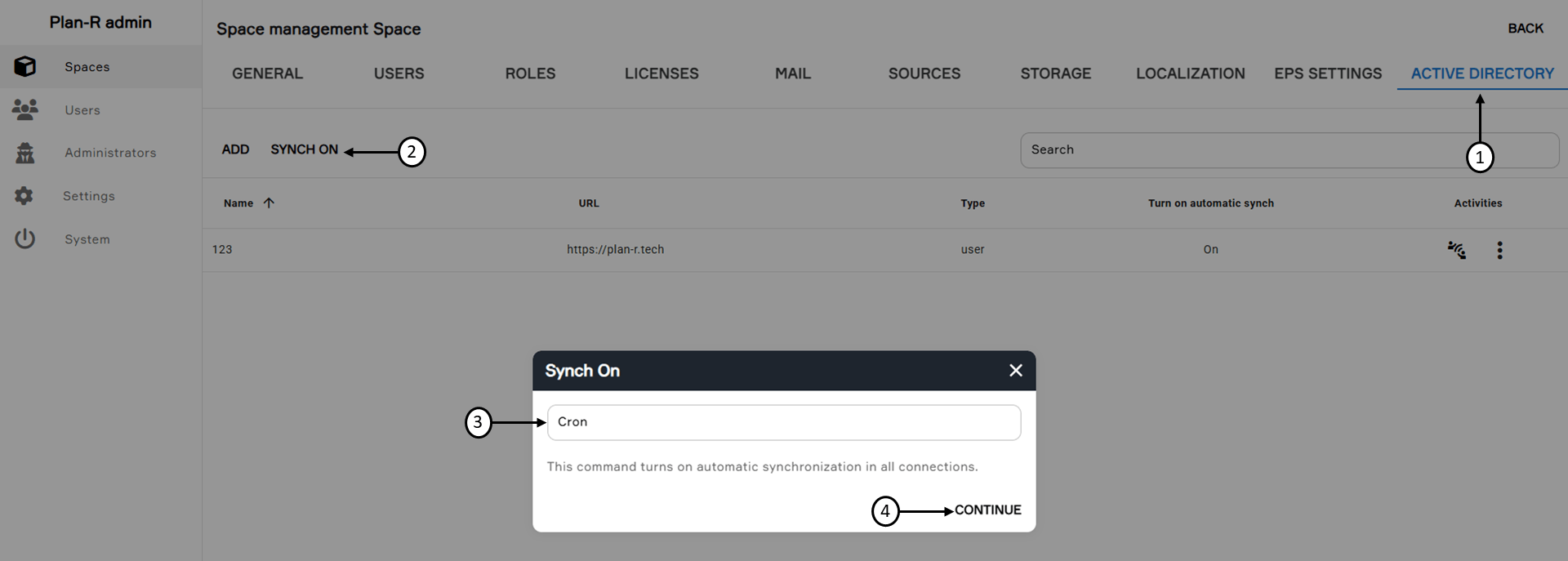 Enable synchronization dialog
To disable synchronization for all connections, open the Active Directory section (1) and click Disable synchronization (2). In the dialog that opens, click Continue (3).
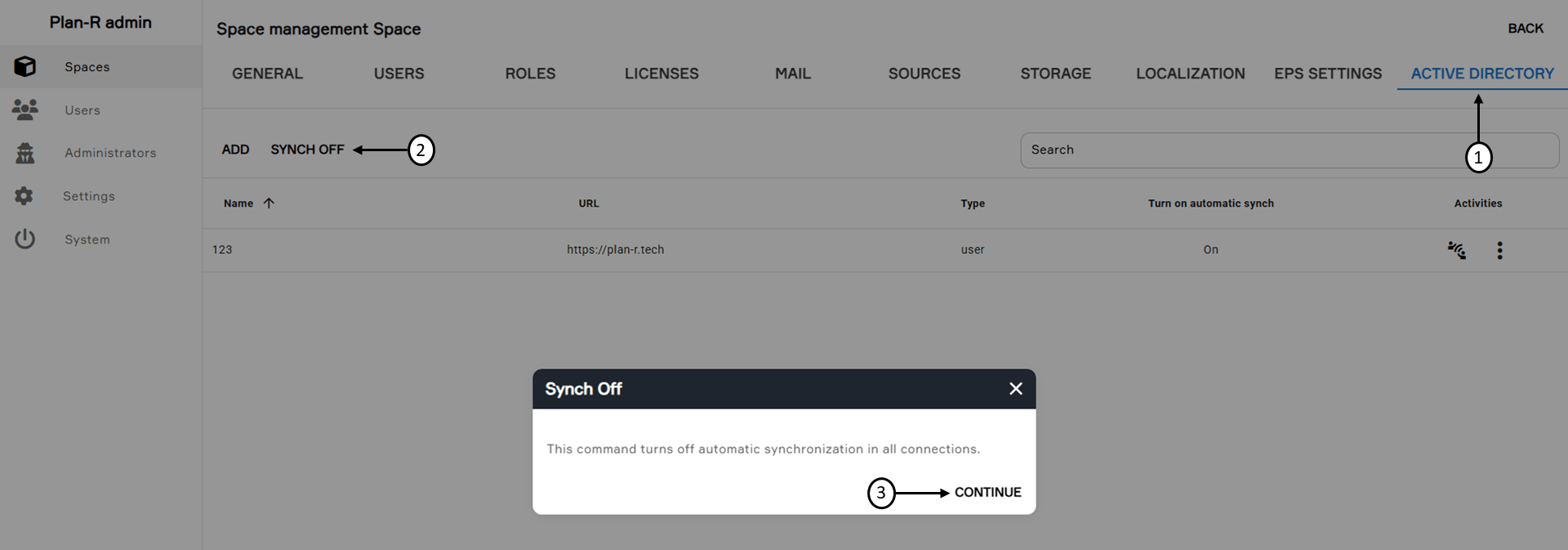 Disable synchronization dialog
Synchronizing Selected Users
Use this option to synchronize specific selected users, excluding users on the exclusion list.
In the Active Directory section (1), select a domain connection (2), open its menu by clicking ⋮ (3), and select Synchronize selected (4).
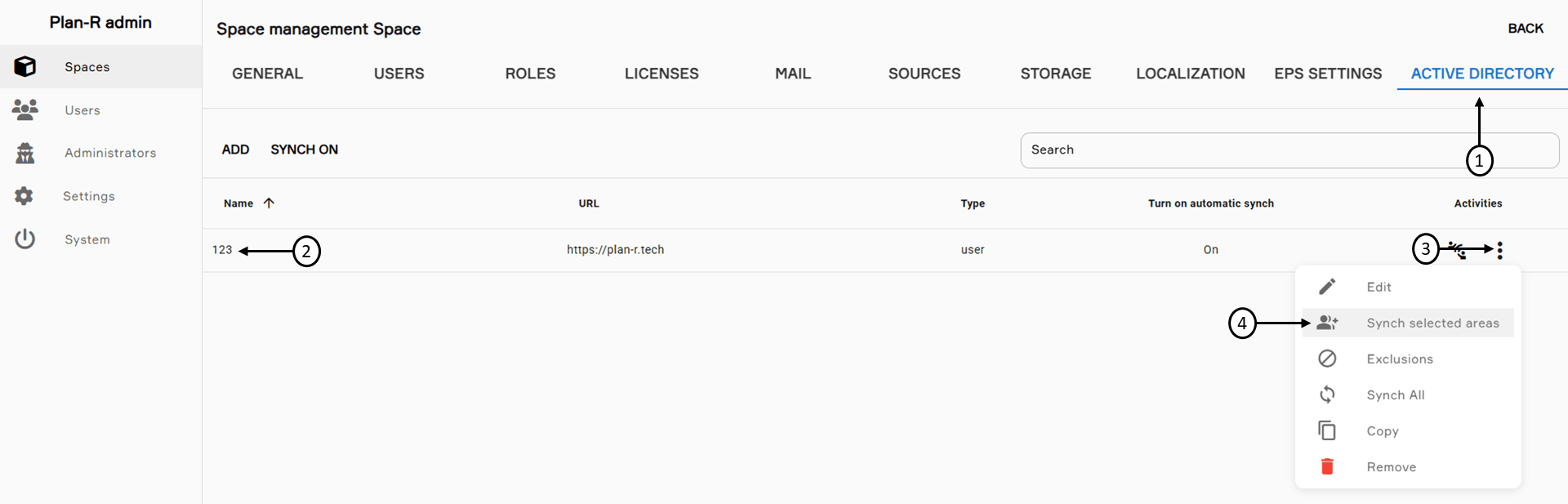 Synchronizing selected users
A user selection form opens, displaying LDAP users and their attributes.
Select the checkboxes for the users (1) you want to synchronize. Click Synchronize (2) in the upper-right corner of the screen. If a selected user is not registered in PLAN-R, a new user is created. If the user already exists, their attribute values are replaced with the values retrieved from LDAP. In the dialog that opens, click Apply (3).
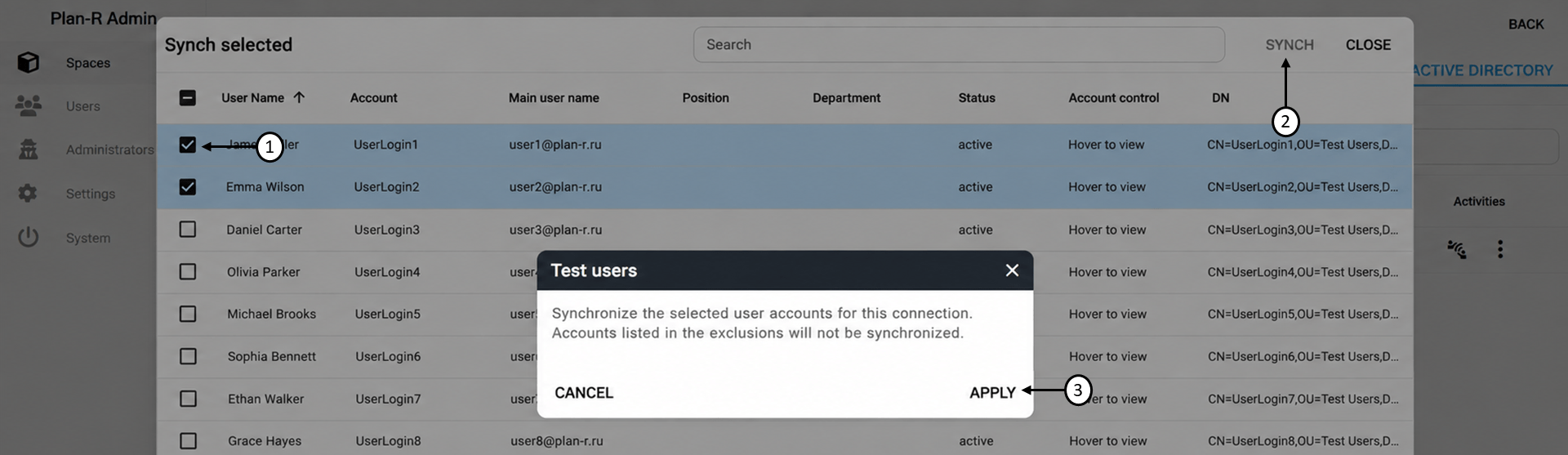 Selected user synchronization dialog
Excluding Users
To exclude users from automatic synchronization, open the Active Directory section (1), select a domain connection (2), open its menu by clicking ⋮, and select Exclusions (3). In the form that opens, select the checkboxes for the required users (4) and click Save (5). In the dialog that follows, click Apply. Selected users who are not registered in PLAN-R will not be added. For users who are already registered, changes made in the LDAP directory, including account blocking, will not be applied.
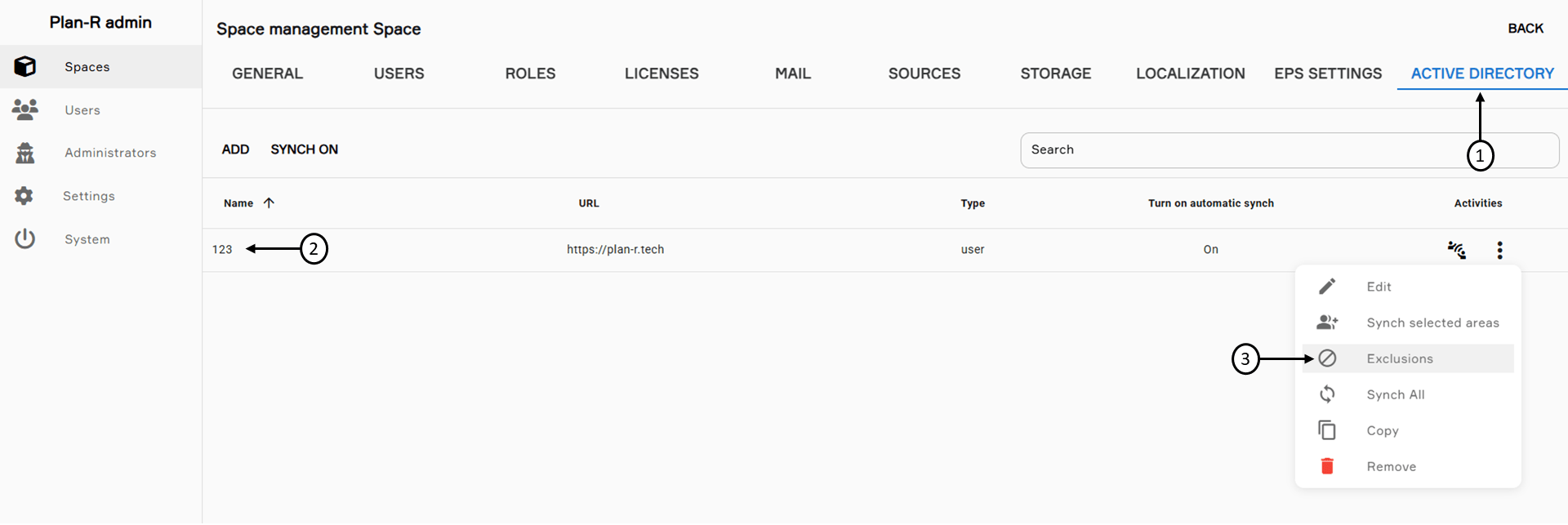 Excluding users
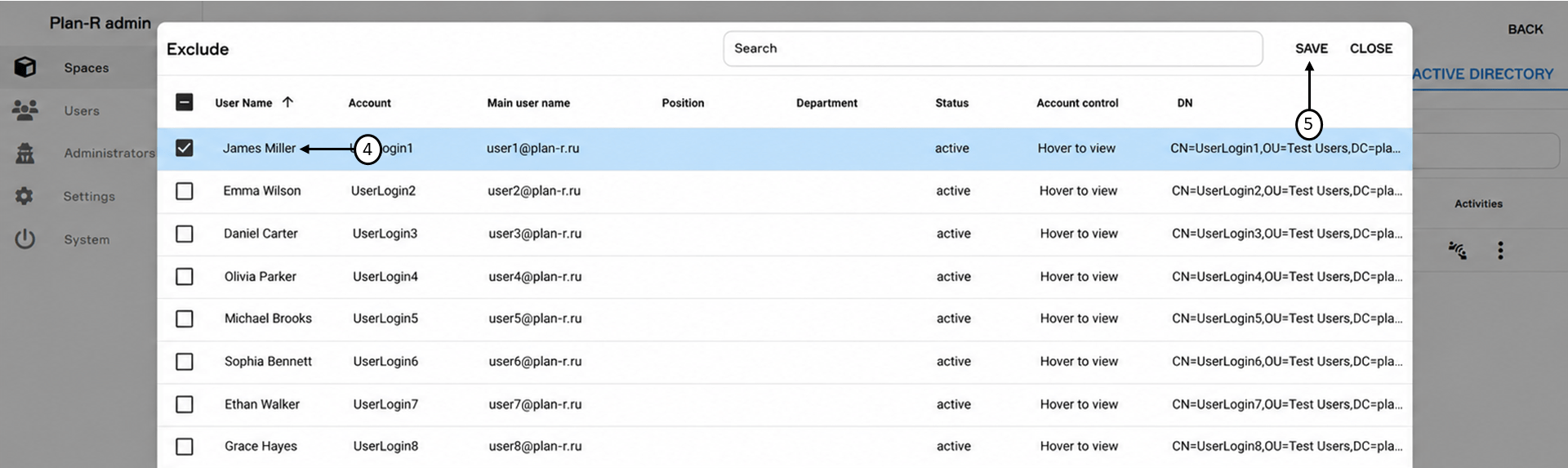 Excluding users
Synchronizing All Users
To synchronize all domain users except those on the exclusion list, open the Active Directory section (1), select a domain connection (2), open its menu by clicking ⋮ (3), and select Synchronize all. In the form that opens, confirm the action (4) and click Continue (5).
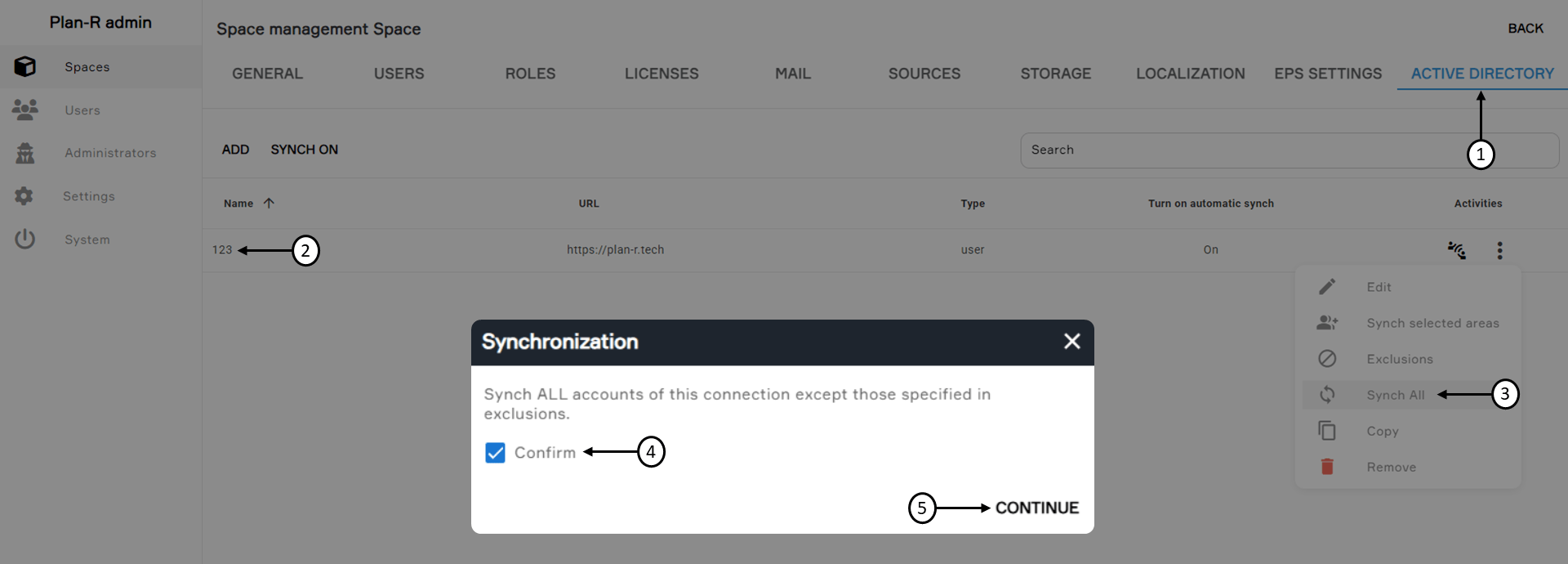 Synchronizing all users
If a selected user is not registered in PLAN-R, a new user is created. If the user already exists, their attribute values are replaced with the values retrieved from LDAP. If a user has been deleted from LDAP, their account is blocked.
Copying a Domain Connection
To copy a connection, open the Active Directory section (1), select a domain connection (2), open its menu by clicking ⋮ (3), and select Copy. Enter a name for the new domain connection (4) and click OK (5).
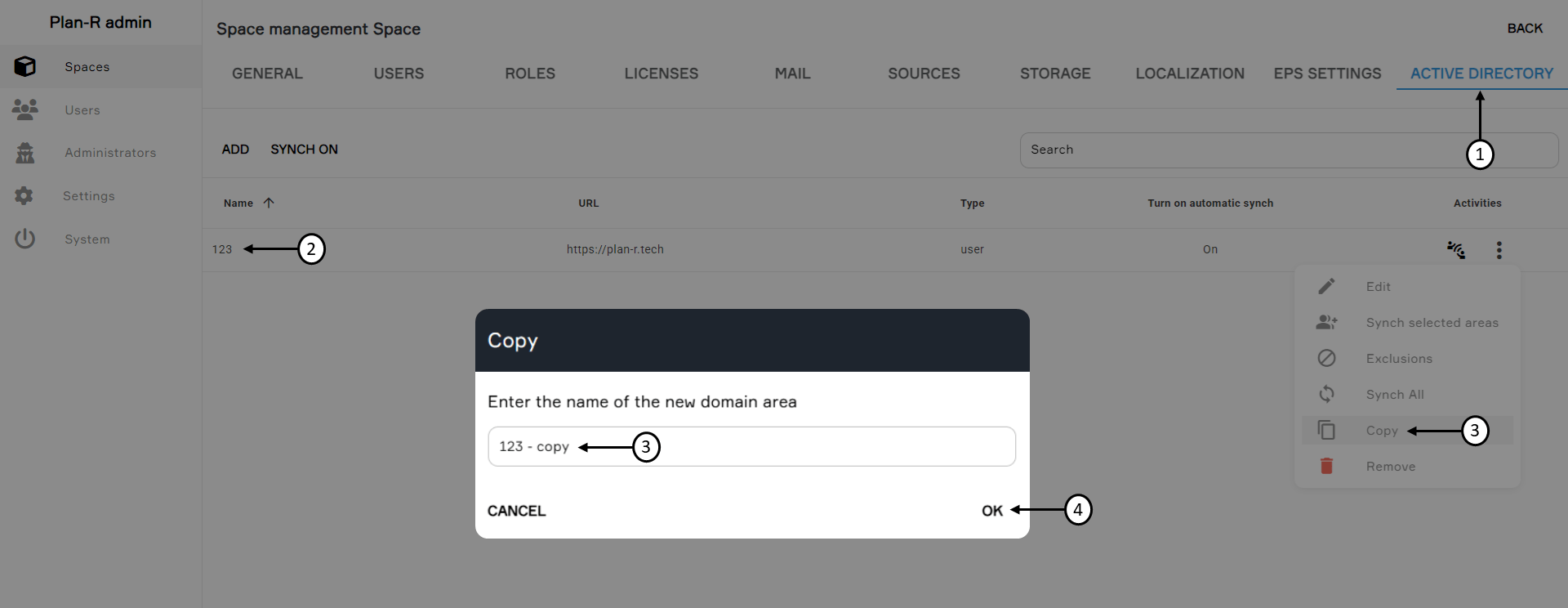 Copying a domain connection
Deleting an Active Directory Connection
To delete a connection, open the Active Directory tab (1), select a domain connection (2), open its menu by clicking ⋮ (3), and select Delete connection (4).
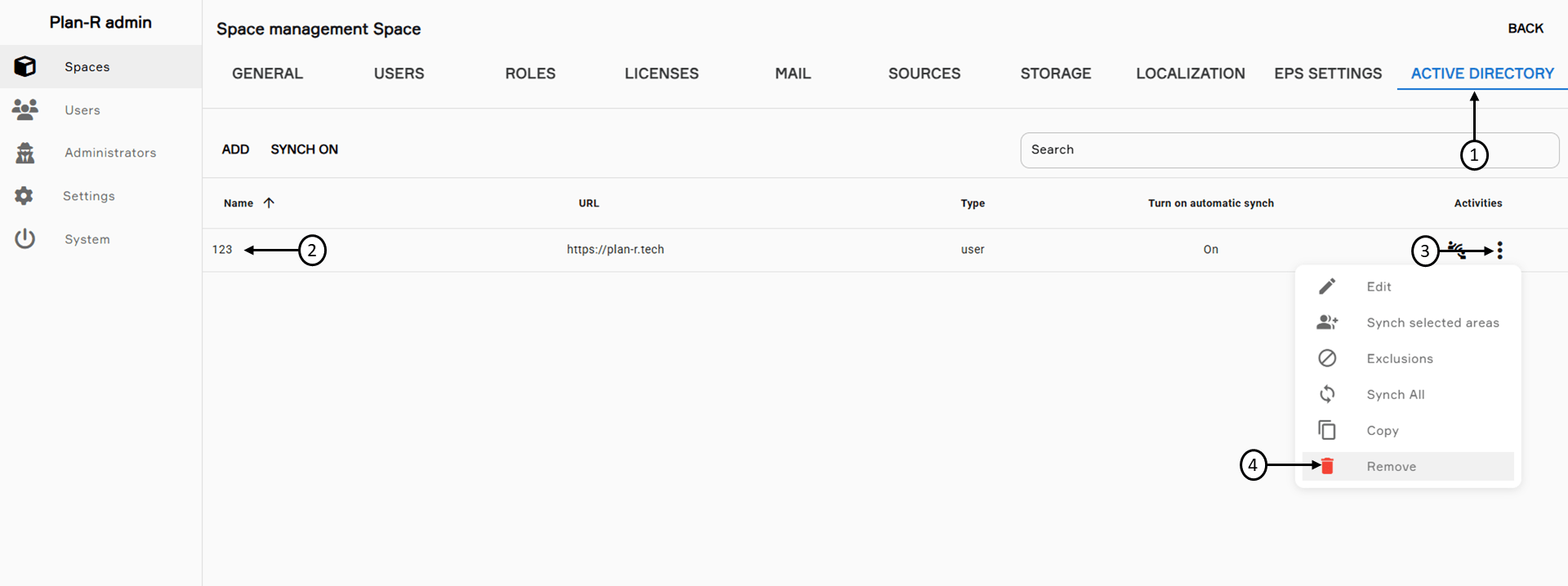 Deleting an Active Directory connection
In the dialog that opens, confirm the deletion. Once the connection is deleted, accounts associated with it will no longer be synchronized, and authentication using these accounts will no longer be possible.
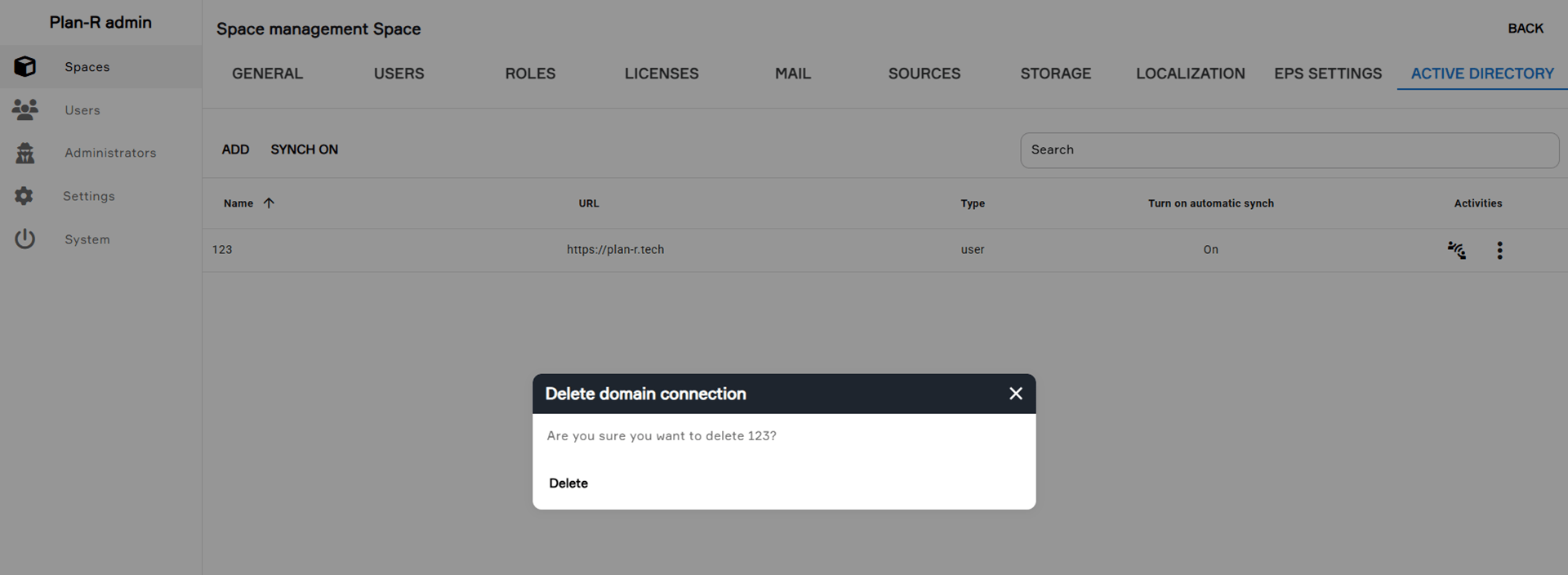 Confirming deletion of an Active Directory connection