SECURITY RECOMMENDATIONS
For reliable and secure operation of PLAN-R, follow these recommendations:
- Deploy the system only within your organization's protected network.
- Expose only the network ports required for operation.
- Use HTTPS for the web client and web administration console.
- Change the environment variables responsible for data encryption before starting the system for the first time.
- Avoid long-lived JWT tokens.
- Disable local user authentication and configure Active Directory authentication.
- Block the superadmin and superuser accounts.
- Configure database backups and periodically test restoring data from a backup.
- Back up the system configuration.
- Always back up the database and settings before updating the system.
- Maintain two deployments:
- A production environment for everyday work.
- A test environment for evaluating and testing new releases.
Configuring Environment Variables
Attention! Read the environment variable descriptions before configuring them.
Change the values used for data encryption. Use RANDOM.ORG or similar software to generate random strings.
- SECRET_SALT — An initialization vector passed to the encryption algorithm as a string.
- SECRET_KEY — A key passed to the encryption algorithm as a string.
- JWT_SECRET — A string used to sign JWT authentication tokens.
- JWT_EXPIRESIN — The lifetime of a JWT authentication token.
- FILE_TOKEN_SECRET — A string used to sign JWT file download tokens.
- FILE_TOKEN_EXPIRESIN — The lifetime of a JWT file download token.
Connecting to PostgreSQL
The DB_URL environment variable contains the database connection string in URI format.
The system supports the following database authentication methods:
- MD5
- SCRAM-SHA-256
Attention! For secure password authentication on the database server, use of the SCRAM-SHA-256 mechanism based on the SCRAM protocol is recommended.
Connecting Active Directory
Attention! Read Active Directory Integration.
Local user authentication is enabled by default in PLAN-R. For security and ease of administration in large organizations, switching to Active Directory authentication is recommended. This allows you to synchronize users from your corporate domains with PLAN-R users.
To configure this:
- Connect to the web administration console, open "Active Directory", and create connections to your domain for system administrators and users.
- Test the connections and synchronize several administrators and users with PLAN-R.
- Open "Administrators" and verify that the administrator accounts are present. Open "Users" and verify that the user accounts are present.
- Once the Active Directory administrators and users appear in PLAN-R, verify that users can sign in to the web client and administrators can sign in to the web administration console.
- After confirming access, set LDAP_AUTH_ENABLED=true to enable Active Directory authentication and LOCAL_AUTH_ENABLED=false to disable local authentication.
- Then block the superadmin and superuser accounts.
Network Communication
PLAN-R uses the following ports:
- Port 80 for the main application service.
- Port 81 for access to the administration console.
- Port 443 for secure HTTPS connections, exposed when the server starts.
These ports must be open for communication with the application and allowed through the firewall.
UFW Configuration Example
UFW is a widely used firewall configuration and management tool. However, Docker bypasses UFW rules, which can make published ports accessible externally. To address this, edit /etc/ufw/after.rules and append the following rules:
# BEGIN UFW AND DOCKER
*filter
:ufw-user-forward - [0:0]
:ufw-docker-logging-deny - [0:0]
:DOCKER-USER - [0:0]

# Forward traffic to ufw-user-forward for processing by UFW rules
-A DOCKER-USER -j ufw-user-forward

# Exclude local networks from filtering
-A DOCKER-USER -j RETURN -s 10.0.0.0/8
-A DOCKER-USER -j RETURN -s 172.16.0.0/12
-A DOCKER-USER -j RETURN -s 192.168.0.0/16

# Allow DNS queries
-A DOCKER-USER -p udp -m udp --sport 53 --dport 1024:65535 -j RETURN

# Log and block suspicious traffic (TCP and UDP)
-A DOCKER-USER -j ufw-docker-logging-deny -p tcp -m tcp --tcp-flags FIN,SYN,RST,ACK SYN -d 192.168.0.0/16
-A DOCKER-USER -j ufw-docker-logging-deny -p tcp -m tcp --tcp-flags FIN,SYN,RST,ACK SYN -d 10.0.0.0/8
-A DOCKER-USER -j ufw-docker-logging-deny -p tcp -m tcp --tcp-flags FIN,SYN,RST,ACK SYN -d 172.16.0.0/12
-A DOCKER-USER -j ufw-docker-logging-deny -p udp -m udp --dport 0:32767 -d 192.168.0.0/16
-A DOCKER-USER -j ufw-docker-logging-deny -p udp -m udp --dport 0:32767 -d 10.0.0.0/8
-A DOCKER-USER -j ufw-docker-logging-deny -p udp -m udp --dport 0:32767 -d 172.16.0.0/12

# Return to continue processing traffic
-A DOCKER-USER -j RETURN

# Log and block
-A ufw-docker-logging-deny -m limit --limit 3/min --limit-burst 10 -j LOG --log-prefix "[UFW DOCKER BLOCK] "
-A ufw-docker-logging-deny -j DROP

COMMIT
# END UFW AND DOCKER
Run sudo systemctl restart ufw or sudo ufw reload to restart or reload UFW and apply the changes.
To open the required ports, run:
sudo ufw allow 80
sudo ufw allow 81
sudo ufw allow 443
Restart UFW:
sudo systemctl restart ufw
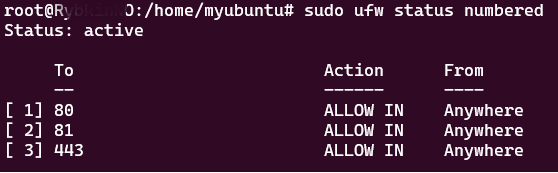
Verify that the required ports are open:
sudo ufw status numbered
To block a port:
sudo ufw deny <port_number>
For more information on configuring UFW for Docker, see https://github.com/chaifeng/ufw-docker.
Running PLAN-R as an Unprivileged User
- Add the user to the
dockergroup. Replaceusernamewith your username.
sudo usermod -aG docker username
- Run the following command to refresh the session's group membership and apply the change:
newgrp docker