System Update
Preparing for a System Update
- Before updating the system, create a backup.
- Open the installation directory, /opt/dppm/planr by default. Stop the system and back up the current PLAN-R configuration by copying the current directory to /opt/dppm/planr_old/planr.
- cd /opt/dppm/planr
- ./stop.sh
- mv /opt/dppm/planr/planr opt/dppm/planr_old/ planr
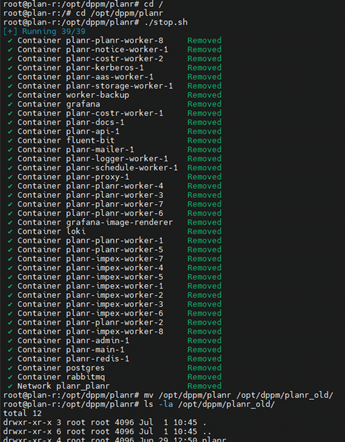 Backing Up the Previous Settings
- Move the downloaded distribution archive to /opt/dppm/distr/.
- $ mv <path_to_distr> /planr_ <version>.zip /opt/dppm/distr/
- $ cd /opt/dppm/distr
- $ ls -lha
 Moving the Downloaded Archive to the Directory
- Extract the archive to /opt/dppm by running the following commands in order. Request the password from support@dppm.pro.
- unzip -P <password> /opt/dppm/distr/planr_<version>.zip -d /opt/dppm/
- ls -lha
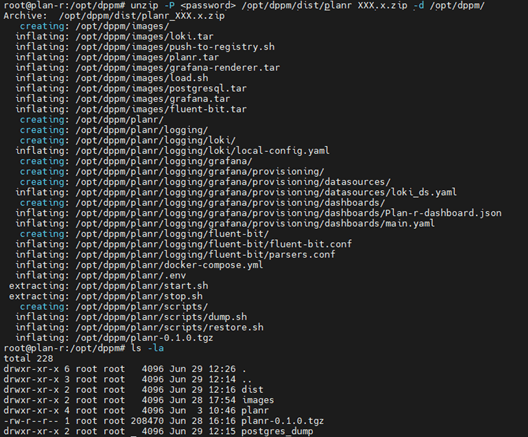 Extracting the Application Archive
- After extracting the archive, open ./images and load the Docker images using ./load.sh. Once the images have loaded successfully, you can delete ./images.
- cd /opt/dppm/images_<version>
- ./load.sh
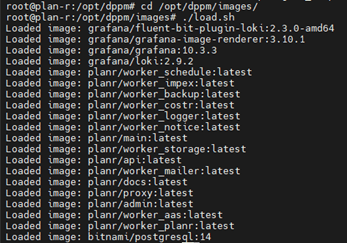 Unpacking PLAN-R Images