WINDOW INTERFACE FOR WORKING WITH COST ESTIMATE DATA
When creating a new tab in "Project window" (1), you can configure the COST-R windows individually or use the predefined "Base template estimate" layout (2). The base template includes five windows: "Estimate files", "Combined contract estimate", "Estimated contract scope", unit rates, and "Work types".
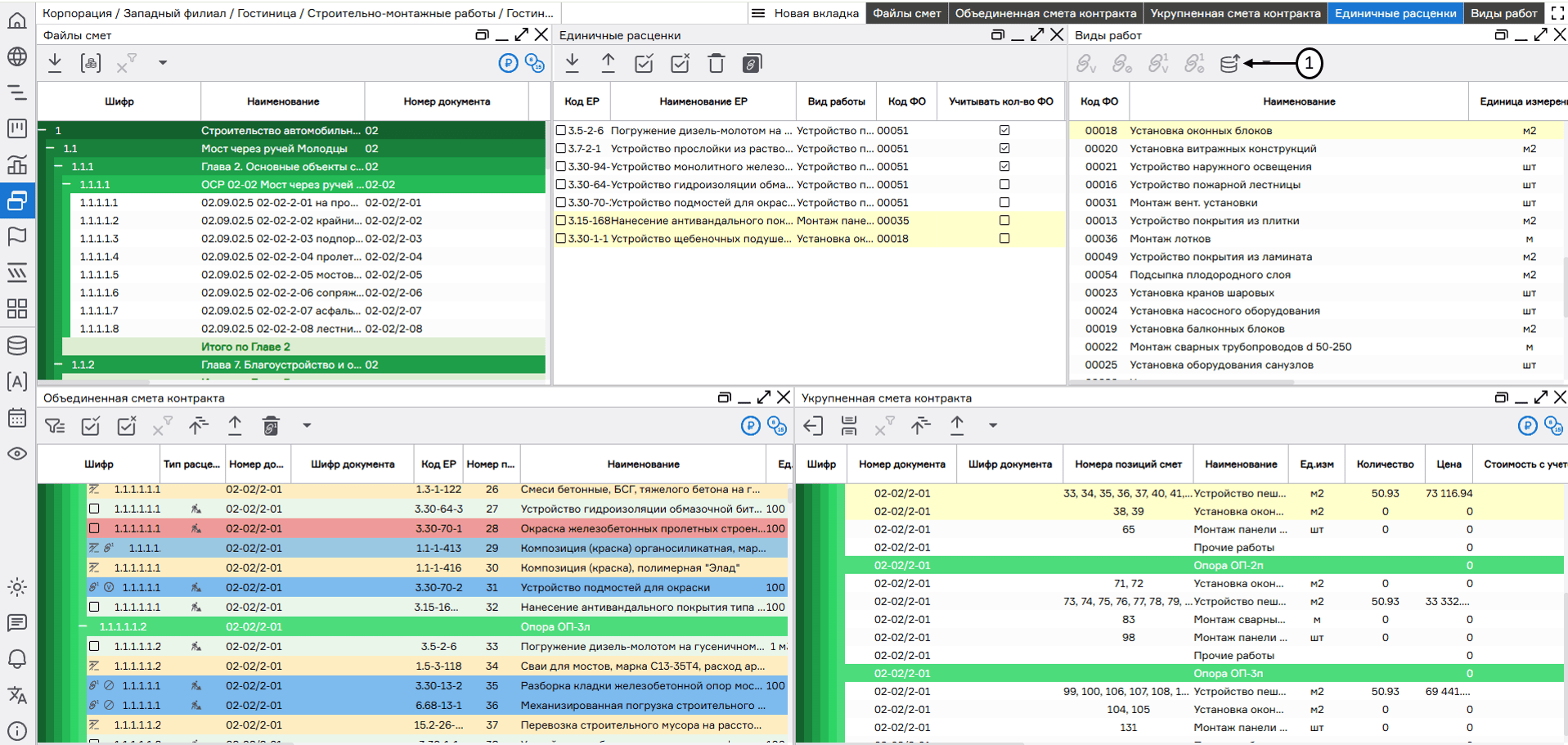 Base Estimate Template in the Project Window Interface
Window Interface. COE
The COE provides two modes for viewing cost estimate data in the window interface:
- The first mode displays the estimate document selected in the "Estimate files" form. The COE displays the document with its structure, including sections and subsections. If no document has been selected in "Estimate files", the COE form displays a message prompting you to select an estimate document.
- To switch to the second mode, which displays all line items from uploaded estimate documents as a flat list, click "Navigate to all estimate positions" (1).
 Window Interface. COE. Selected Estimate View
To open a specific estimate from the flat list, select one of its line items in the COE and click "Navigate to estimate" (2), or select the required estimate in the "Estimate files" form.
 Window Interface. COE. All Estimate Line Items View
For detailed information about a local cost estimate calculation line item beyond the COE columns, use the "Detailed position information" (1) and "Detailed resource information" (2) windows. These windows are not displayed in the base estimate template by default. To add them, right-click an empty area, expand "COST-R", and select "Detailed position information" (3) or "Detailed resource information" (4). You can also add other COST-R windows.
The "Detailed position information" window displays the estimate line item's physical quantity, costs by direct cost component, overhead costs, estimated profit, payroll fund, and the coefficients and indices applied to convert these values to current prices.
The "Detailed resource information" window provides a full breakdown of each resource included in the estimate line item.
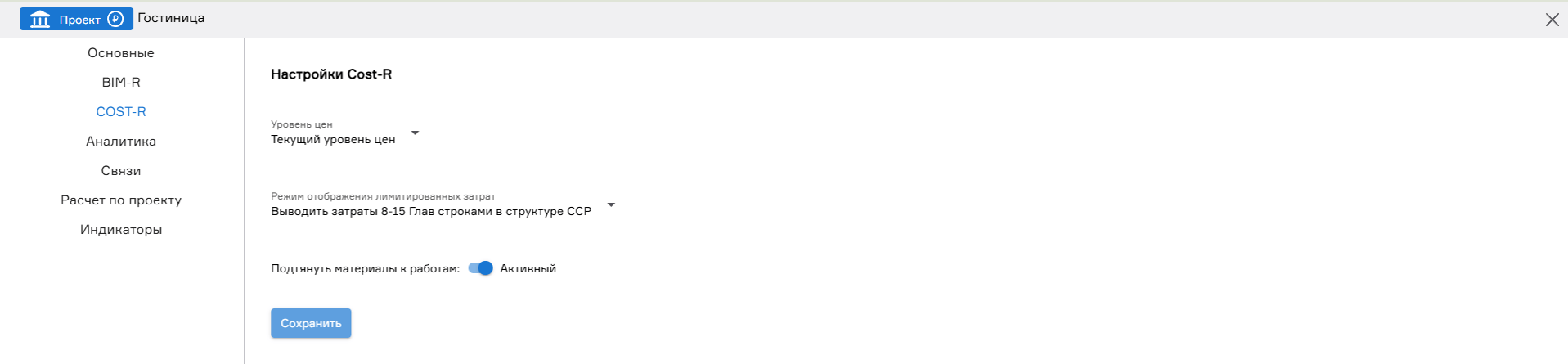
If "Increase the cost of labor, equipment, and transportation to the work" is enabled in the "Schedule" node settings, line items for labor resources, machinery, materials, equipment, and transportation are automatically linked to the activity above them in the section. Their costs are then included when the rate is aggregated into a work type in the PDC.
For linked materials, an icon indicating the link to the activity above appears among the interactive icons in the "Attach materials to jobs" column (5). If the link is incorrect, click this icon to remove the automatic link. To remove automatic links for all activities, disable "Increase the cost of labor, equipment, and transportation to the work" in the project's COST-R settings. The interactive icons also show assigned rules/exceptions (6) and whether quantities are included during estimate aggregation (7).
Filtering by all COE attributes is also available in the window interface (8). Use the reset filters button (9) to clear all filters. Click "Views" (10) to configure the columns displayed in the "COE" window. Use Search (11) to find a line item by name.
 Working with the COE
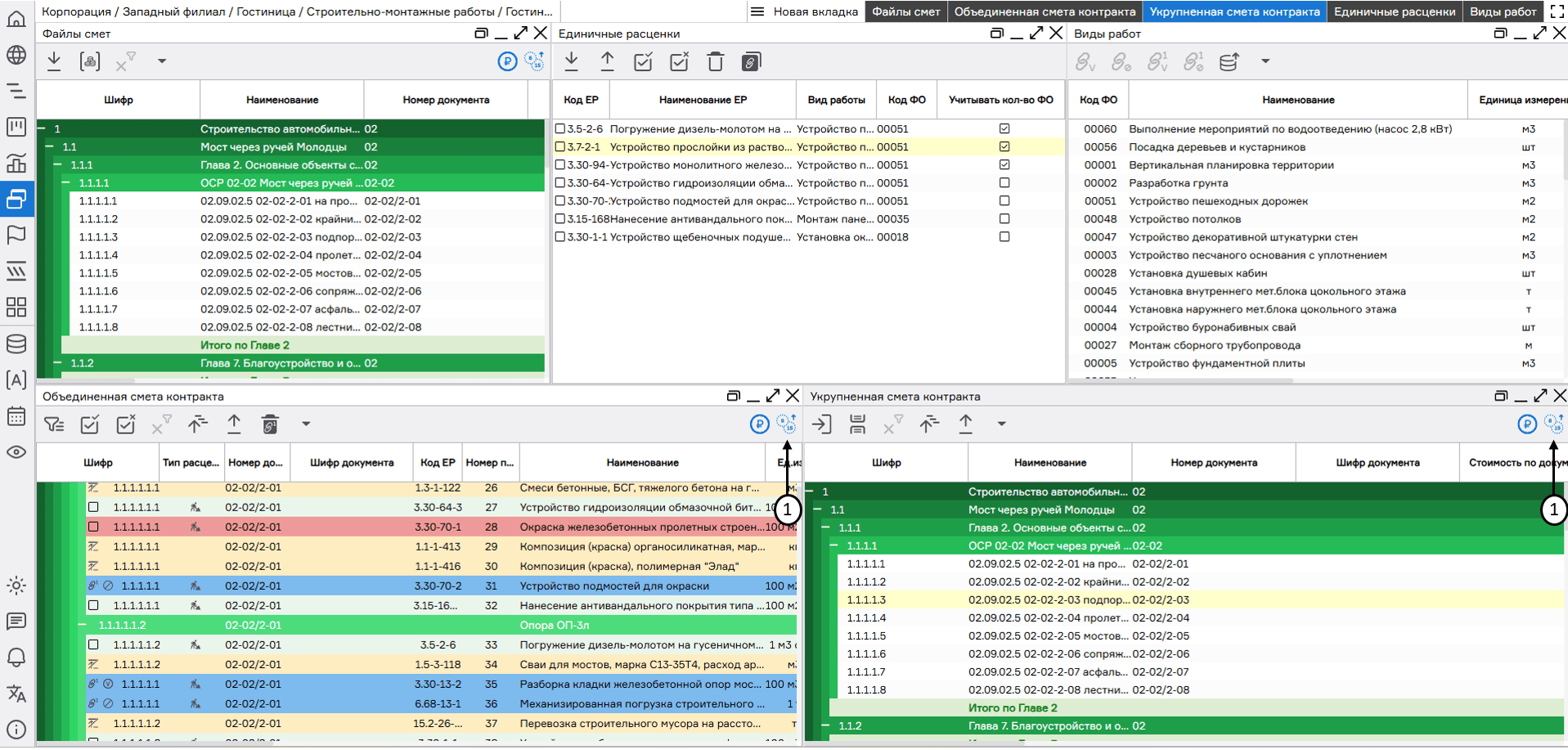 Enabling "Increase the cost of labor, equipment, and transportation to the work"
Window Interface. Work Types
COE line items are aggregated into the work types listed in the corresponding window interface form.
Entries in the "Work types" form are RBS entries previously created in the "Directory library". Select an RBS from the drop-down list (1) in the "Work types" form.
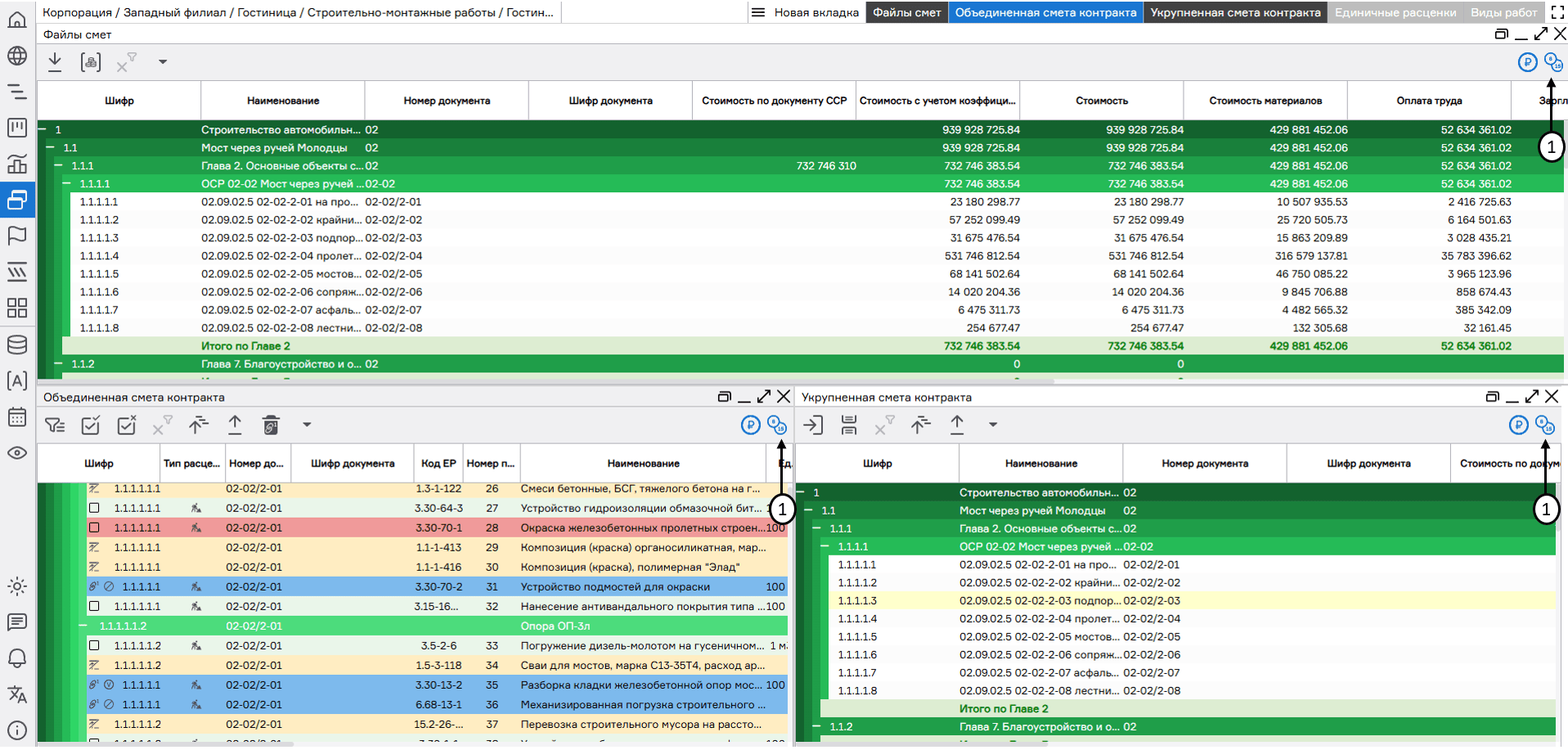 The "Work types" Form
Window Interface. Unit Rate Directory
The directory is populated when unit rates from LS/LSR line items in the COE are linked to work types in the RBS. You can export the directory to a file (1), edit it in Excel, and import it back (2). You can also copy rules from another project (3).
To apply work type linking rules to all estimates uploaded to the space, create rules using "Assign rules to a type of work with volume" (4) or "Assign rules to a type of work without volume" (5).
When using "Assign rules to a type of work with volume", aggregating a rate into a work type automatically selects "Include amount of volume" (6) for new rules in the unit rate directory.
When using "Assign rules to a type of work without volume", "Include amount of volume" is not selected. New rules are created without including physical quantities.
For quantities to be calculated correctly in the PDC, the rates and the work type must use the same unit of measure, or the unit of measure mapping directory must contain a mapping between their units. Meters cannot be mapped to kilograms.
If a work type with existing COST-R unit rate rules is deleted from the RBS in the "Directory library", those rules become invalid and are highlighted in red. If the resource code, name, or unit of measure of an RBS entry with existing rules is changed, those rules become invalid and are highlighted in yellow. To identify invalid rules, use "Filter by invalid rules" (7), which becomes available when invalid rules exist.
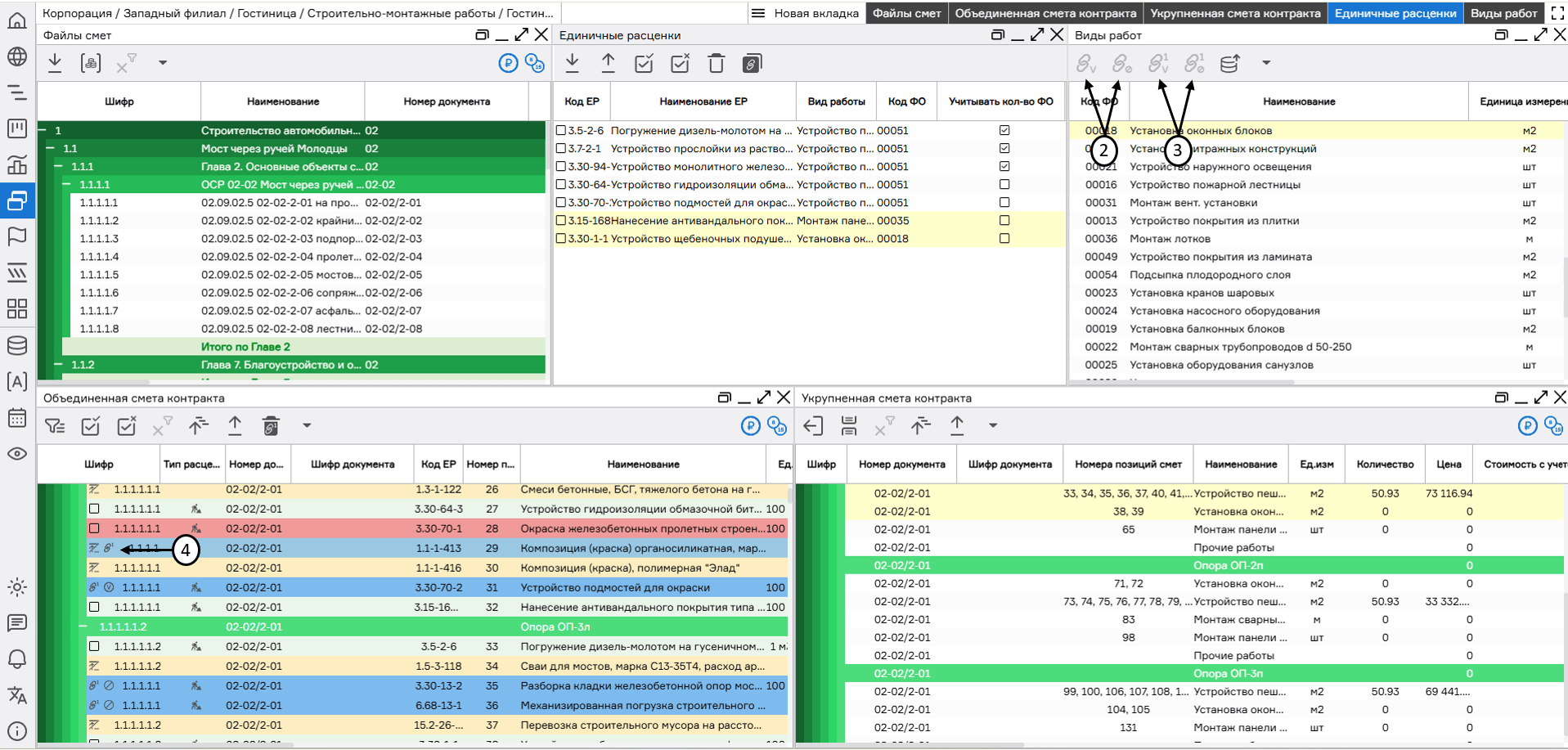 Window Interface. Unit Rates
Rules for linking estimate line items to work types can be created in two modes:
- by the estimate line item's unit rate code (1);
- by the estimate line item's unit rate code and name (2).
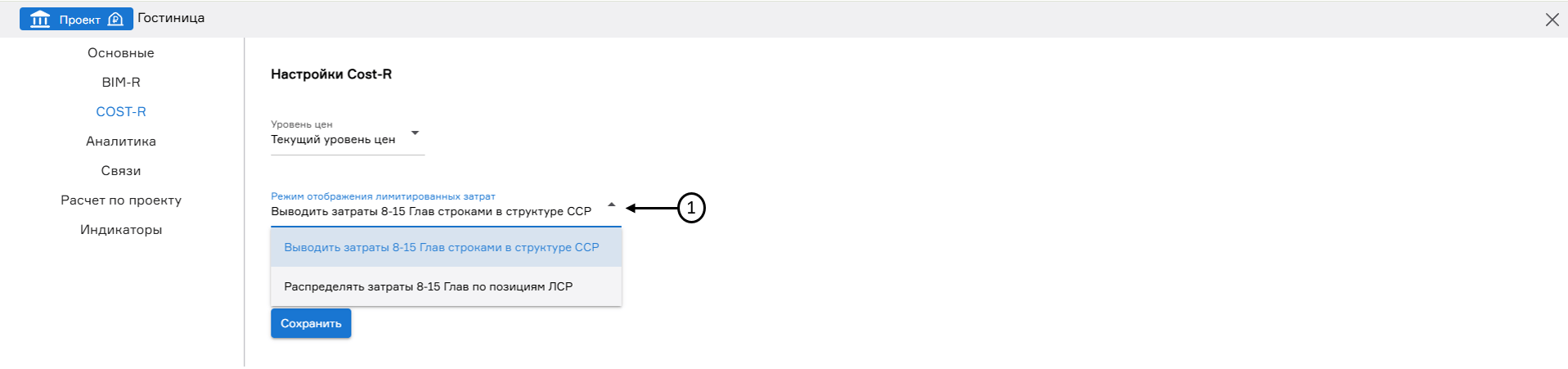
Select the linking mode on the "COST-R" tab in the "Project" node settings.
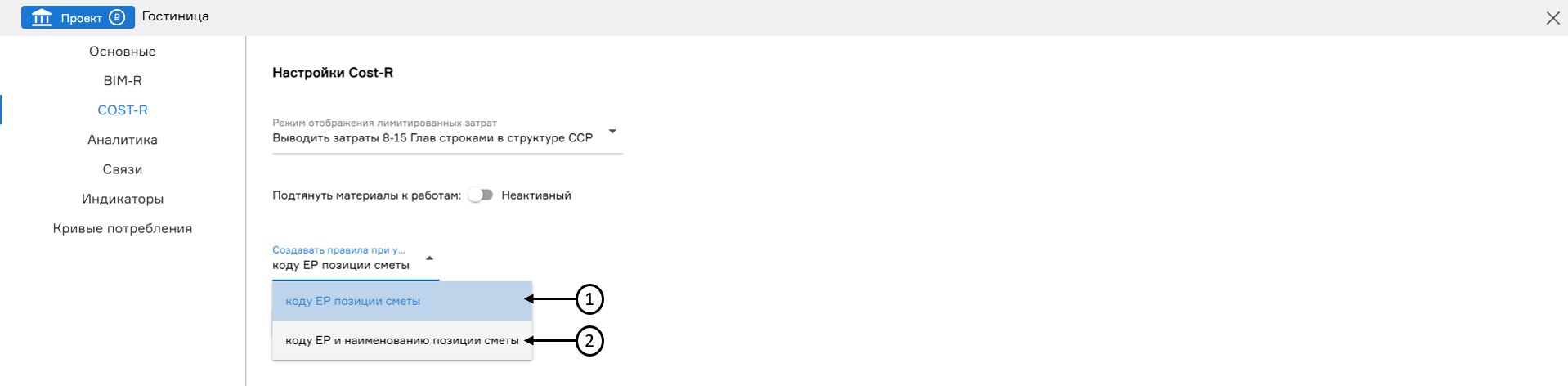 Configuring Estimate Line Item Linking Rules
| Changes to RBS Entries | Unit Rate Rules | Work Type in the PDC | ||
|---|---|---|---|---|
| Code | Name | Unit of Measure | ||
| Changed | Highlighted in yellow | Updated with the new work type name | ||
| Changed | Highlighted in yellow | Updated with zero quantities | ||
| Changed | Changed | Highlighted in yellow | Updated with the new work type name and zero quantities | |
| Changed | Any | Any | Highlighted in red | Unlinked and moved to Other |
| Entry deleted | Highlighted in red | Unlinked and moved to Other | ||
Window Interface. PDC
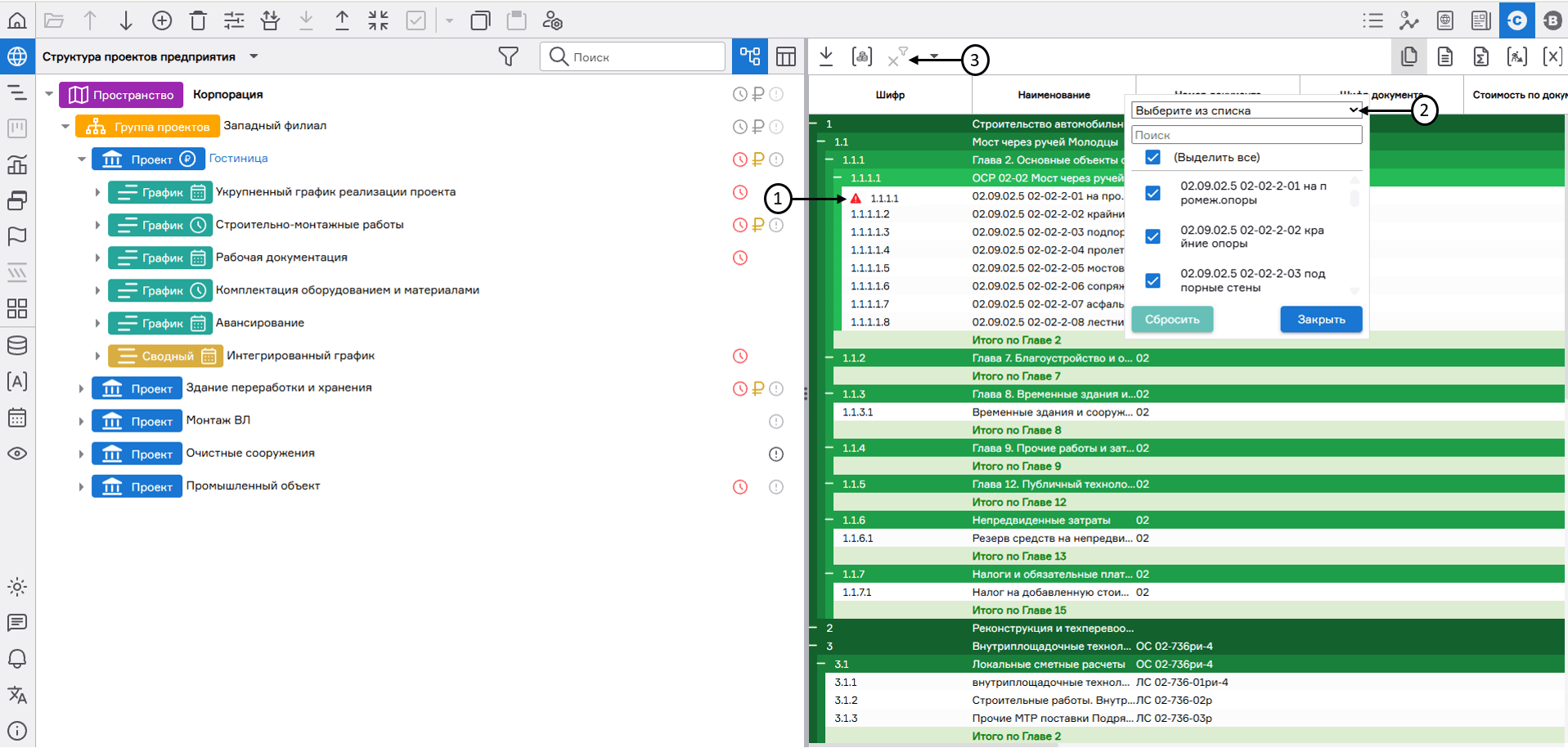
By default, the PDC displays the estimate selected in "Estimate files" or the COE, including its structure and line items. To view and analyze the entire Estimated contract scope, click "View full estimate contract" (1). Click the button again to exit this mode. Click "Views" (2) to configure the columns displayed in the "PDC" window.
When you assign or remove work type rules or exceptions, attach materials to an activity, or change whether physical quantities are included, the PDC automatically opens the local estimate whose line item is selected in the COE.
To check which COE estimate line items have been aggregated into a work type, right-click to add the "Assigned rates" window (3), if it is not already displayed, and select the activity in the PDC.
 Working with the PDC
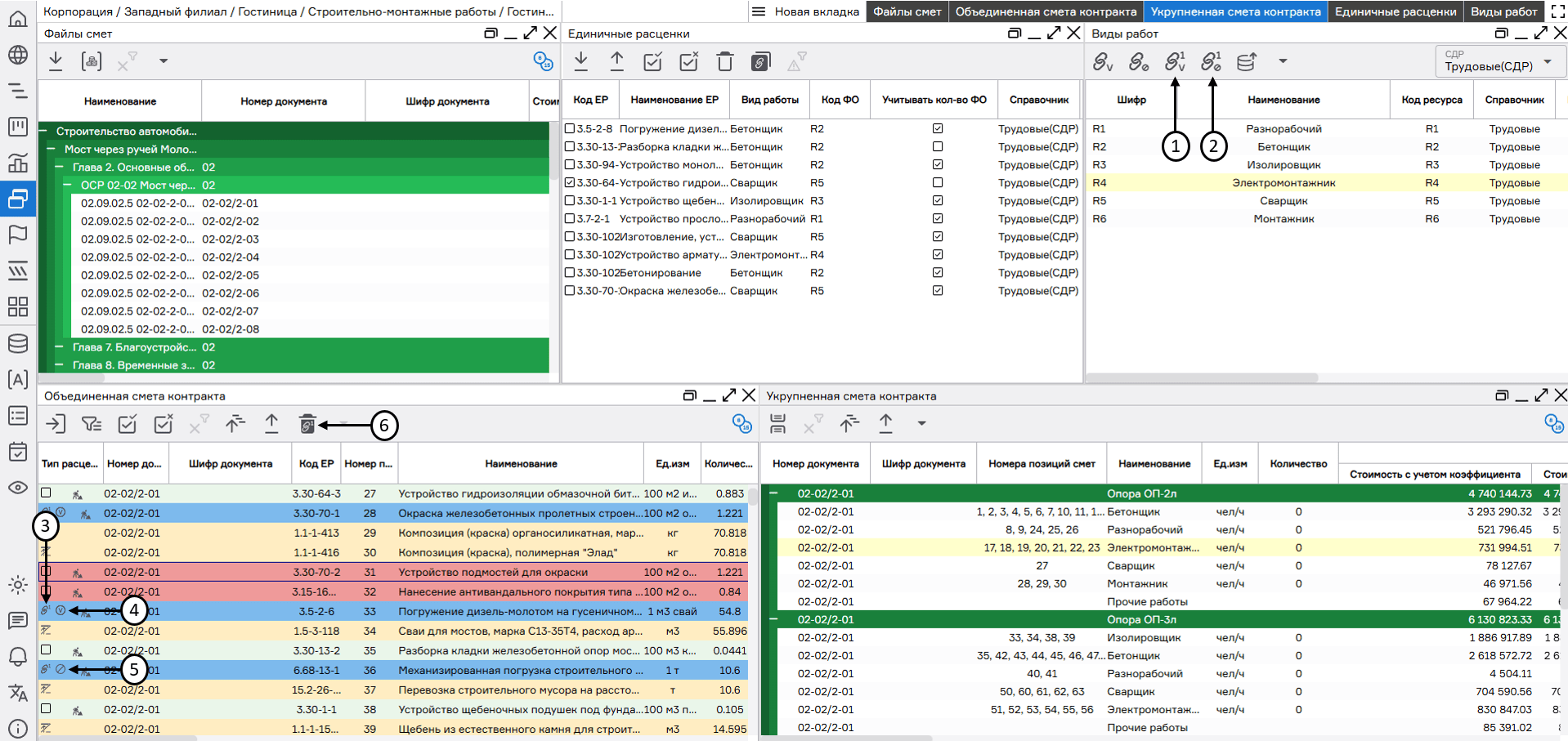
If a rule linking a rate to a work type should apply only to one specific estimate line item, use an exception. This prevents the rule from applying to similar rates elsewhere in the estimate or COE, or automatically to subsequently uploaded estimates.
Select the required activity and click "Assign an exception to the type of work with quantity of volume" (1) if its physical quantity should be included in the PDC "Quantity" attribute, or "Assign an exception to the type of work without quantity of volume" (2) if it should not.
A manual link icon (3) appears for that line item in the COE table. Click it to remove the link. A circled "v" icon (4) also appears if the line item's physical quantity is included in the PDC. Click this icon (4) to exclude the quantity. A crossed-out circle (5) appears for a COE line item whose physical quantity is excluded from the PDC activity. Click it to add the quantity to the PDC activity.
Although exceptions apply only to specific estimate line items and are not added to the rate-to-work-type rules, they are saved in the database. If estimates are deleted and then uploaded again to the same project, their previously assigned exceptions are restored in the COE.
To delete all assigned exceptions at once, click "Delete exceptions" (6) in the COE form. Exceptions are deleted from all COE rows, subject to the attribute filters active at the time of deletion.
 Work Type Exceptions
To include material or equipment costs in the PDC without adding their quantities to the work type's total quantity, use one of the following approaches:
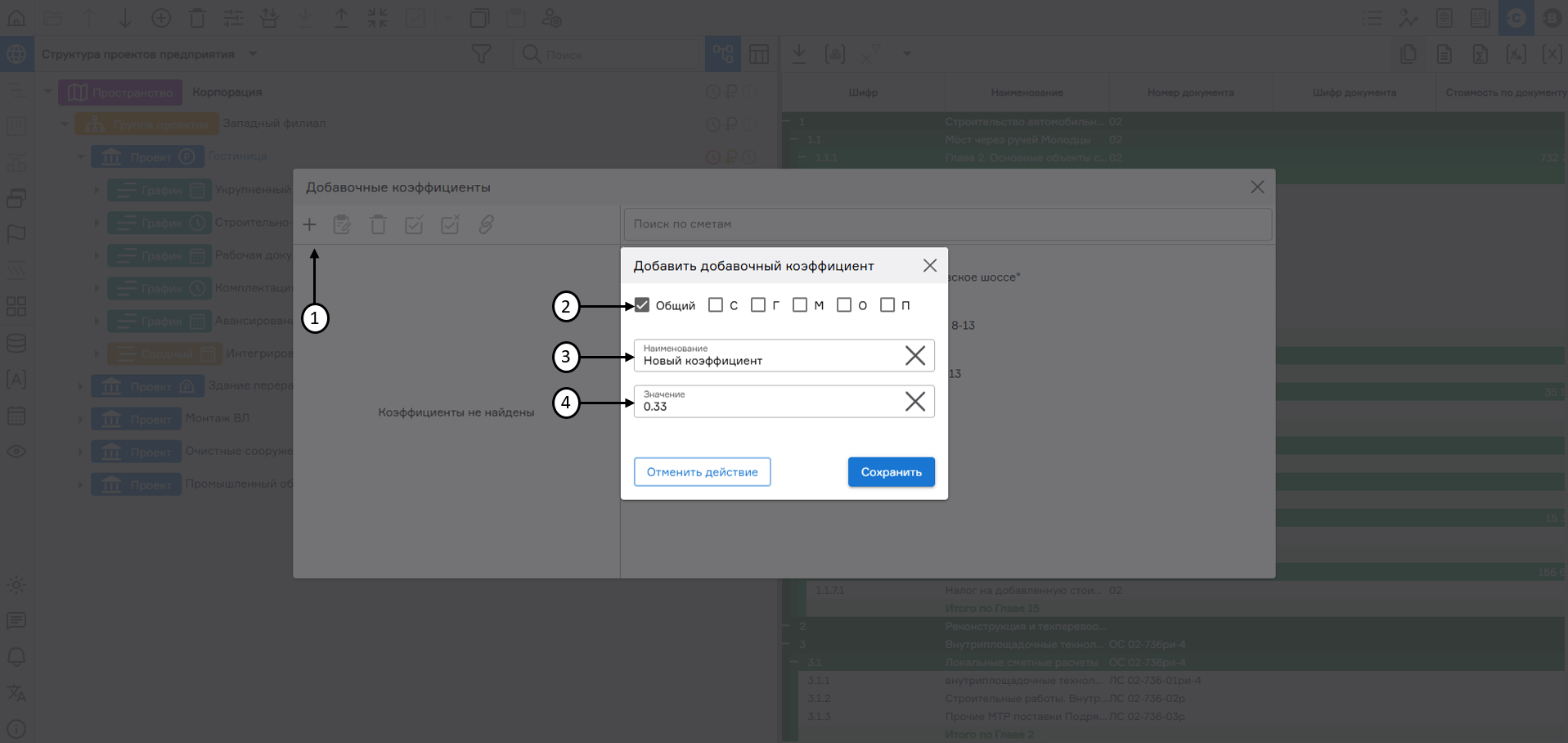
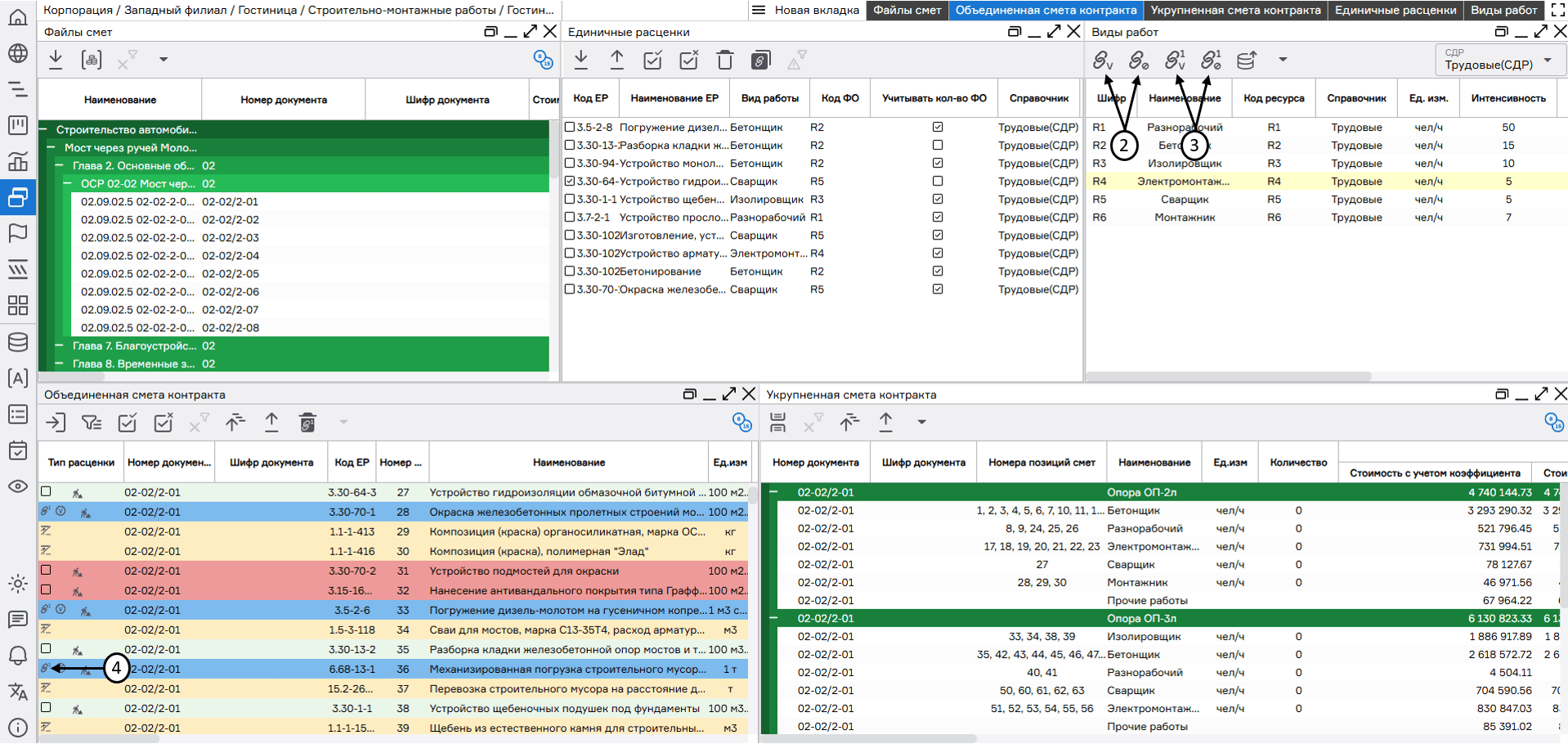
- On the "COST-R" tab in the "Schedule" node settings, enable "Increase the cost of labor, equipment, and transportation to the work" (1). Material or equipment line items are then linked to the line items above them with nonzero labor, and their costs are included in the Estimated contract scope.
- Select material line items using the checkboxes and link them to a physical quantity using "Assign rules to a type of work without volume" (2). Their costs are included in the specified physical quantity in the PDC, and the corresponding rule is added to the unit rate directory.
- Select material line items using the checkboxes and link them to a physical quantity using "Assign an exception to the type of work without quantity of volume" (3). A manual link icon (4) appears for the material line item in the COE.
 Including Estimate Material Costs in the PDC (1)
 Including Estimate Material Costs in the PDC (2)
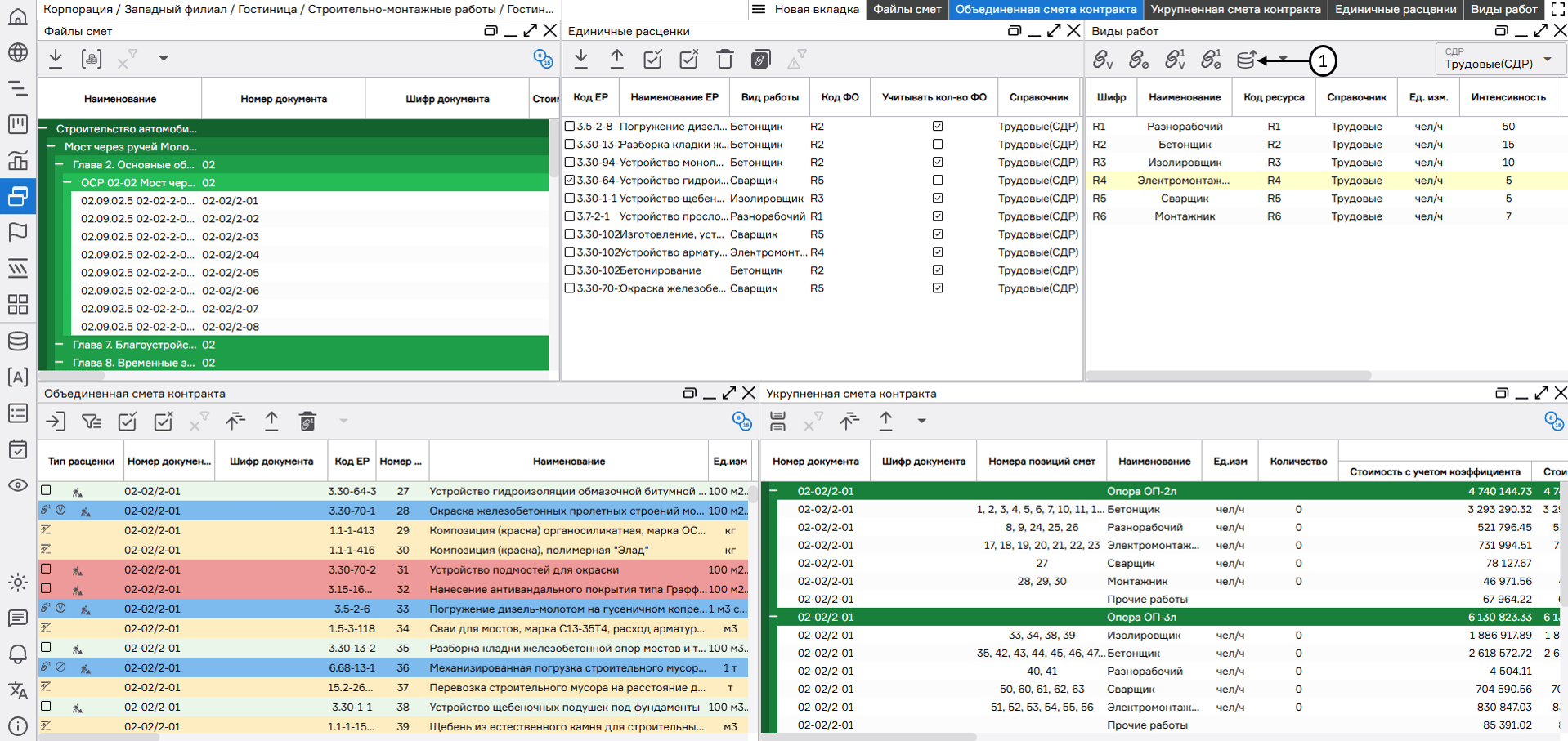
To modify the list of work types, click "Go to the directory" (1). This opens the RBS if you have the required permissions.
 Opening the RBS from the Project Window Interface