PROJECT SCHEDULE INTEGRATION
PLAN-R allows you to create a consolidated project schedule by linking schedules in pairs using linking codes. Relationships between corresponding activities in different local project schedules are established by matching the values of selected activity attributes. To configure schedule links, select the corresponding Project node (1) and click “Node settings” (2) on the enterprise settings toolbar.
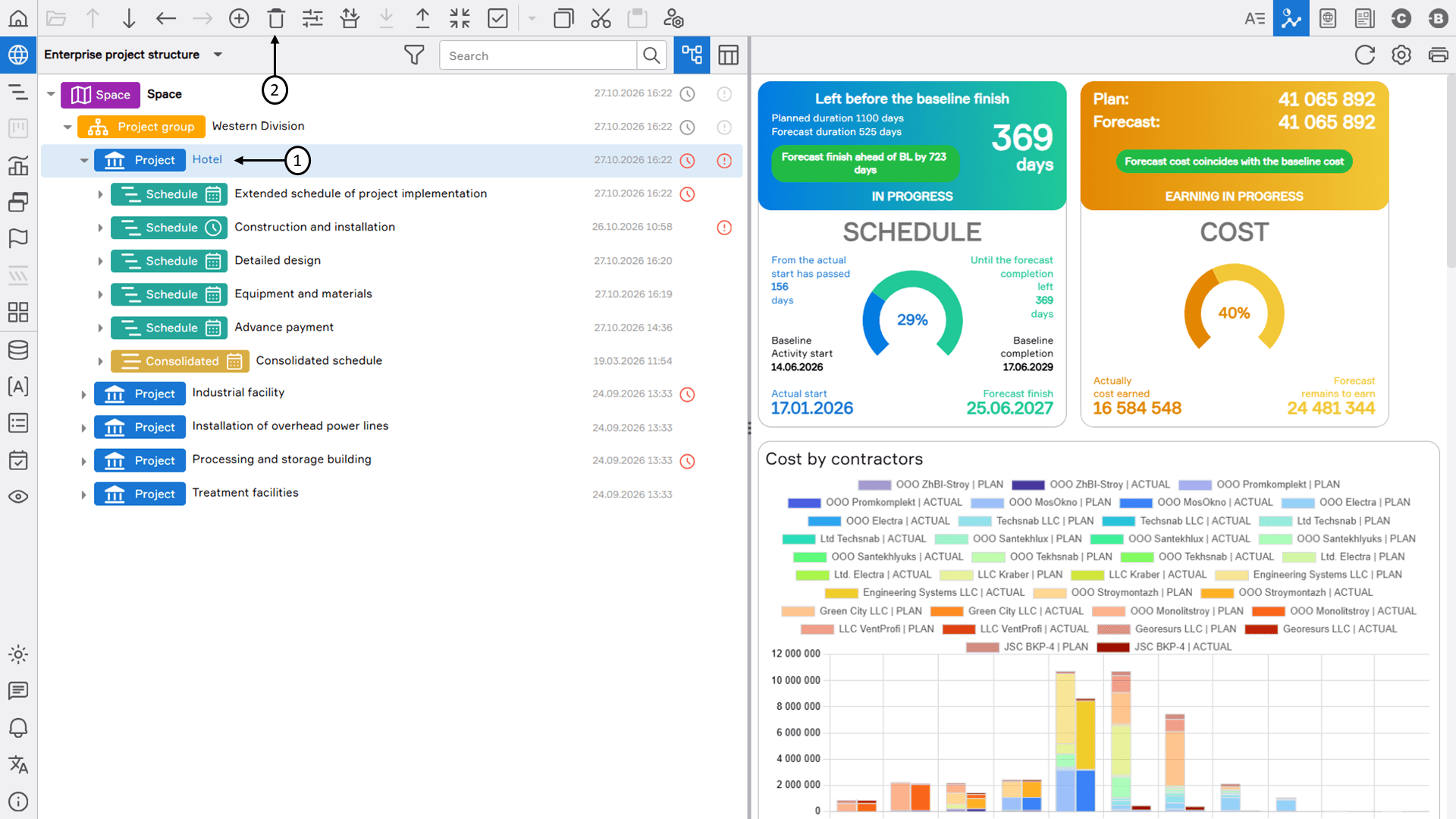 Opening the node settings menu
Linking Local Project Schedules
Local schedules are linked in pairs, with one serving as the General Schedule and the other as the Support Schedule. In the project settings menu that opens, select the “Links” section (1), click “Add” (2), and specify the following parameters:
- link name (3);
- General Schedule, selected from the schedules in the project (4);
- General Schedule attribute to use as the linking code (5);
- delimiter for the General Schedule attribute, if needed (6);
- Support Schedule, selected from the schedules in the project (7);
- Support Schedule attribute to use as the linking code (8);
- delimiter for the Support Schedule attribute, if needed (9).
This section provides a search function (10) that lets you search by link name, General Schedule and Support Schedule names, and linking attributes.
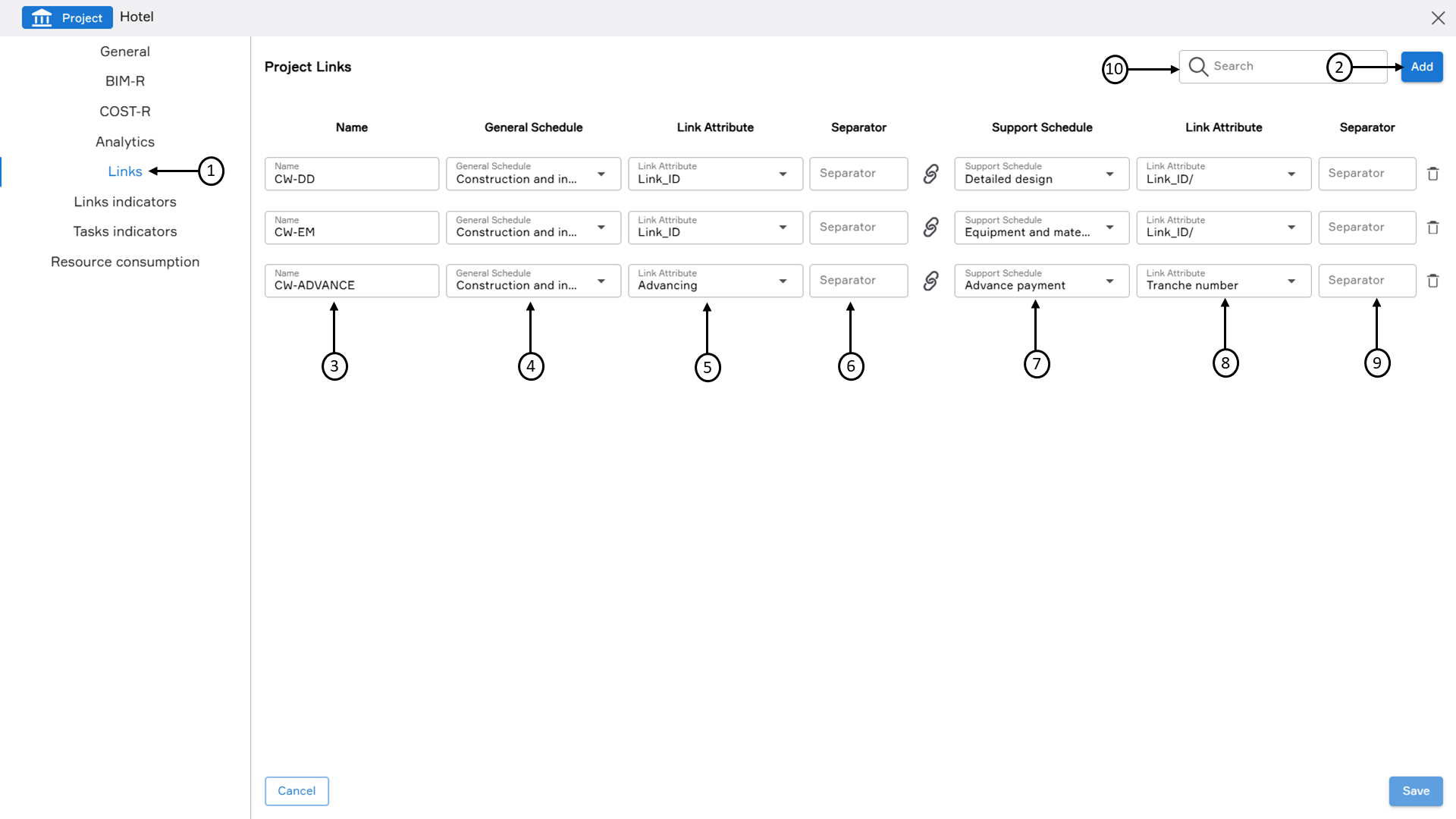 Configuring schedule links within a project
PLAN-R supports one-to-one, one-to-many, many-to-one, and many-to-many schedule links.
For example, a many-to-many link allows multiple records in one schedule to correspond to multiple records in another schedule.
When activities in the Support Schedule are linked to several activities in the General Schedule, enter the values in the linking attribute separated by the delimiter specified in the settings. Do not add spaces before or after the delimiter.
There is no limit to the number of schedule pairs you can configure within a consolidated project schedule. Any project schedule can serve as either the General Schedule or the Support Schedule in different pairs.
Viewing Related Activities in Local Project Schedules
To view related activities in the General Schedule and its Support Schedules, if multiple links are configured for the project, open the General Schedule and select all or some of its activities (1). Open the “Related schedules” tab (2) and select the required link from the drop-down list of configured links (3). A list of related activities from the Support Schedule will appear at the bottom of the screen.
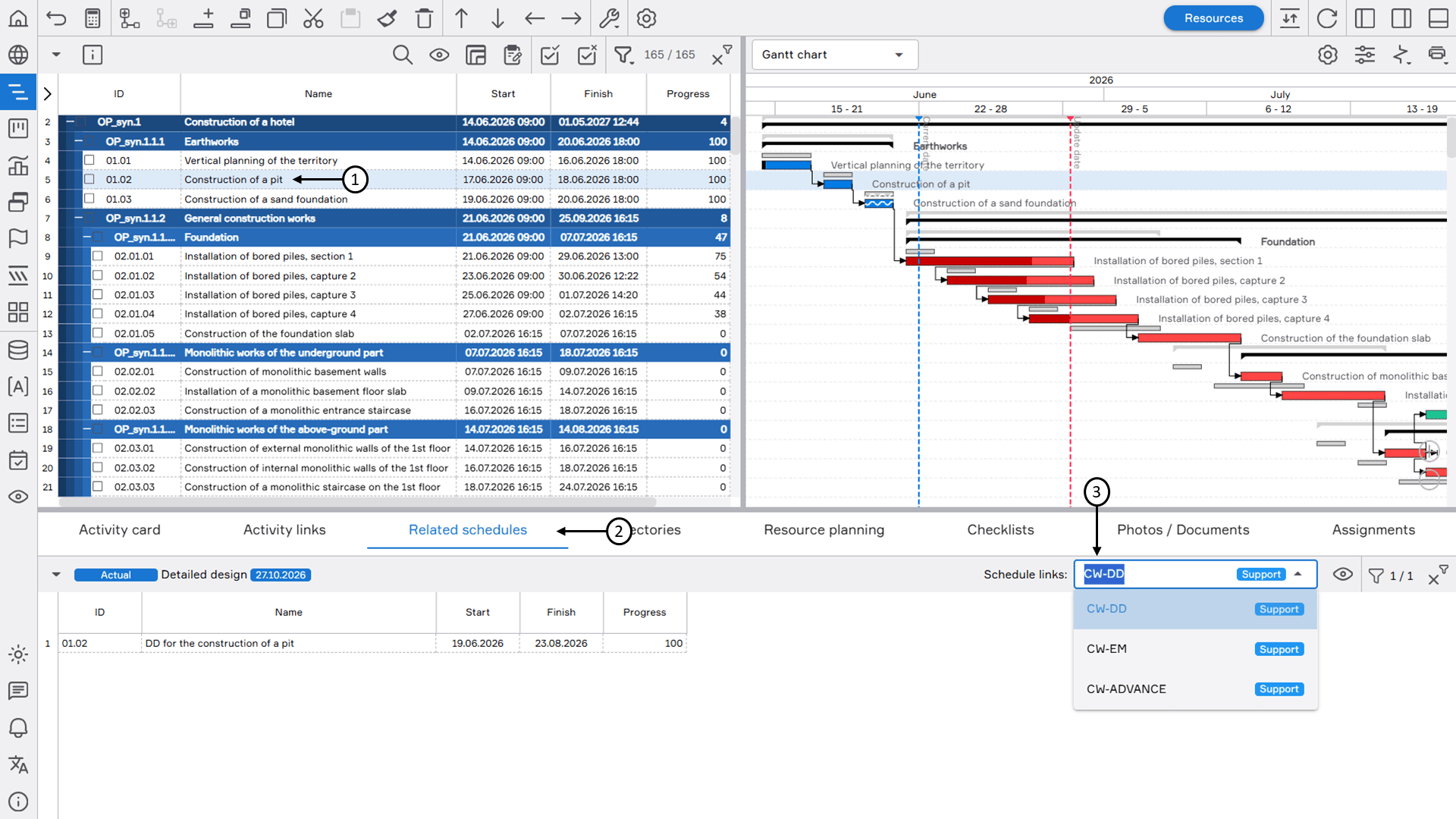 Viewing related activities in project schedules
Configuring the Display of Related Activities from the Support Schedule
To configure the display of related activities from the Support Schedule, click “View” (1) and open the view settings (2) on the toolbar at the bottom of the screen. In the menu that opens, configure the view in the same way as for the General Schedule.
The configured view for Support Schedule activities also applies when that schedule is opened as the General Schedule.
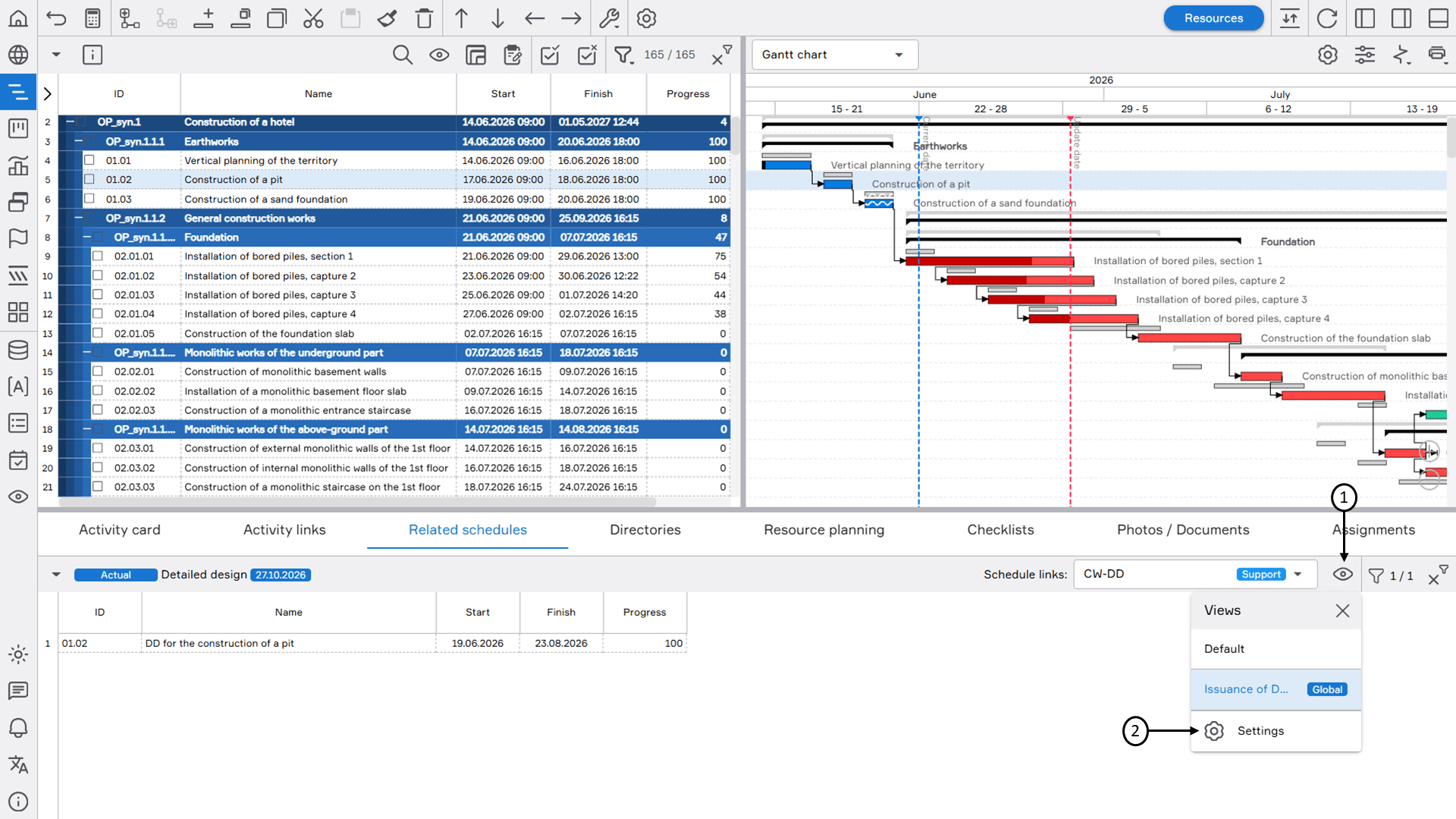 Configuring the display of related activities in project schedules