REQUESTS AND ASSIGNMENTS
PLAN-R allows you to create requests and assignments linked to schedule activities (or work packages) and track their completion.
Creating Requests and Assignments
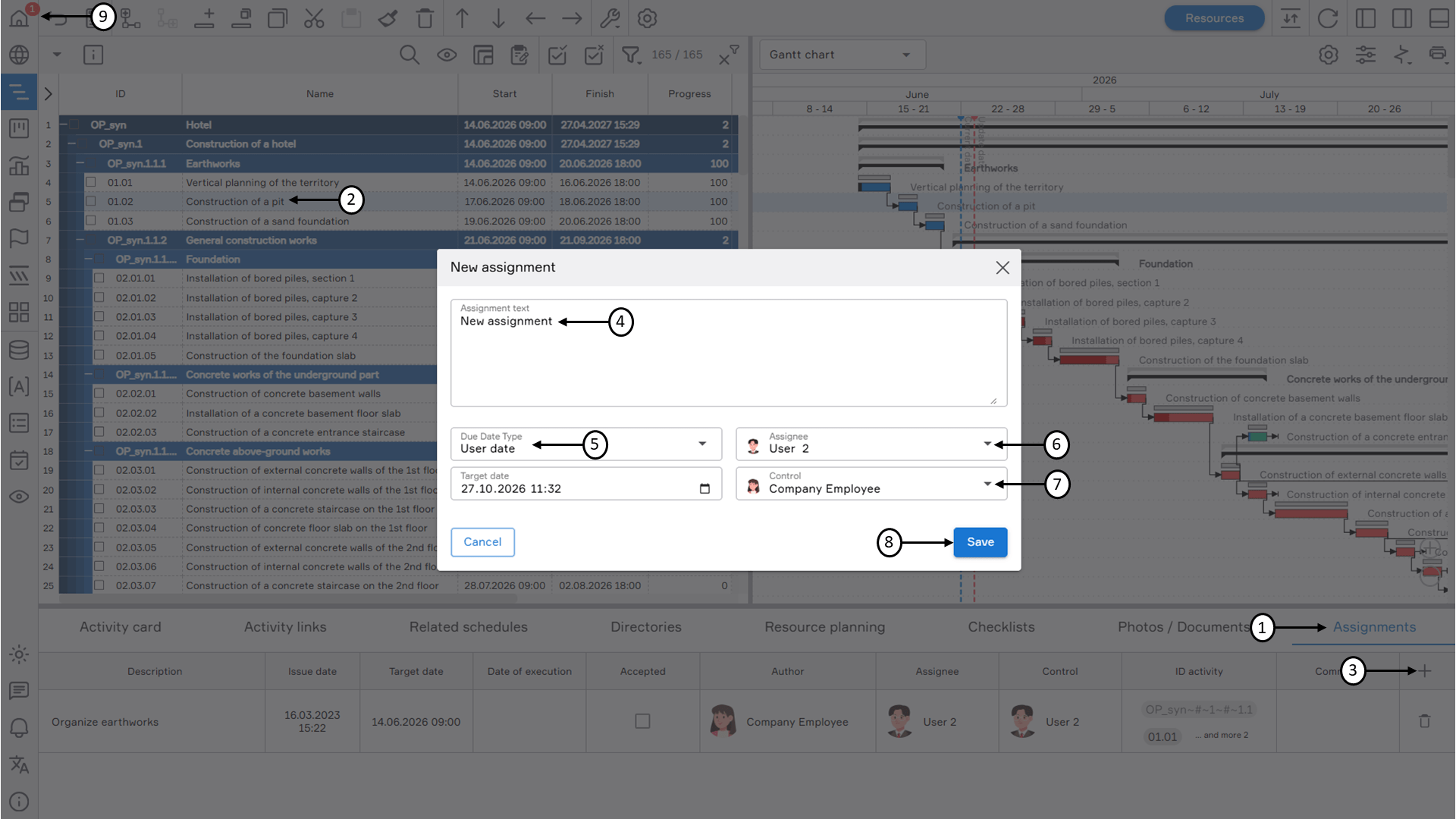
To create a request or assignment, open the "Assignments" tab (1) in the "Schedule" node, select the required schedule activity (or work package) by left-clicking it (2), and click the "+" button (3). In the window that opens, complete the following fields:
- "Assignment text" (4);
- "Target date" (5);
- "Assignee" — the employee selected from the users connected to the space who is responsible for completing the assignment/request (6);
- "Control" — the employee selected from the users connected to the space who is responsible for verifying completion of the assignment/request (7).
After completing the fields, click "Save" (8). The assignment will appear in the list of assignments for this schedule activity.
To create an assignment linked to multiple schedule activities, select them using the checkboxes. Bulk assignment of requests and assignments to schedule activities is available to users with permission F3.2.5.1.1, "Bulk add personal wbs assignments".
A red indicator next to the "Personal account" icon in the navigation bar (9) indicates that you have assignments assigned to you.
 Creating Requests and Assignments
Tracking Completion of Requests and Assignments
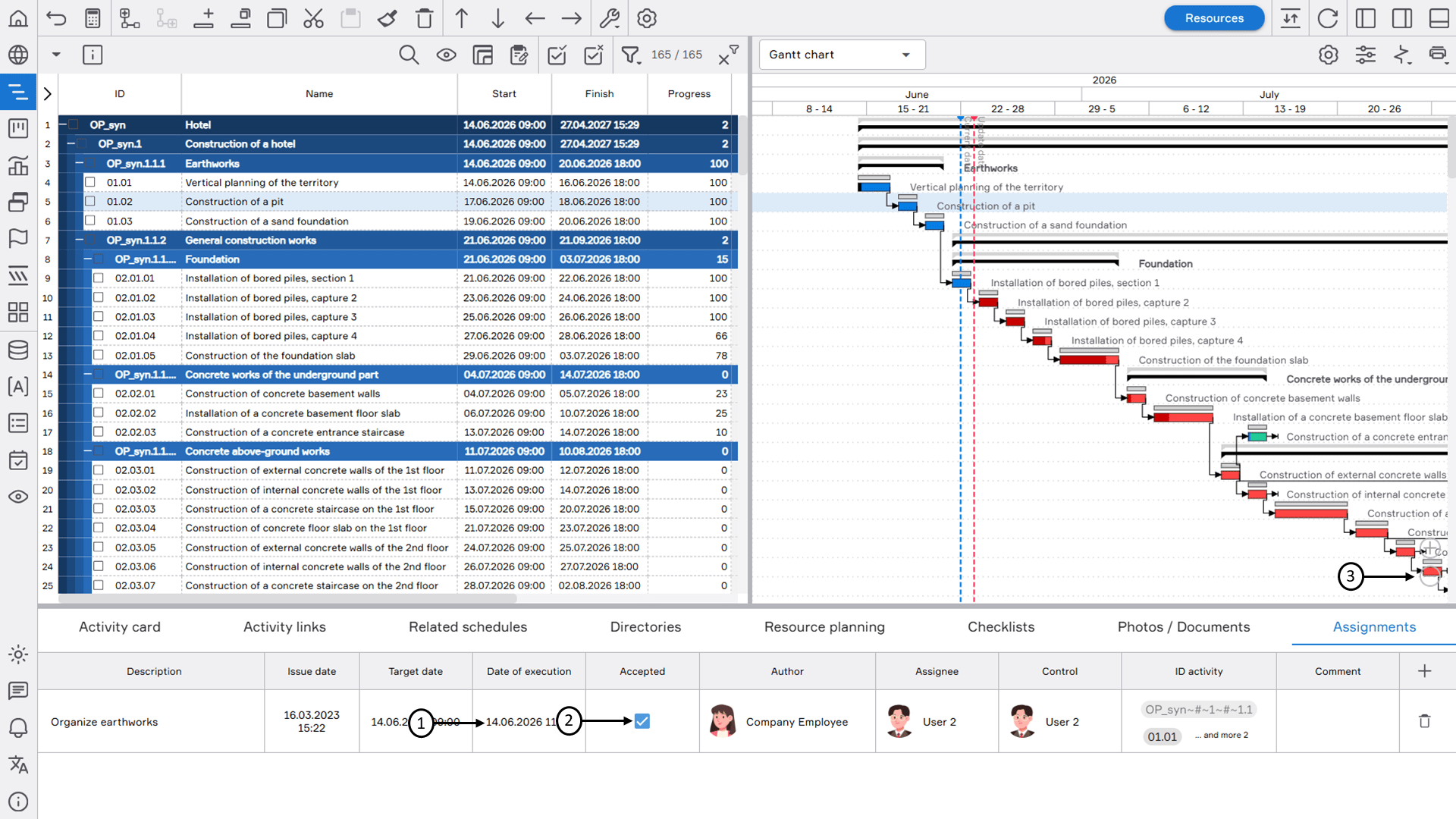
Only the user designated as the assignee of an assignment/request can enter its actual completion date (1).
Only the user designated as the controller of an assignment/request can mark its completion as verified (2).
Only the author of an assignment/request can delete it (3).
 Tracking Completion of Requests and Assignments