ANNEX 4. EXAMPLES OF CALCULATING CALCULATED ATTRIBUTES
PLAN-R provides calculated attributes for mathematical calculations. Their values are calculated based on user-defined conditions. The following examples illustrate how calculated attributes work:
- Example 1. A calculated attribute using schedule attributes.
- Example 2. A calculated attribute with multiple calculation rules.
- Example 3. A calculated attribute using attributes from linked schedules.
The schedule containing the source data is shown below:
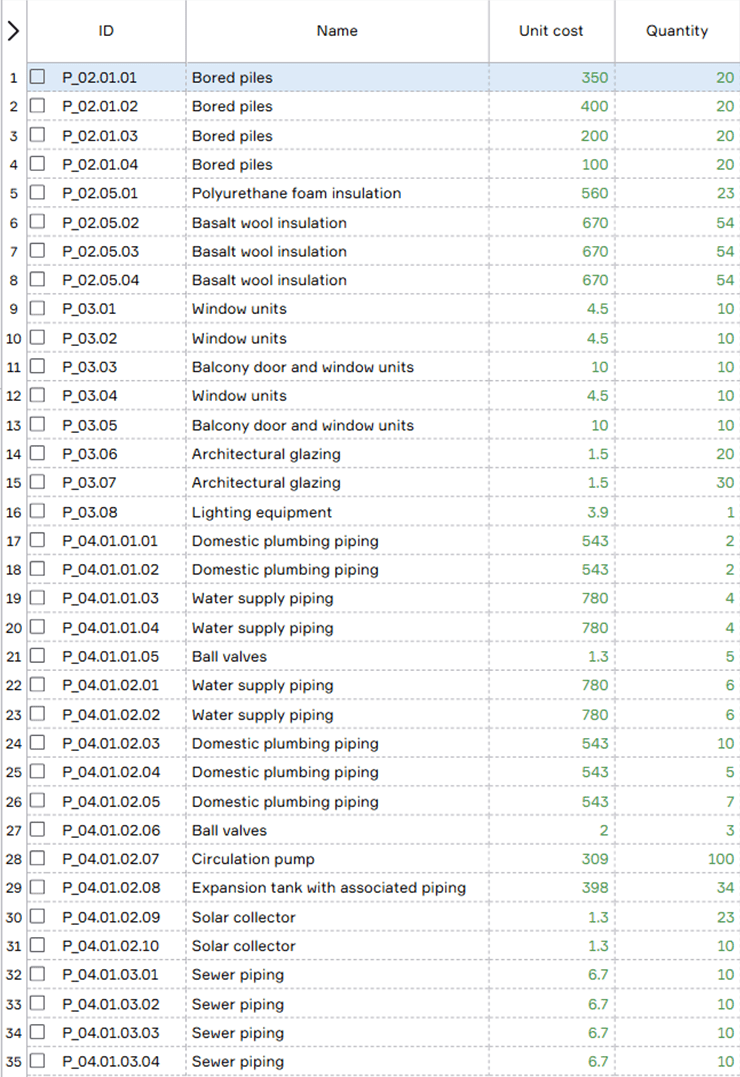 Schedule containing the source data
Example 1: A Calculated Attribute Using Schedule Attributes
The total cost of each item in the delivery needs to be calculated. The calculation formula is:
Total cost = Unit cost * Quantity
The cost value in the schedule has the "Number" type, so select the corresponding calculation type in the attribute settings.
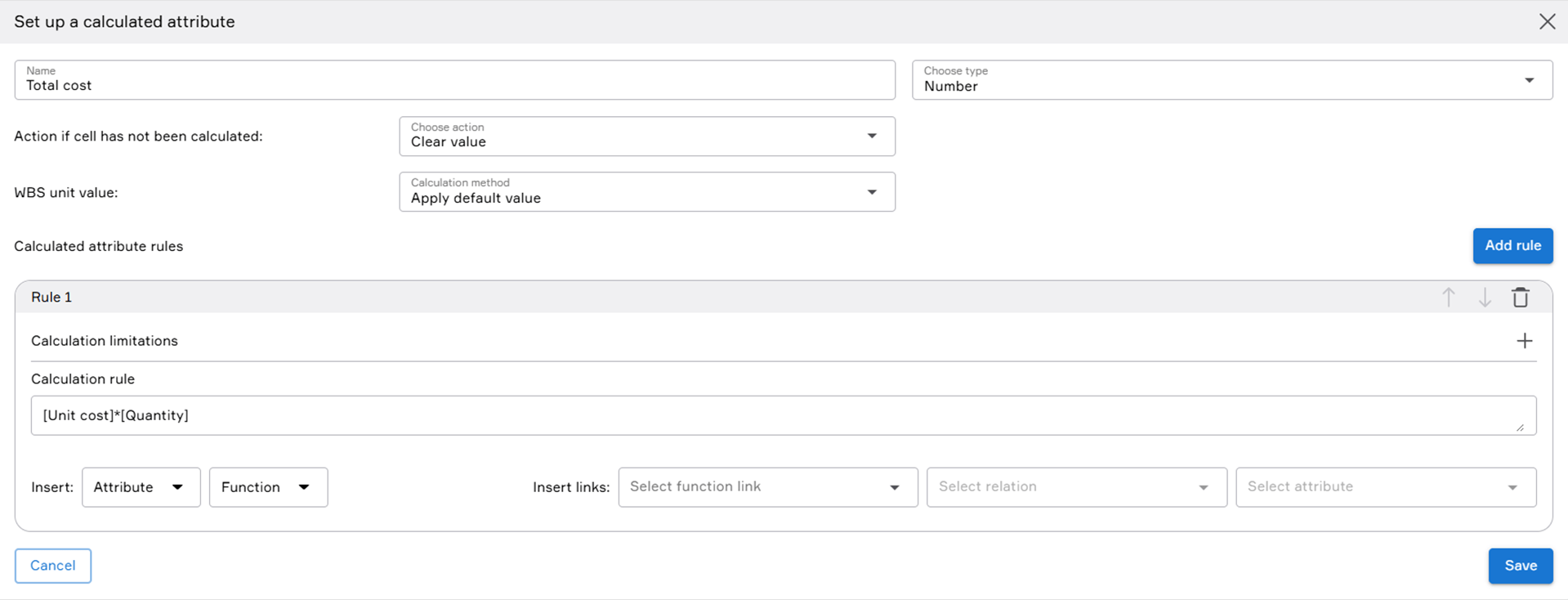 Rules for a calculated attribute using schedule attributes
After creating and saving the calculated attribute, add it to the schedule using the settings on the "Views" tab. The calculation result is displayed in blue.
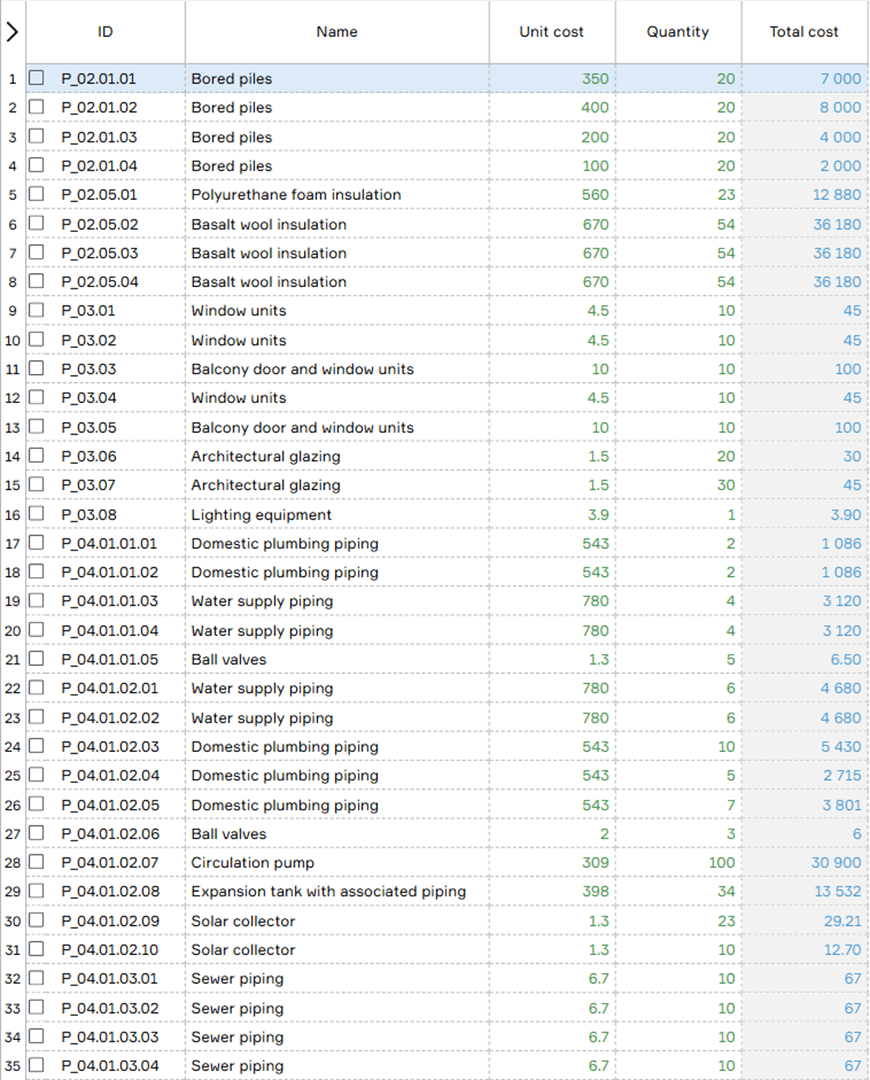 Schedule with the calculated attribute added (Example 1)
Example 2: A Calculated Attribute with Multiple Calculation Rules
Task: For items with 60 or more units in stock, calculate a new unit cost reduced by 5%. For items with fewer than 60 units, the cost remains unchanged. To apply this condition, create constraints that determine which rule is used to calculate the attribute values.
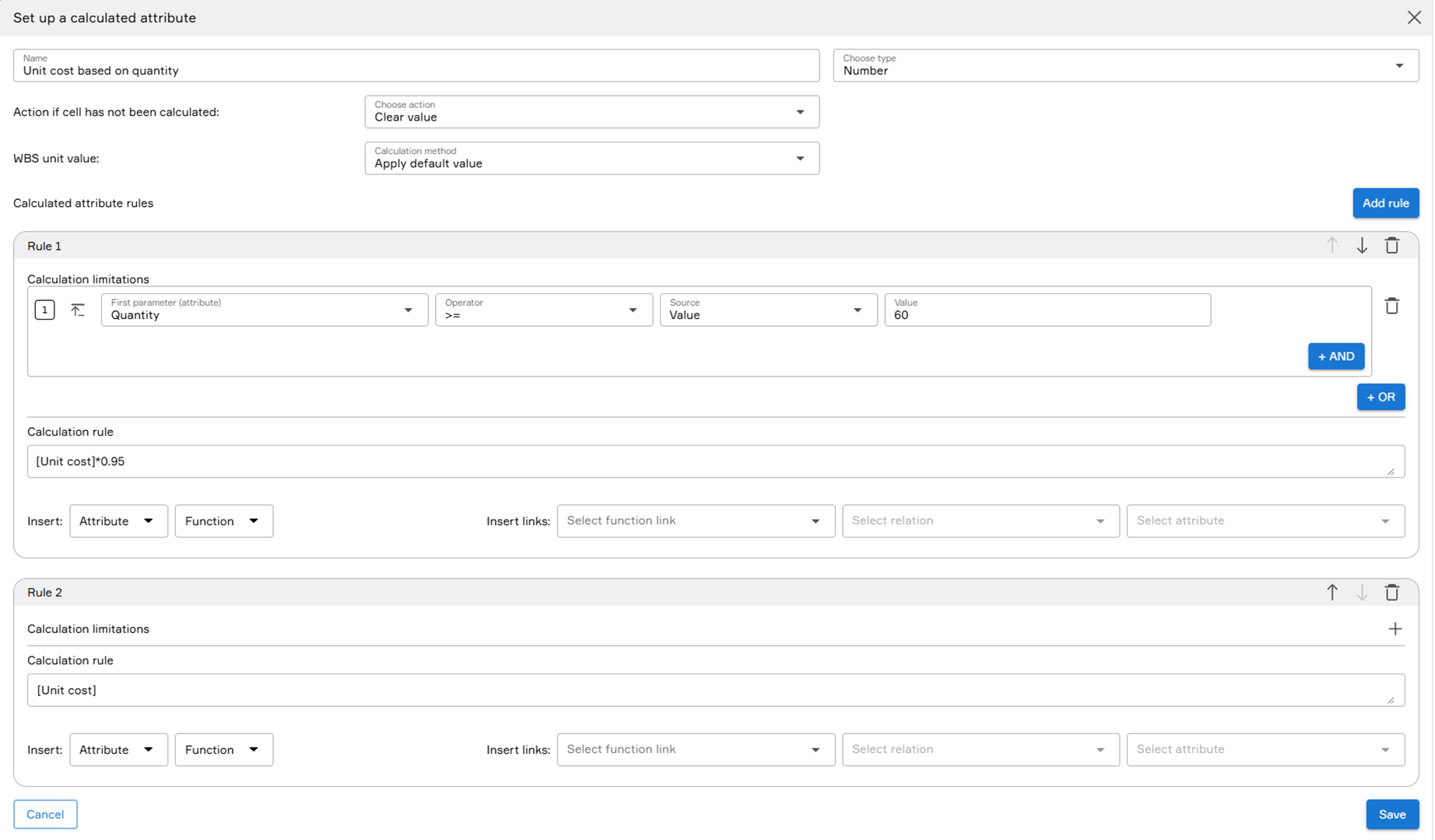 Rules for a calculated attribute with multiple calculation rules
After saving the calculated attribute and adding it using the settings on the "Views" tab, you can see the calculation result in the schedule.
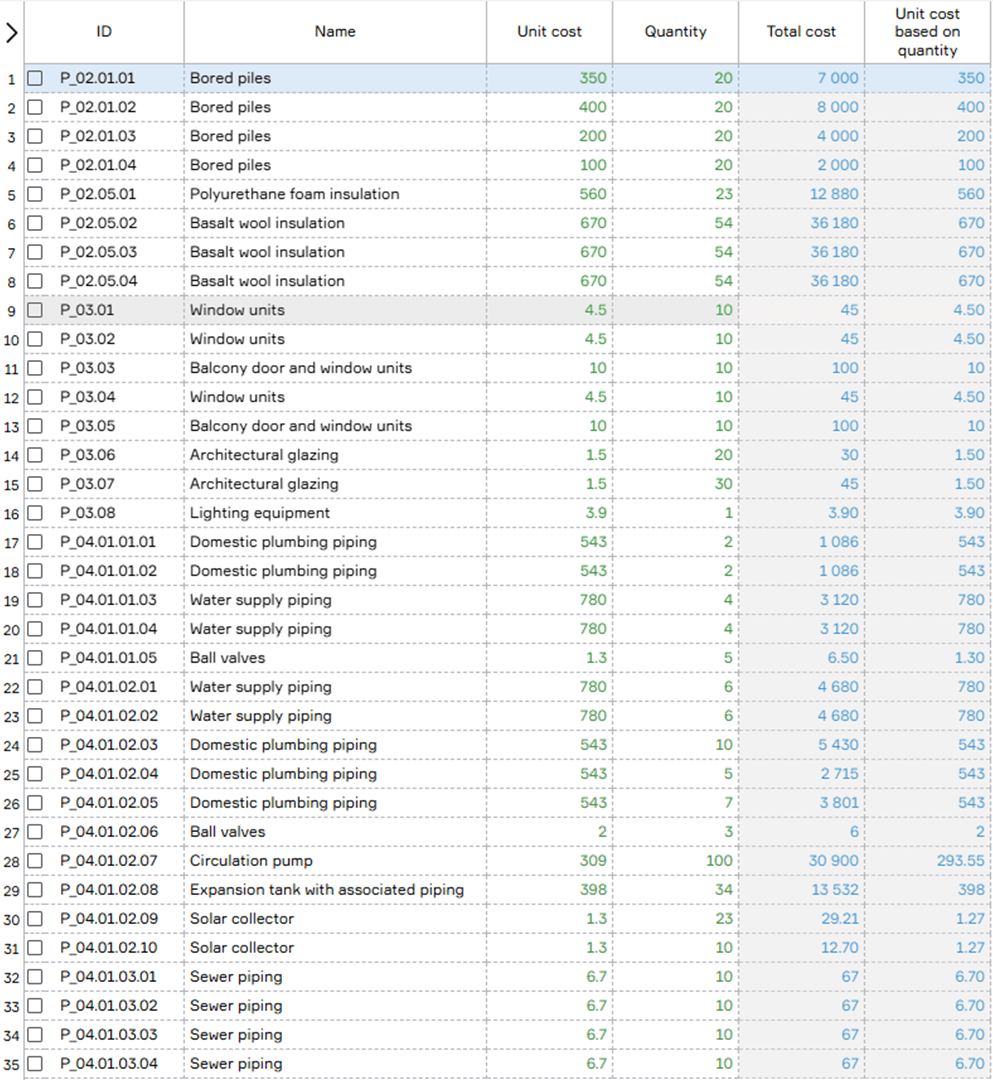 Schedule with the calculated attribute added (Example 2)
Example 3: A Calculated Attribute Using Attributes from Linked Schedules
For this example, create another schedule containing the quantities of items currently in stock.
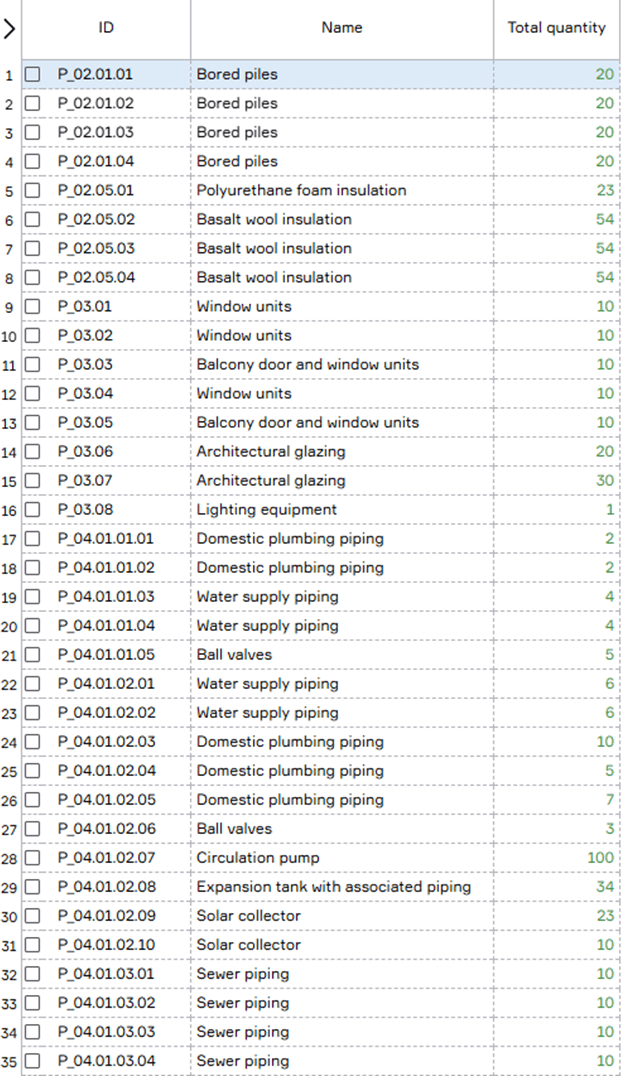 New schedule containing item quantities
The total quantity of items after delivery needs to be determined. For each item, calculate the sum of its quantity in stock (data in the first schedule) and its quantity in the delivery (data in the other schedule). To perform operations on data from different schedules, link the schedules using the "ID" attribute.
 Link between two schedules
In the "Set up a calculated attribute" window, use the "Calculation rule" field to add the item quantity from the supporting schedule to the item quantity in the main schedule. Select the link in the "Insert links" field.
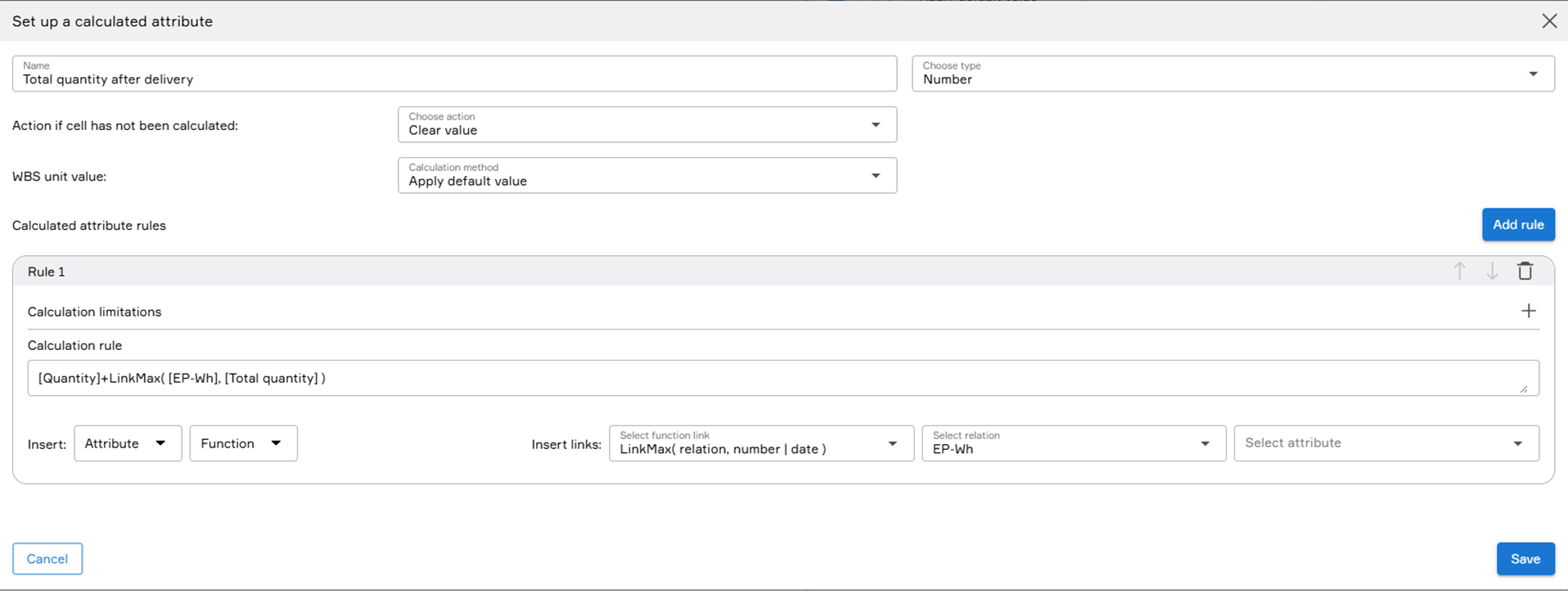 Rules for a calculated attribute using attributes from linked schedules
The calculation in the schedule appears as follows:
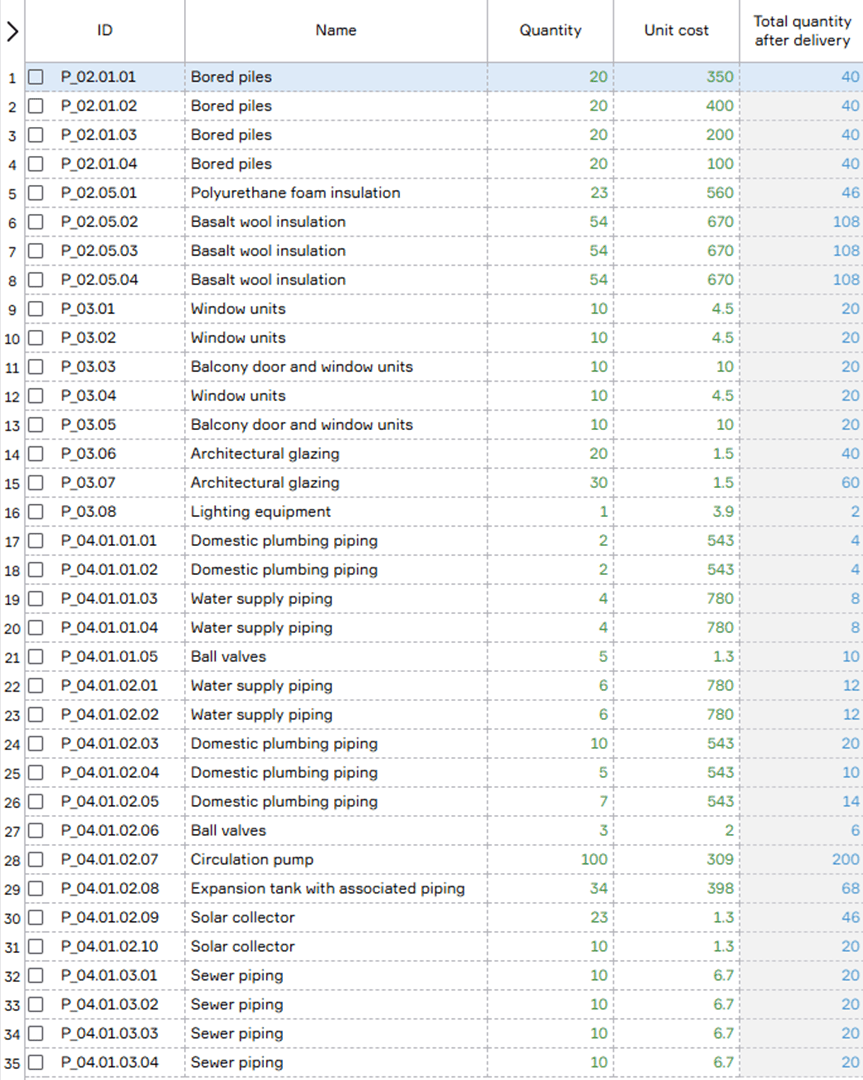 Main schedule with the calculated attribute added (Example 3)