DESKTOP APPLICATION LICENSING
When the desktop version of PLAN-R starts, it checks whether a license has been loaded, whether it is still valid, and whether the computer's fingerprint matches the fingerprint specified in the license. If an Internet connection is available, the result of this check is sent to the Digital Practices LLC license server. If the license check fails, you are prompted to activate the application.
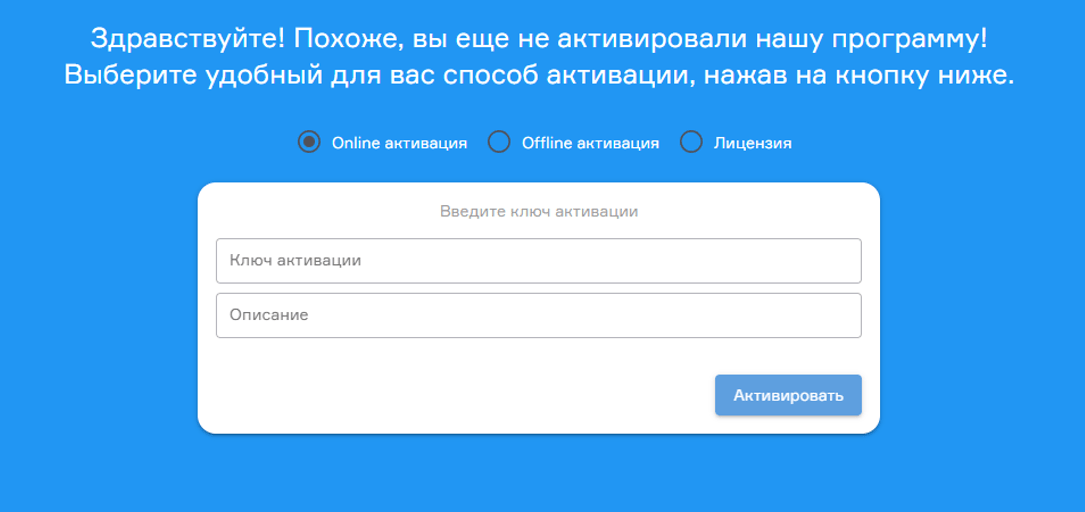
There are three ways to activate the application:
- Online activation — If an Internet connection is available, you can activate the application through the Digital Practices LLC licensing server.
- Offline activation — Used when no Internet connection is available.
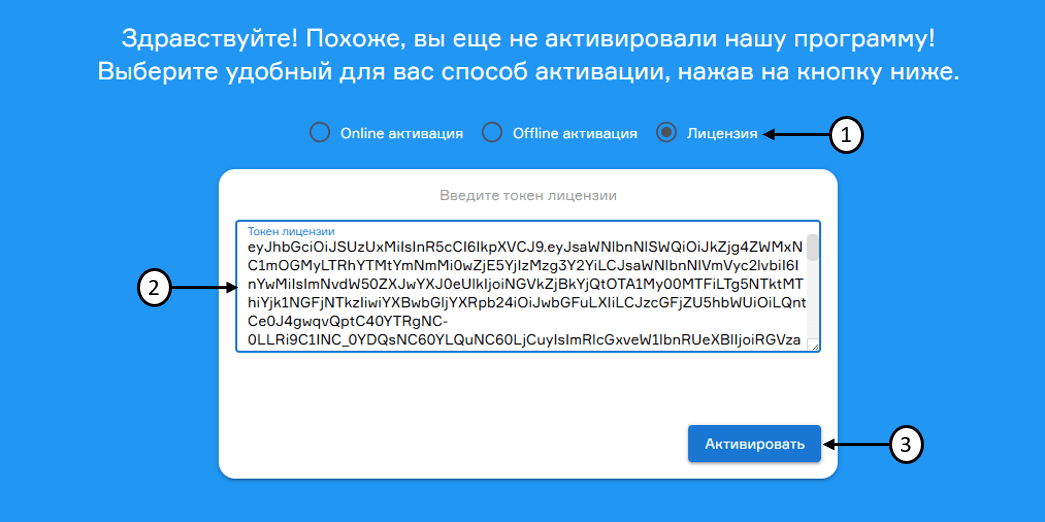
- License — Enter a license token if you already have one.
Online Activation of PLAN-R Desktop
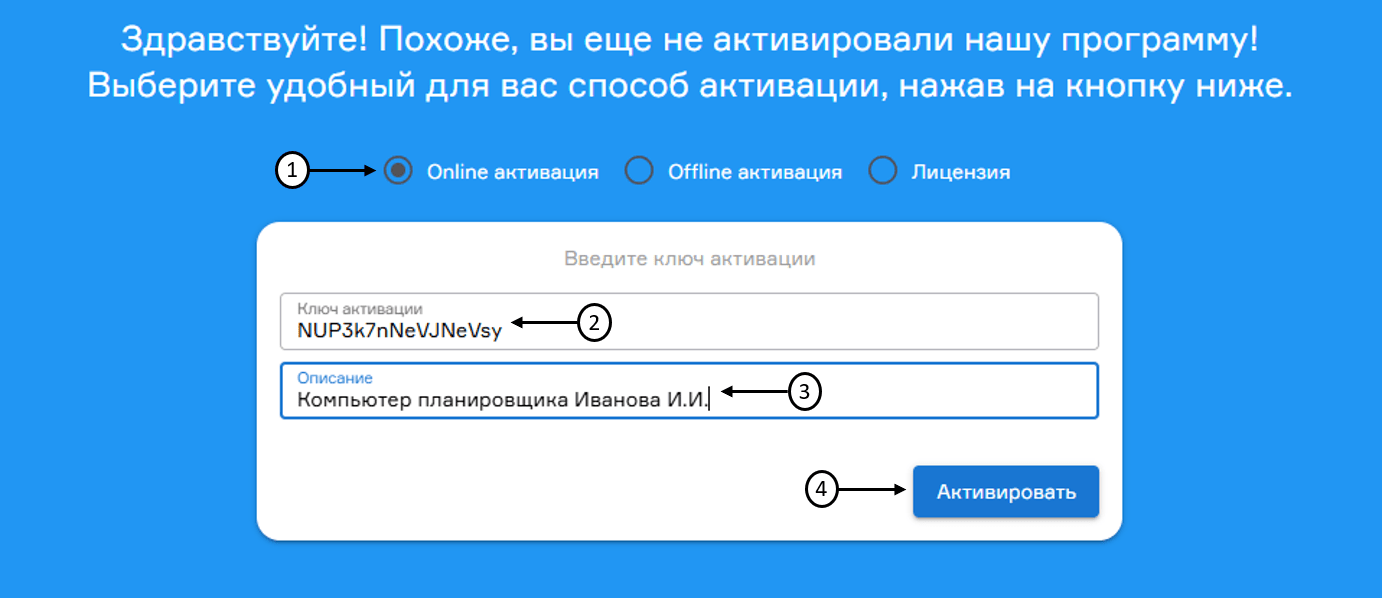
If an Internet connection is available, select "Online activation" (1) on the activation page. In the "Activation key" field (2), enter an activation token from the list of tokens provided to your organization's administrator. In the "Description" field (3), enter a description of the computer on which PLAN-R is installed so that it can be easily identified later. Then click "Activate" (4).
Offline Activation of PLAN-R Desktop
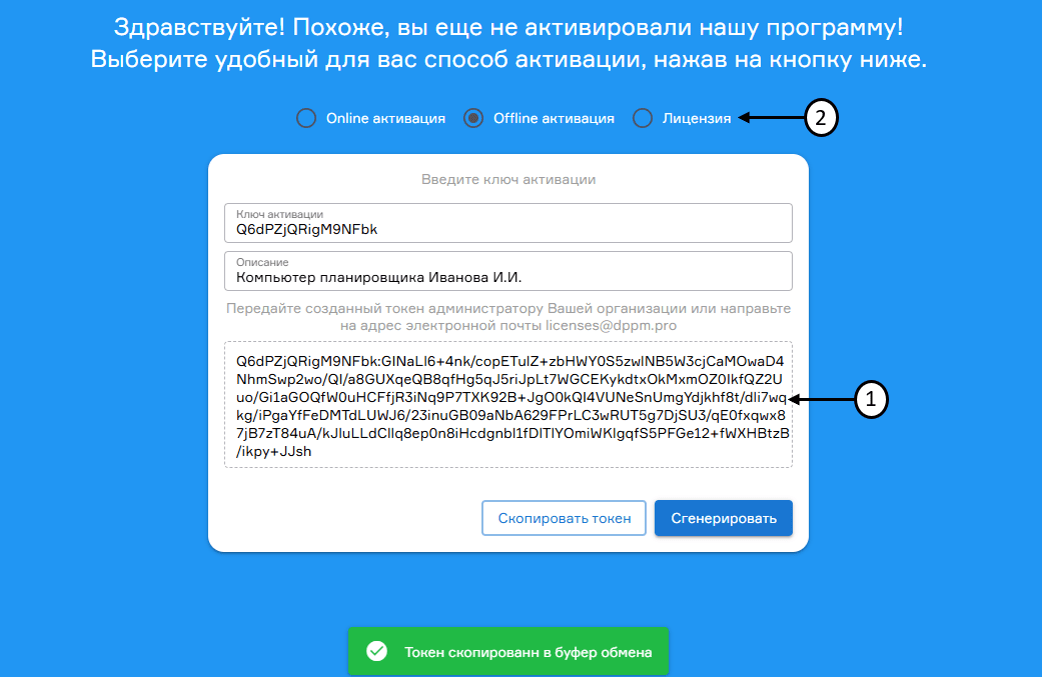
If no Internet connection is available, select "Offline activation" (1) on the activation page. In the "Activation key" field (2), enter an activation token from the list of tokens provided to your organization's administrator. In the "Description" field (3), enter a description of the computer on which PLAN-R is installed so that it can be easily identified later. Then click "Generate" (4) to create an activation request token.
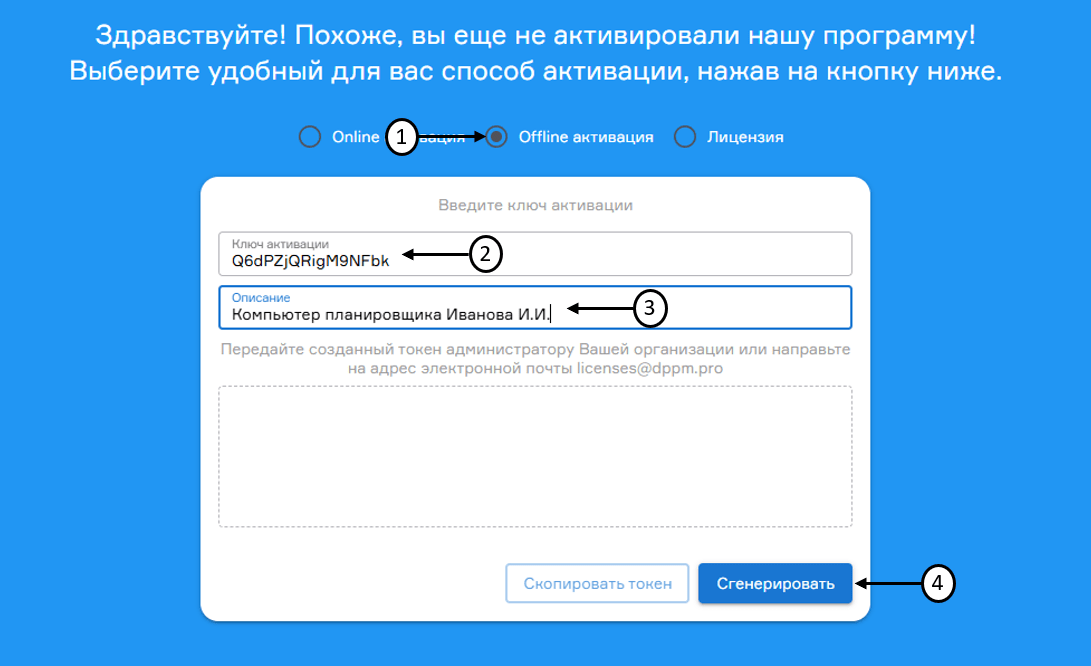
An offline activation request token (1) is generated based on the activation token and the computer's fingerprint. Send this request token to licenses@dppm.pro. Digital Practices LLC will generate a license token and email it to you. Enter the received license token in the "License" section (2) of the activation form.
If you already have a license token for the computer, or have received one in response to an offline PLAN-R activation request, select "License" (1), paste the token into the "License token" field (2), and click "Activate" (3).