ON-PREMISE. LICENSING
Types of Licenses
In On-Premise PLAN-R, license restrictions apply to users who use the system's paid functionality, as determined by the role model (see Role Model).
On-Premise PLAN-R uses two types of licenses:
- Named user licenses — Limit the number of unblocked users with access to paid functionality in the system.
Example: You purchased a license for 20 users. You can register any number of users with access to free functionality, but only 20 users with access to paid functionality. - Concurrent user licenses — Limit the number of users with access to paid functionality who can work in the system simultaneously.
Example: You have 20 employees who spend only part of their working time using the software, and there is no urgent need to enter data. In this case, you can purchase a license for 10 users instead of 20. Only 10 users with access to paid functionality can use the system simultaneously, while the total number of such users is unlimited.
Contents of the License Token
The license token contains the following information:
- Space name. Once the license is activated, the space is automatically renamed according to the information encoded in the token.
- Number of active users with access to paid functionality.
- Total number of users with access to paid functionality.
- Number of users with access to paid cost estimating functionality.
- Number of users with access to paid BIM model functionality.
- License start date.
- License expiration date.
- Maximum supported system version, i.e., the latest release to which the system can be updated.
License Management
When PLAN-R is started for the first time, a default space is created automatically, and you need to assign a license to it. Open the administration web console, go to the "Spaces" section (1), and click "Settings" (2).
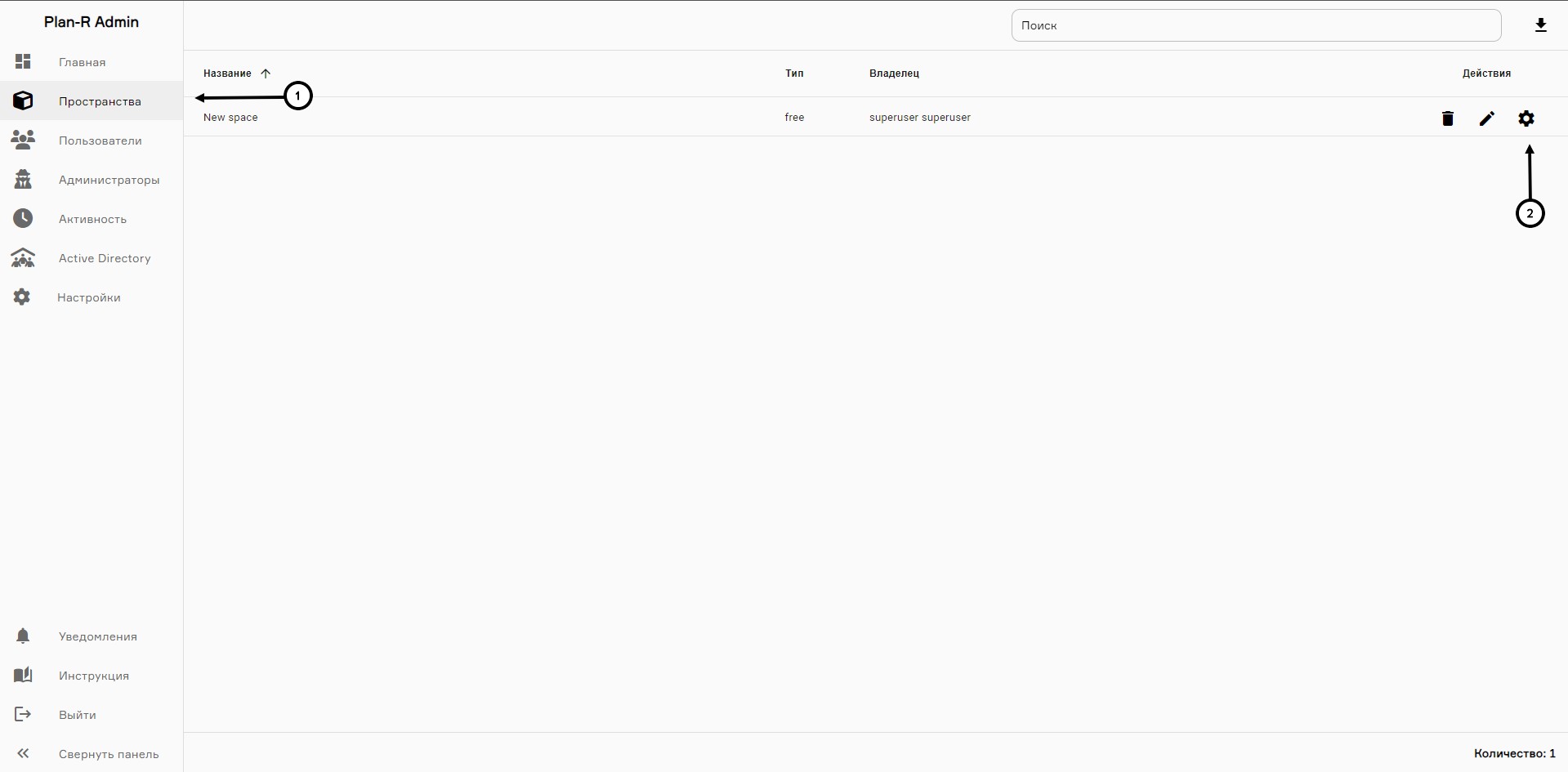 Space Settings
Licenses are managed on the "Licenses" tab (1), which displays a list of all available licenses.
 Licenses Tab
To add a license token, click "Add" (1) in the upper-left corner of the screen. A dialog box opens. Enter the license token (2) and click "Add" (3). The license is then added to the list of available licenses.
 Licenses
In the "Actions" column, you can activate or deactivate a license (1), or delete it (2). You can add multiple licenses, but only one can be active at a time.
 Deleting and Activating or Deactivating a License
Once a license is activated, the "Home" tab (1) displays the information encoded in the active license's token (2).
 Active License
The "Home" tab (1) displays connection and status analytics for system users and administrators. To view the analytics, select a space (2). Information about the connections and status of all users in the selected space is displayed below (3), along with the status of system users and administrators (4).
 User Connections and Status