Checking Container Startup
The primary indicator of PLAN-R operational status is container health (health check). To verify that the services have started successfully, wait for the system to finish starting. This usually takes about 2 minutes, depending on server performance. Then run:
docker ps
The output lists running containers and their states. If all system services have started successfully, the containers should have a status of healthy.
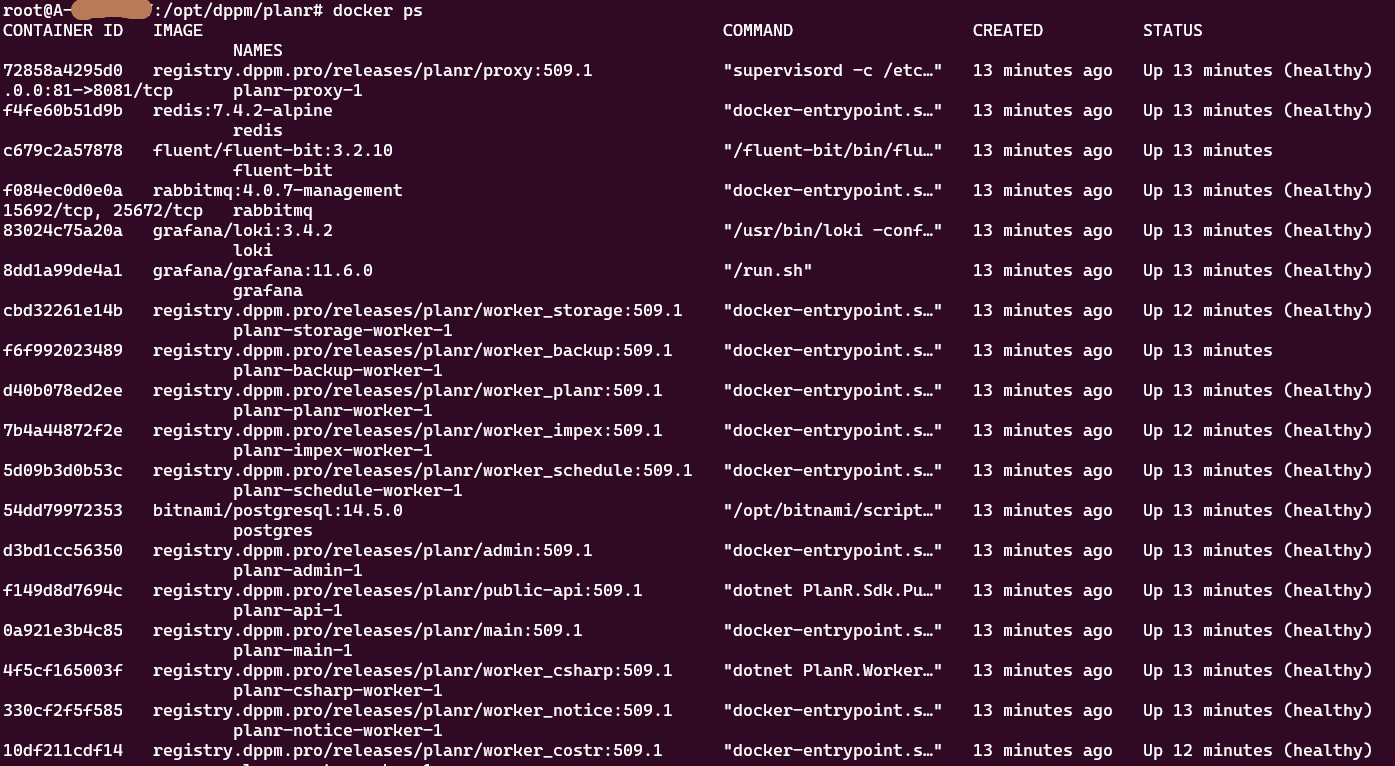
Output of docker ps
- If some containers have a status of
starting, the system is still starting. Wait for the containers to finish starting. - If a container has a status of
unhealthyafter startup or remains in arestartingstate, check its logs to diagnose the problem.
Viewing Container Logs
To view a container's logs, run:
docker logs <container_id>
You can find the container ID in the output of
docker ps.

Output of docker ps. Container ID
Checking System Operation
- Run
docker psand verify that all containers have a status ofhealthy. - Run
docker logs <container_id>to check the logs of therabbitmqcontainer. Verify that there are no errors.
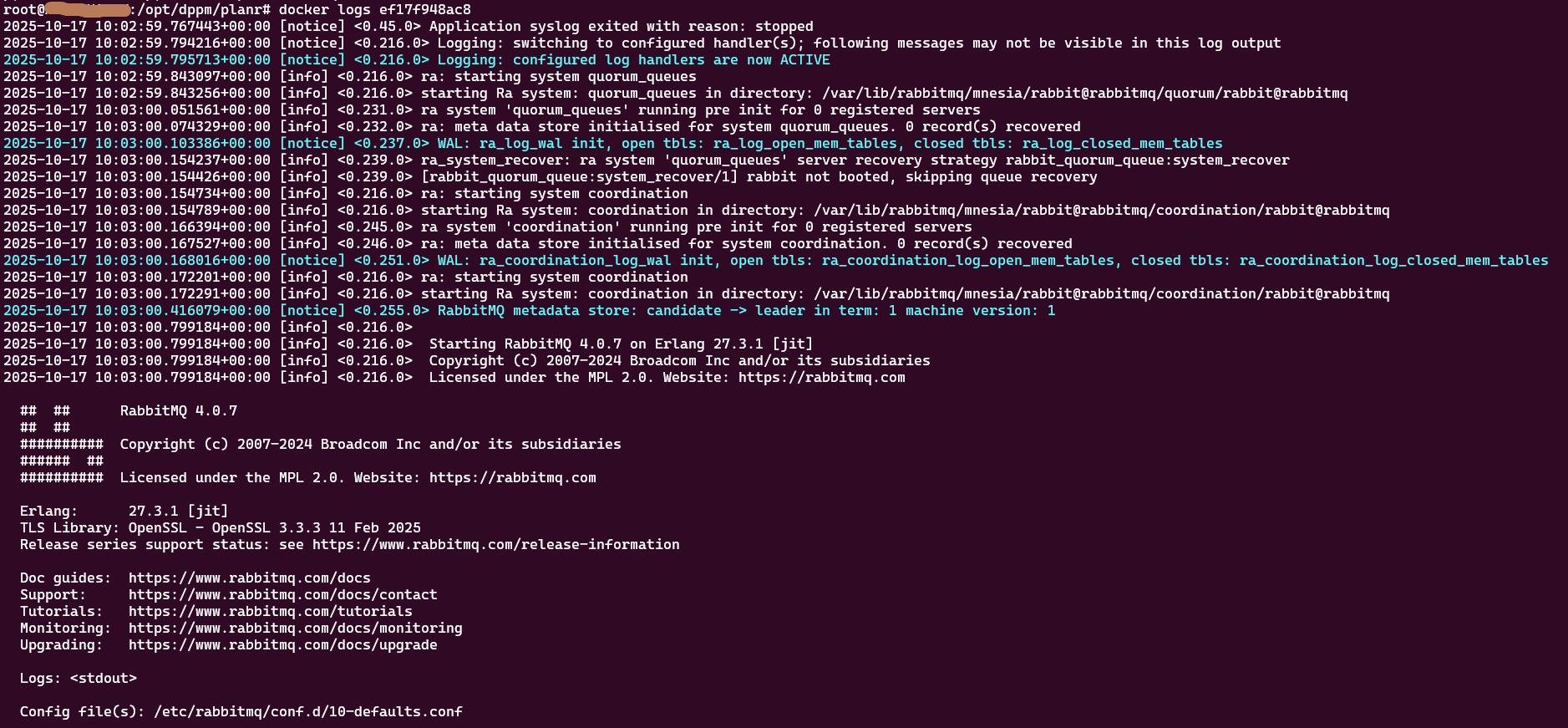
Output of docker logs. rabbitmq
- Run
docker logs <container_id>to check the logs of theplanr-backup-worker-1container and verify that data migrations have completed. - If startup was successful, the logs of
planr-backup-worker-1should contain no errors.
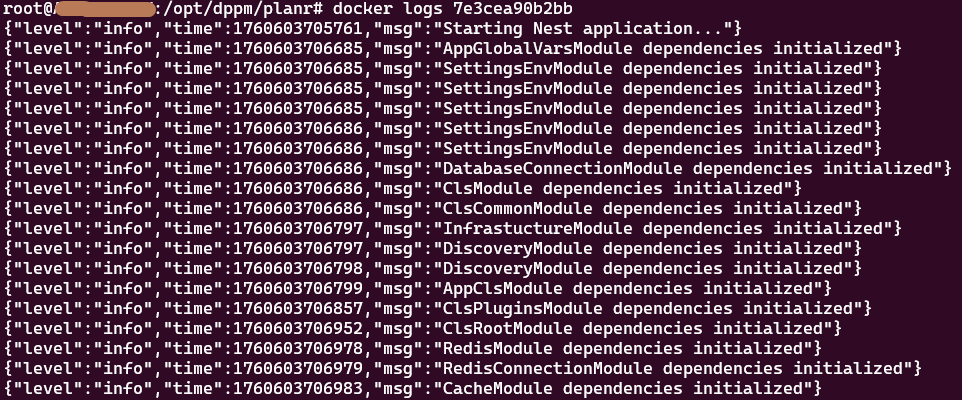
Output of docker logs. planr-backup-worker-1
- If startup failed, the logs will contain errors, such as a message indicating that RabbitMQ is unavailable:
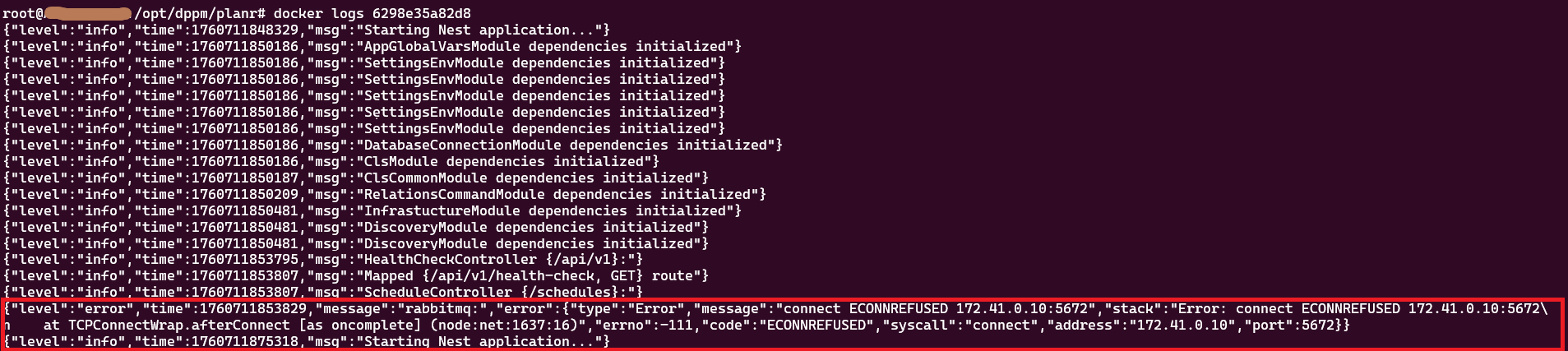
planr-backup-worker-1. RabbitMQ error
- If you use the database included in the distribution package, run
docker logs <container_id>to check the logs of thepostgrescontainer. These logs should also contain no errors. - If the containers started successfully, you will see the following information:
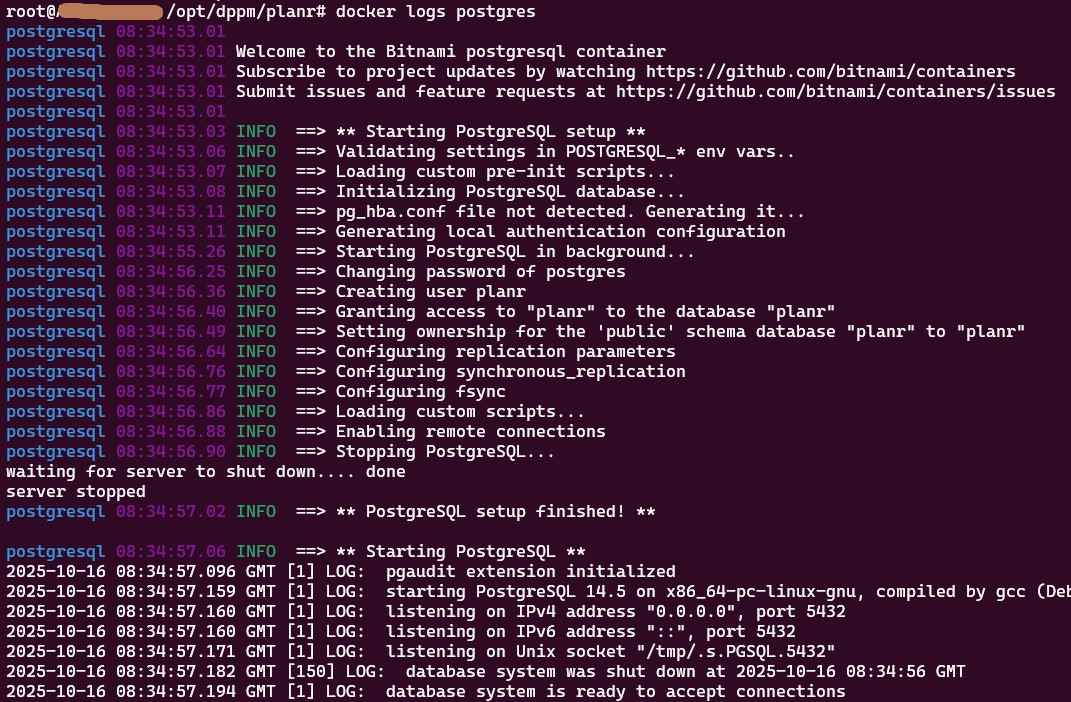
Output of docker logs. postgres - Open a browser and verify that the PLAN-R web interface is available at
http(https)://server_name:80and the web administration console athttp(https)://server_name:81/admin.