PostgreSQL Error When Updating PLAN-R from Version 503.1: chmod: changing permissions of '/bitnami/postgresql/data': Operation not permitted
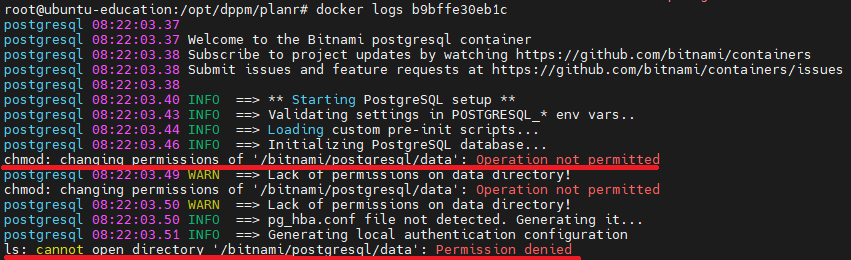
postgres container logs. Permission denied
If the postgres container keeps restarting after updating PLAN-R from version 503.1, check its logs:
docker logs <container_id>
You can find the postgres container ID in the output of:
docker ps

docker ps. postgres container ID
If the logs contain the error chmod: changing permissions of '/bitnami/postgresql/data': Operation not permitted, check the permissions on /var/lib/docker/volumes/planr_postgresql/_data:
ls -lha /var/lib/docker/volumes/planr_postgresql/_data

Checking directory permissions
If the owner is root:root, change the owner to 1001 using the following command, then restart the system:
chown -R 1001:root /var/lib/docker/volumes/planr_postgresql/_data
File Storage Access Error When Updating PLAN-R
If you use file system storage and encounter file access errors when updating to version 604.0 or later, the problem is caused by the user inside the planr-storage container changing from root to appuser. To resolve this, change the ownership of existing files to 1001:root.
- Find the data volume, usually named
planr_planr-storage:
docker volume ls | grep planr-storage
- Check the mount point, usually
/var/lib/docker/volumes/planr_planr-storage/:
docker volume inspect planr_planr-storage
- Open the mount point directory and change ownership:
cd /var/lib/docker/volumes/planr_planr-storage/
chown -R 1001:root _data/
PLAN-R User Interface Unavailable
If the PLAN-R user interface at http(https)://server_name:80 is unavailable after starting the system, follow these steps:
- Wait for the system to finish starting. This usually takes about 2 minutes, depending on server performance.
- Follow the steps in Checking System Operation and verify that the system has started successfully.
- Open the
.envfile and verify that requests to the user interface and administration console use the correct ports.
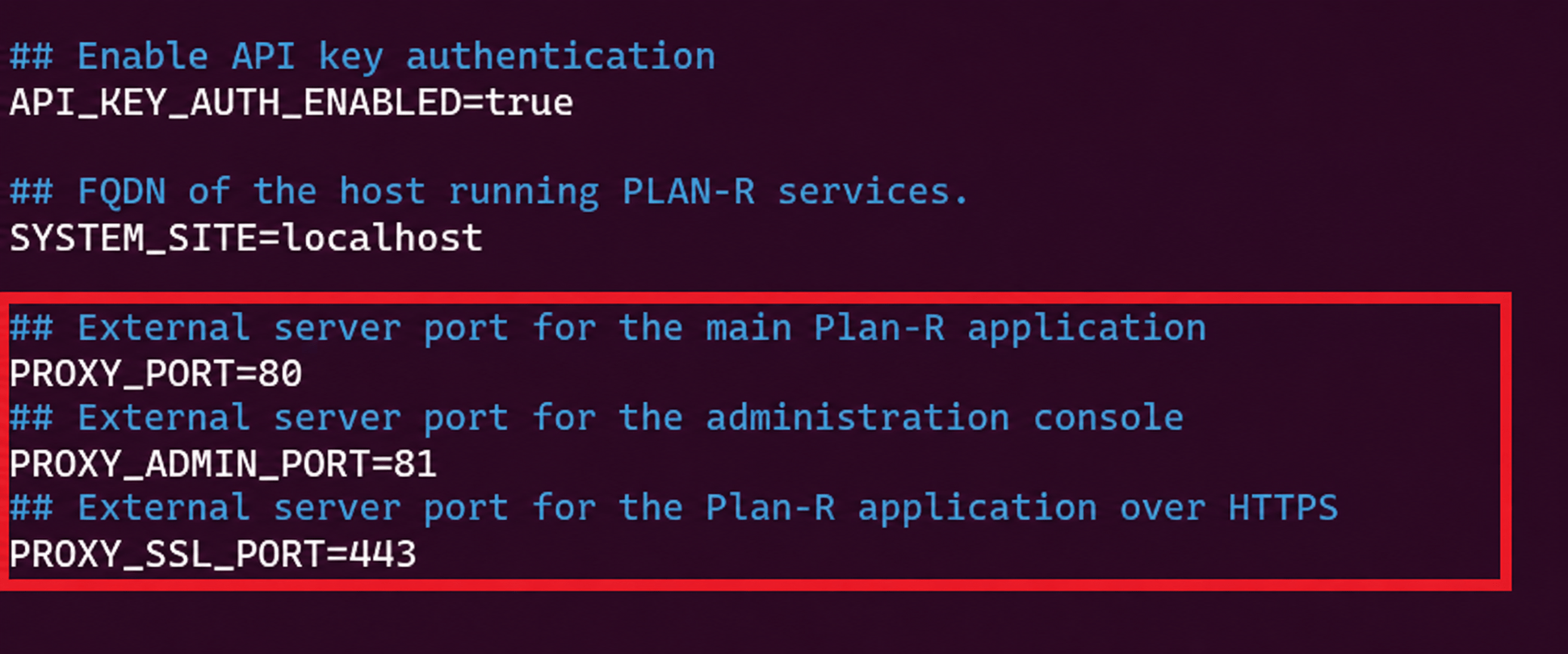
.env environment variable file. Application ports
- If a firewall is installed, verify that all ports required by PLAN-R are open. By default, PLAN-R uses ports 80, 81, and 443. For example, if UFW is installed, run the following command to view open ports:
sudo ufw status numbered
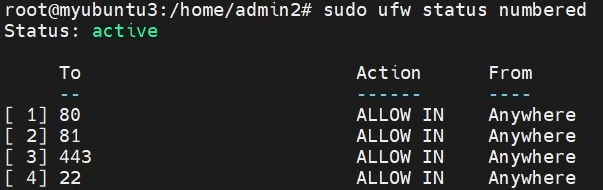
UFW. Open ports
- Next, use
curlto check whether the interfaces are available:
# User interface
curl <server_ip>:80

# Administration interface
curl <server_ip>:81
If the PLAN-R user interface is available, the curl output will look as follows:

curl command. Port 80
When checking the administration interface using curl, output appears only if the administration interface is unavailable:

curl command. Port 81. Administration interface error
- You can also check the PLAN-R user interface in the browser. In Chrome, press F12 to open Developer Tools, open the "Network" tab, select "Socket", and press F5 to reload the page. If the previous diagnostic checks were successful, the "Status" field should show
101. This means the server accepted and completed the client's request to establish a WebSocket connection.
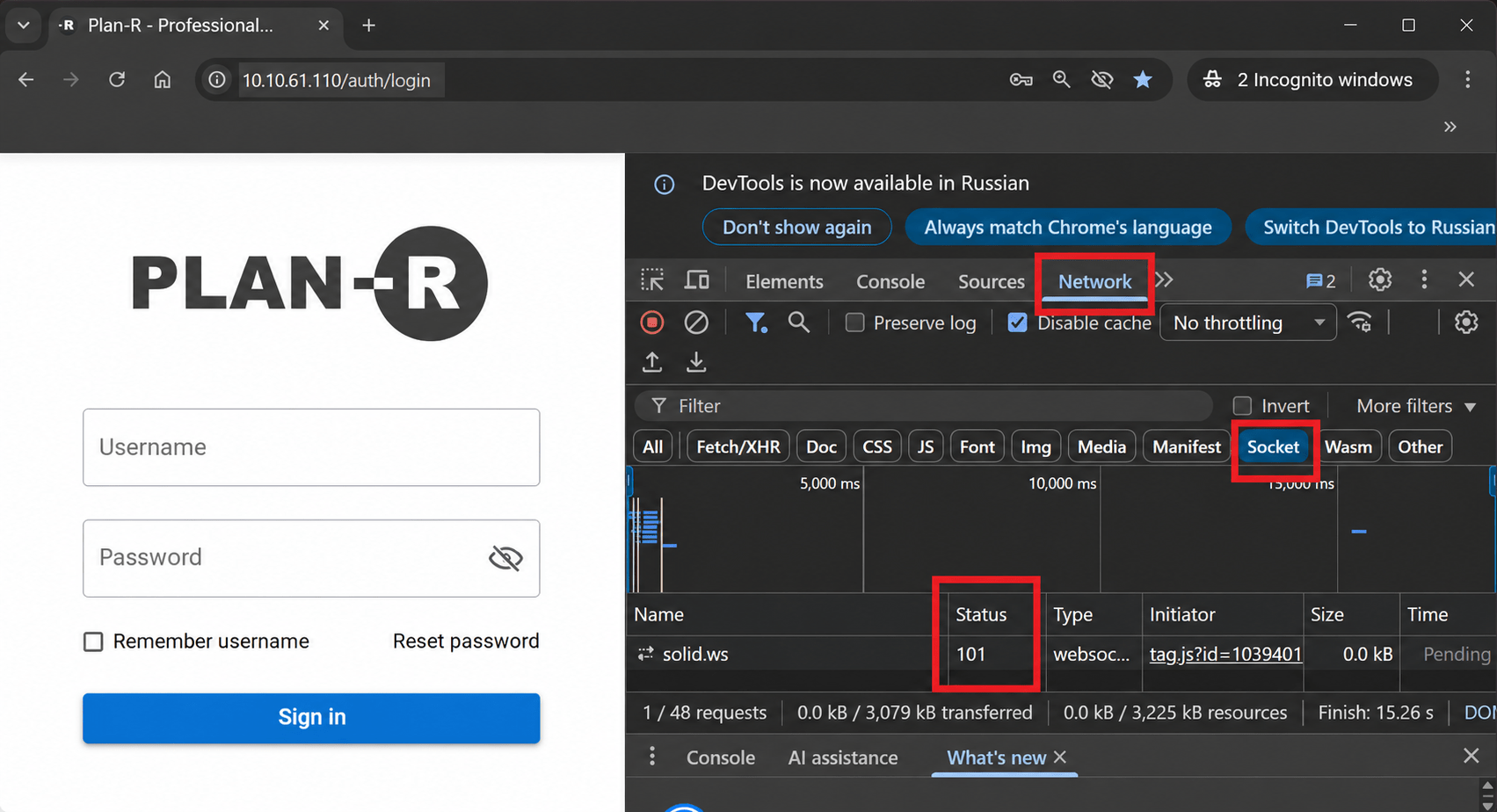
Developer Tools. WebSocket connection status