Upgrading the Database to PostgreSQL 18
Before upgrading from PostgreSQL 14.5.0 (17.4.0) to PostgreSQL 18, back up the current database as described in Backup. Run dump.sh to create a backup of the current database in /opt/dppm/postgres_dump:
./dump.sh -p /opt/dppm/postgres_dump
 Backing Up the Database Before Upgrading
- Open /var/lib/docker/volumes/, locate the current PostgreSQL 14.5.0 Docker volume, and rename it. Attention! The system must be stopped before renaming the volume. Run all commands with administrator privileges:
# Open the directory
cd /var/lib/docker/volumes/
# Find the current Docker volume
ls –lha | grep postgres
# Rename the current volume to planr_postgresql_14
mv planr_postgresql planr_postgresql_14
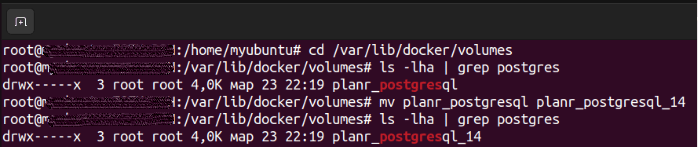 Renaming the Docker Volume
If needed, archive the old PostgreSQL 14.5.0 Docker volume to save disk space:
tar --remove-files -cvzf planr_postgresql_14.tar.gz ./planr_postgresql_14
- Remove the old planr_postgresql volume:
# Remove the planr_postgresql volume
docker volume rm planr_postgresql
- Edit docker-compose.yml, located in /opt/dppm/planr by default. Add the following PostgreSQL configuration:
  postgres:
    image: 'postgres:${POSTGRES_VERSION:-18.1}'
    container_name: postgres
    user: postgres
    environment:
      POSTGRES_USER: planr
      POSTGRES_PASSWORD: planr
      POSTGRES_DB: planr
      POSTGRES_MAX_CONNECTIONS: 800
# postgress ports
    # ports:
    #   - 5432:5432
    volumes:
      - postgresql:/var/lib/postgresql
    networks: *default-network
    restart: *default-restart-policy
    profiles: ['postgres', 'all']
    shm_size: '2gb'
    healthcheck:
      test: pg_isready -U planr
      interval: 10s
      retries: 20
      start_period: 10s
Remove or comment out the old PostgreSQL 14 configuration.
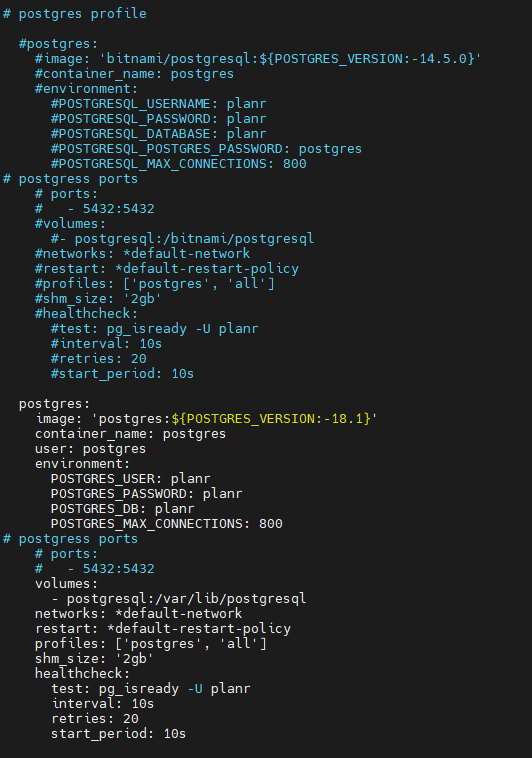 PostgreSQL Configuration in docker-compose.yml
- Open /opt/dppm/planr and start the system using ./start.sh.
- Once the system starts successfully, restore the database as described in Restoring a Database from a Backup. Ignore ERROR: role "postgres" does not exist during restoration.
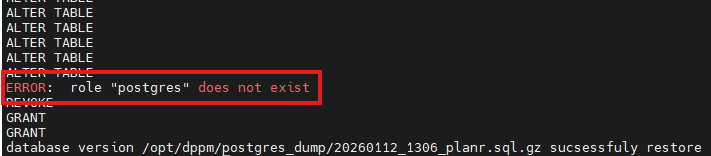 Restoring the Database from a Backup
Installing PostgreSQL 18 During a System Update
To install PostgreSQL 18 while updating PLAN-R:
- Back up the database as described in Backup. Run dump.sh to create a backup of the current database in /opt/dppm/postgres_dump:
./dump.sh -p /opt/dppm/postgres_dump
Backing Up the Database Before Upgrading
- Follow Updating PLAN-R (Linux).
- Open /var/lib/docker/volumes/, locate the current PostgreSQL 14.5.0 Docker volume, and rename it. Attention! The system must be stopped before renaming the volume. Run all commands with administrator privileges:
# Open the directory
cd /var/lib/docker/volumes/
# Find the current Docker volume
ls –lha | grep postgres
# Rename the current volume to planr_postgresql_14
mv planr_postgresql planr_postgresql_14
Renaming the Docker Volume
If needed, archive the old PostgreSQL 14.5.0 Docker volume to save disk space:
tar --remove-files -cvzf planr_postgresql_14.tar.gz ./planr_postgresql_14
- Remove the old planr_postgresql volume:
# Remove the planr_postgresql volume
docker volume rm planr_postgresql
- Restore the database as described in Restoring a Database from a Backup, start the system, and verify that the PostgreSQL upgrade was successful. Ignore ERROR: role "postgres" does not exist during restoration.
Restoring the Database from a Backup