Updating PLAN-R (Windows)
Attention! Deploying and updating PLAN-R on Windows is recommended only for product evaluation or testing, not for production use.
To update PLAN-R on Windows:
- Back up the database before updating. Open PowerShell, navigate to the deployment directory, such as
C:\Plan-r, and run the following commands. Attention! The backup is created without compression.
# Open the deployment directory
cd C:\Plan-r

# Back up the database
docker exec postgres /bin/bash -c "export PGPASSWORD=planr && pg_dump -U planr planr" > planr_latest.sql
- Download the latest distribution archive.
- Open the PLAN-R deployment directory, such as
C:\Plan-r. - Extract the archive into
C:\Plan-rusing an archive utility such as WinRAR or 7-Zip. The utility should prompt for a password. Request it from support@dppm.pro.
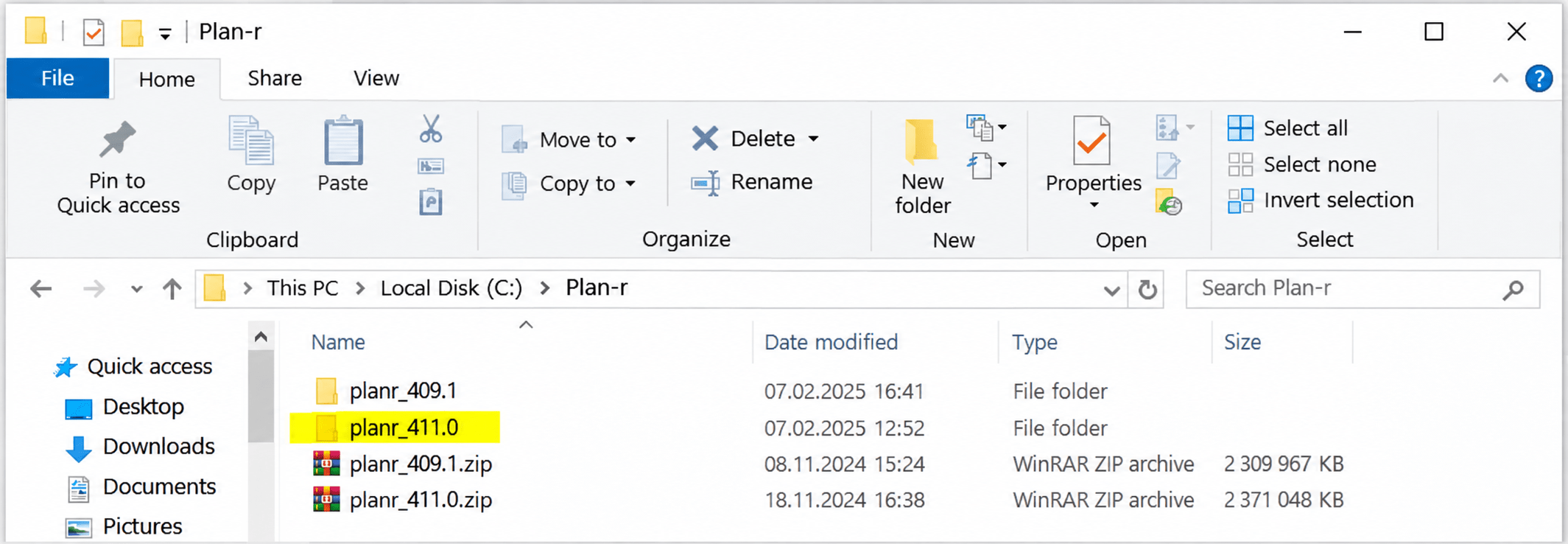 Extracting the Archive into C:\Plan-r
- Open PowerShell as an administrator and run:
cd C:\Plan-r \planr-r_<version>\images
Get-ChildItem .\*.tar | foreach {docker load --input $_.FullName}
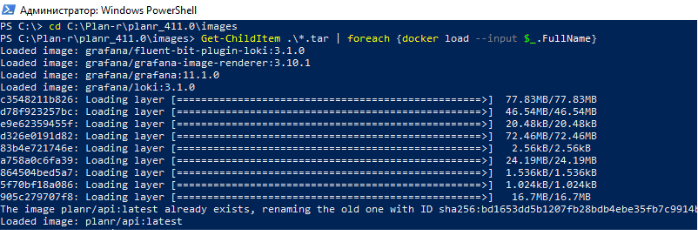 Running Commands in PowerShell
- If configuration changes are needed, open the new distribution directory,
C:\Plan-r \planr_<version>\planr, and edit the.envenvironment variables file. Then start PLAN-R using:
cd C:\PLAN-R\planr_<version>\planr\
docker compose --env-file ./.env -p "planr" up -d
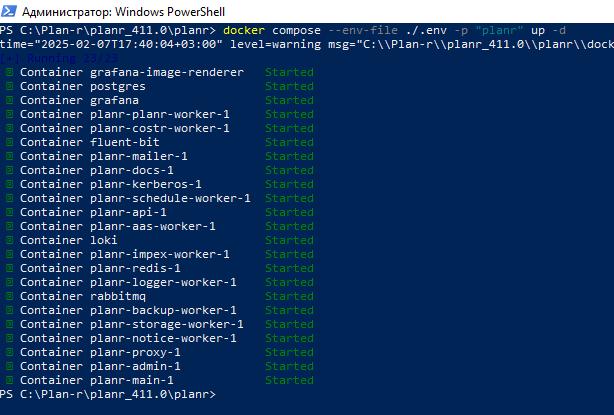 System Configuration
- Open Docker Desktop and verify that everything is running correctly.
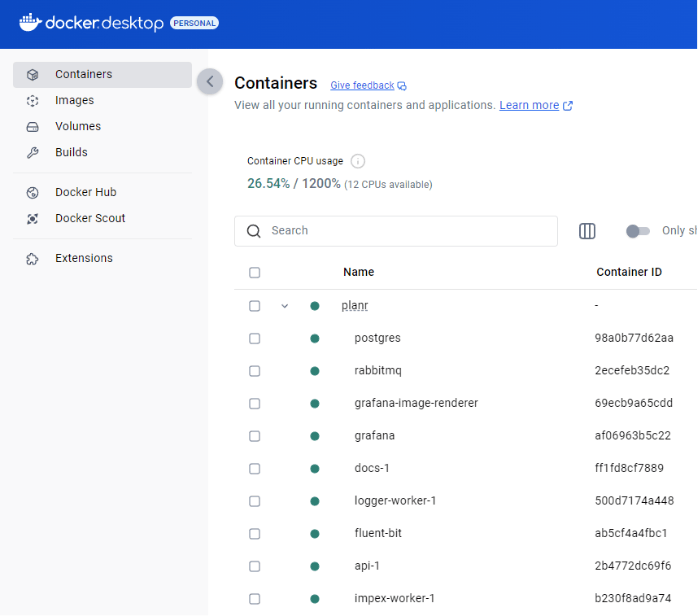 Checking the Result in Docker Desktop