CONFIGURING RULES FOR AUTOMATICALLY LINKING MODEL ELEMENTS TO SCHEDULE ACTIVITIES
To configure a new rule for linking model elements to schedule activities, click the required model in the list (1), then click "Add" (2) in the window that opens.
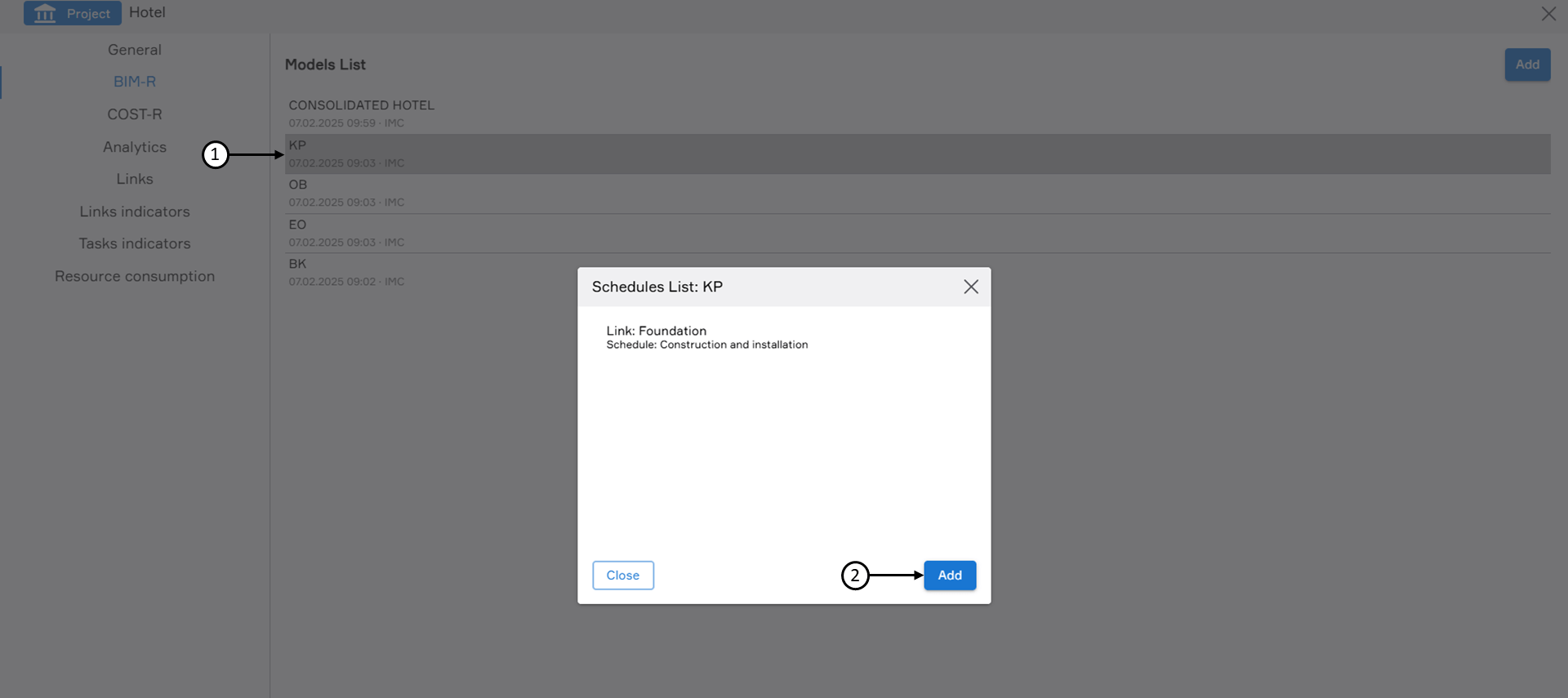 Opening the Menu for Linking Model Elements to Schedule Activities
Next, enter a name for the link configuration (1) and select the project schedule to link to from the drop-down list (2). Select the model element attribute containing the matching codes (3) and the schedule activity attribute containing the matching codes (4). Change the separator for multiple matching code values (5), or leave the default comma (",") unchanged. Then click "Add" (6).
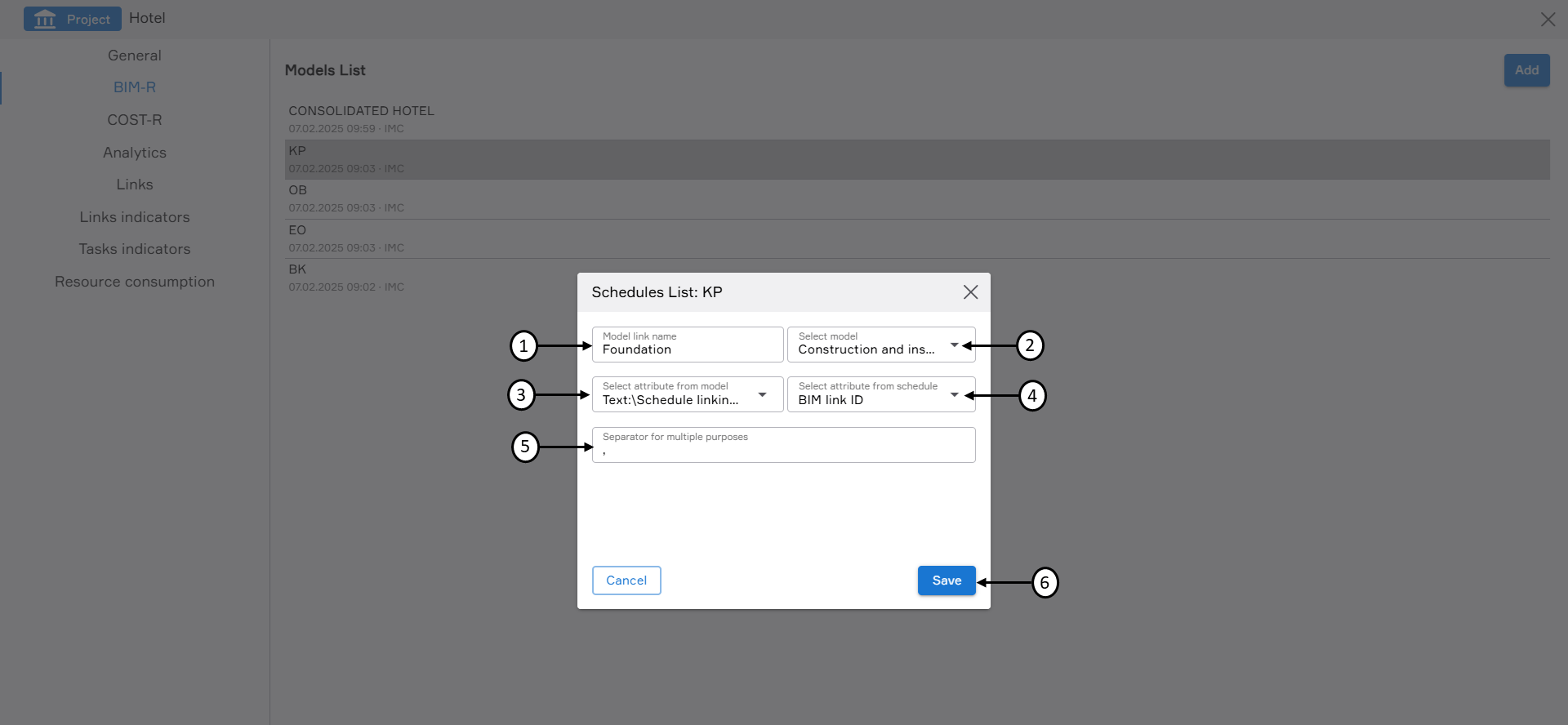 Creating a Link Between Model Elements and Schedule Activities