CHECKLISTS
PLAN-R allows you to create and maintain a centralized library of checklist templates. This is a key tool for standardizing workflows, minimizing errors, and objectively assessing activity progress within a project.
Creating a Checklist Template
To open the section, click “Checklist templates” (1) on the navigation bar. To create a checklist template, select its scope (2): the Enterprise Project Structure node for which the template will be available, along with all its child nodes. Next, click “Create checklist template” (3), enter the checklist name (4), select its type (5), and click “Create” (6).
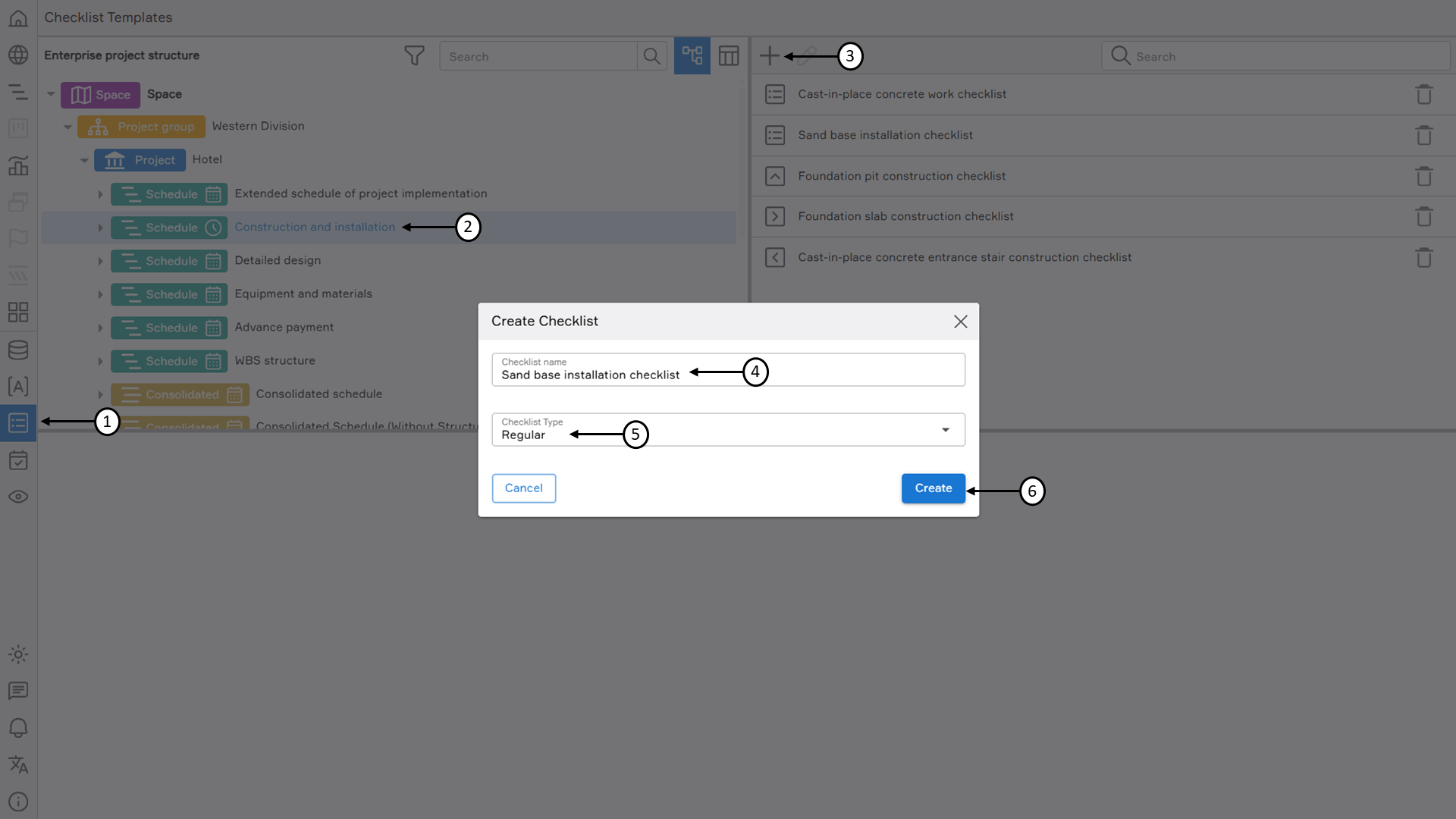 Creating a checklist template
PLAN-R provides the following checklist types:
- General (1) — the default checklist type, which does not affect schedule activities;
- Opening (2) — a checklist for preliminary checks. If an activity has the “In progress” or “Completed” status but its assigned checklist contains incomplete items, PLAN-R displays a red indicator to show that preparatory steps are incomplete;
- Closing (3) — a checklist for mandatory acceptance checks. If an activity has the “Completed” status but its assigned checklist contains incomplete items, PLAN-R displays a red indicator to show that acceptance steps are incomplete;
- Controlling (4) — a checklist that directly controls activity progress. PLAN-R automatically calculates progress based on completed checklist items and prevents manual progress editing. The activity status, such as “Completed”, is also automatically synchronized with checklist completion. However, the status can be changed manually if doing so does not change the activity’s progress value.
To add rows to a checklist, click the “+” button (5). A new row appears in the checklist contents, where you can fill in the required “Name” and “Weight” attributes. “Code” values are unique within each checklist and are generated automatically, but you can edit them manually if needed. To enter or edit a value, double-click the cell with the left mouse button (6). To delete a row, click “Delete” (7) at the beginning of that row.
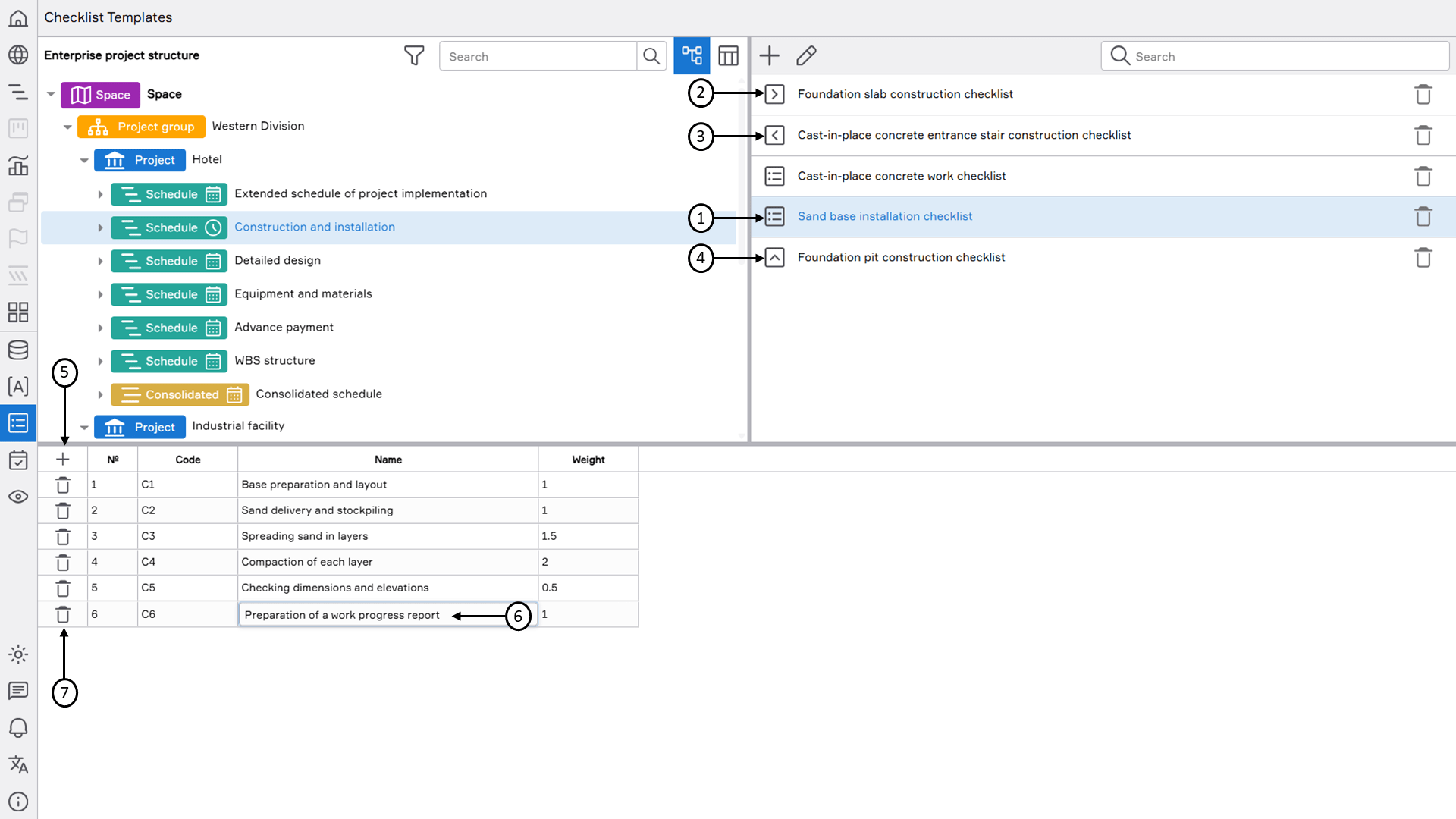 Adding checklist rows
To edit the template name, click the edit button (1), enter a new name (2) in the window that opens, and click “Edit” (3). The checklist type cannot be changed.
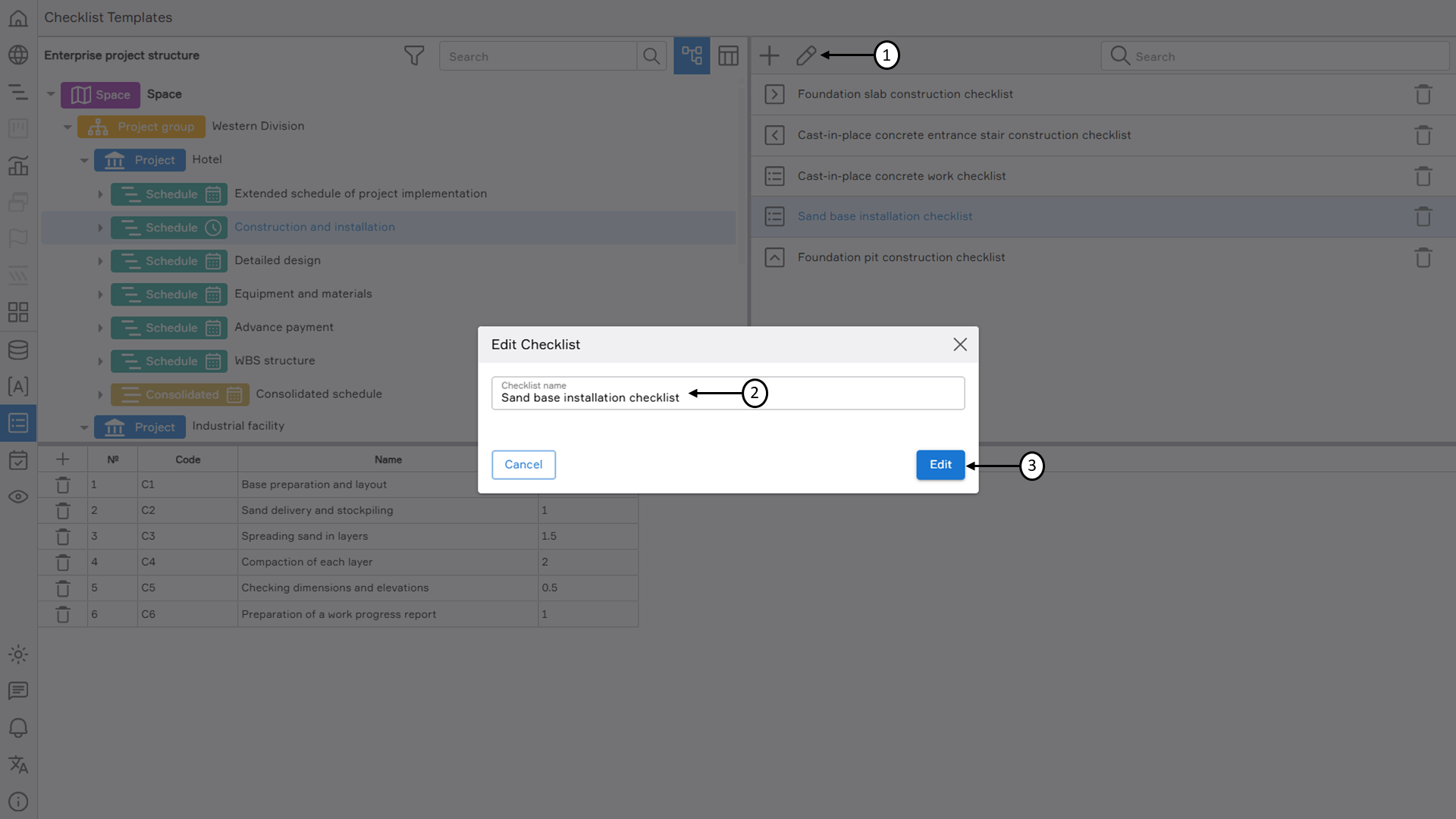 Editing a checklist template
To delete a checklist template, click the delete button (1) and confirm the action (2) in the window that opens.
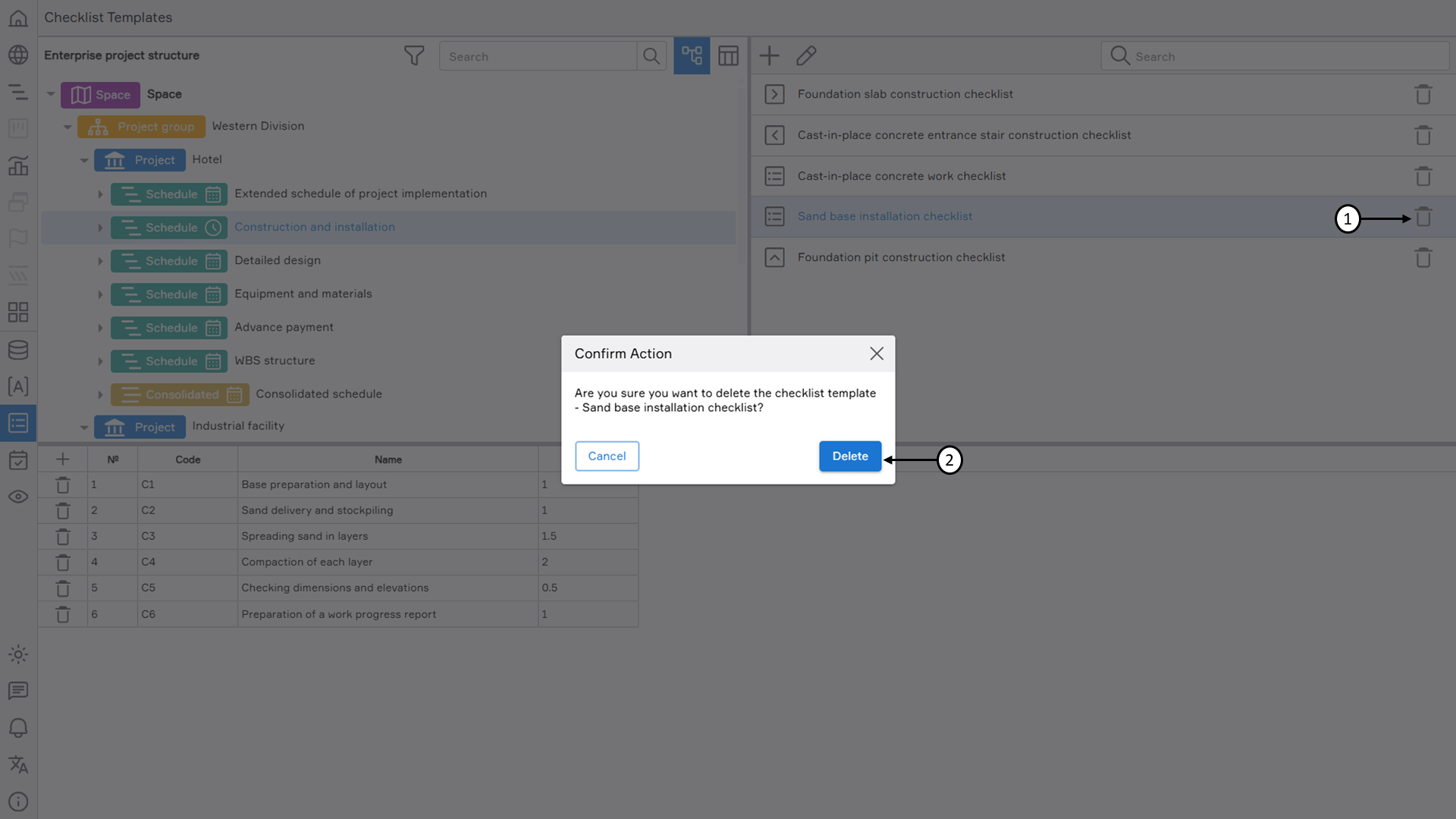 Deleting a checklist template
Assigning a Checklist to Schedule Activities
To assign a checklist template to a schedule activity, go to the “Schedule” section (1), select the required activity (2), and open the “Checklists” tab (3). Click “Select from template” (4), select a template available for the current Enterprise Project Structure node (5) in the window that opens, and click “Add” (6).
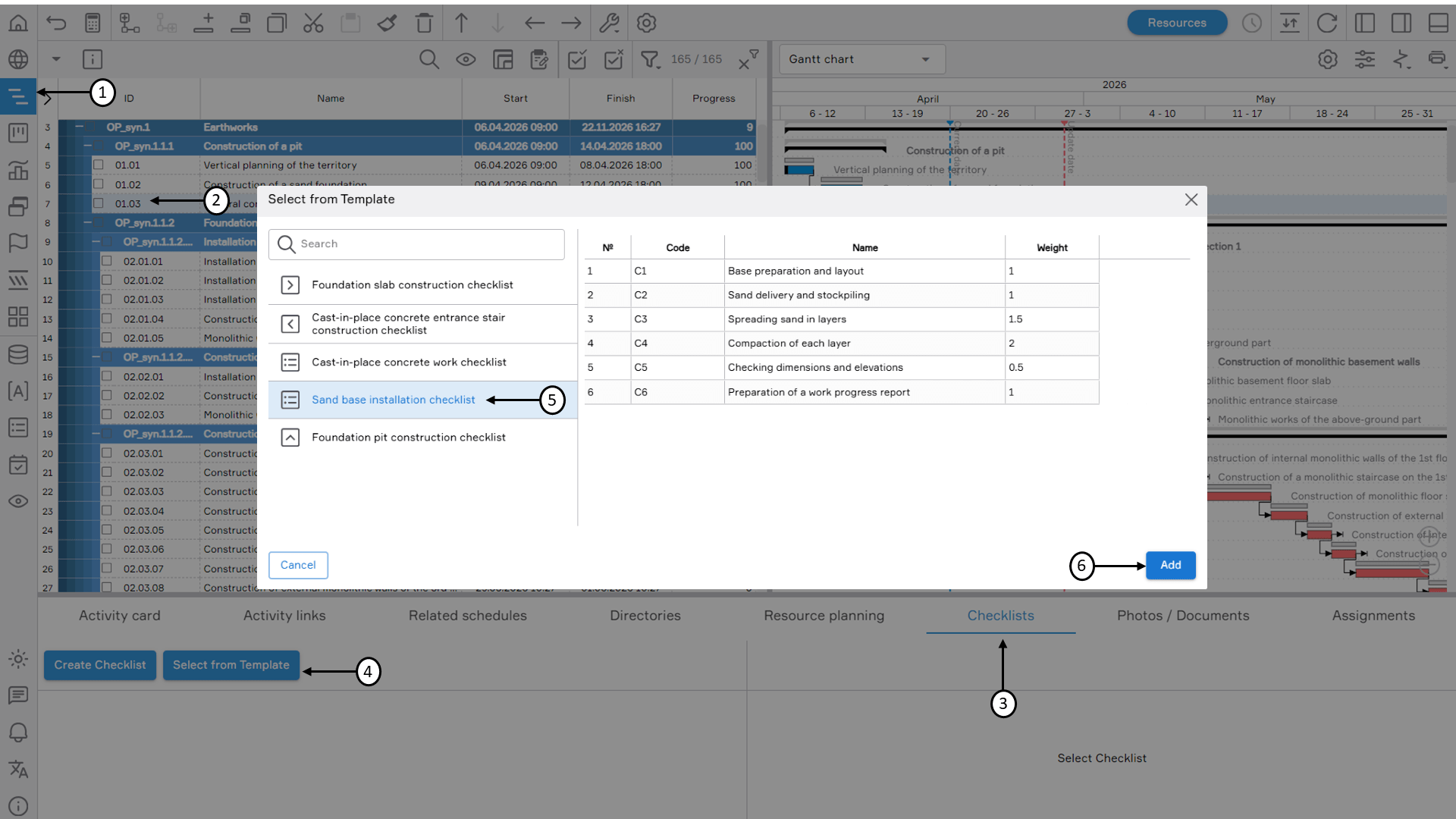 Assigning a checklist template to a schedule activity
To assign a checklist to multiple schedule activities, select the required activities using their checkboxes (1) and click “Create checklist” (2) or “Select from template” (3). Create a new checklist or select a template (4), click “Create” or “Add” (5), and confirm the action in the window that opens. The assigned checklist will appear on the “Checklists” tab of each selected activity.
Bulk checklist assignment to schedule activities requires permission F3.2.10.1.1, “Bulk checklist assignment”.
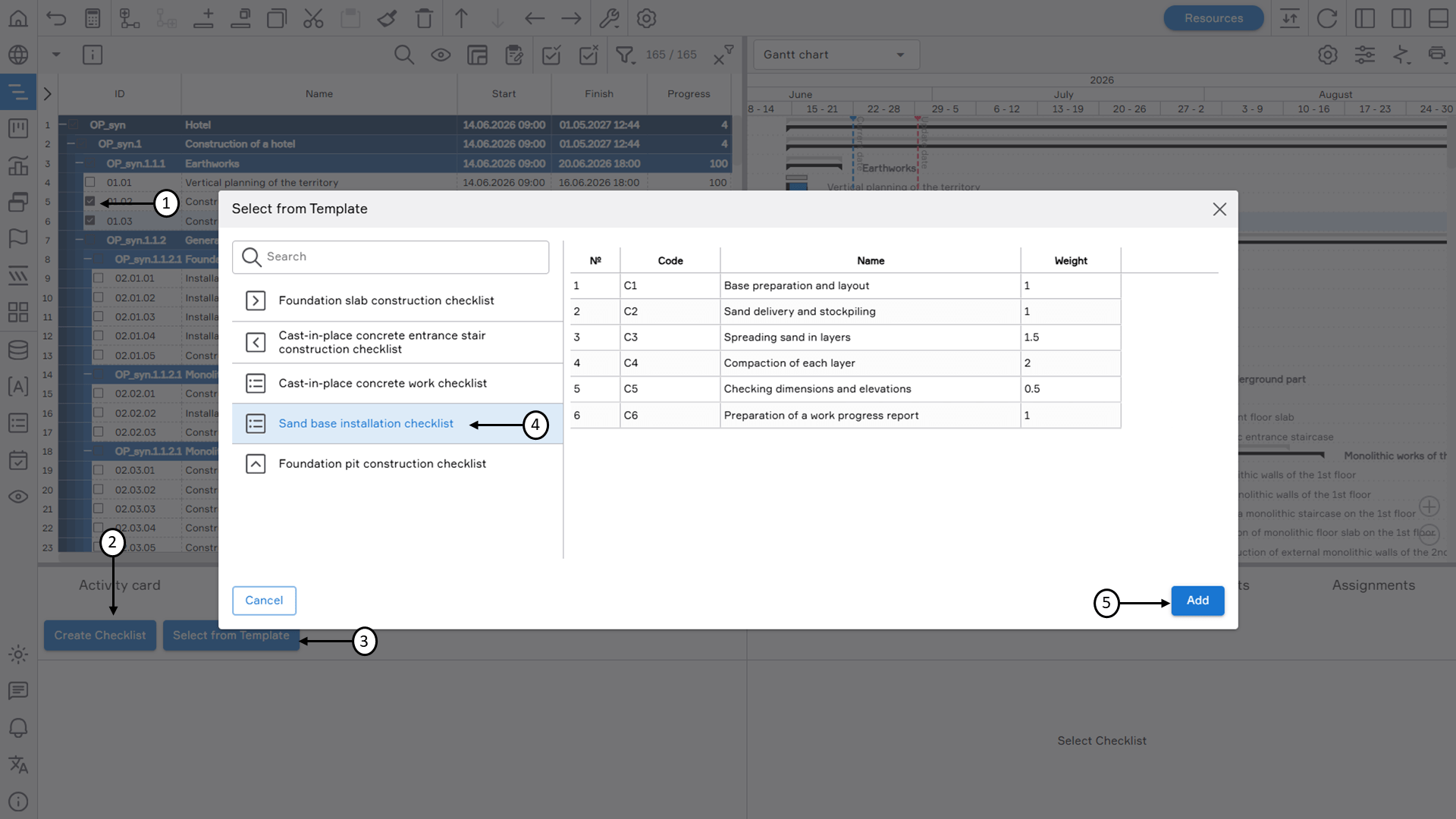 Assigning a checklist to multiple schedule activities
All items in the assigned checklist (1) become available on the “Checklists” tab. You can add (2), edit (3), and delete (4) checklist rows. Clicking “Convert to schedule activity” (5) adds the checklist row to the Work Breakdown Structure (6) and removes it from the checklist. To mark an item as complete, select its checkbox (7). Checklist completion progress (8) appears next to the checklist name.
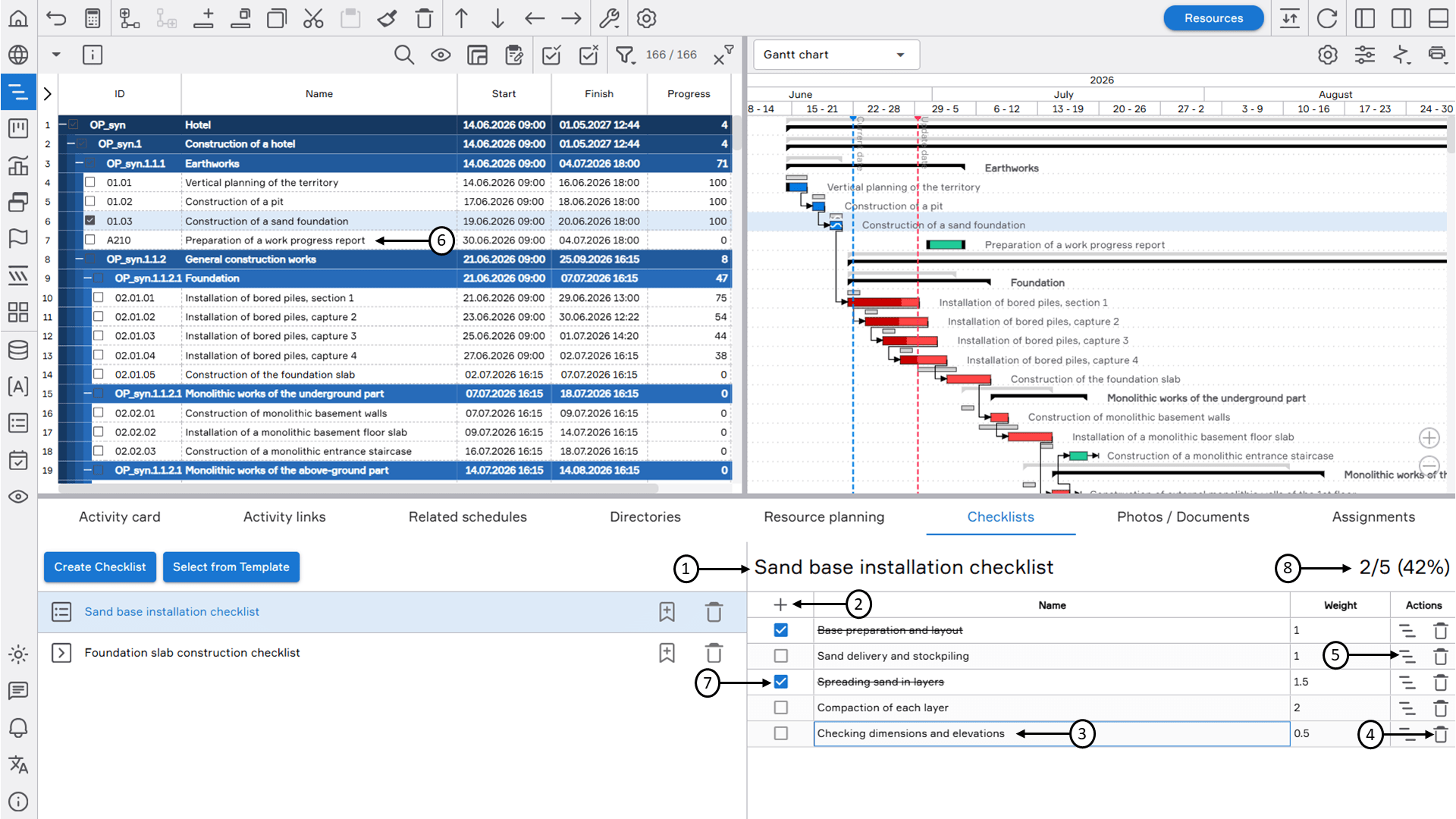 Editing a checklist assigned to a schedule activity
You can create a checklist directly in a project schedule by clicking “Create checklist” (1). In the window that opens, enter the checklist name (2), select its type (3), and click “Create” (4).
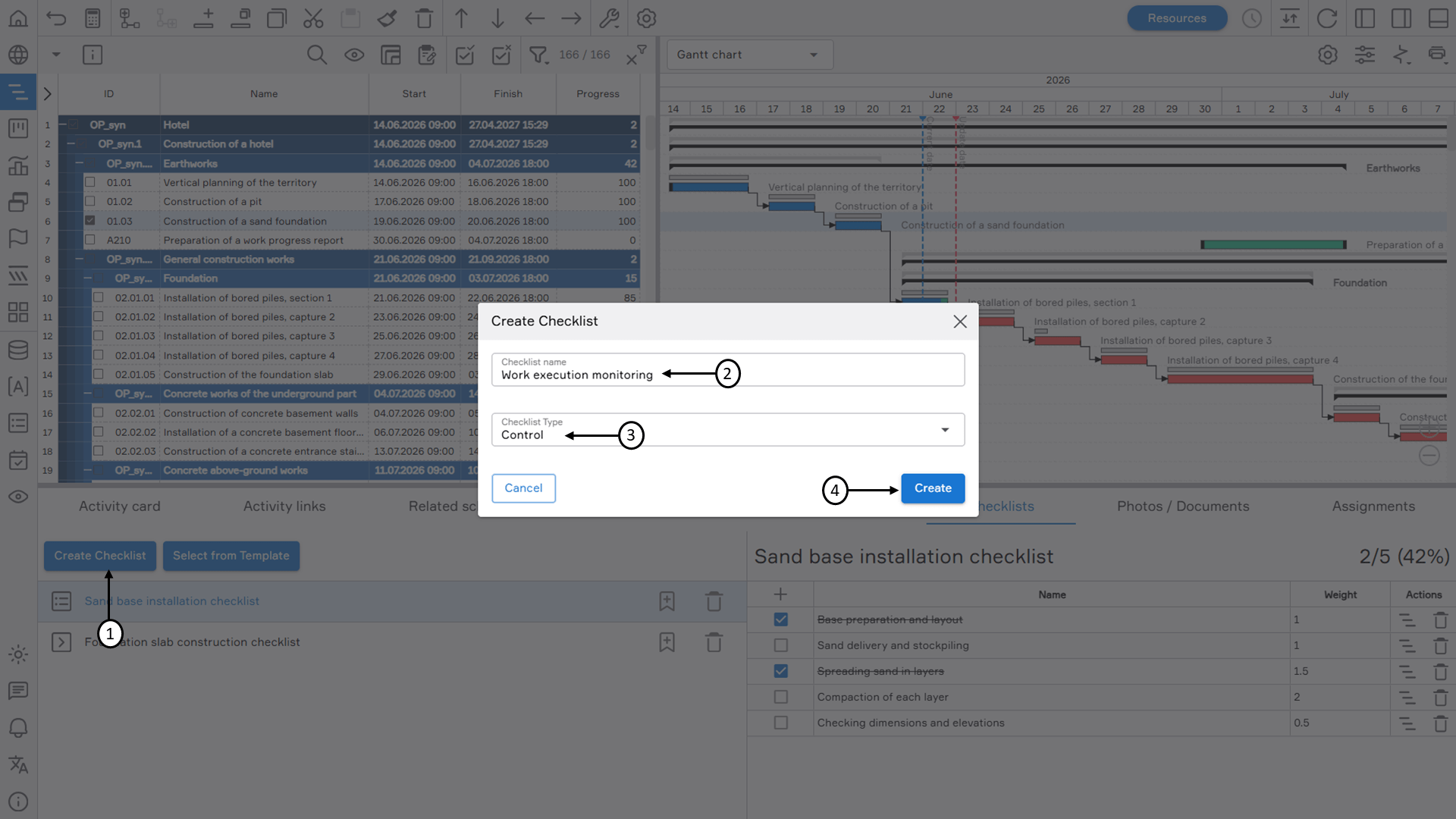 Creating a checklist for a schedule activity
When you create a Controlling checklist (1), activity progress (2) is automatically recalculated as checklist items (3) are completed.
Only one Controlling checklist can be assigned to a schedule activity.
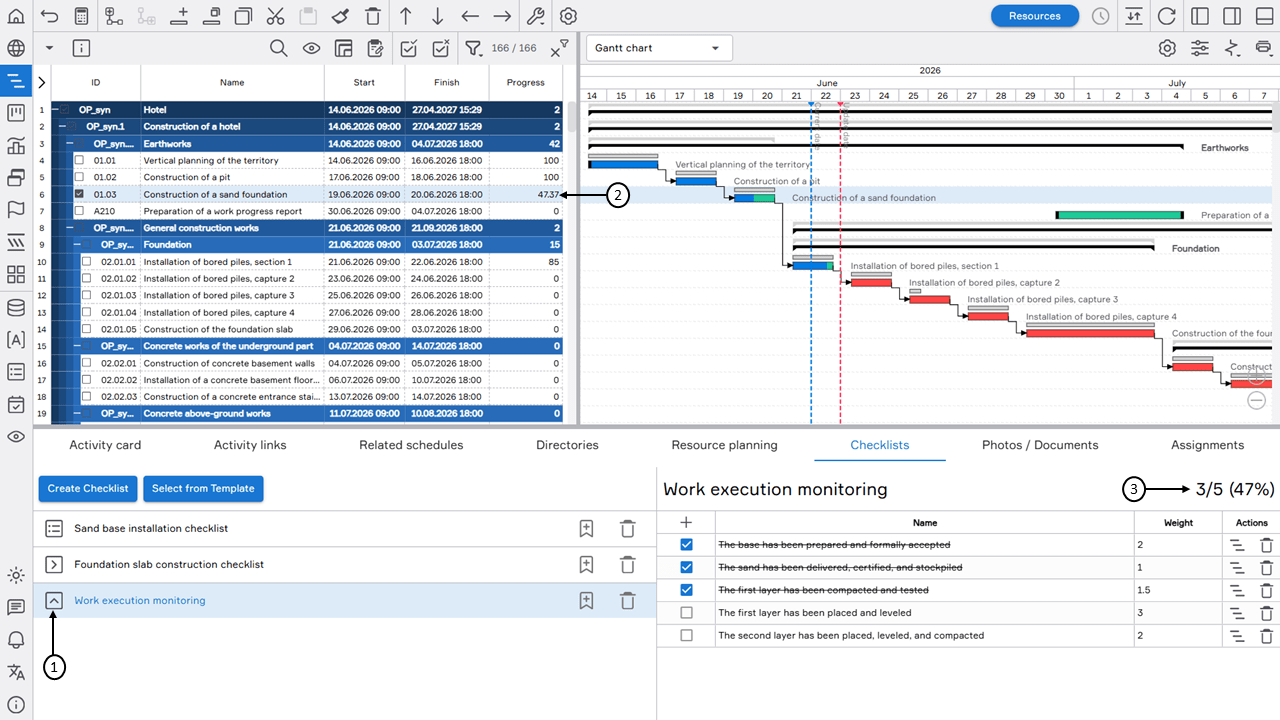 A Controlling checklist assigned to a schedule activity
You can save a checklist created in a project schedule as a template. Click “Add to template” (1), and it will appear in the “Checklist templates” section (2) at the level of that schedule. To edit the checklist name (3), double-click it with the left mouse button in the list of checklists assigned to the activity. To remove a checklist from a schedule activity, click “Delete checklist” (4) and confirm the action in the window that opens.
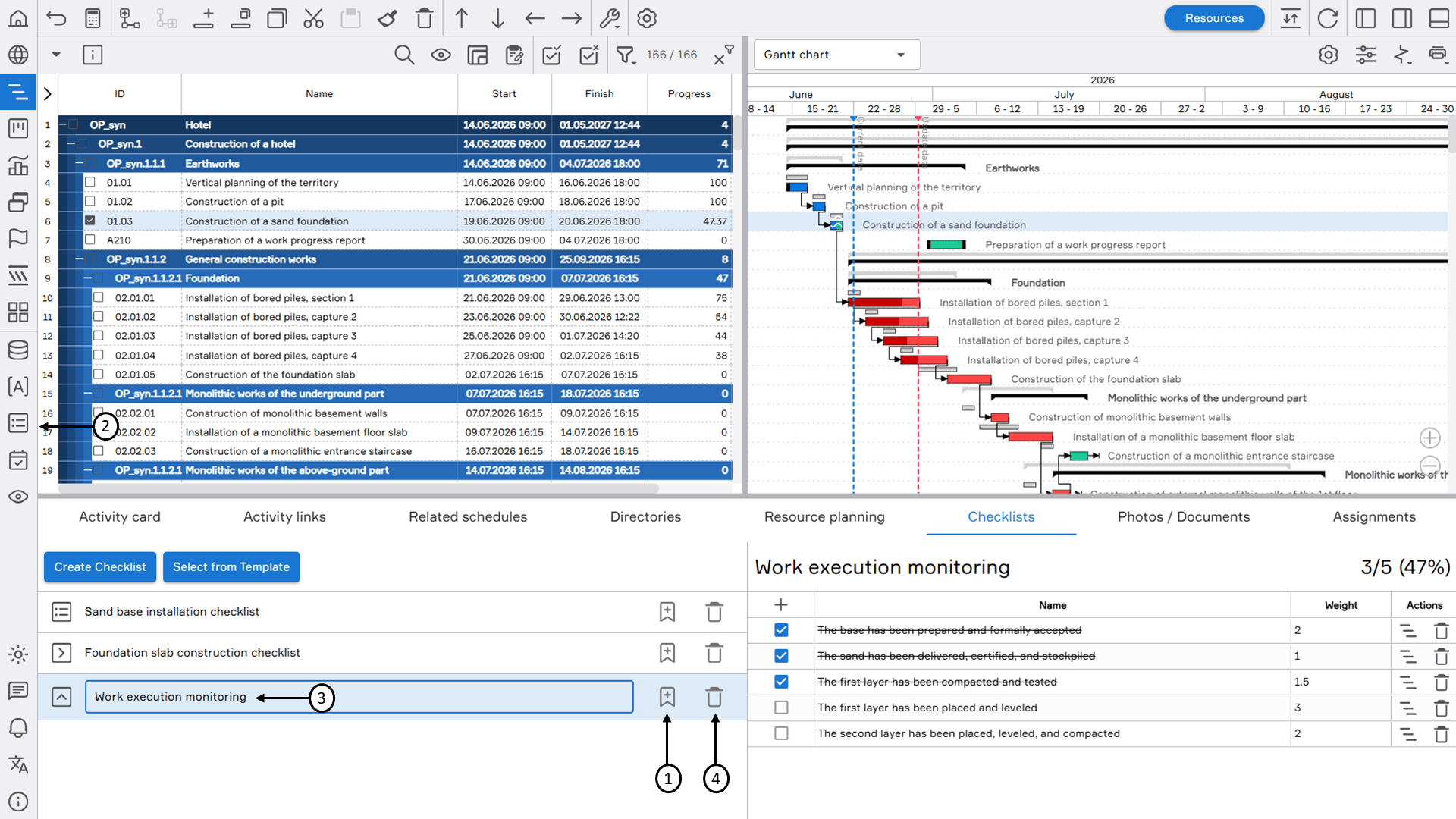 Saving a checklist as a template
Filtering by Checklists
PLAN-R allows you to filter activities that have assigned checklists. In the activity schedule, click “System filters” (1) and select “Filter by checklist” (2) from the list that opens. You can filter activities by assigned checklist type (3) and completion status (4), and specify an activity execution period (5). Click “Apply” (6) to apply the filter settings. To reset the filters, click “Reset” (7) or “Reset all filters” (8).
Activities with Controlling, Opening, or Closing checklists are marked with the corresponding icon (9) in the left sidebar. General checklists are not shown in the sidebar.
To hide the left sidebar, click its hide button (10).
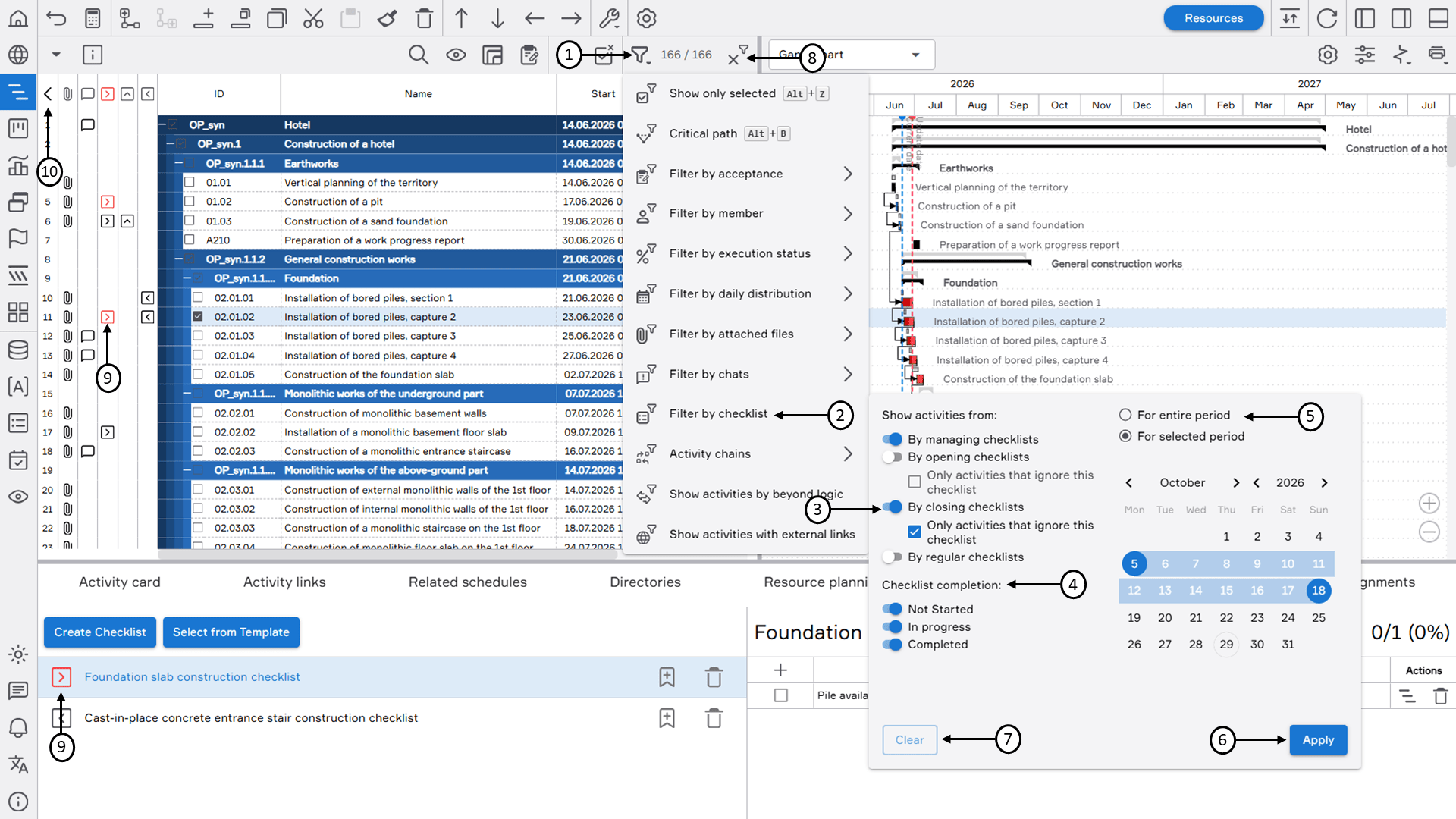 Filtering by checklists
A red icon indicates one of the following:
- The schedule activity has the “In progress” (1) or “Completed” status, and at least one Opening checklist (2) assigned to it contains an incomplete item;
- The schedule activity has the “Completed” status (3), and at least one Closing checklist (4) assigned to it contains an incomplete item (5).
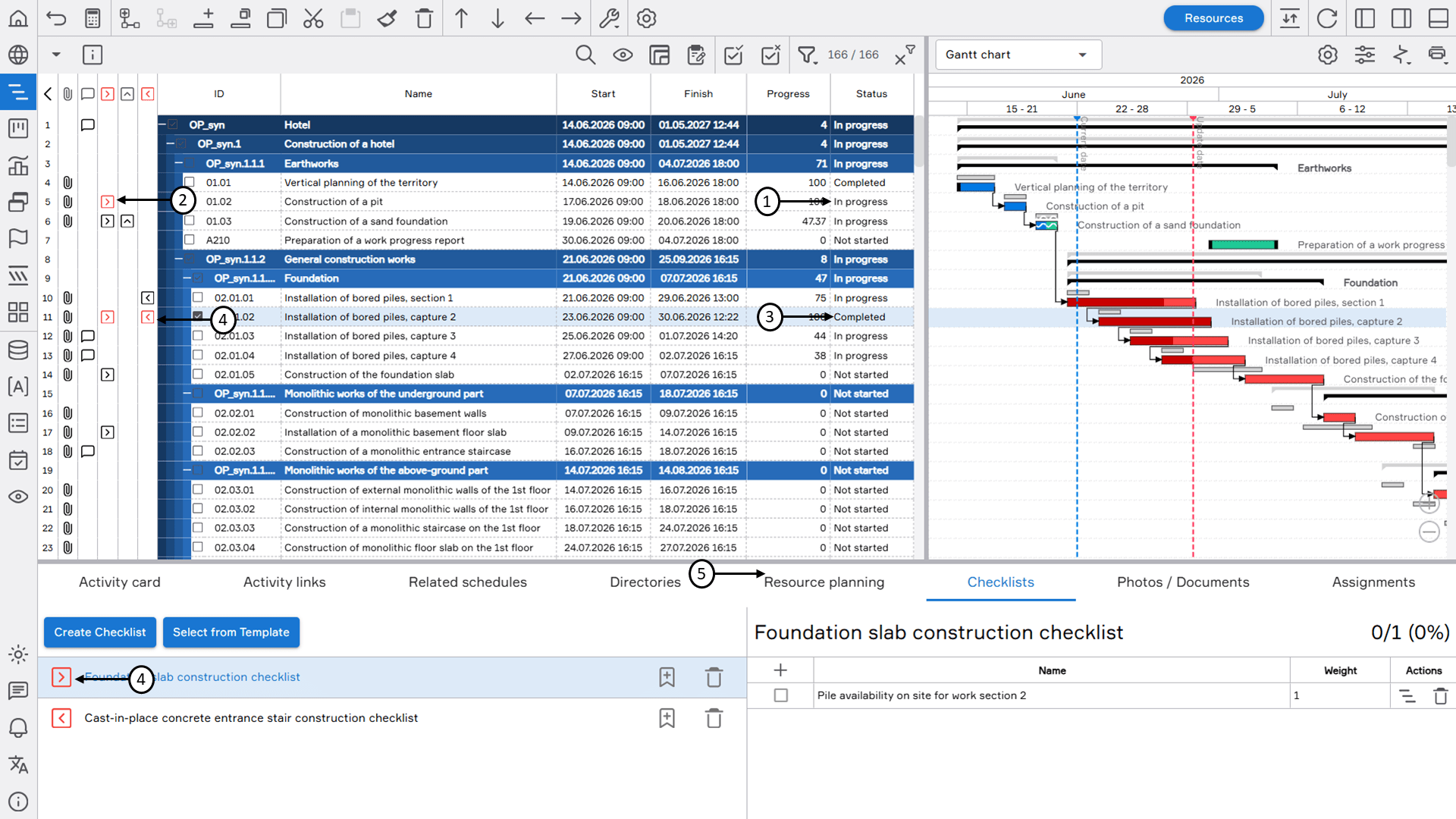 Schedule activities with unmet checklist requirements