REPORTS
PLAN-R allows you to generate standard report forms associated with Schedule nodes in the Enterprise Project Structure. To upload a report, select the Space node (1), open the "Reports" tab (2), and click "Download report" (3). In the dialog, attach a .zip file containing the report used to generate report forms from PLAN-R data (4), then click "Add" (6). If you select "Test report" (5), PLAN-R adds a unique identifier to the report name. Uploaded reports appear on the "Reports" tab (7). You can rename a report by clicking its name or delete it (8) if it is no longer needed.
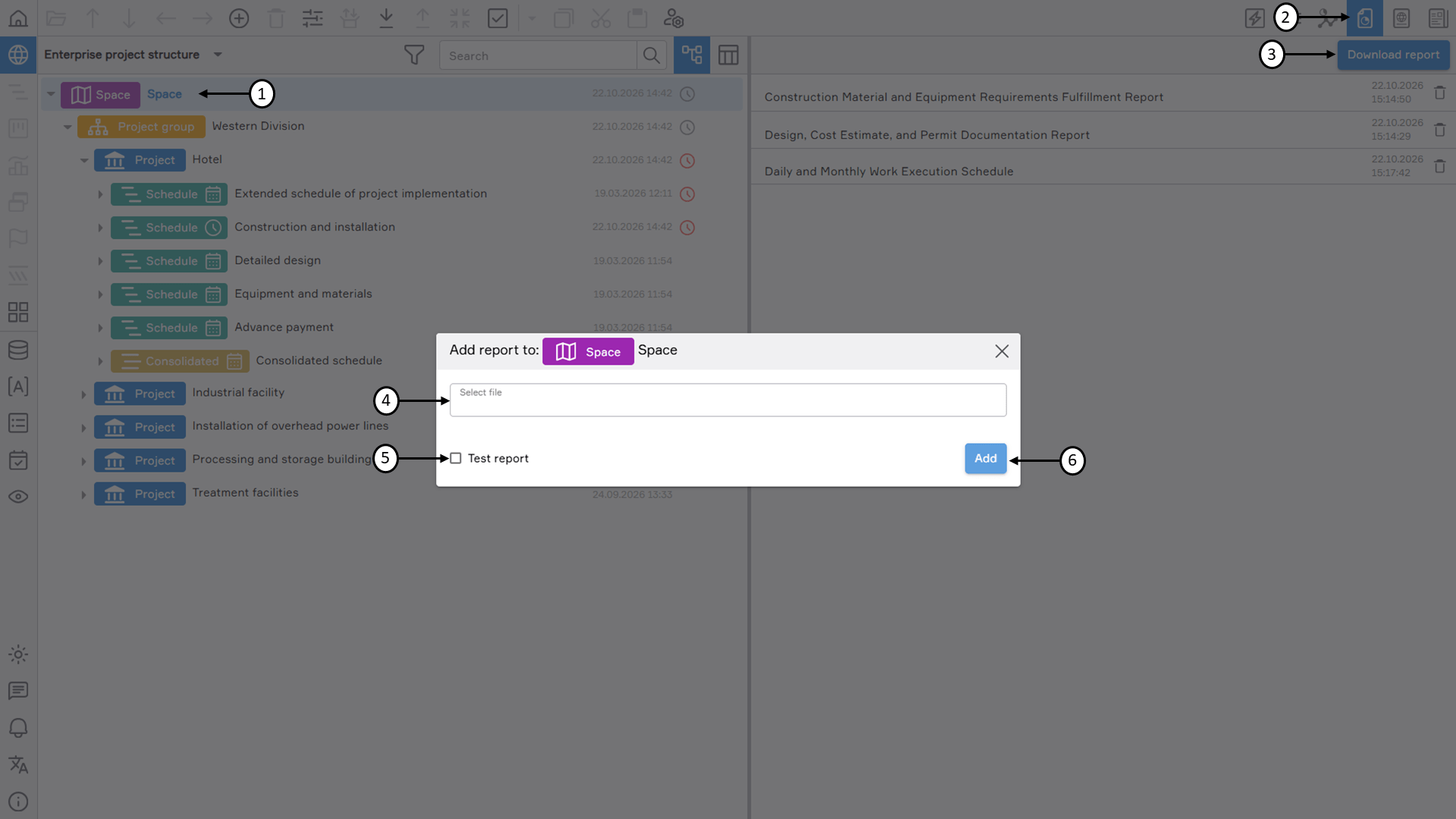 Adding a Report
To download a report from PLAN-R, select the schedule whose data you want to use (1) and open the "Reports" tab (2). If the report has not been used before, click "Display report" (3). In the dialog, select a report by clicking its name (4). After adding it to the tab, click its name again. In the dialog, select the directory for which the report will be generated (5), specify the reporting period (6), and click "Form" (7). The report file is then downloaded from PLAN-R. If the report is no longer needed for this schedule, remove it from the displayed report list by clicking "Stop displaing" (8).
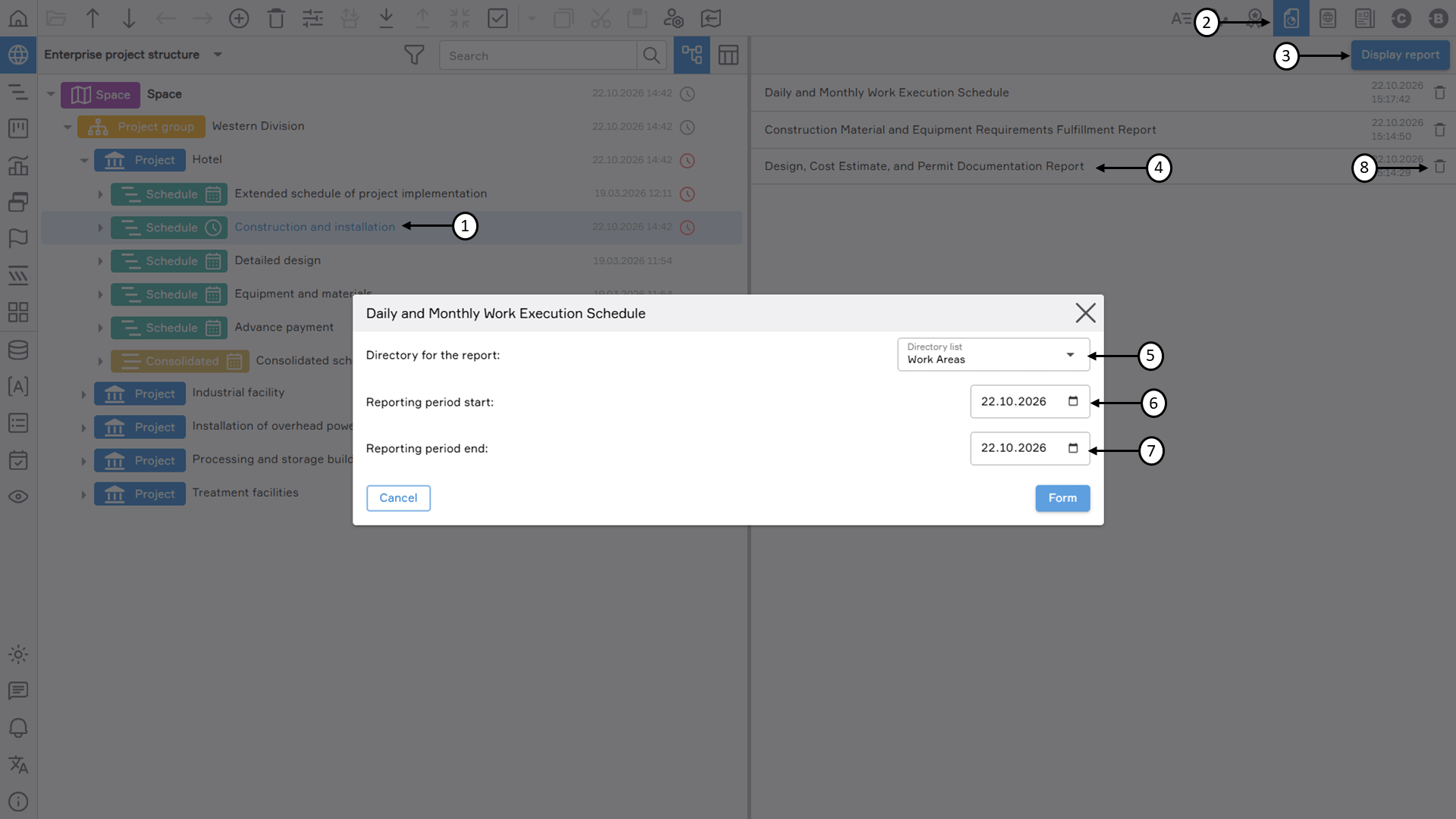 Downloading a Report