CHAT
Chat allows users to exchange messages for each activity. Each activity has its own chat.
To create a chat, open a schedule in the Enterprise Project Structure. On the right side of the screen, open the "Chat" tab (1), enter a message (2), and send it (3). To edit a message, right-click it and select "Edit" (4). To delete a message, click "Delete" (5).
To reply to a specific message, right-click it and select "Reply" (6). You can also add a reaction in this menu (7). To remove a reaction, click it on the message (8). Use the attachment button (10) to send photos or files (9). The maximum total upload size is 100 MB at a time.
Activities with an existing chat are marked with a chat icon in the left sidebar (11). Click the icon to open the corresponding chat. A red indicator on the chat icon means there are unread messages (12). To hide the left sidebar, click its hide button (13).
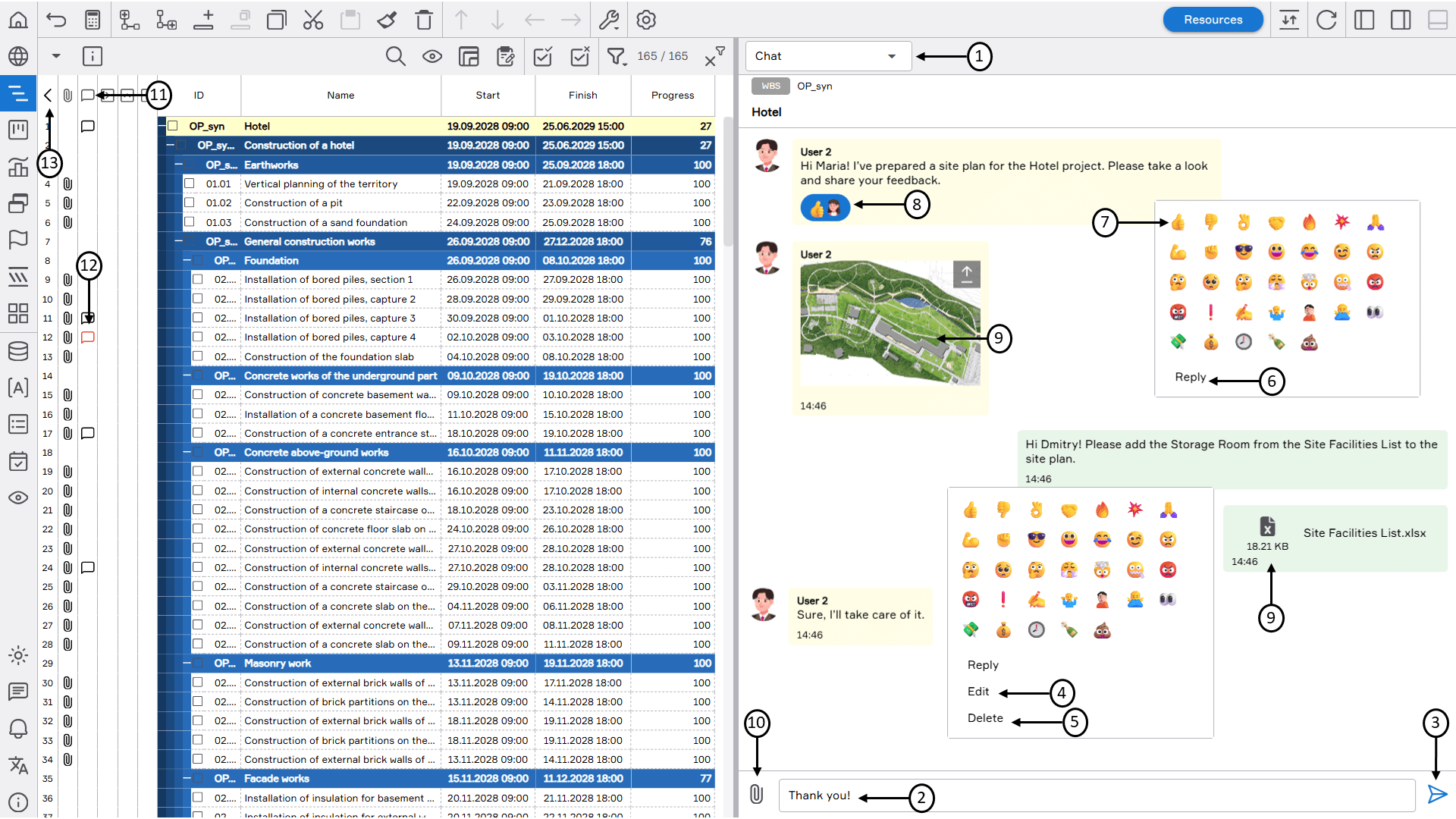 Sending Chat Messages
To filter activities with chats, click "System filters" (1) and select "Filter by chats" (2). In the dialog, select the type of activities with messages (3) and specify the period during which messages were received (4). Click "Apply" (5) to apply the filter.
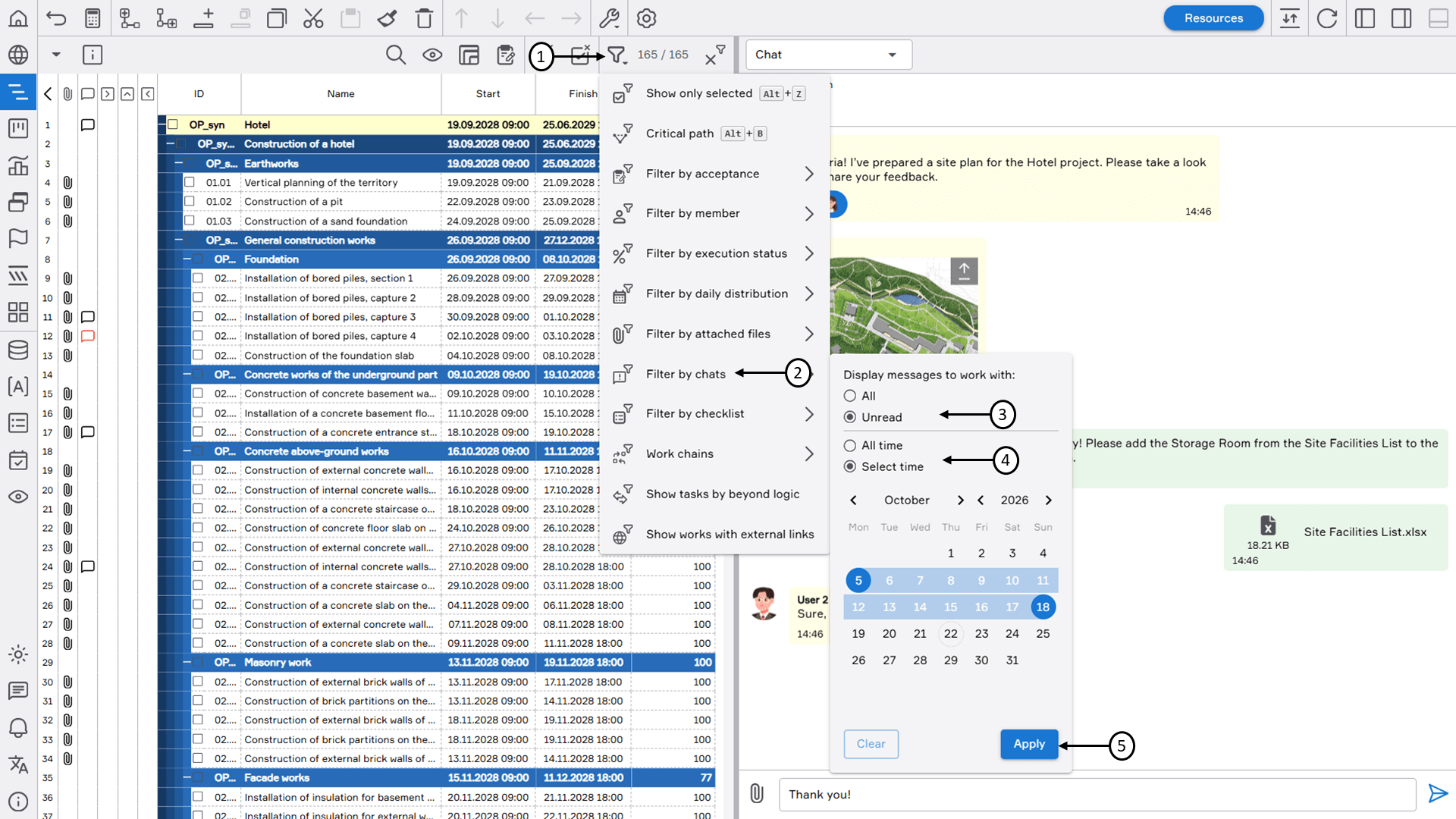 Filtering Activities by Chat
The "Chat" section (1) is also available on the left navigation bar. It displays active chats that already contain messages (2). Click "Full screen" (3) to expand the chat window. To close it, click "Close" (4) or click outside the window.
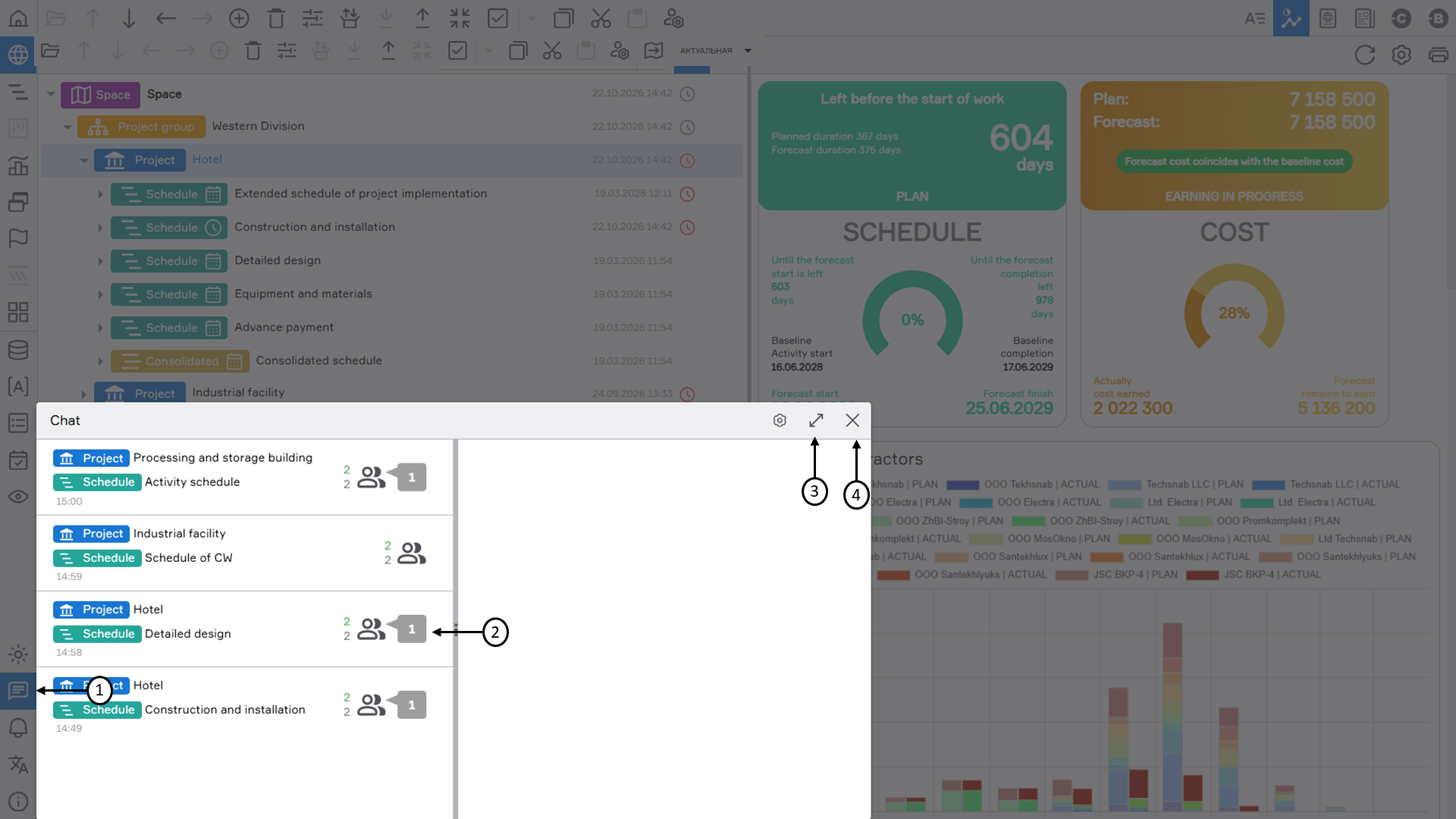 Chats Associated with Enterprise Project Structure Nodes
Messages can appear as pop-up notifications (1) showing the sender (2) and the number of messages received (3). Click "Reply" (4) to respond to a message.
To configure pop-up notifications, click "Settings" (5). In the dialog, select or clear "Show chat pop-up notifications" (6) and click "Save" (7).
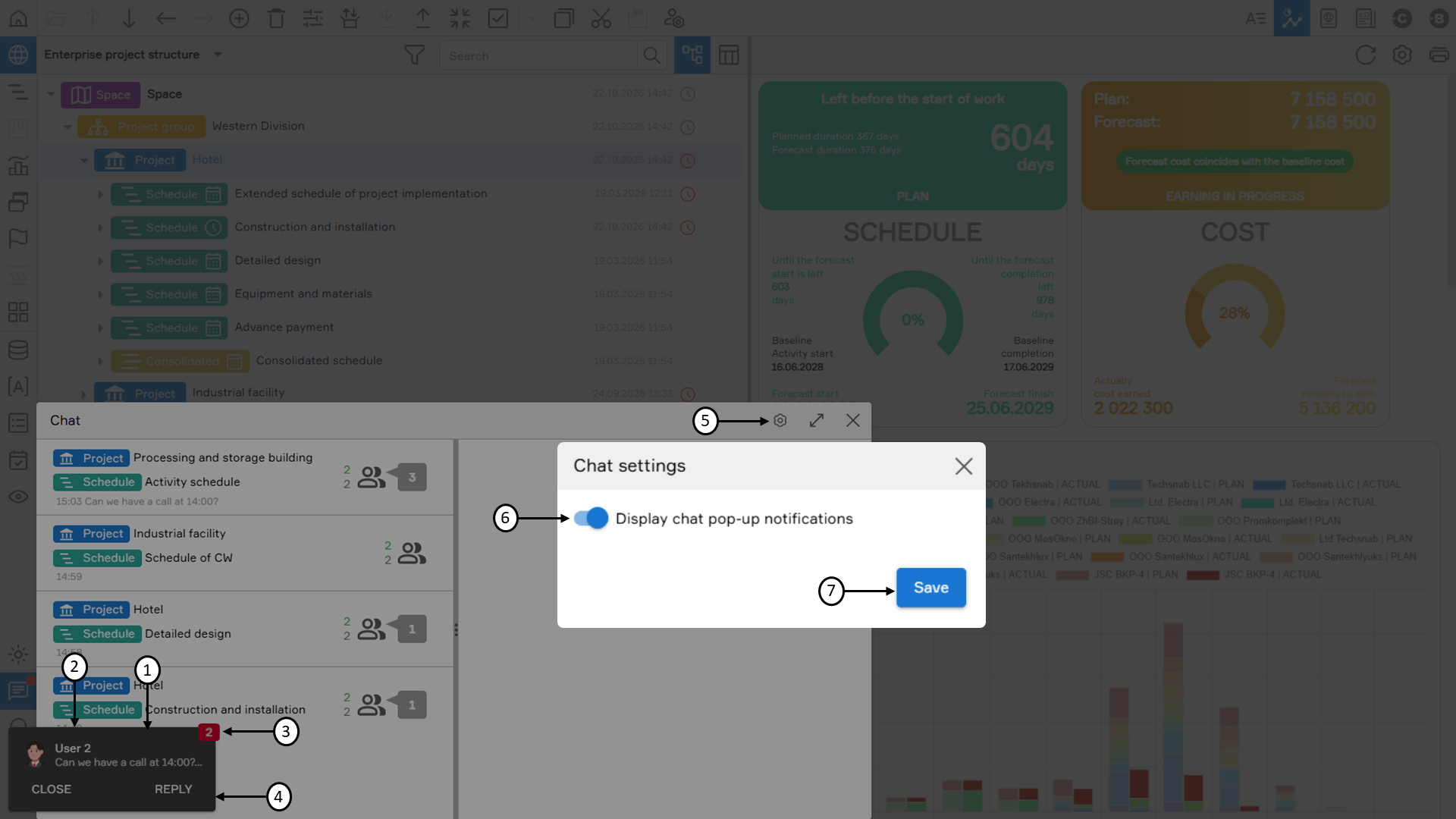 Configuring Chat Pop-up Notifications
The "Chat" window displays a list of chats, including the Enterprise Project Structure nodes under which they were created (1) and the date and time of the latest changes (2). When new messages arrive, the corresponding chat moves to the top of the list. The list also shows the total number of chat participants (3) and the number currently online (4). Click the participants icon (5) to view the participant list. Chats with unread messages display an indicator showing their number (6).
To open a chat, click the required chat in the list (7).
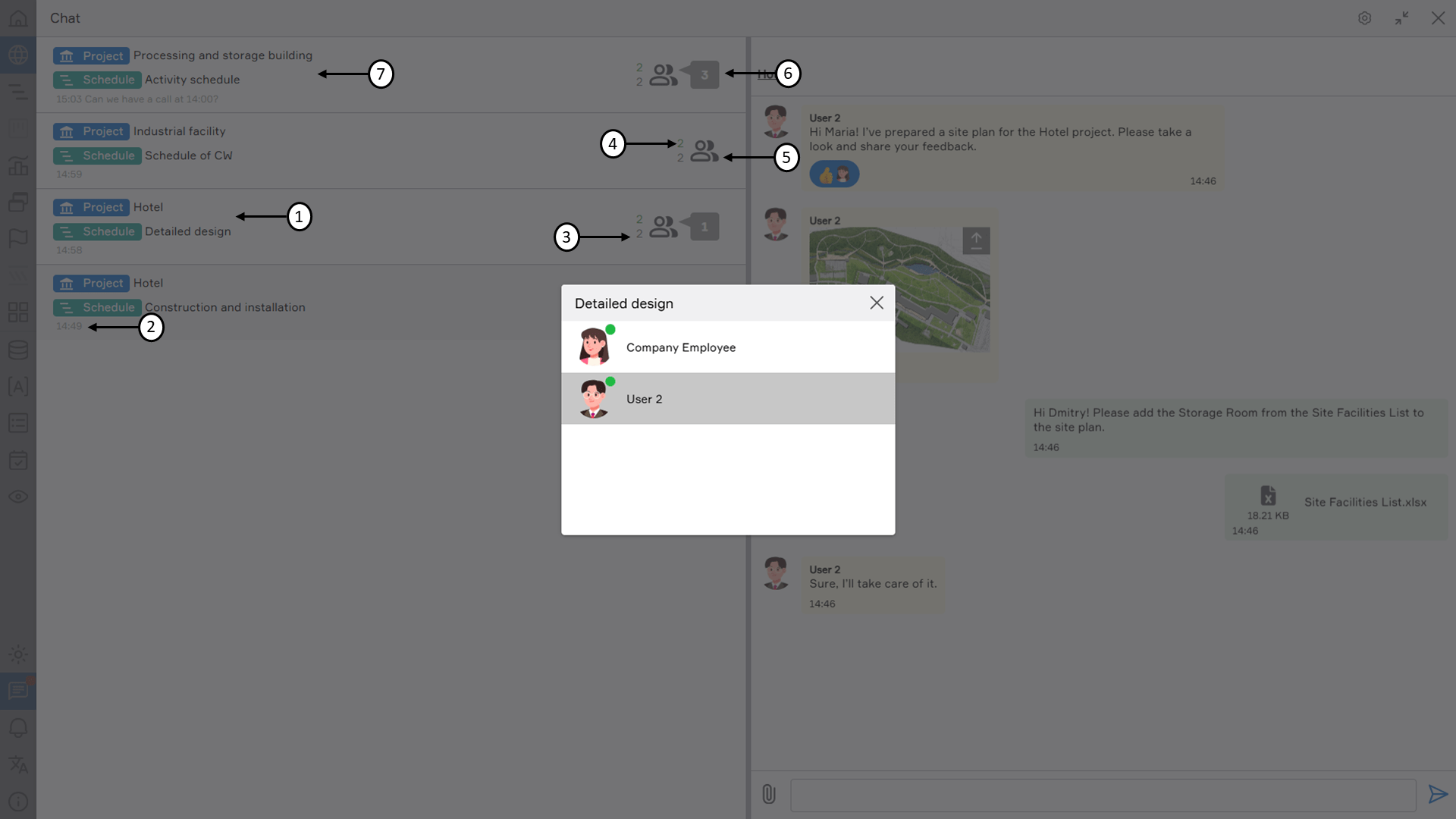 Displaying the Chat List