MAIL SERVICE SETTINGS
The application's mail service sends user notifications, report forms, data exchange forms, and password reset tokens. It also imports data exchange forms.
PLAN-R separates mail service settings into global settings and settings for individual spaces.
Global settings apply to the user password reset service. To configure them, open "Settings" (1), then select "Mail" (2).
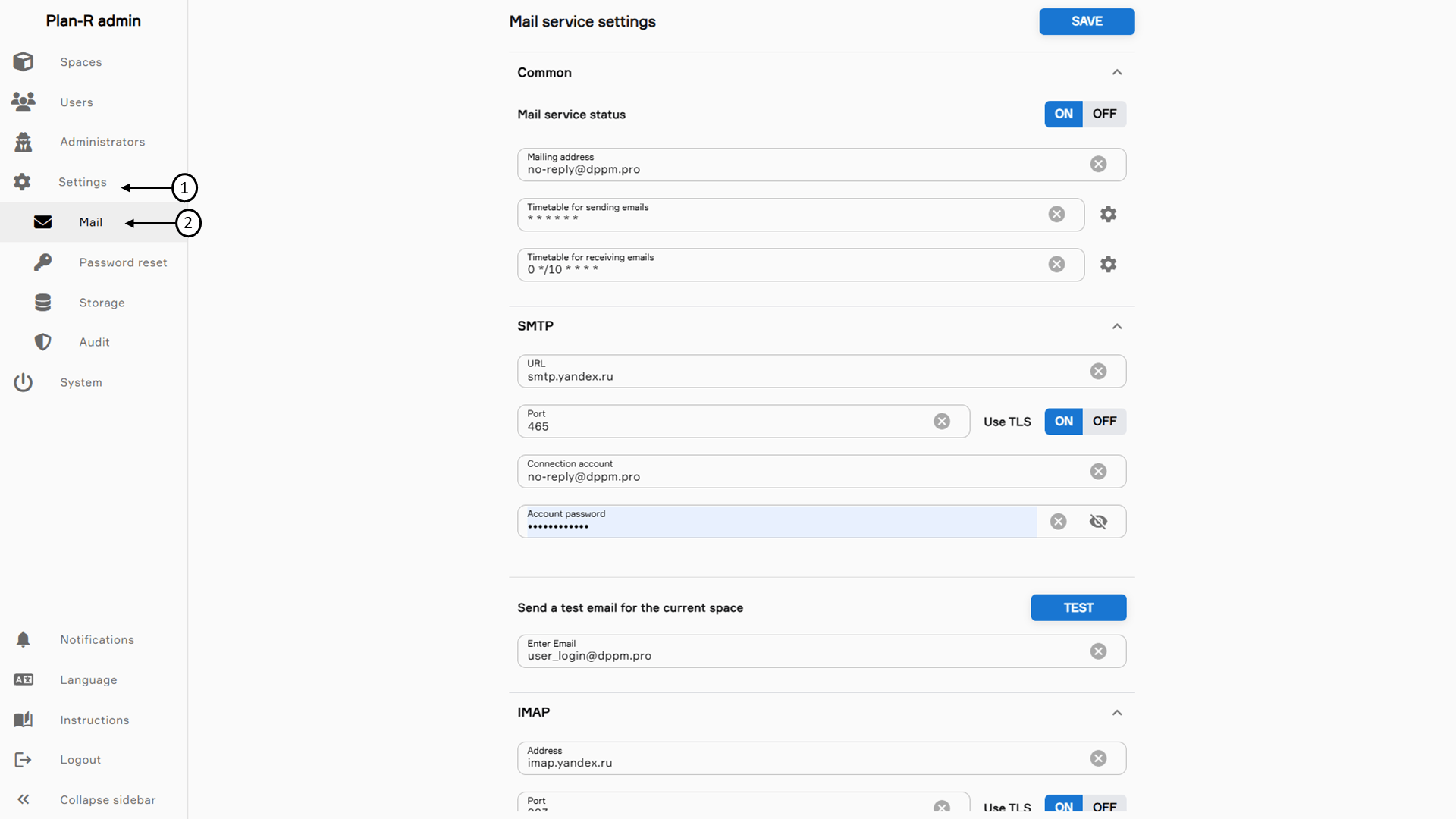 Mail Service Settings
Space-specific mail settings apply to sending and receiving data exchange forms, sending user notifications, and sending reports. To configure a space's mail service, open the "Spaces" section and select the required space (1).
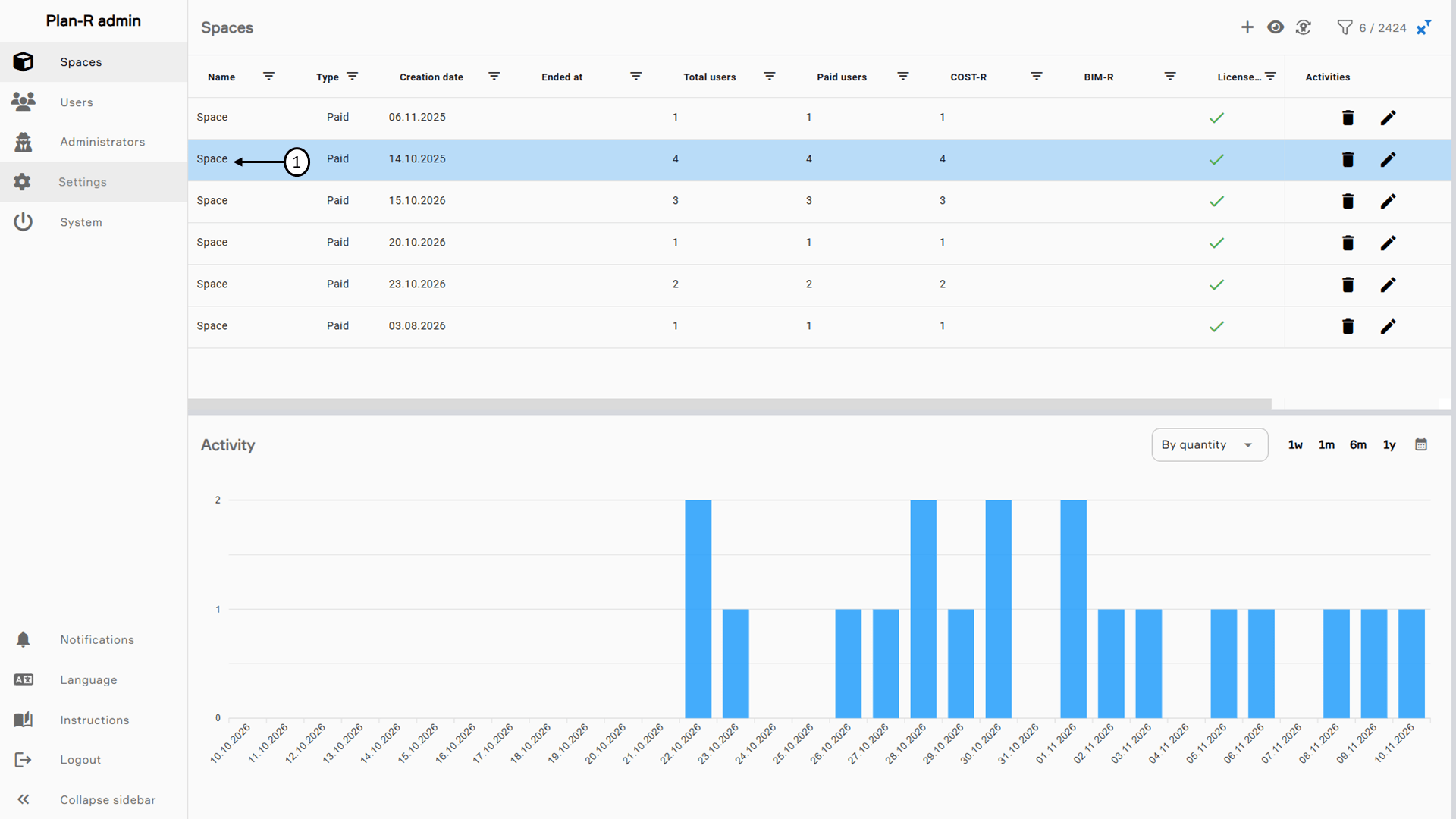 Configuring a Space's Mail Service
Click "Configure" to open the space management page, then select the "Mail" tab (1).
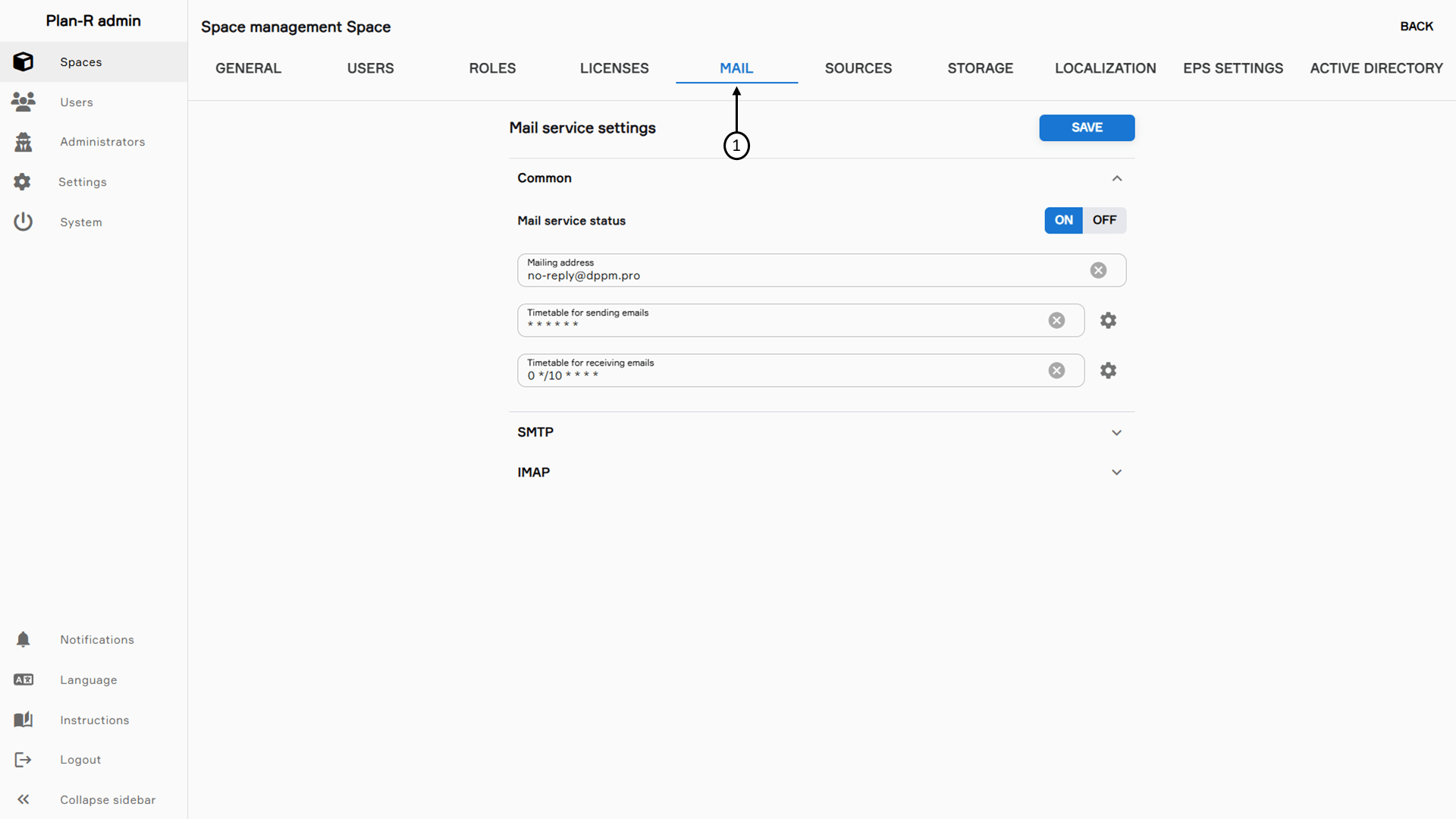 Mail Tab
Configuring General Mail Service Settings
In the general mail service settings, you can specify:
- The sender email address (1), used in the
Fromfield of outgoing messages. - The schedule for sending email (2), specified as a crontab expression.
- The schedule for receiving email (3), specified as a crontab expression.
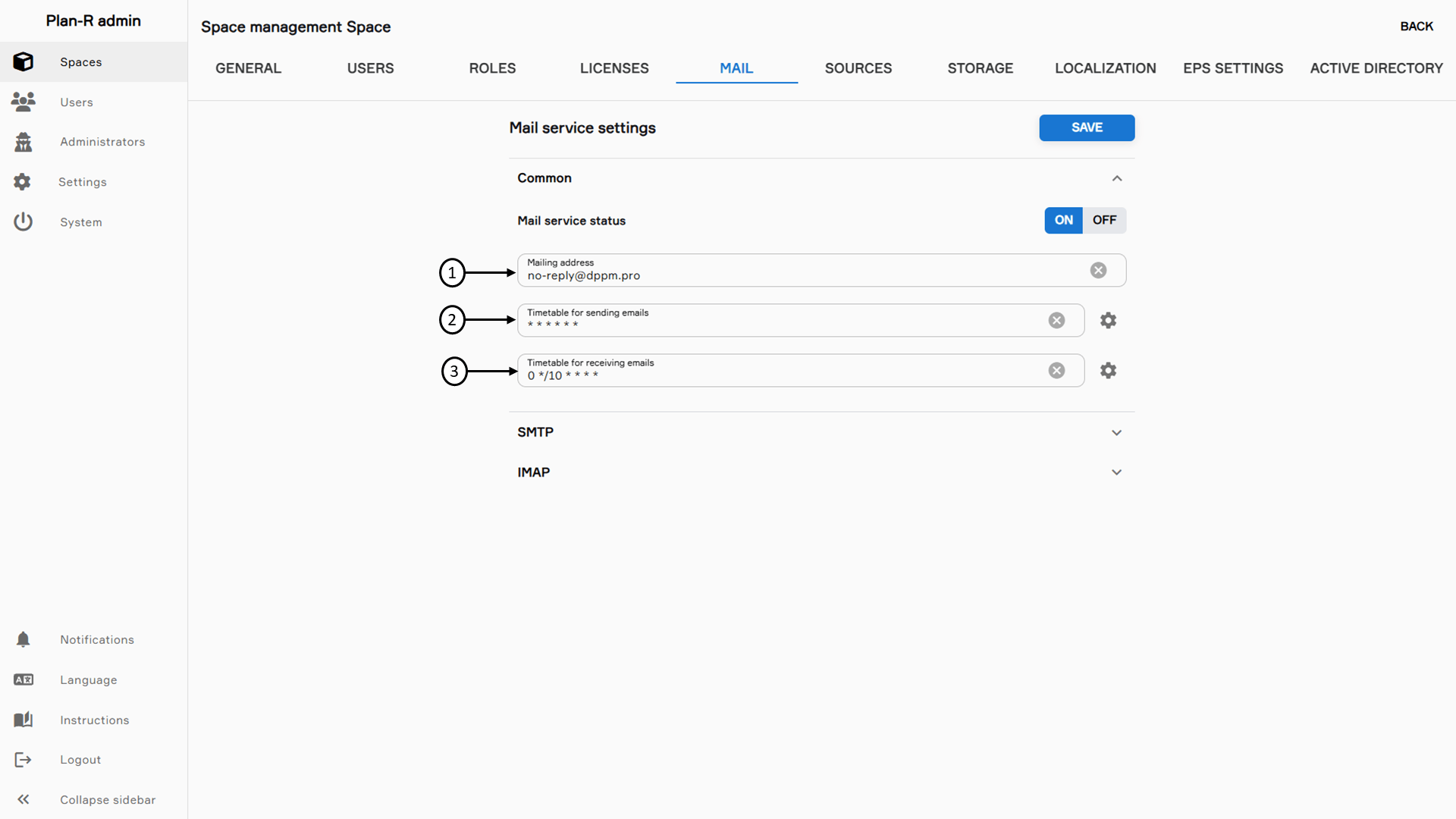 General Mail Service Settings
Configuring SMTP for Sending Email
SMTP is a widely used network protocol for transmitting email over TCP/IP networks. It was first described in RFC 821. RFC 5321 defines the updated protocol, including the ESMTP extension mechanism.
The SMTP settings (1) include:
- Server address (2).
- Port (3).
- Account used to connect (4).
- Account password (5).
To update the settings, edit the required field and click "Save".
You can also test the connection (6) by sending a message to the email address entered in the corresponding field (7).
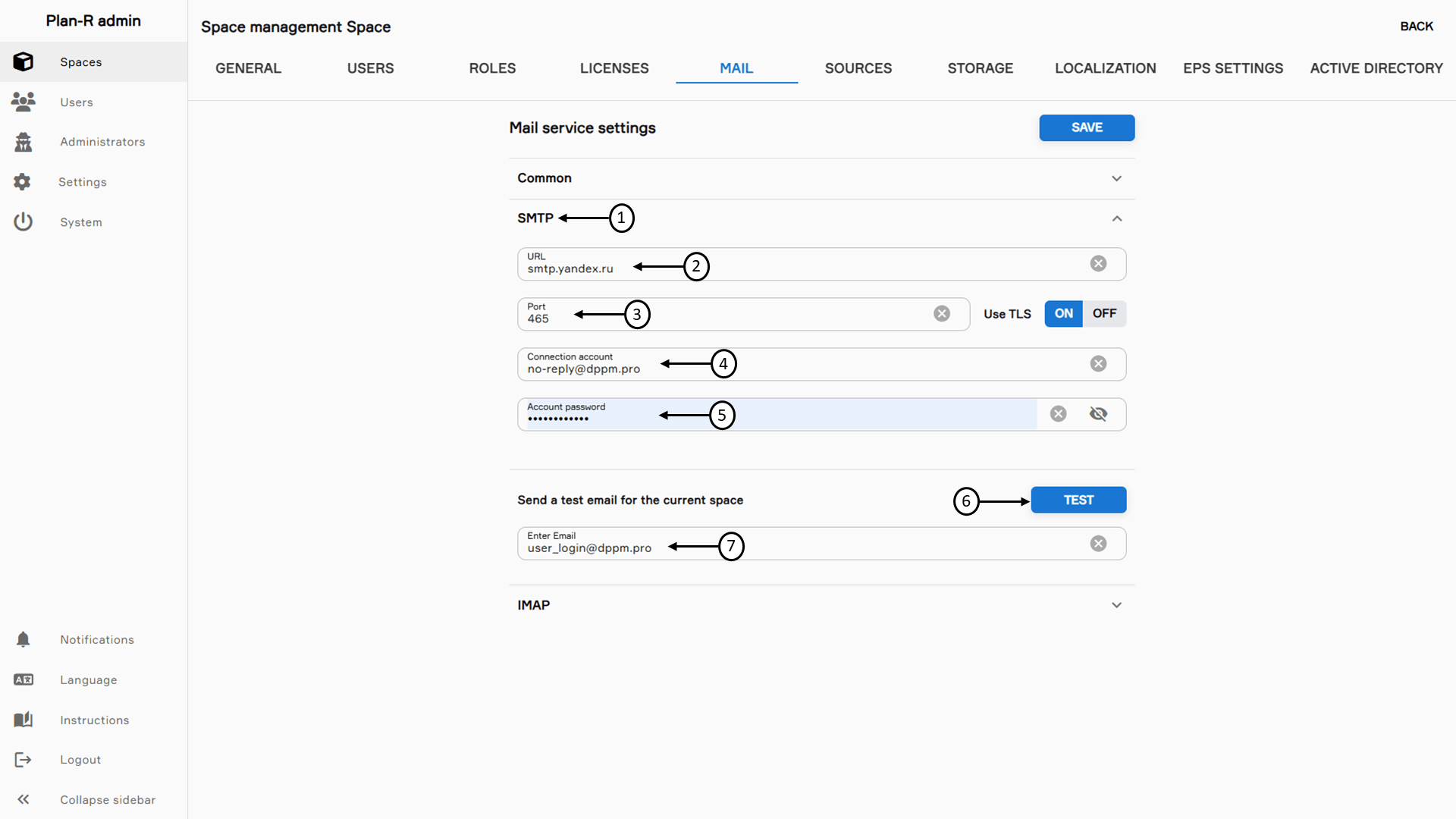 SMTP Settings
Configuring IMAP for Receiving Email
IMAP is an application-layer protocol for accessing email. It uses TCP and port 143, while IMAPS uses port 993. IMAP works directly with messages and does not require packets with special headers.
The IMAP settings (1) include:
- Server address (2).
- Port (3).
- Account used to connect (4).
- Account password (5).
- Mailbox for updating activities (6).
To update the settings, edit the required field and click "Save".
You can also test the connection by clicking "Test".
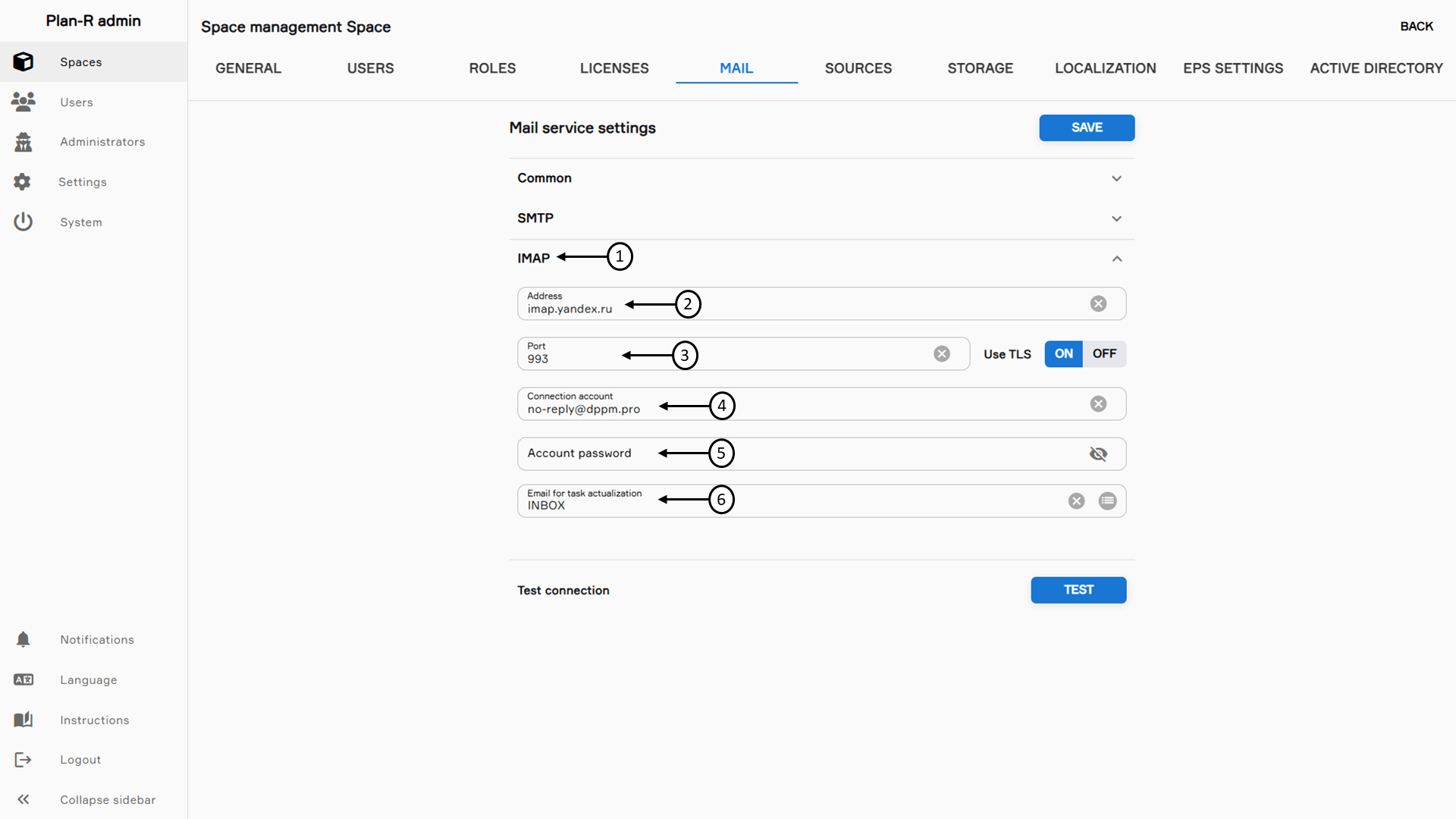 Testing the Connection