STORAGE
PLAN-R allows users to upload documents, import data from files, and create backups. Storage provides a way to organize these files.
Storage is a virtual location for files of a particular type or files processed according to common rules. For example, documents uploaded to schedules require thumbnail generation, while temporary files used for data import and export require scheduled cleanup. Linking storage to a space allows you to configure individual storage settings for each PLAN-R space.
Storage settings can apply to PLAN-R as a whole or to an individual space. Files can be stored physically in the file system of the server hosting PLAN-R or in MinIO network object storage compatible with the Amazon S3 API.
Storage Types
Each storage location in PLAN-R has a type that determines where its data is physically stored.
The following storage types are supported:
- File system — stores data in the server or Docker container file system. Network resources mounted in the server or container file system can also be used. All file system types are supported.
- MinIO — stores data in MinIO network object storage compatible with the Amazon S3 API.
Available Storage
To open the storage settings, go to "Settings" (1) and select "Storage" (2).
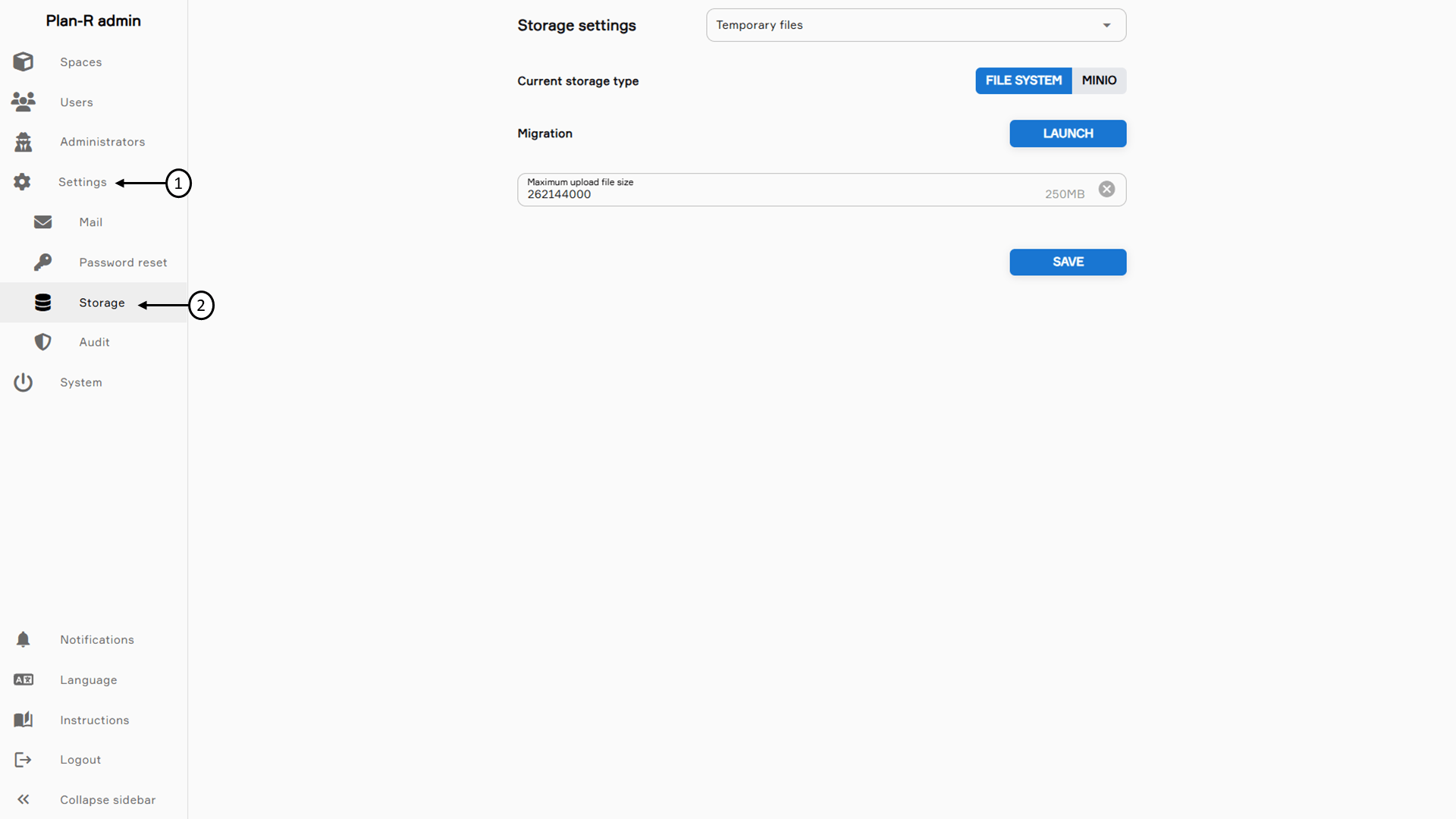 Storage Settings Tab
PLAN-R provides the following storage locations:
- Temporary files (1) — used for file-based data import and export and archive generation. Old files are deleted according to a schedule.
- Documents (2) — stores documents uploaded to PLAN-R and 3D models. Preview files are generated according to a schedule.
- Backups (3) — stores data backups.
Attention! PLAN-R can have only one temporary storage location. It is not linked to a space and is used for all temporary files.
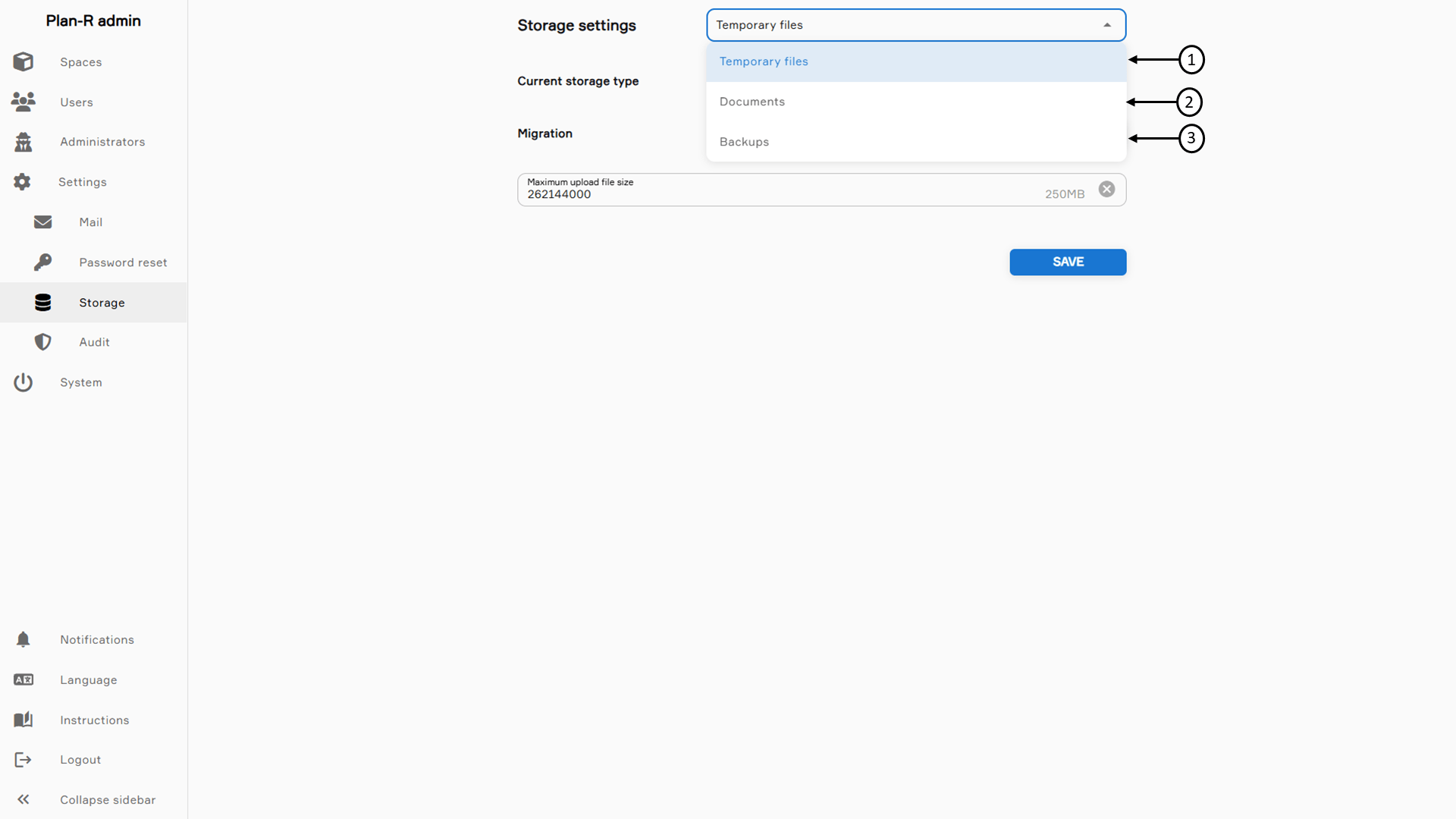 PLAN-R Storage Locations
Configuring System Storage
To open the storage settings, go to "Settings" (1) and select "Storage" (2).
Select a type for each storage location:
- File system (3) — stores files on a mounted file resource.
- MINIO (4) — stores files in network object storage.
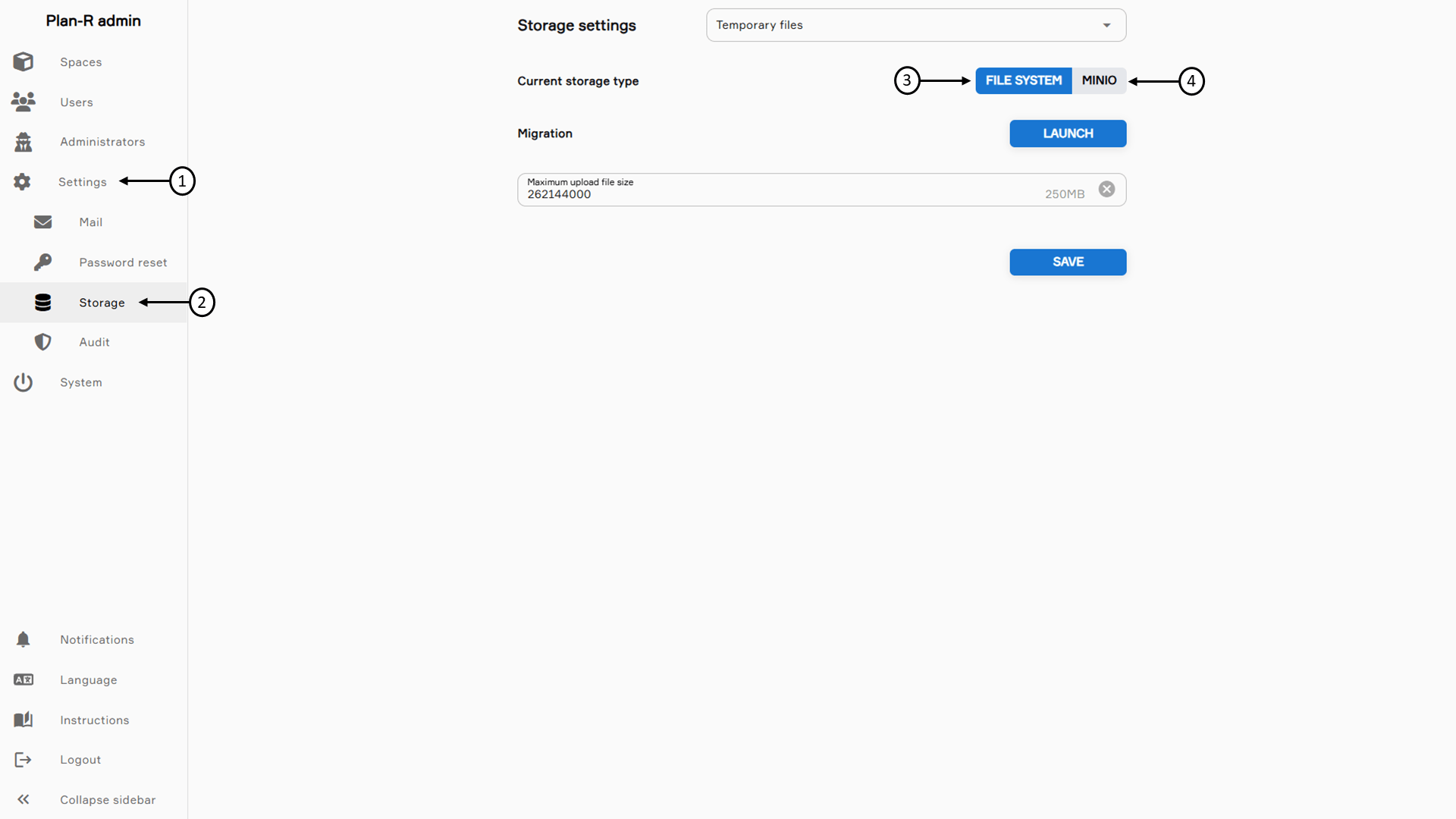 PLAN-R Storage Types
File System Settings
To open the storage settings, go to "Settings" (1) and select "Storage" (2).
With "File system" selected, specify the maximum upload file size (3) to limit the size of files stored in PLAN-R.
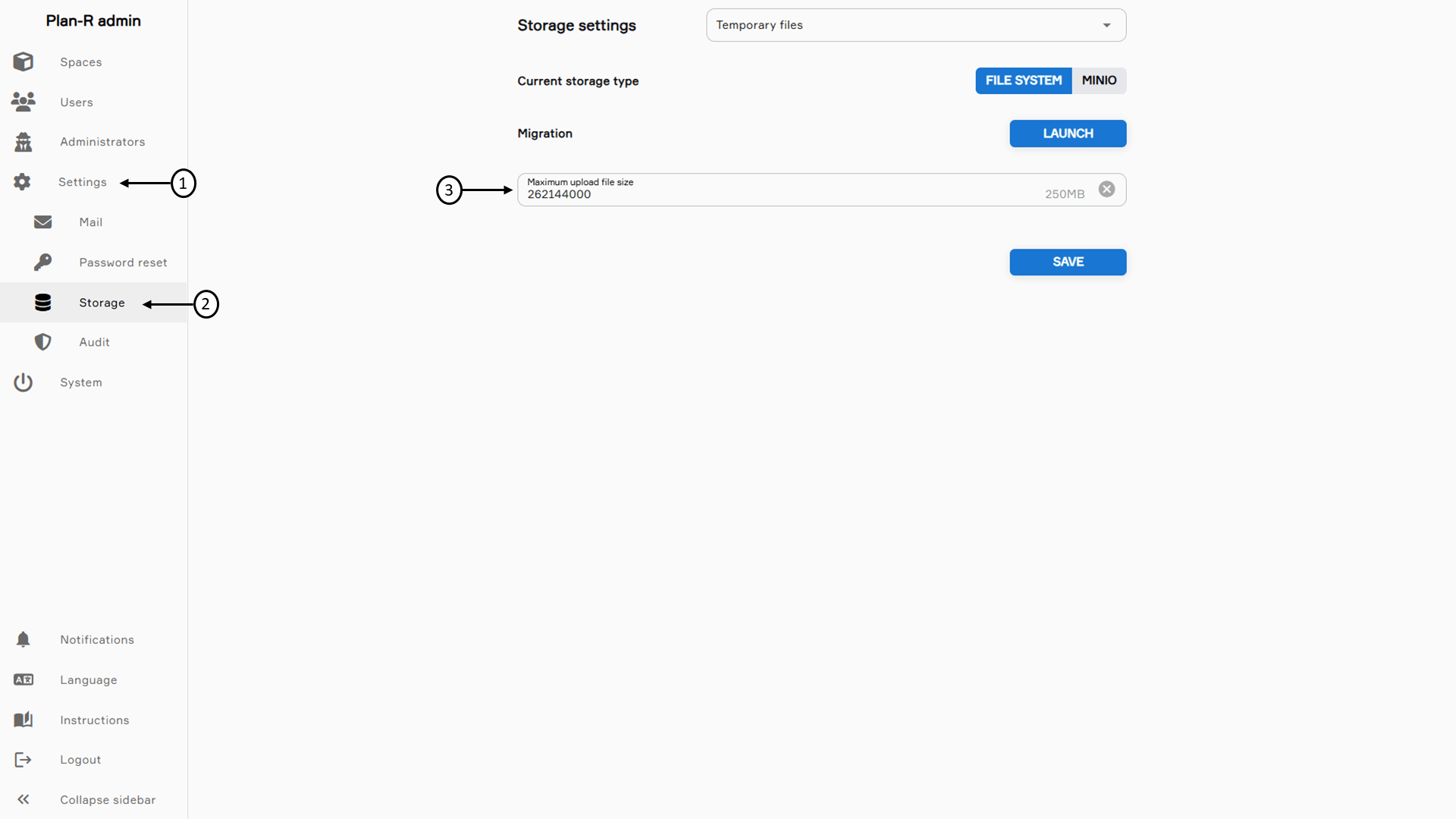 File System Settings
MinIO Settings
To configure MinIO storage, open the "MINIO" tab. The following settings are available:
- Endpoint — the storage network address; the default is
http://s3.domain.local. - Access key — the key containing the user identifier.
- Secret key — the user password.
- SSL — enables SSL for the connection.
- Bucket — the bucket used to store files.
Click "TEST" to test the connection settings for the selected storage location.
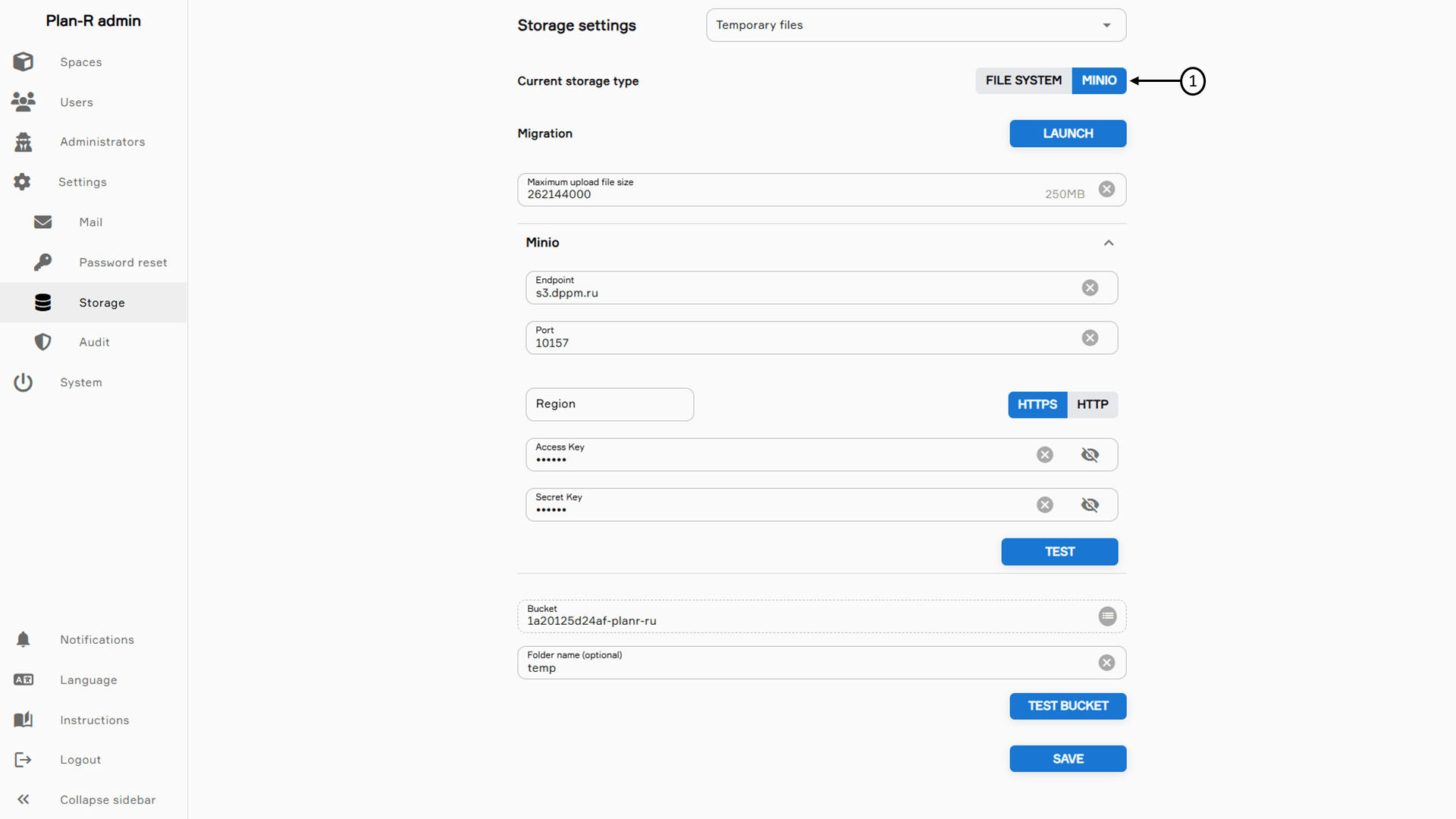 MINIO Settings
Configuring Storage for a Space
To configure storage linked to a space, open "Spaces", select the required space, and click "Details".
In the window that opens, select the "Storage" tab, update the required settings, and save your changes.
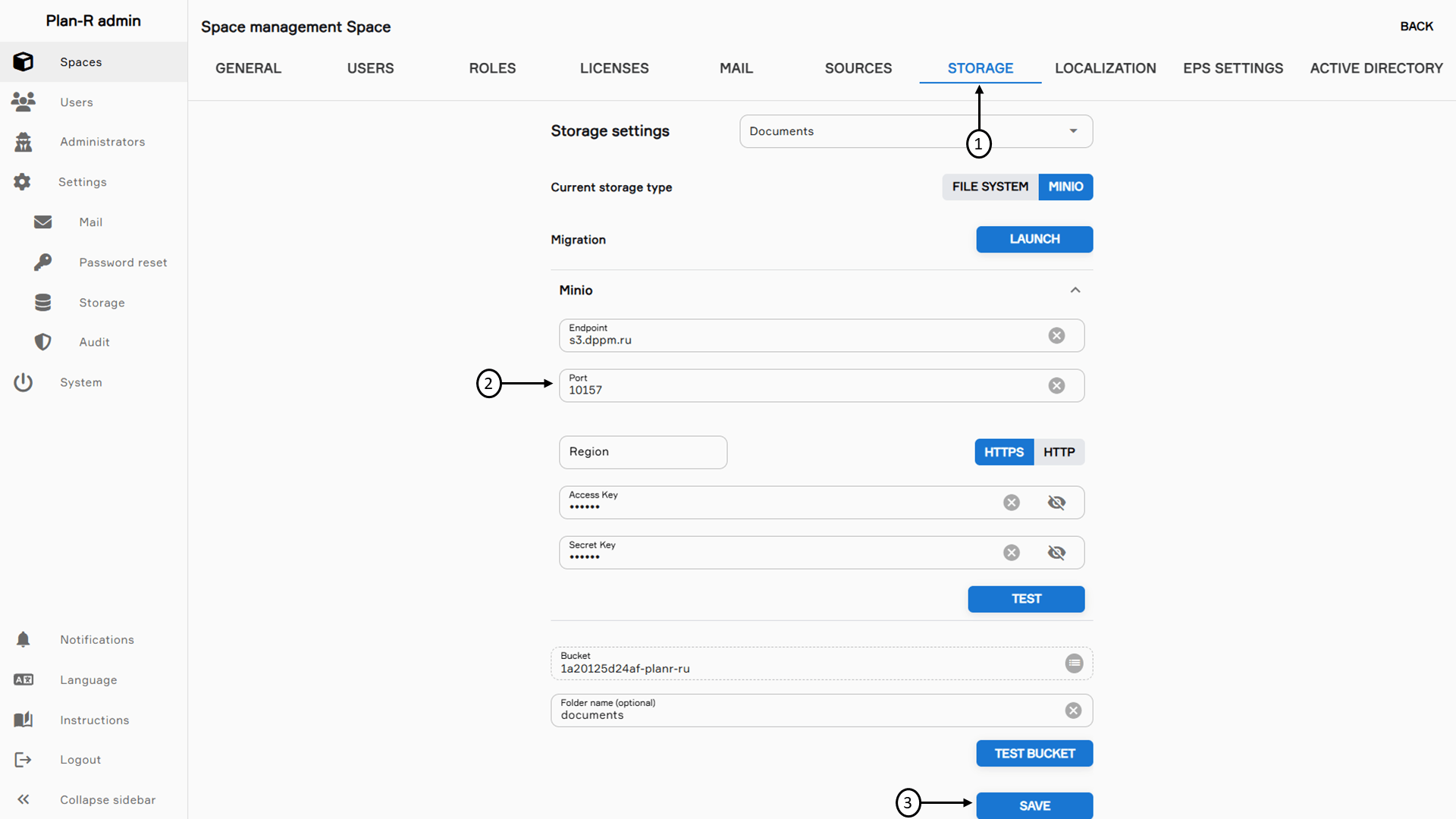 PLAN-R Storage Types
Inheriting Settings
PLAN-R supports settings inheritance to simplify configuration across multiple spaces. First, configure system storage. These settings are then used by default for all spaces. To override them for an individual space, open that space's settings and make the required changes.
File Migration
Migration transfers stored files in the background when the storage type changes.
Example:
The "Documents" storage for your space uses the File system type, and its files are stored in the server file system. You need to switch it to MinIO network storage.
Configure the MinIO connection settings, select a bucket, and click "TEST" to test the connection. Once the test succeeds, change the "Documents" storage type from "File system" to MinIO.
Newly uploaded files are then saved to MinIO, while previously uploaded files remain in the server file system. Users retain access to all files regardless of their physical location. Click "Run" to move the existing files to the currently selected storage type.