ASSIGNING ACCESS RIGHTS
You can assign a separate role for each element in the Enterprise Project Structure. If you assign a role to a parent node, the permissions granted to that role by the space administrator also apply to its child nodes.
To assign or edit a role, select a space element in the displayed structure (1), then select a user (2) who has been invited to the space. In the "Setting Space" window, click the button for editing user roles (3).
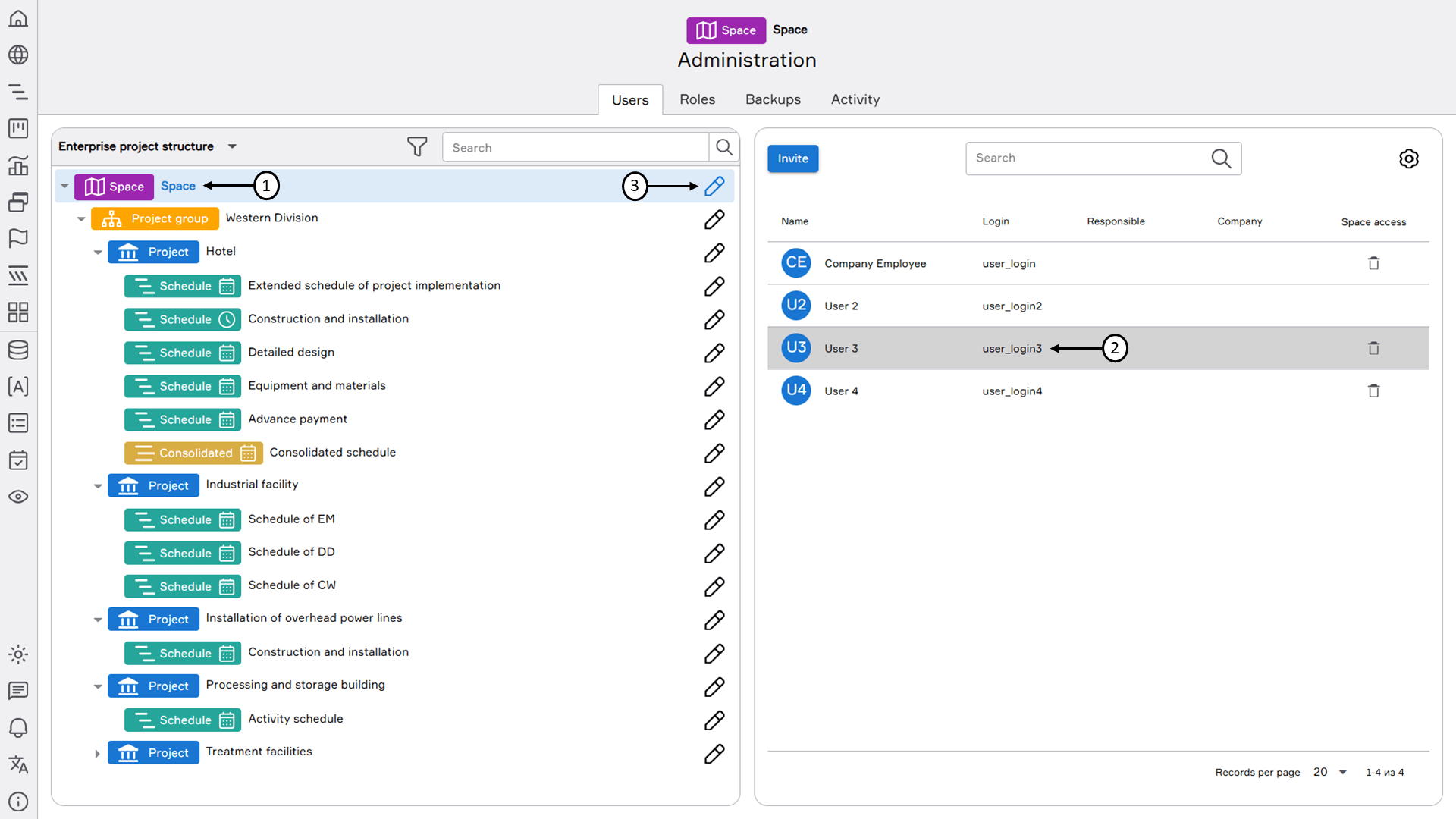 Selecting a User for Role Assignment
In the "User access settings" window that opens, the following checkboxes are selected by default:
- "Delete role on child resources" (1) — removes the role from the child nodes of the selected node;
- "Delete role and replace on child resources" (2) — removes the role from the child nodes of the selected node and replaces it with a new role;
- "Add roles on child resources" (3) — adds roles to the child nodes of the selected node;
- "Replace roles on child resources" (4) — replaces the roles on the child nodes of the selected node with a new role.
For the selected user, choose one of the previously created roles from the drop-down list (5). If necessary, use the checkboxes to configure how the role is added. Click the "+" button (6) to confirm.
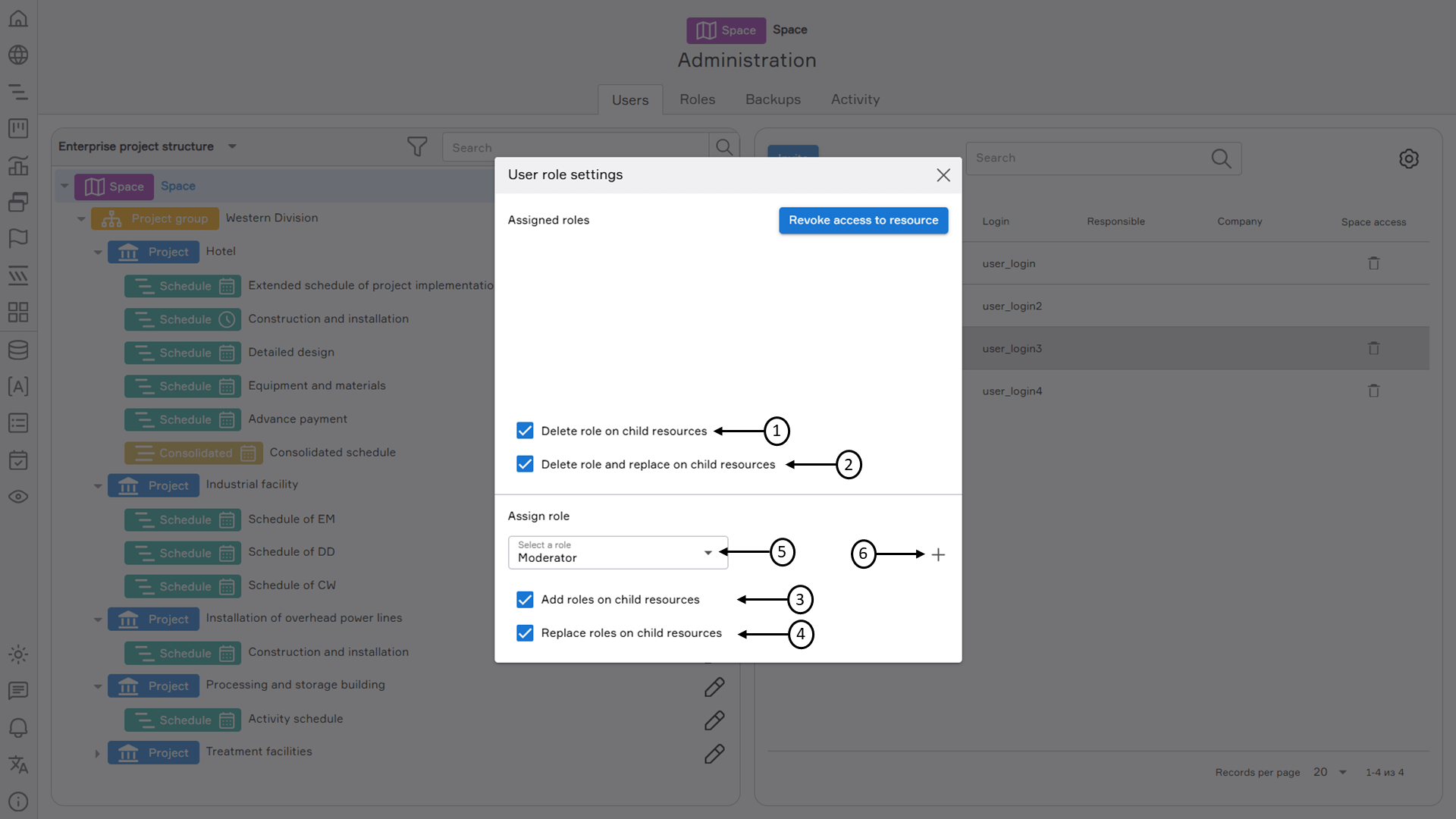 Assigning Access Rights
To assign multiple roles to a user, clear the "Replace roles on child resources" checkbox (1), select the roles one at a time from the drop-down list (2), and click the "+" button (3) to save each assignment.
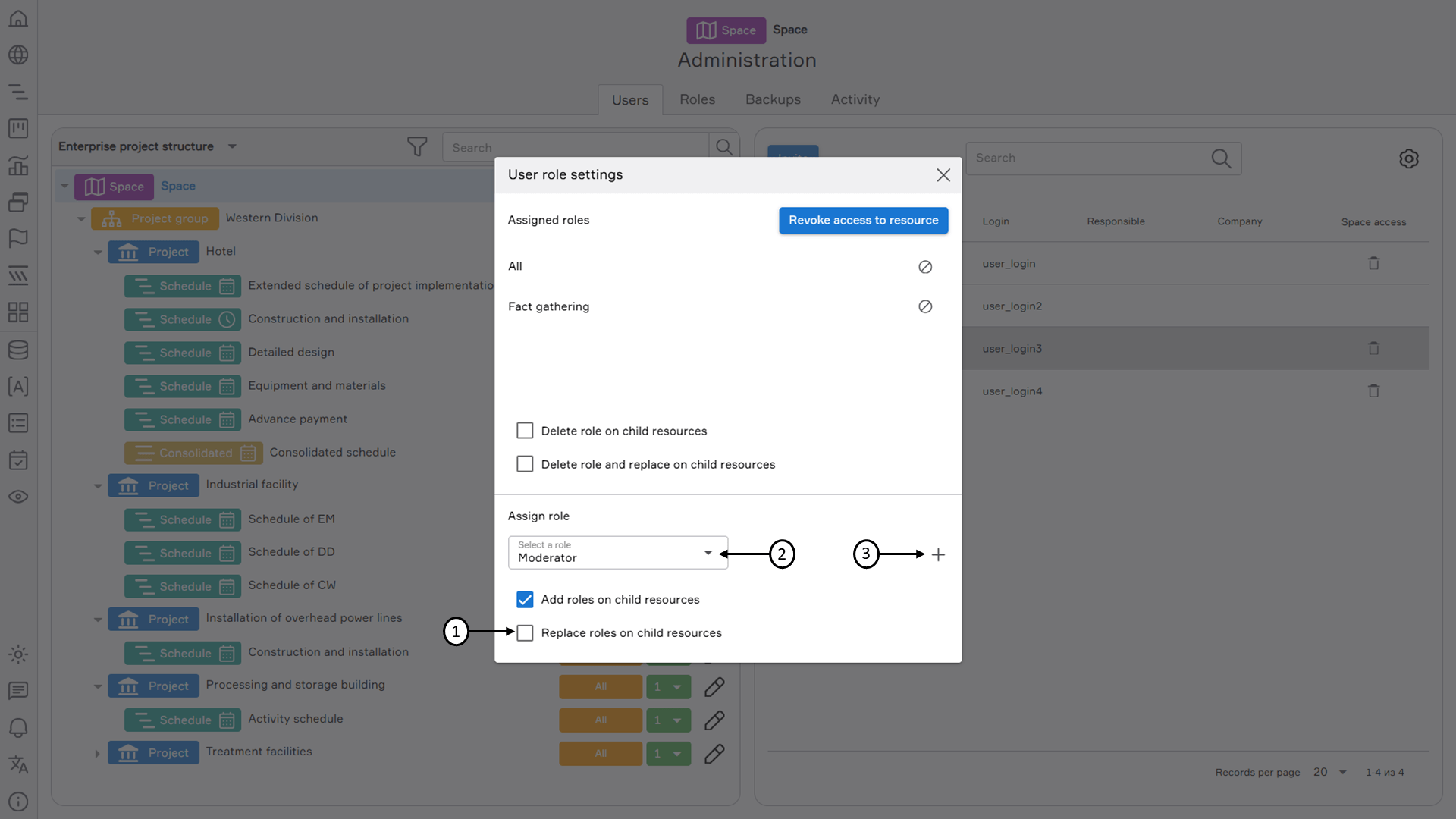 Assigning Multiple Roles to a User
The user's assigned role appears in the space element tree with an orange border (1).
If multiple roles are assigned to the user, a green border appears with the number of roles (2). You can view the assigned roles in the drop-down list (3).
If a role has been delegated by another user (see "Assigning Substitute Users"), the delegated role appears in the drop-down list with a corresponding label (4).
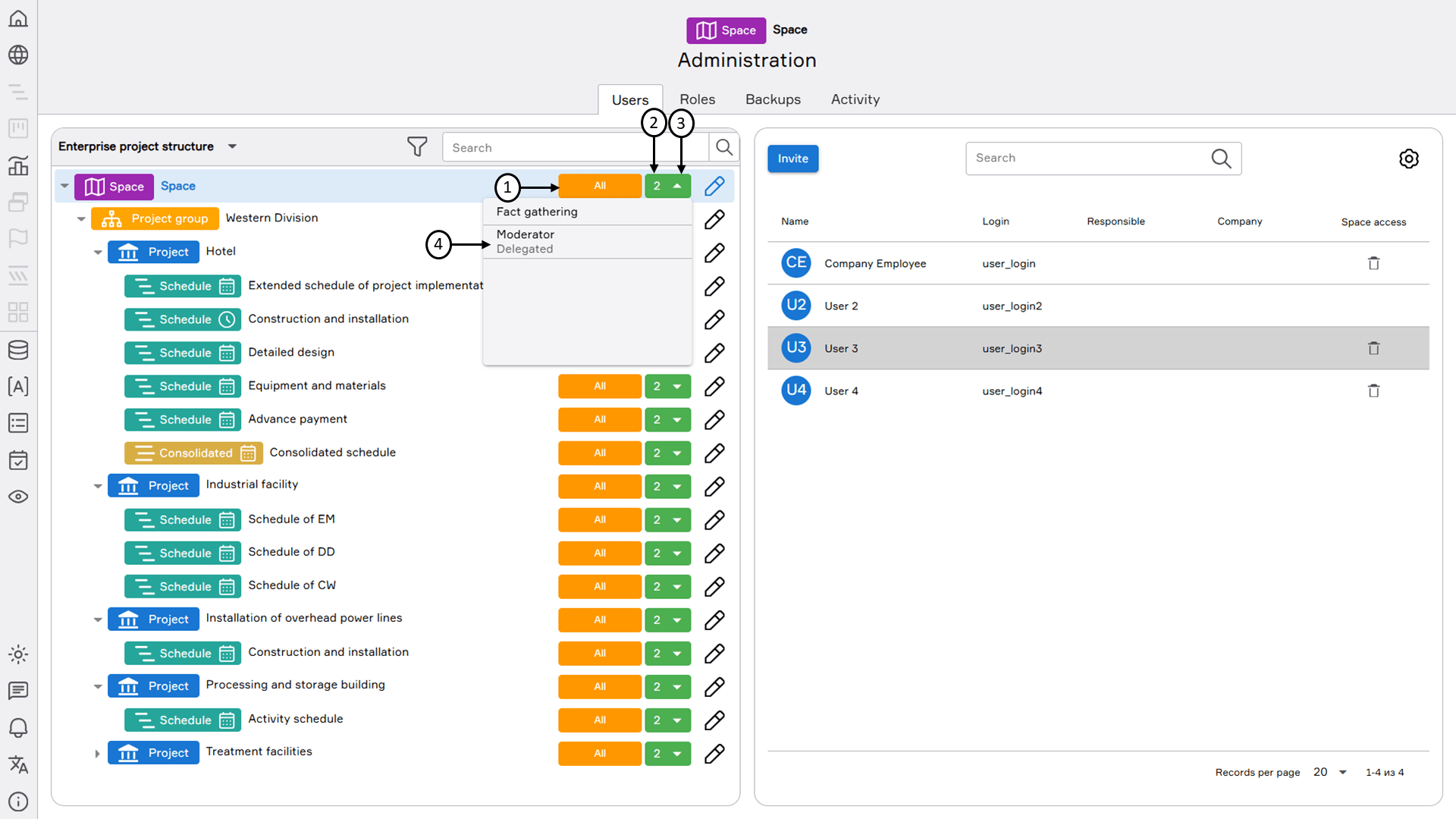 Displaying User Roles
To replace a user's roles across the space element tree, select the "Add roles on child resources" (1) and "Replace roles on child resources" (2) checkboxes, choose a role from the drop-down list (3), and click the "+" button (4). This bulk operation removes the existing roles and assigns the newly selected role.
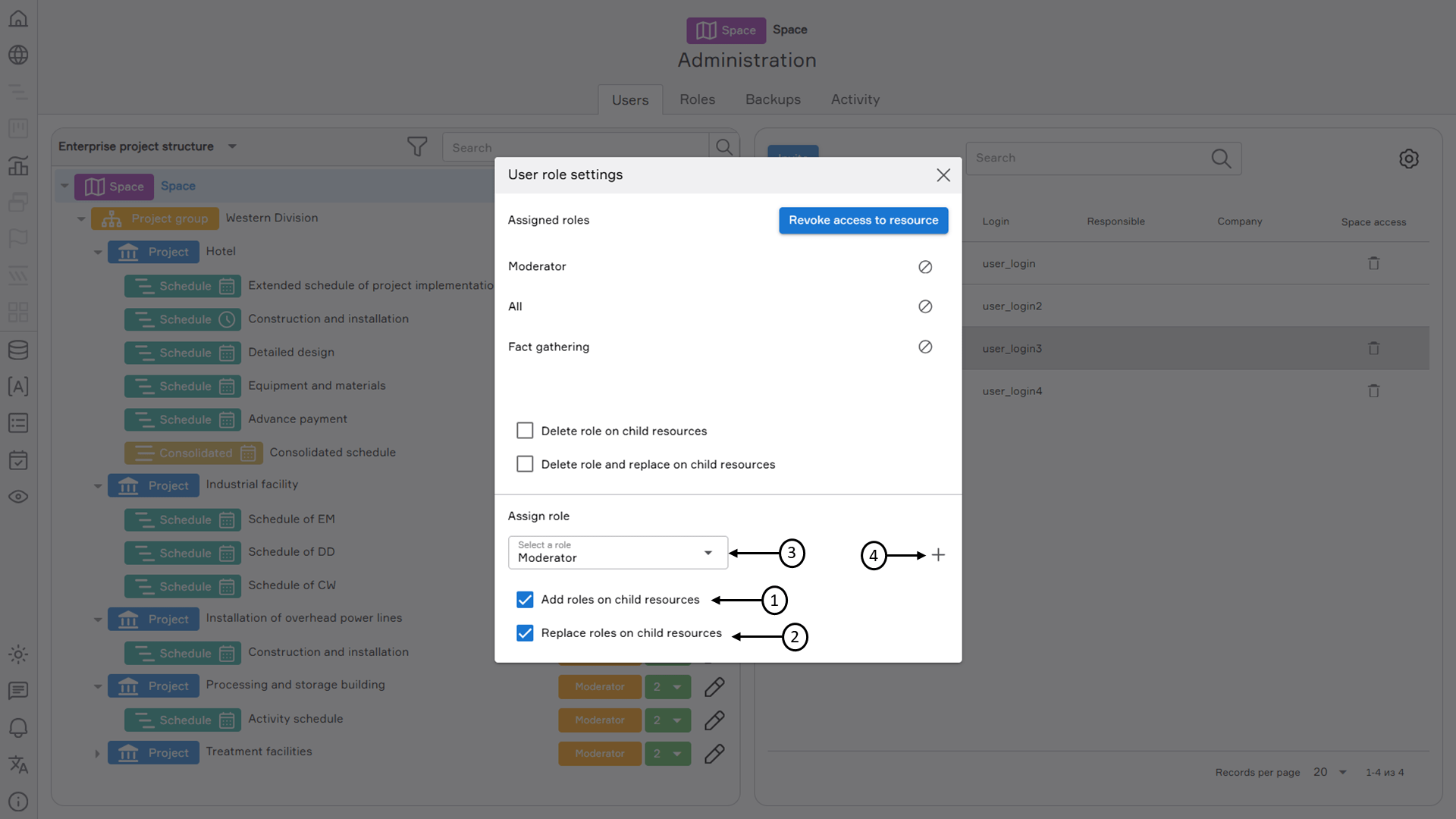 Replacing Roles Across the Space Element Tree
To remove a user's role from the selected node, clear the role removal checkboxes (1) in the "User role settings" window and click "Revoke role" (2). To remove all of the user's roles from the selected node, click "Revoke access to resource" (3).
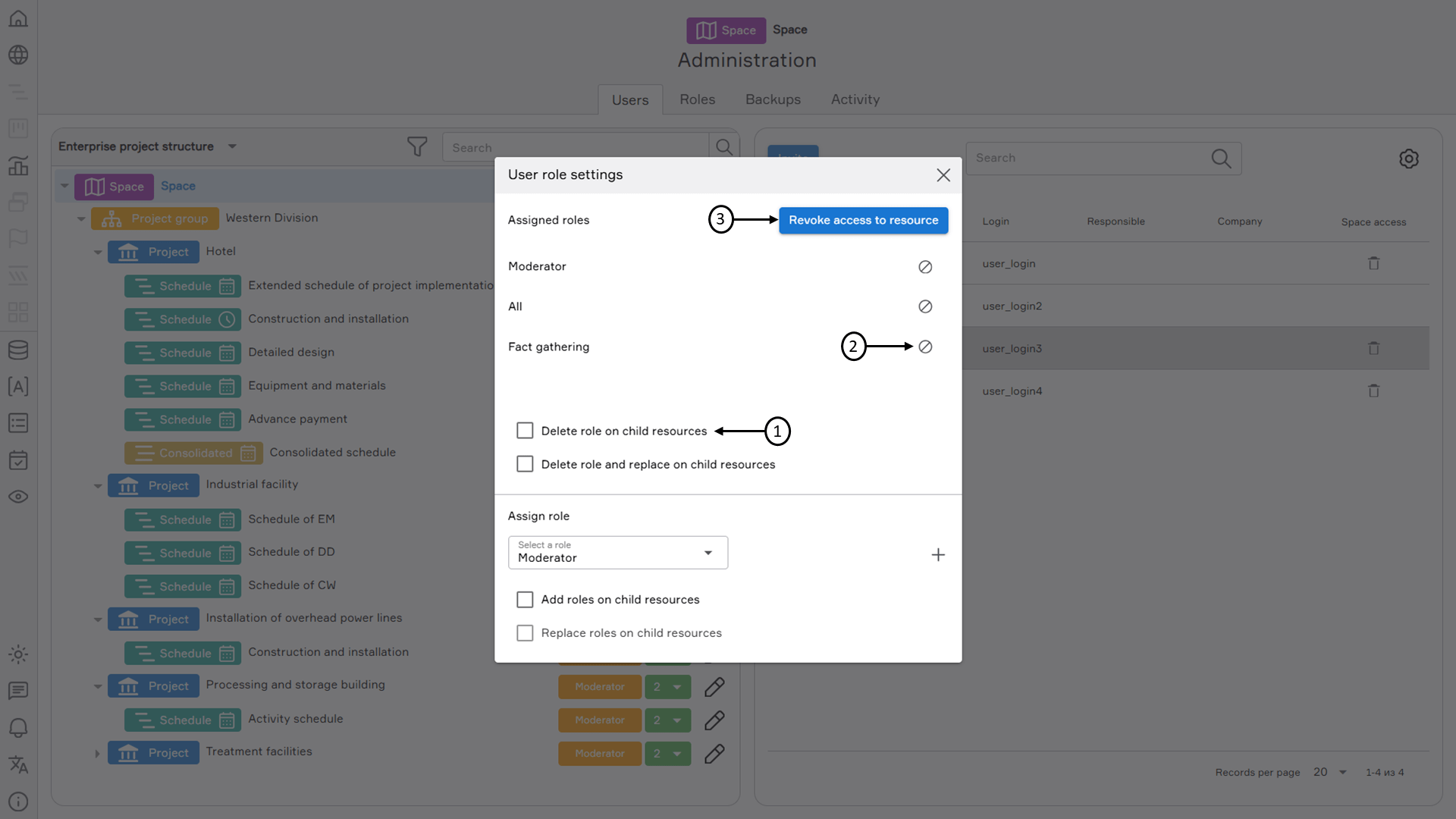 Removing Roles from the Selected Node
To remove a role from multiple child nodes, select the "Delete role on child resources" checkbox (1) and click "Revoke role" (2). The role will be removed from the selected node and its child nodes. To remove all of the user's roles from multiple child nodes, click "Revoke access to resource" (3).
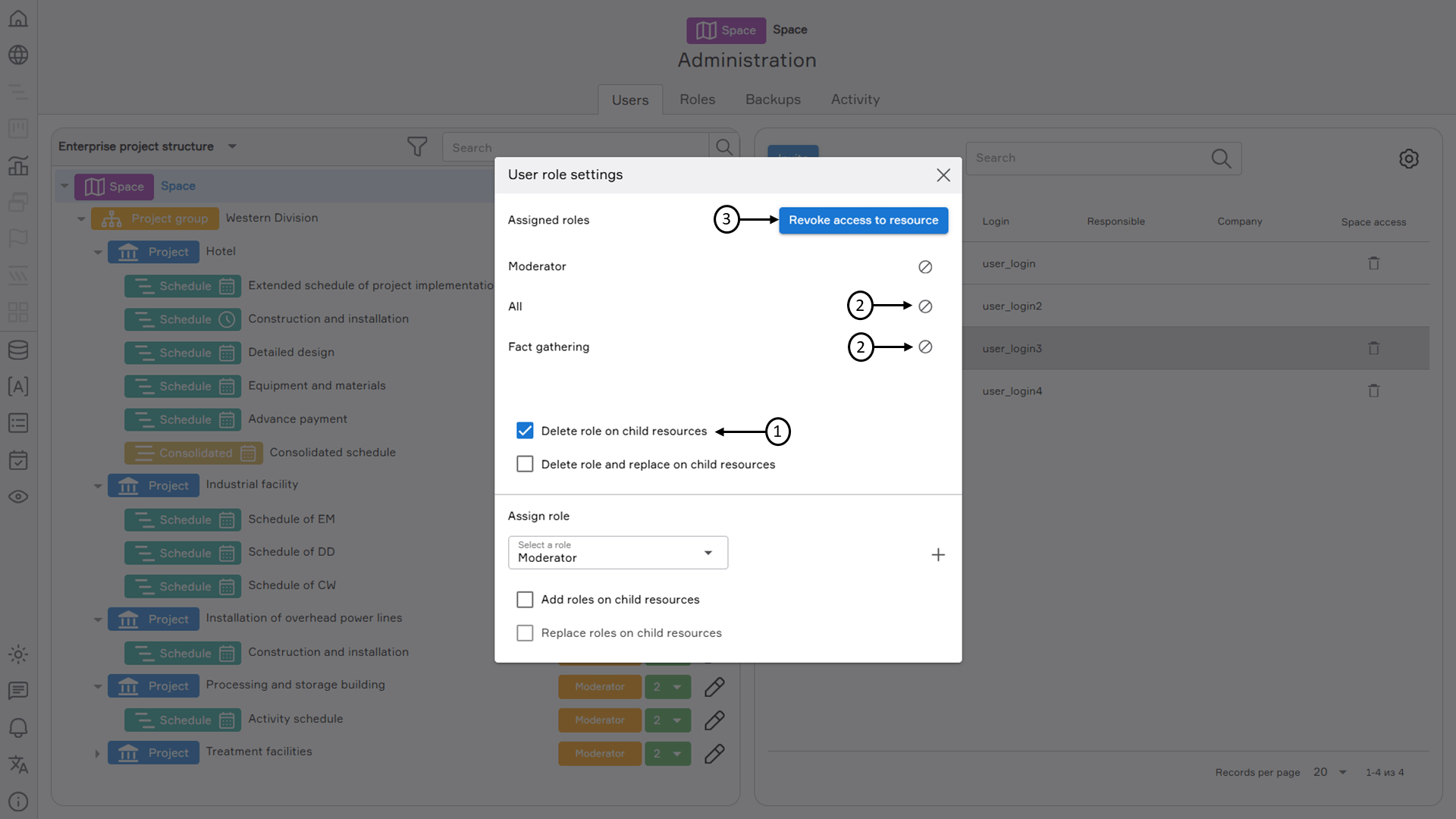 Removing Roles from Multiple Child Nodes