EXCHANGING SCHEDULE VERSIONS BETWEEN SPACES
Attention! Before exchanging schedule versions between spaces, read the following sections of the Administrator Guide:
To configure schedule version exchange, assign the same unique key to the schedule node in both the current space and the external space. The unique node key is used to match schedules across spaces. To enter the key, select a Schedule node in the Enterprise Project Structure and click "Node settings". In the dialog, open the "General" tab (1) and fill in the "Unique EPS node key" field (2). For more information, see Unique Node Key.
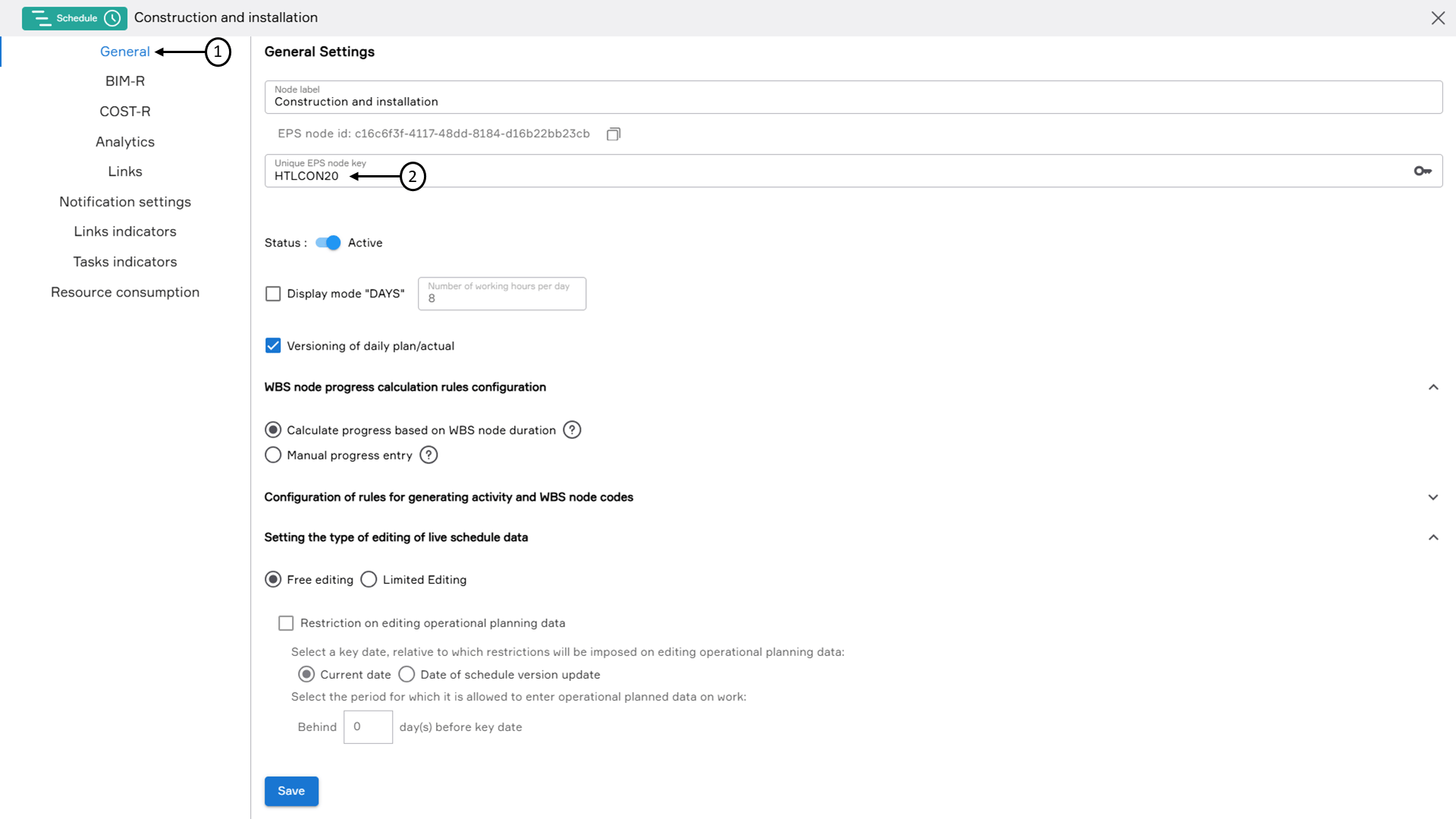 Creating a Unique EPS Node Key
When sending or receiving a schedule version, all system attribute values are transferred, and dependencies between schedule activities are preserved. Custom attribute values are transferred only to attributes with exactly matching names and data types. Documents uploaded to the schedule can also be synchronized if needed.
Attention! Directories and cross-project dependencies are not transferred when exchanging versions between spaces.
Sending a Schedule Version to an External Space
To send a schedule version to an external space, select the required version in the Enterprise Project Structure (1) and click "Transfer version to another space" (2). In the dialog listing available destination spaces, select a space (3) and click "Copy" (4). To synchronize documents, select "Copy documents" (5).
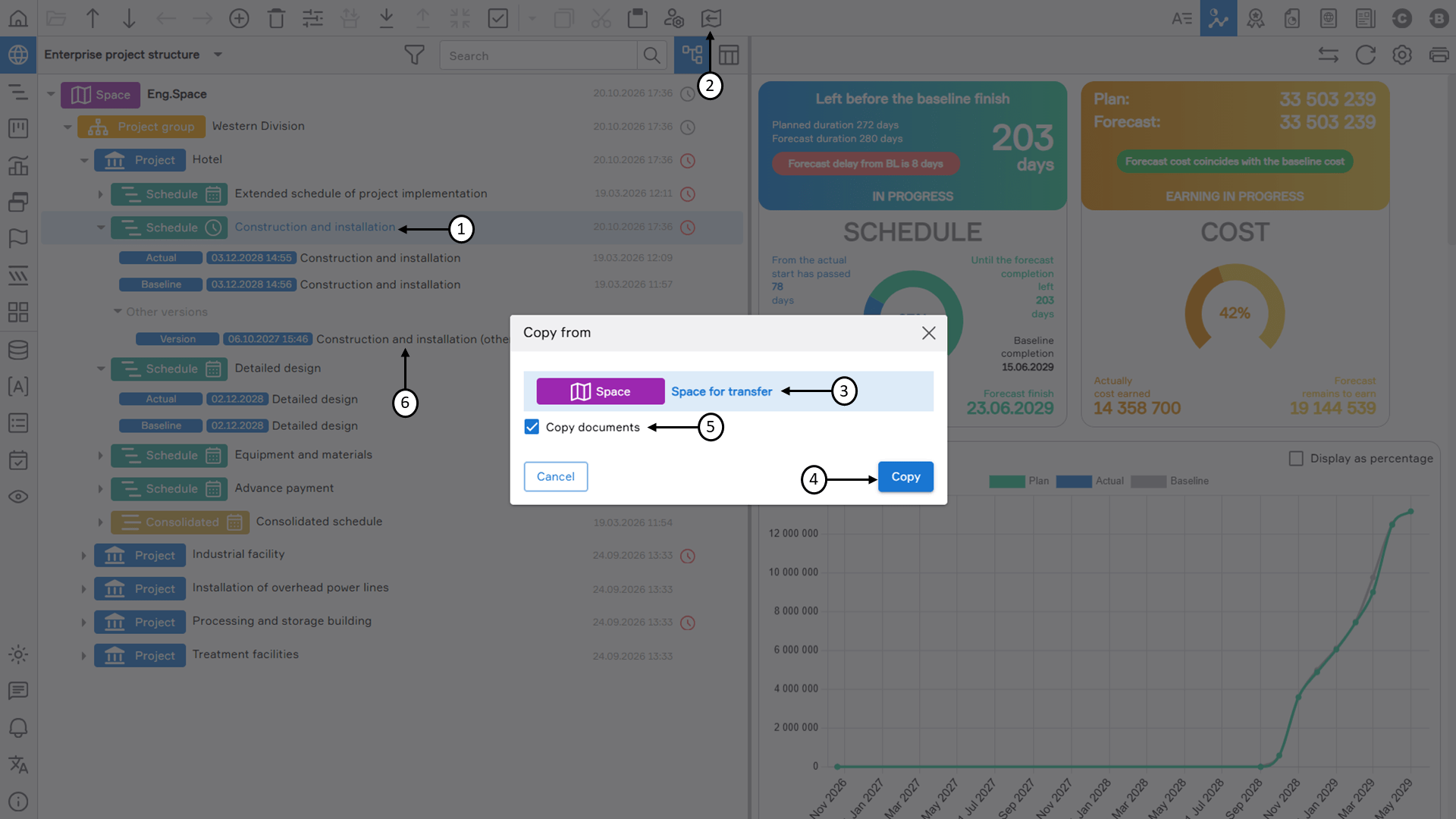 Sending a Version to an External Space (1)
The schedule version sent to the external space (1) appears there with the Version status (2).
Attention! To send a version, the user must have the "Exchanging schedule versions between spaces (F2.2.11)" permission.
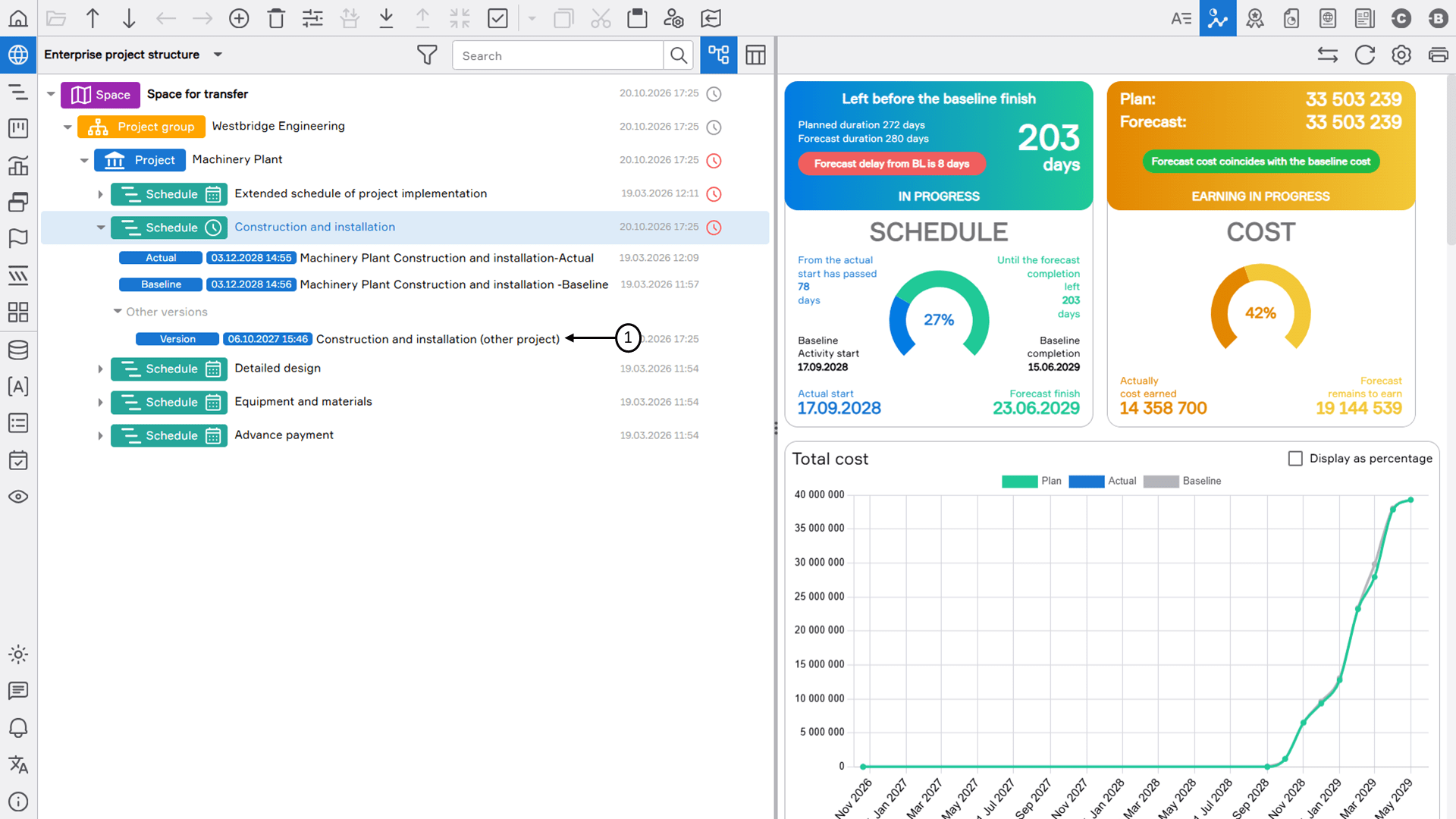 Sending a Version to an External Space (2)
Receiving a Schedule Version from an External Space
To receive a schedule version from an external space, select the required schedule in the Enterprise Project Structure (1) and click "Get a version from another space" (2). In the dialog listing available source spaces, select a space (3) and click "Copy" (4). To synchronize documents, select "Copy documents" (5). The schedule version received from the external space appears in the current space with the Version status (6).
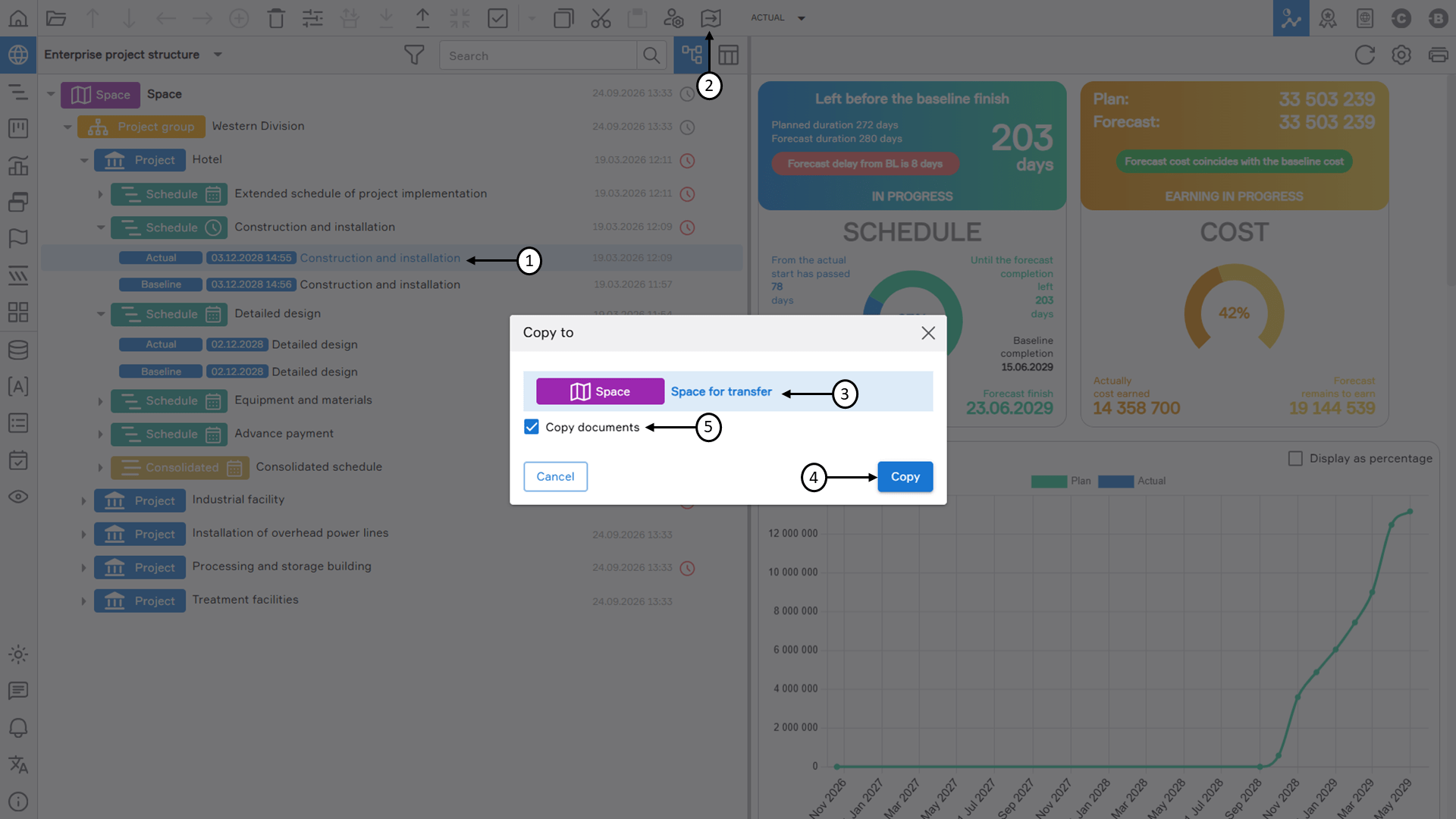 Receiving a Schedule Version from an External Space