IMPORTING SCHEDULE VERSIONS FROM THE ENTERPRISE PROJECT STRUCTURE
PLAN-R supports both full and partial imports of schedule versions. Partial imports are available only for .xlsx files. Full imports support all three formats: .xlsx, .xml, and .xer.
Importing a schedule version from an .xlsx file requires compliance with a specific notation governing the file's data structure.
The PLAN-R notation for creating schedules in Microsoft Excel includes mandatory requirements, without which the file cannot be imported, and optional requirements for creating a complete network schedule with a hierarchical structure, different types of activity dependencies, including lags, and various data types. Requirements for preparing an MS Excel schedule template are described in Annex 1. Source Data Requirements for Import into PLAN-R.
Importing a Schedule Version in .xlsx Format
To import a schedule version from an .xlsx file, select a Schedule node in the Enterprise Project Structure (1) and click "Import version" (2). In the dialog, select an .xlsx file from your device (3). If needed, edit the imported version's name (4) and specify the update date (5). You can manually specify the input data encoding (6) to ensure correct file processing and prevent data corruption during parsing. PLAN-R uses win1251 by default. This encoding is suitable for displaying Cyrillic characters (Russian) and is standard for most text files created in Windows.
Select the schedule version import scenario (7):
- Add a new version — Creates a new schedule version.
- Update version data — Adds new activity data or updates existing activity data in the schedule version by matching Code attribute values with activities in the imported file.
- Delete version data — Deletes activities from the schedule version by matching Code attribute values with activities in the imported file.
When adding a new version, select "Make the version actual" (8) to assign it the Actual status. In Resource planning mode, PLAN-R can import schedule activities together with resources assigned from the Resource Breakdown Structure (see Assigning Resource Breakdown Structure Rows to Schedule Activities). To do this, select "Import RBS assignments on activities" (9).
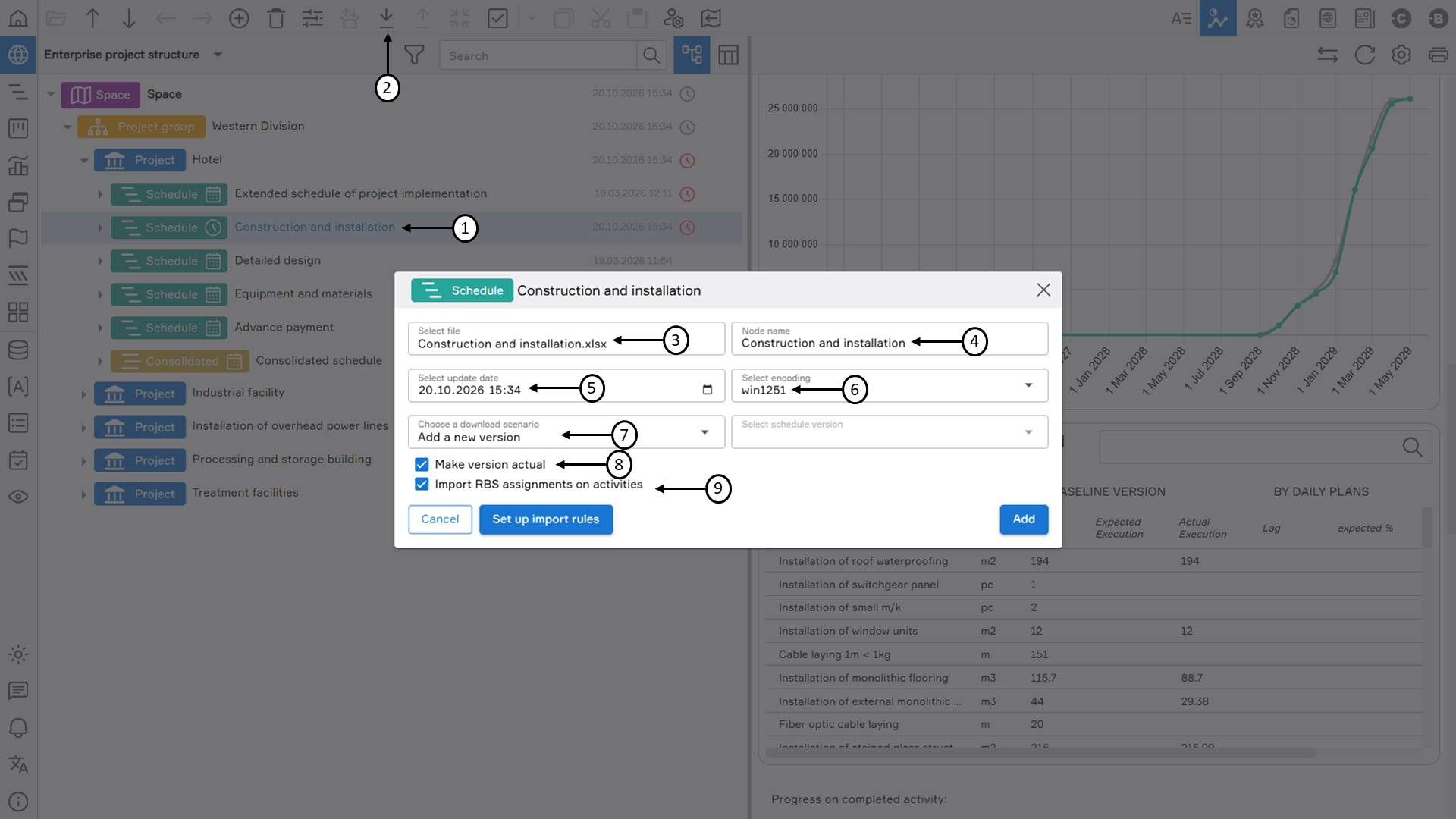 Importing a Schedule Version in .xlsx Format
When selecting "Update version data" (1), specify the schedule version to update (2). Activity attribute values are updated using data from the imported file. Records are matched by their Code attribute values. If "Update without changing the schedule structure" (3) is enabled, new activities cannot be created, and existing activities cannot be moved within the hierarchy. If this option is disabled, the import can update activity data, add new records, and modify the Work Breakdown Structure. The following attributes in the imported file can affect the schedule structure (see the figure Schedule Structure Import Attributes):
- WBS level (
wbs-level) — Specifies the record's level in the Work Breakdown Structure. Its numeric value determines the record's position and nesting level. - Code (
code) — Specifies the unique identifier of a schedule record. - Material path (
material-path) — Specifies the record's parent node in the hierarchy. If no parent node is specified during import, PLAN-R automatically changes the WBS level (wbs-level) values, which may cause the schedule structure to be imported incorrectly. - Type (
wbs-type) — Specifies the record type in the schedule version:work— WBS node;task— Activity;sum— Summary activity;milestone_start— Start milestone;milestone_finish— Finish milestone;draft— Draft.
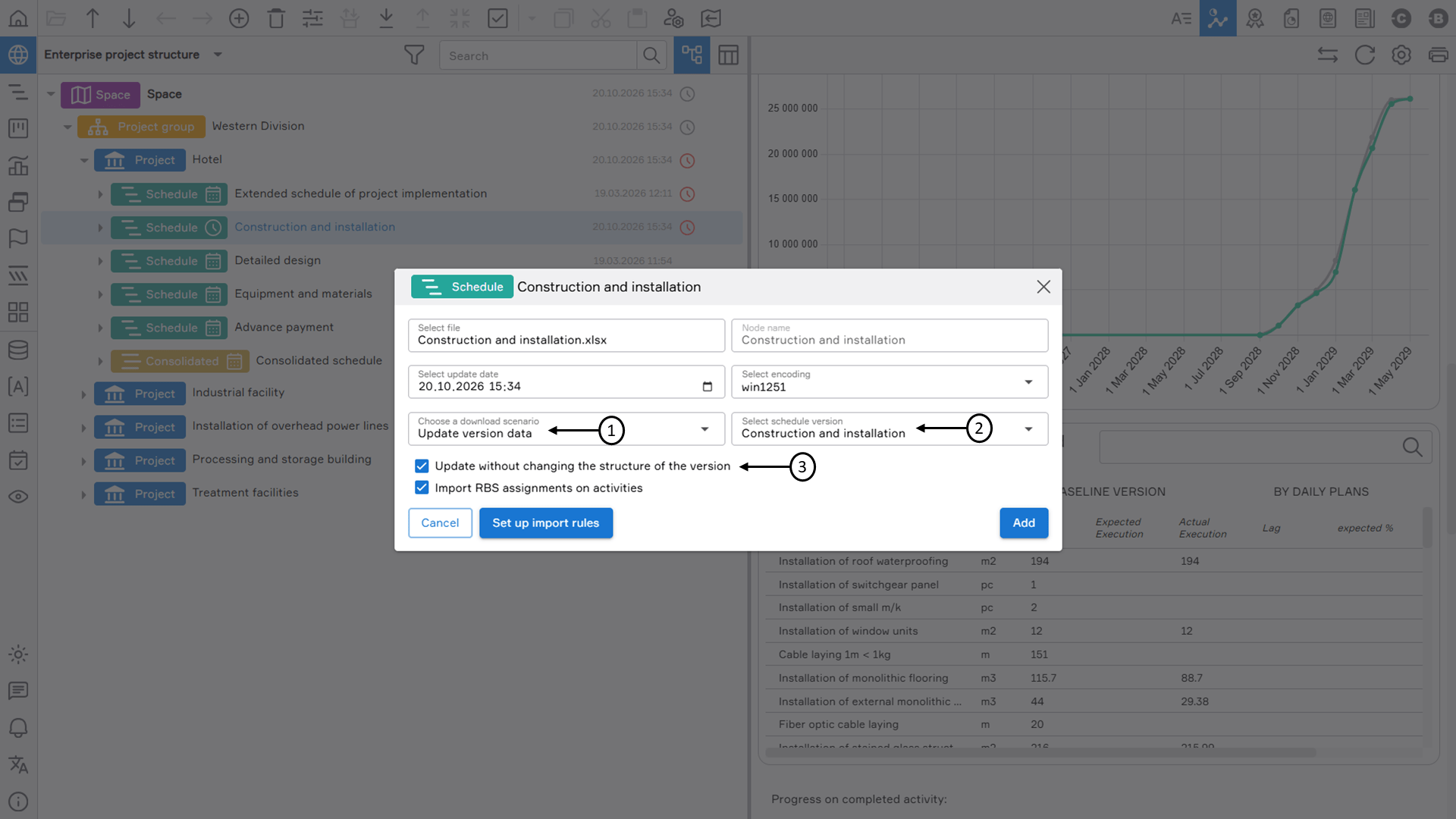 Updating a Schedule Version
 Schedule Structure Import Attributes
When selecting "Delete version data" (1), specify the schedule version from which activity data will be deleted (2). In this scenario, activity attribute values are deleted based on the imported file. Records are matched by their Code attribute values.
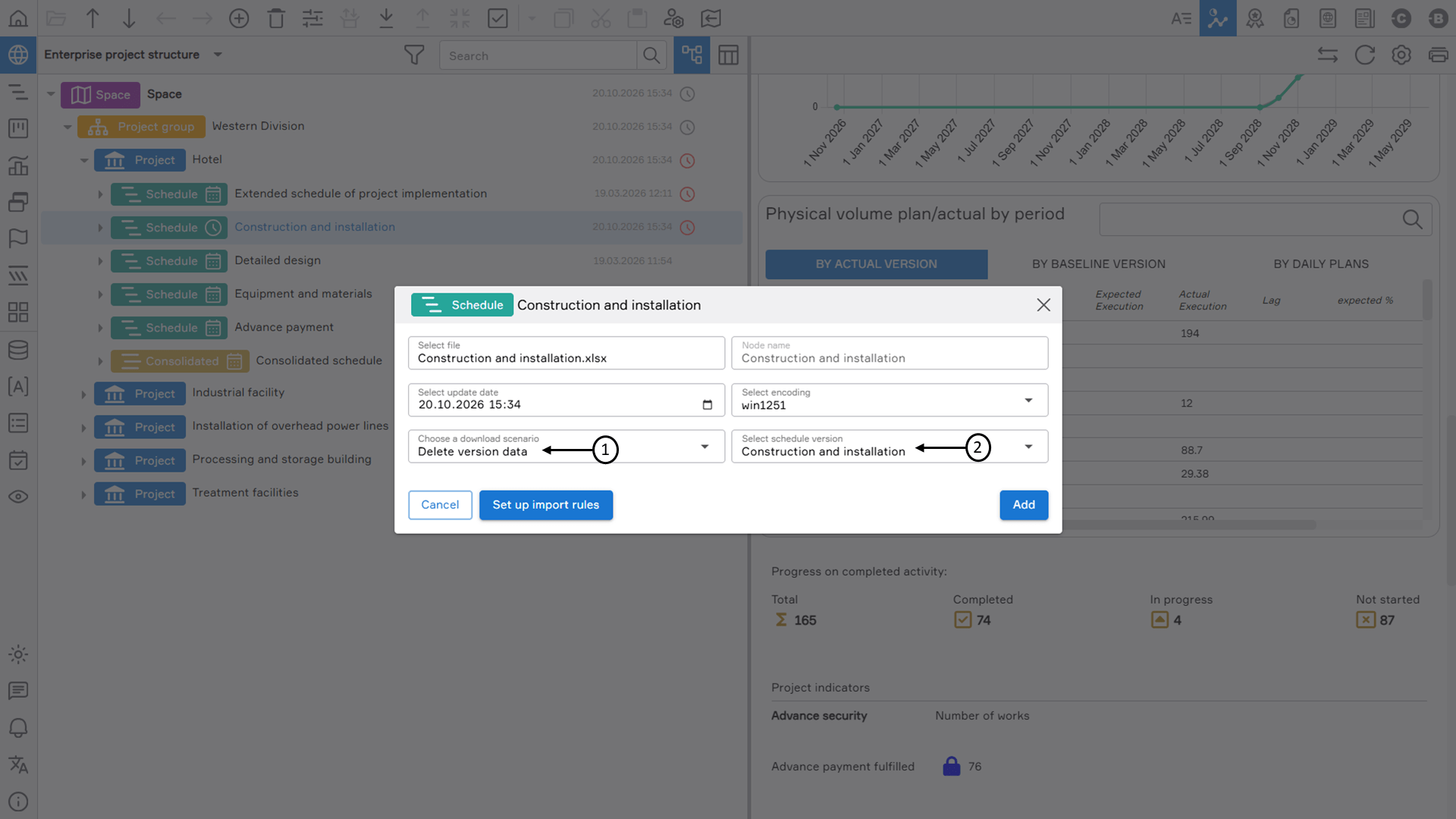 Deleting Schedule Version Data
Additional import settings are available for .xlsx files. Click "Set up import rules" (1) to open the custom import dialog. You can select an existing rule (2) or create a new import rule (3).
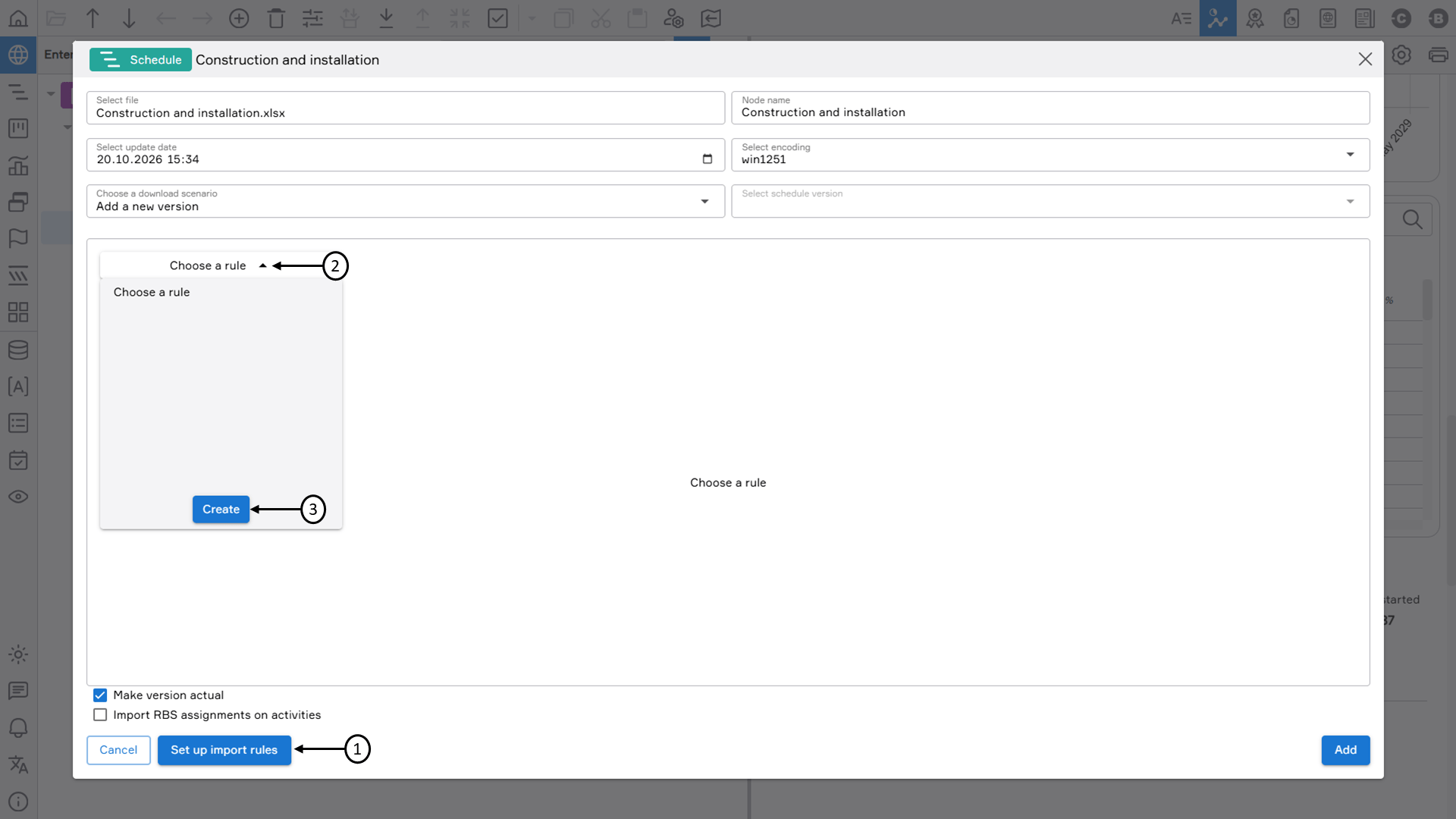 Custom Schedule Version Import in .xlsx Format
When creating a rule, enter its name (1), then specify the first row containing data to import into PLAN-R. For example, you can skip the table header and import only the data rows (2). Ignored rows are highlighted in red (3). If the imported version contains system attribute names, PLAN-R automatically identifies the corresponding attributes and fills in the "Select attributes" field (4). If a system attribute name is missing from the imported file, the field remains empty. You can manually select the required attribute from the drop-down list. You can also map .xlsx columns to schedule attributes. For example, a column titled "Contractual delivery date" can be mapped to Finish. During import, dates from that column are written to the Finish attribute. Click "Save" (5) to save the custom import settings.
After selecting the import scenario and configuring the custom import settings, click "Add" (6). The schedule version is imported, and an "EPS tree updated" notification appears in the Enterprise Project Structure.
Attention! If you select "Add a new version" and attempt to import a schedule without the minimum required attributes listed in Annex 1. Source Data Requirements for Import into PLAN-R, PLAN-R displays "Required attributes not found".
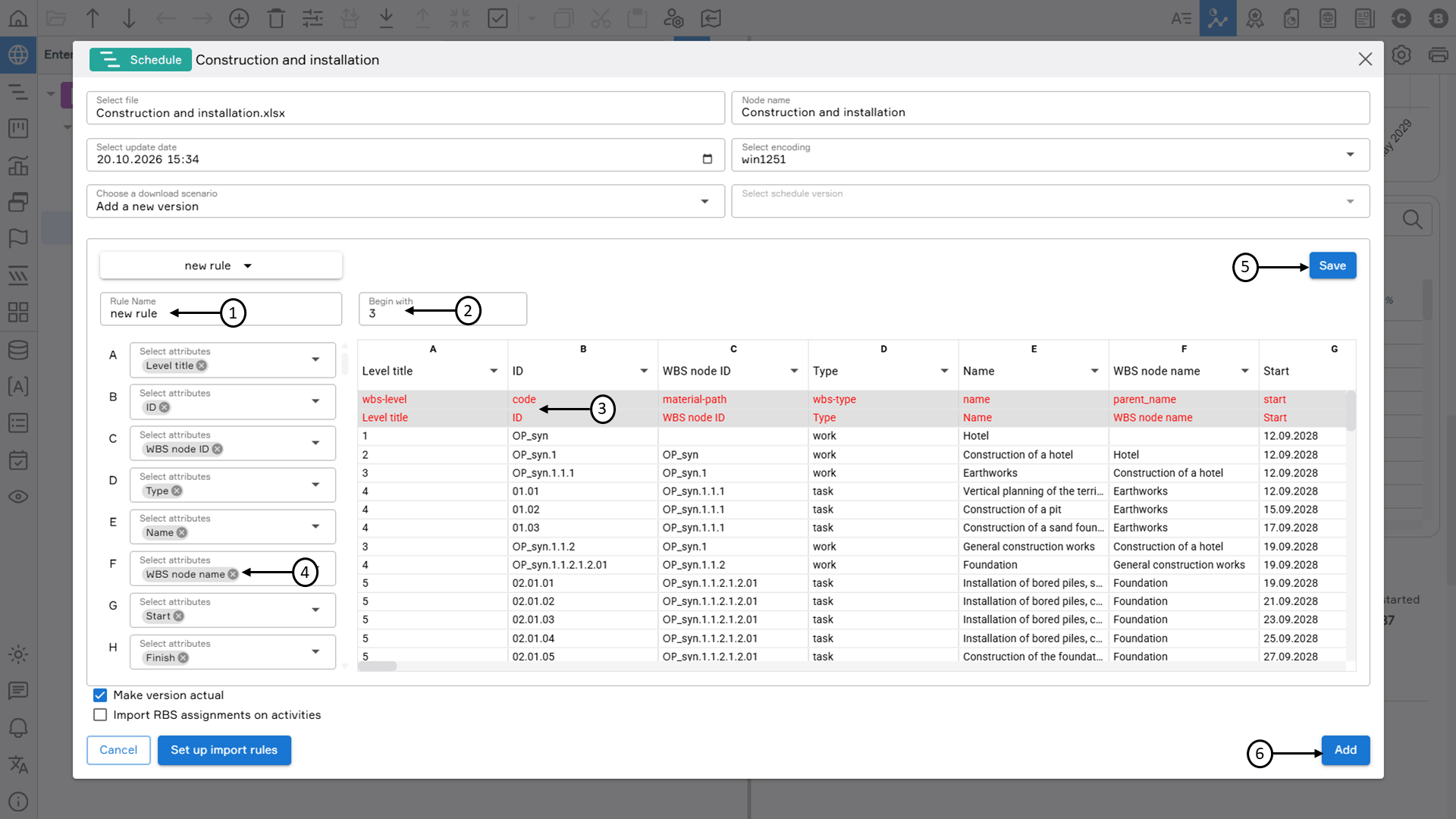 Custom Import Rule Settings
You can view the import result in "Notifications" (1). Click "Click here to view details" (2) to view the operation's step-by-step progress (3). If an import error occurs, PLAN-R displays a red indicator (4). Hover over the indicator to view the reason for the failed import.
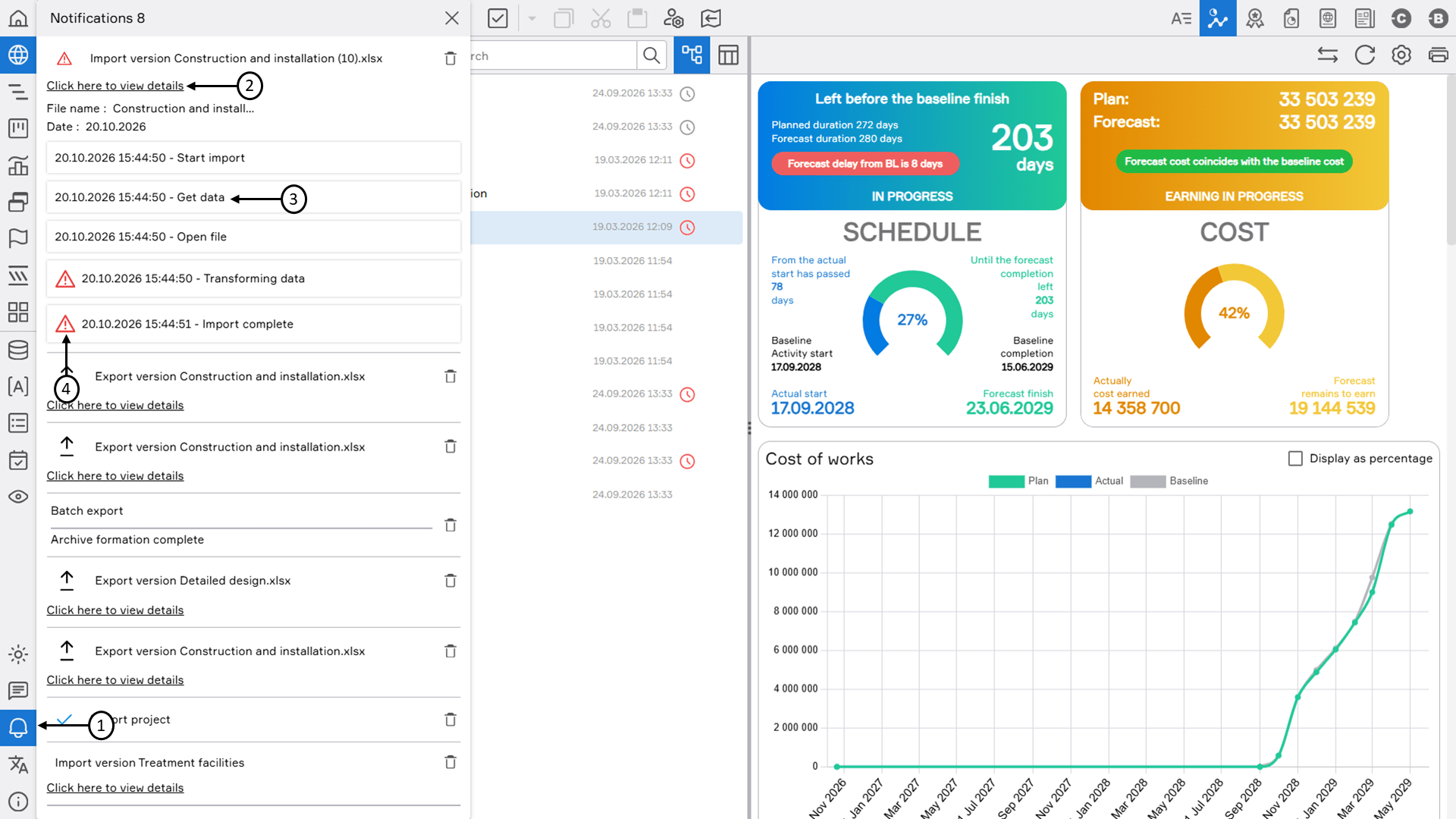 Schedule Version Import Notification
Importing a Schedule Version in .xml Format
To import a schedule version from an .xml file, select a Schedule node in the Enterprise Project Structure (1) and click "Import version" (2). In the dialog, select an .xml file from your device (3). If needed, edit the imported version's name (4). The update date (5) is determined automatically from the imported file and cannot be edited manually. You can also manually specify the input data encoding (6) to ensure correct file processing and prevent data corruption during parsing. PLAN-R uses win1251 by default. This encoding is suitable for displaying Cyrillic characters (Russian) and is standard for most text files created in Windows.
On the "Main settings" tab (7), select the resource directory import scenario (8). This setting controls how resources assigned to activities in the imported file are processed:
- Do not import — Resource data in the .xml file is ignored. Only activities, their attributes, and the schedule structure are imported. Existing resource assignments in the version remain unchanged.
- Update existing — Updates resources in the selected directory using data from the imported file. If resource identifiers and names match, their attributes are updated. Otherwise, a new record is added to the selected directory. All updated or newly added resources are automatically assigned to schedule activities.
- Create new — Creates a new resource directory containing resources from the imported file and assigns them to activities.
When "Create new RBS" (9) is not selected, the scenarios for updating or creating a resource directory allow you to select an existing Resource Breakdown Structure. It is updated using data from the created or updated resource directory.
Selecting "Create new RBS" (9) creates a new RBS. This is useful when importing a schedule with an entirely new set of resources that needs to be organized into a separate hierarchy.
To process resources correctly, select the attribute (10) in the imported file that contains the unique resource identifier, using the drop-down list (11). Matching resource codes in the imported file with those in the PLAN-R resource directory allows existing resources to be updated without duplication.
The following schedule version import options are also available:
- Make the version actual (12) — Assigns the Actual status to the imported schedule version and imports daily distributions and associated directories.
- Import project summary task (13) — If this checkbox is not selected, an .xml schedule version imported from MS Project does not include the project summary task, even if the file contains one. If selected, the project summary task is included.
When importing a schedule version from MS Project, PLAN-R can also import list attributes of the Simple type (see Adding a List Attribute). If an imported list attribute matches an existing simple list attribute in PLAN-R by name and type, the following options are available:
- Merge with the attribute at a higher level (14) — Adds unique values from the imported list to the existing higher-level attribute, updating it for all dependent schedules.
- Create a copy of the attribute at the schedule level (15) — Creates a new attribute at the current schedule level using the imported list, leaving the higher-level attribute unchanged and retaining the values only for this version.
You can select which attributes to import from an .xml file. Select "Select attributes to import" (16) to display a list of version attributes with selection checkboxes (17).
Click "Select all checkboxes" (18) to select all attributes. Click "Clear all checkboxes" (19) to clear the selection.
Attention! If "Select attributes to import" is not selected, all schedule version attributes are imported by default.
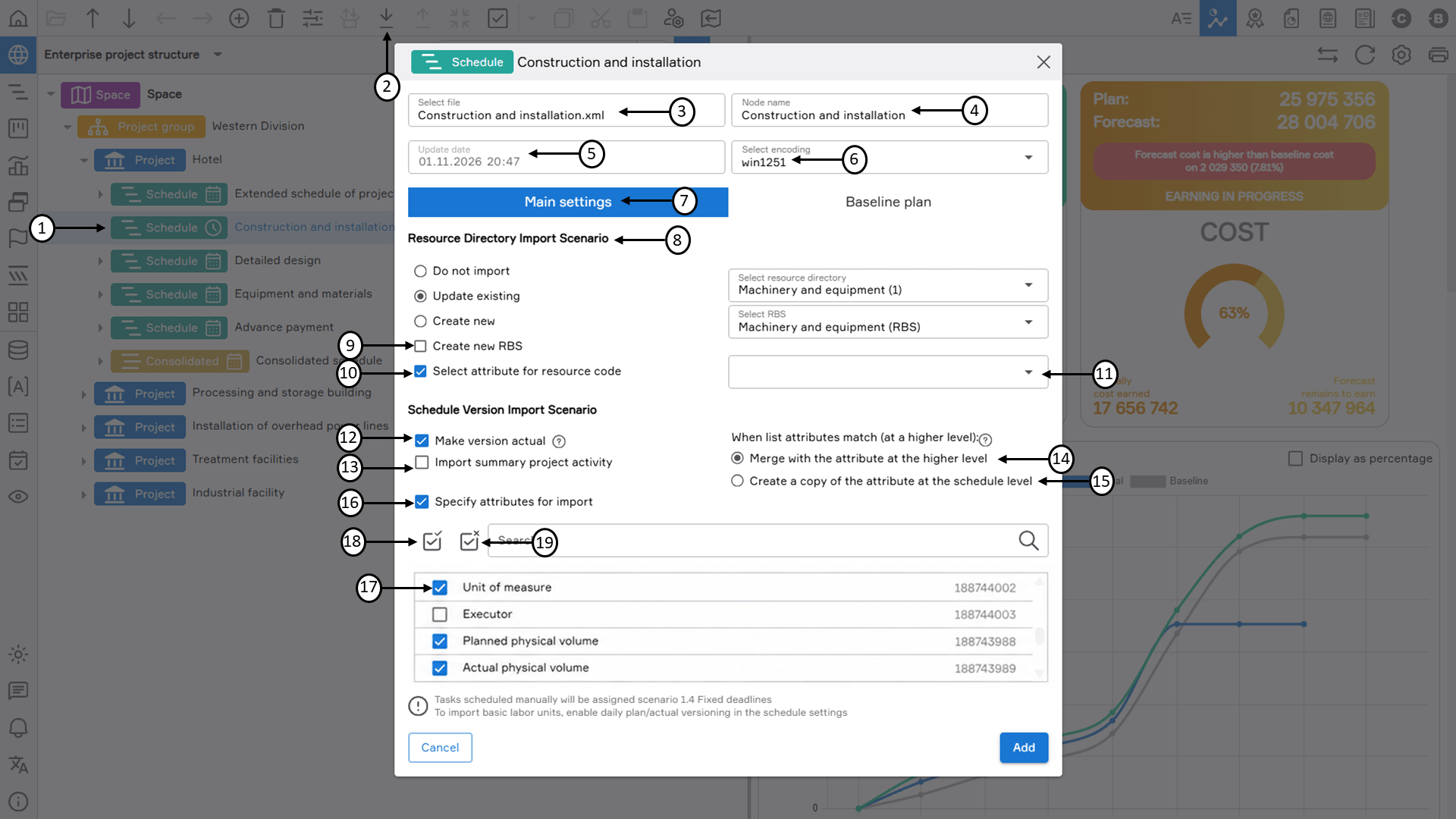 Importing a Schedule Version in .xml Format
On the "Baseline plan" tab (1), you can configure the import of a baseline plan from MS Project:
- Create a baseline version (2) — Creates a Baseline schedule version and imports the baseline distribution into it.
- Import daily baseline plan (3) — Enables importing baseline distributions from the file.
This tab is available only when schedule versioning is enabled (4). If versioning is disabled, PLAN-R displays "Enable versioning to select schedule version".
Select a baseline plan (5), then choose whether to import it into the current version, the Baseline version, or both (6). You can also select the destination cell for the baseline distribution (7): Accepted plan or Operational plan.
After configuring the schedule version import, click "Add" (8).
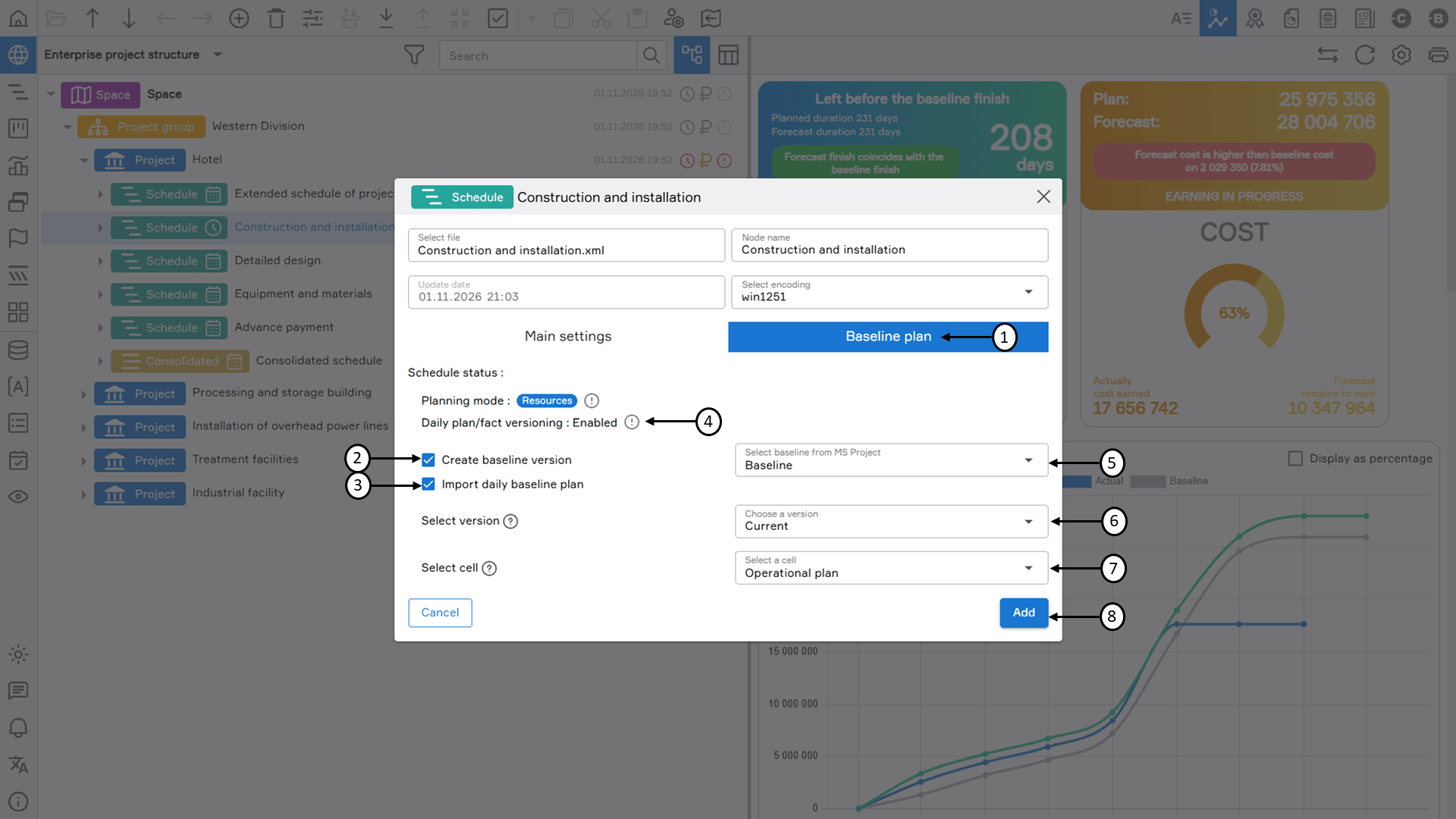 Configuring Schedule Version Baseline Plan Import in .xml Format
Importing a Schedule Version in .xer Format
To import a schedule version from an .xer file, select a Schedule node in the Enterprise Project Structure (1) and click "Import version" (2). In the dialog, select an .xer file from your device (3). If needed, edit the imported version's name (4). You can manually specify the input data encoding (5) to ensure correct file processing and prevent data corruption during parsing. PLAN-R uses win1251 by default. This encoding is suitable for displaying Cyrillic characters (Russian) and is standard for most text files created in Windows.
Select the resource directory import scenario (6). This setting controls how resources assigned to activities in the imported file are processed:
- Do not import — Resource data in the .xer file is ignored. Only activities, their attributes, and the schedule structure are imported. Existing resource assignments in the version remain unchanged.
- Import and update existing resource directories and RBS — Updates existing resources in the directory using data from the imported file. If resource identifiers and names match, their attributes are updated according to the file.
- Import and create a new resource directory and RBS — Imports resource data as new records in the resource directory, even if resources with the same names already exist in PLAN-R. A new Resource Breakdown Structure is created for these resources. This is useful when importing a schedule with an entirely new set of resources that needs to be organized into a separate hierarchy.
When adding a new version, select "Make the version actual" (7) to assign it the Actual status.
After configuring the schedule version import, click "Add" (8).
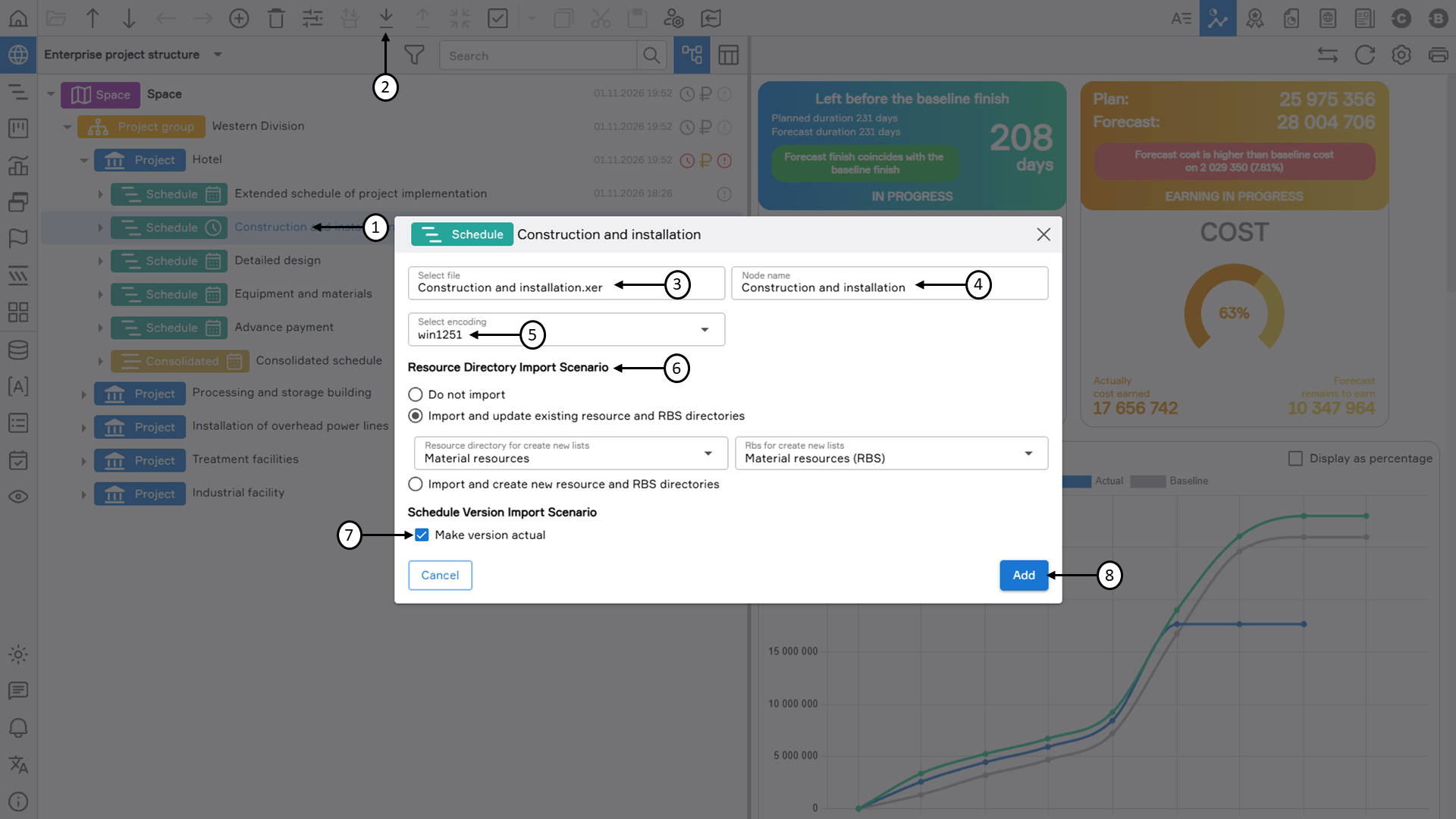 Importing a Schedule Version in .xer Format
Batch Import of Schedule Versions
PLAN-R supports importing multiple .xlsx files simultaneously, with each file representing a separate schedule version.
To import schedule versions in a batch from the Enterprise Project Structure, click "Select using checkboxes" (1), then "Batch versions import" (2). In the "Batch import" dialog, select the files to import (3).
The imported filenames must meet the requirements of the selected import scenario (4):
- Update version data — Filenames must contain the schedule version GUIDs (5). Including the unique EPS node key is permitted but not required. PLAN-R uses the GUIDs to identify and update the schedule versions.
- Add a new version — Filenames must contain a unique node key (6) matching the key of a Schedule node in the Enterprise Project Structure. This key identifies the node into which the new versions are imported. If the filename does not contain a unique node key, indicated by two consecutive separators
__after the GUID, the version is not imported.
The unique EPS node key and version GUID can be found in the batch version export report (see Section 3.8. Exporting Schedule Versions from the Enterprise Project Structure).
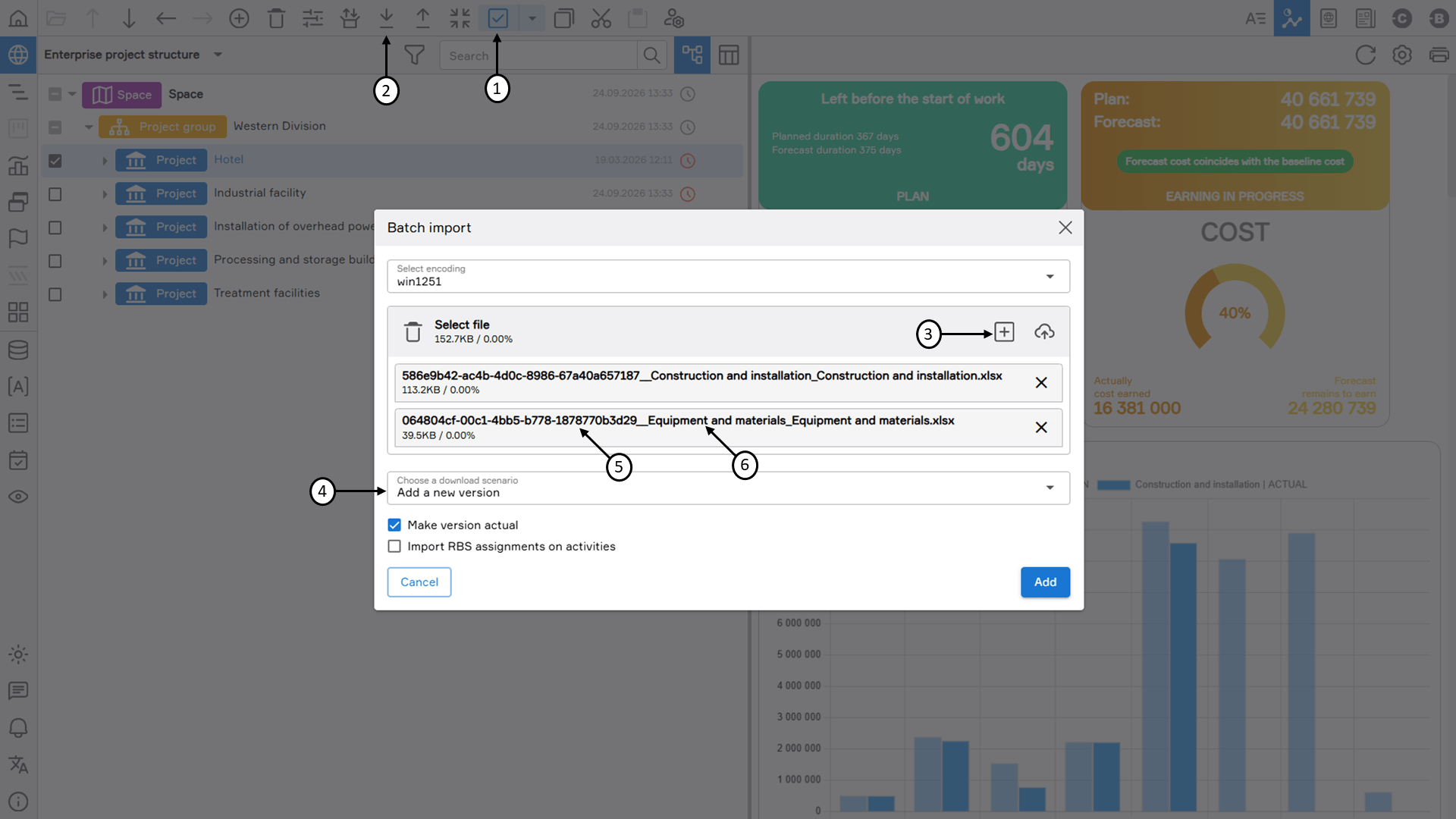 Batch Import of Schedule Versions
When the batch import is complete, PLAN-R generates an .xlsx report showing the status of the imported schedule versions.
 Batch Schedule Version Import Report