SCHEDULE EDITING TOOLBAR
The editing toolbar is available for a schedule version only if the user has the "Edit schedule" (F3.1) permission.
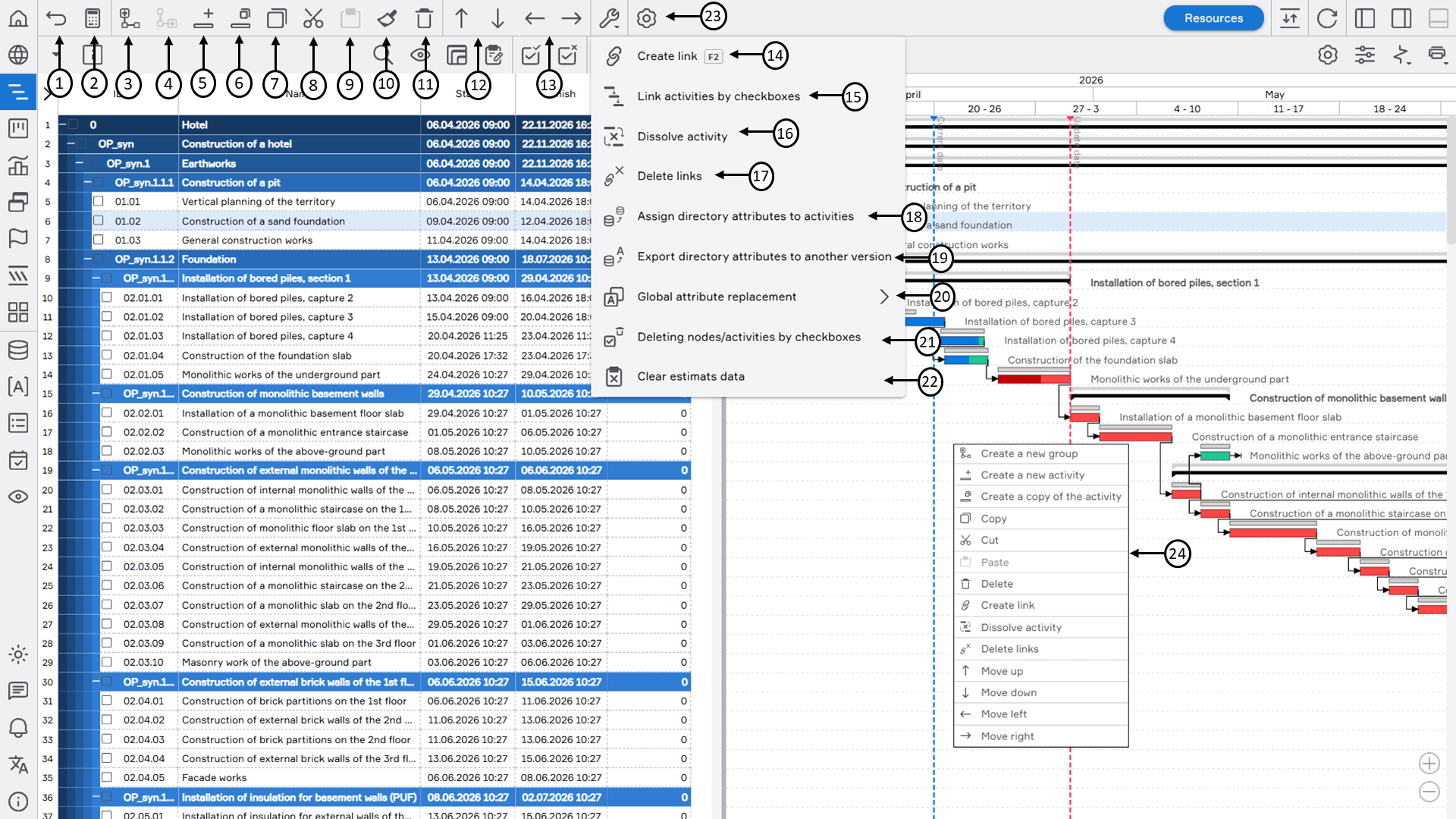
The toolbar contains the following controls:
- Undo action (1) — Undoes the user's most recent actions.
- Timetable calculation (2) — Opens the schedule calculation settings.
- Create a new group (3) — Creates a work package at the top level of the schedule structure.
- Create a new subgroup (4) — Creates a child work package within the selected work package.
- Create a new activity (5) — Creates an activity within the selected work package.
- Create a copy of the activity (6) — Creates a copy of the selected activity within the same work package.
- Copy (7) — Copies selected activities or nodes for insertion into another node in the schedule version.
- Cut (8) — Cuts selected activities or nodes for moving them to another node in the schedule version.
- Paste (9) — Inserts copied activities or nodes.
- Fill by checkbox (10) — Fills values for items selected using checkboxes.
- Delete (11) — Deletes selected activities or nodes.
- Move (12 and 13) — Moves an activity or work package within the schedule structure. To move a range of activities left or right, hold Shift and click the first and last activities in the numbering column.
- Create link (14) — Creates sequential links between selected activities.
- Link activities by checkboxes (15) — Creates Finish-to-Start links between activities selected using checkboxes, following their order in the schedule version.
- Dissolve activity (16) — Preserves links between schedule activities when one of them is deleted.
- Delete links (17) — Deletes links for selected activities. To select a range, hold Shift and click its first and last activities in the numbering column. To select individual activities, hold Ctrl while selecting them in that column.
- Assign directory attributes to activities (18) — Opens settings for transferring values from directory records assigned to activities into schedule activity attributes.
- Export directory attributes to another version (19) — Opens settings for exporting or copying directory record assignments to another schedule version.
- Global attribute replacement (20) — Opens settings for replacing attributes with the same data type.
- Deleting nodes/activities by checkboxes (21) — Deletes multiple nodes or activities selected using checkboxes.
- Clear estimats data (22) — Deletes values from Estimated % complete, Estimated start, and Estimated finish for multiple activities.
- Settings (23) — Opens the node settings for the schedule version currently open.
You can also edit activities using the context menu (24), opened by right-clicking an element on the Gantt chart or in the WBS.
 Schedule Editing Toolbar
PLAN-R supports flexible activity ordering: activities can appear below nodes at the same level or between them. This allows the data structure to be adapted to project needs.
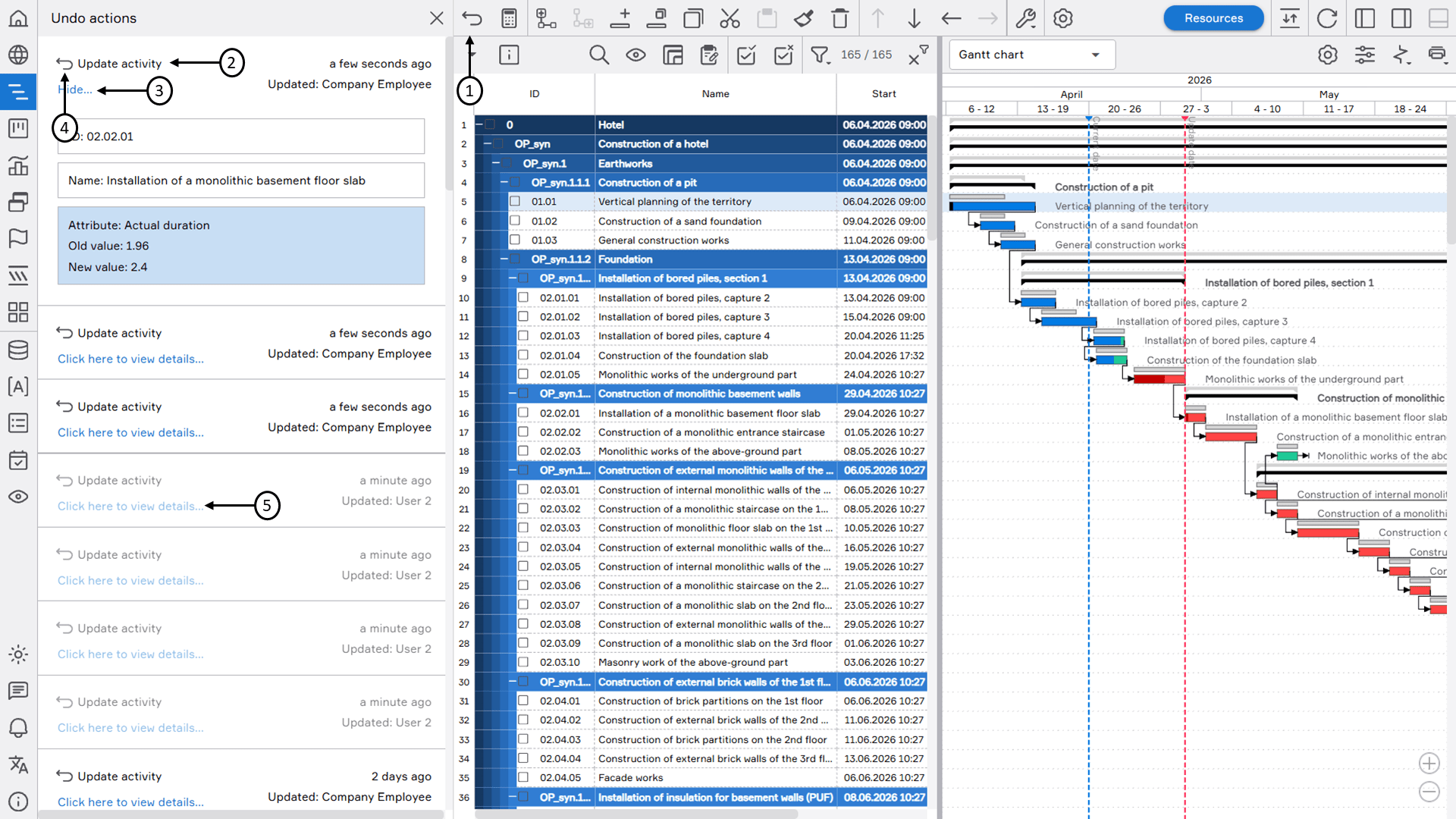
To undo recent actions, click the corresponding toolbar button (1). The "Undo actions" panel opens on the left, listing actions performed on the current schedule version (2). Use "Details…" and "Hide…" (3) to show or hide additional information. Click "Undo action" (4) to undo an action. Changes made by another user are displayed in a lighter color (5).
 Undoing User Actions