EDITING ACTIVITY AND WORK PACKAGE ATTRIBUTES
Editing Activity and Work Package Attribute Values
To edit an existing activity's attribute, left-click its value or empty cell, enter a value or select a date (1), and press Enter. Decimal values can be entered using either a period or a comma. Regardless of the separator entered, PLAN-R displays a period as the decimal separator.
If you click a cell and begin typing, its current value is replaced. To add information to an existing value, double-click the cell and position the cursor where required. You can also edit attribute values on the "Activity card" tab (2) in the same way as in the WBS.
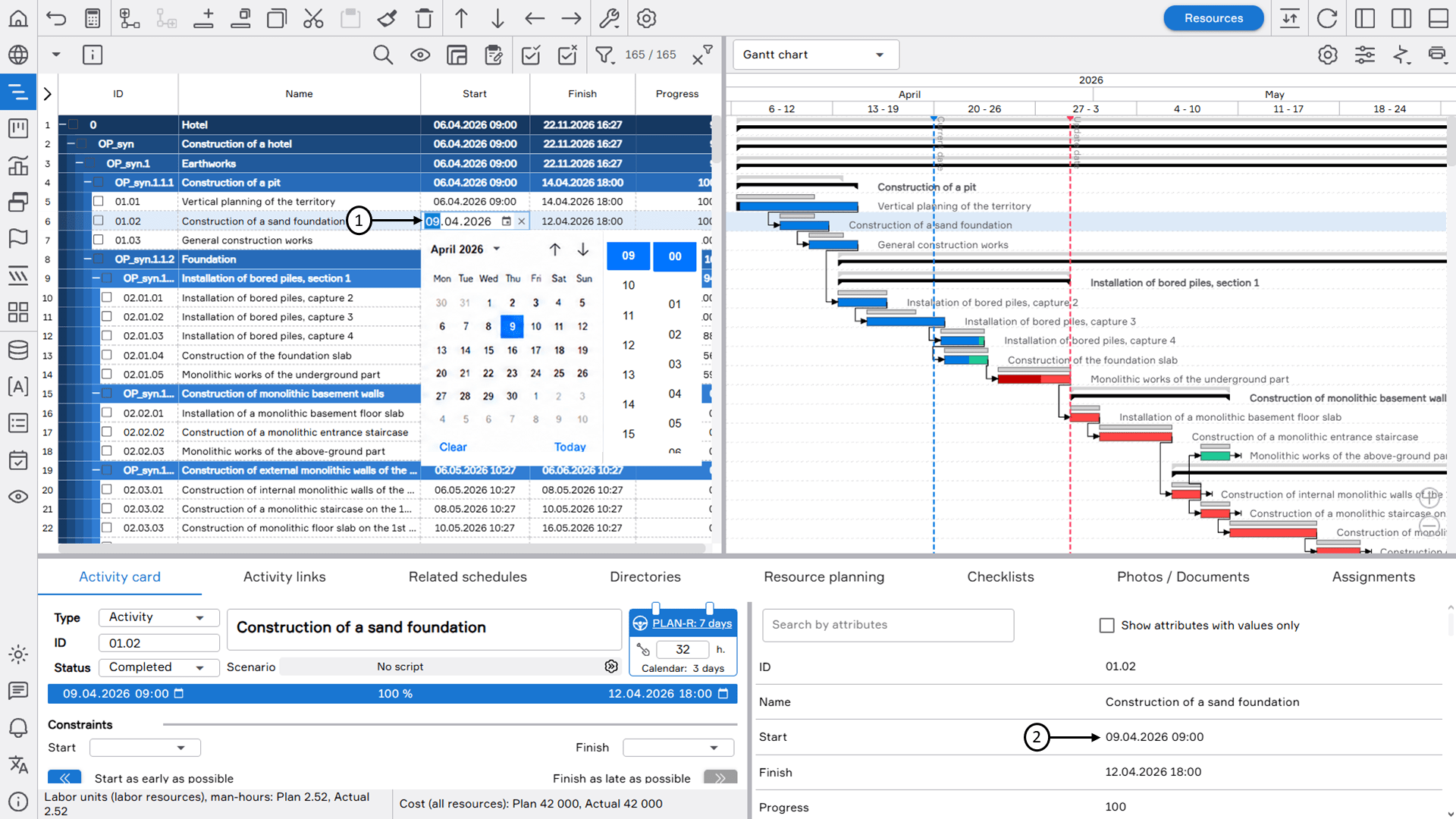 Editing Activity and Work Package Attribute Values
For the Code attribute, you can configure rules for generating activity and WBS node codes at the schedule level. These rules apply to newly created activities and WBS nodes in that schedule's versions.
To configure code generation:
- Select the Schedule node (1).
- Click "Node settings" (2).
- Open the "General" tab (3).
- Enter prefix and postfix values, using numbers, letters, or symbols (4).
- Specify an increment as a positive integer (5).
- Click "Save" (6).
The settings apply to newly created activities and nodes.
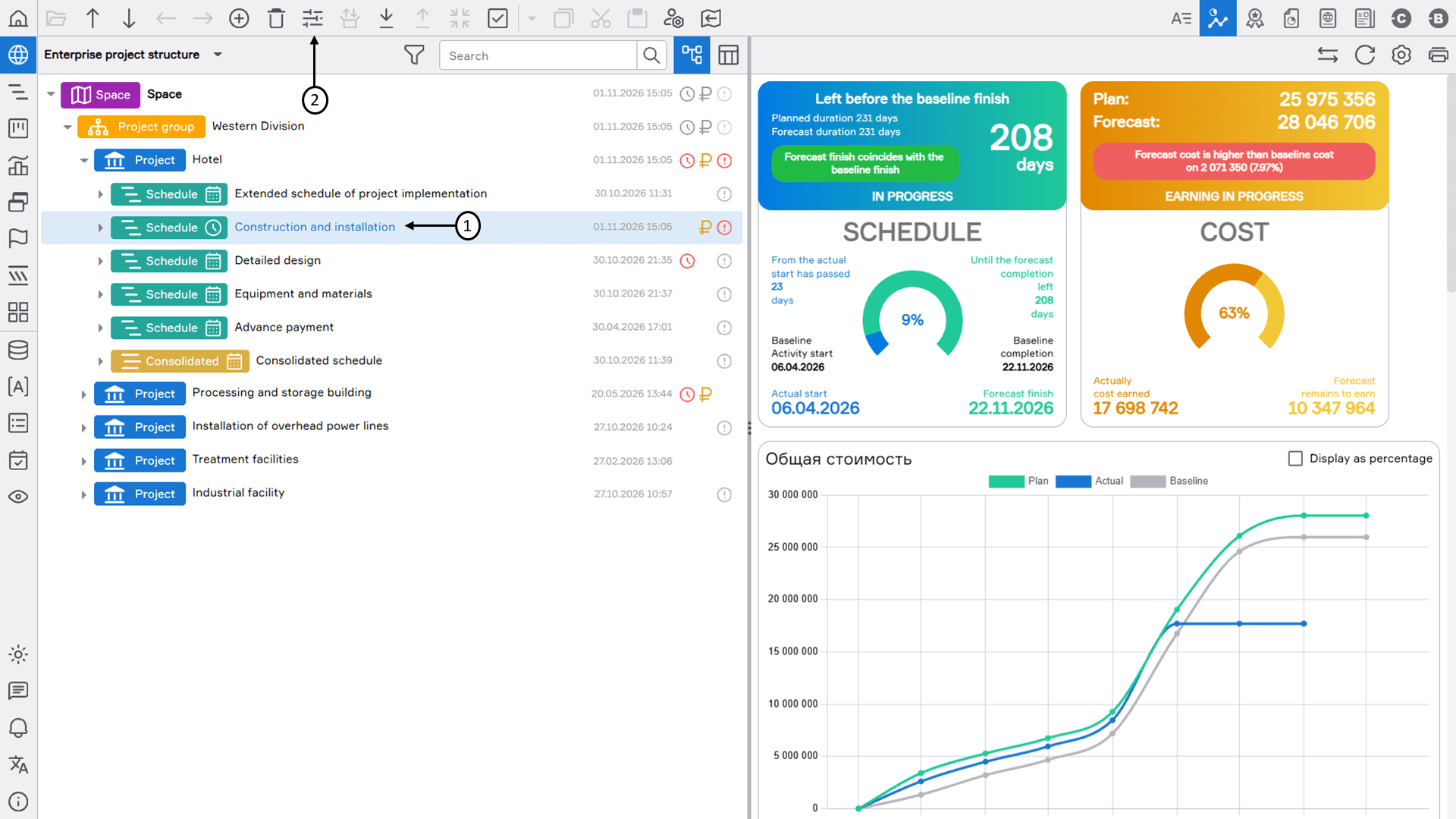 Opening General Settings
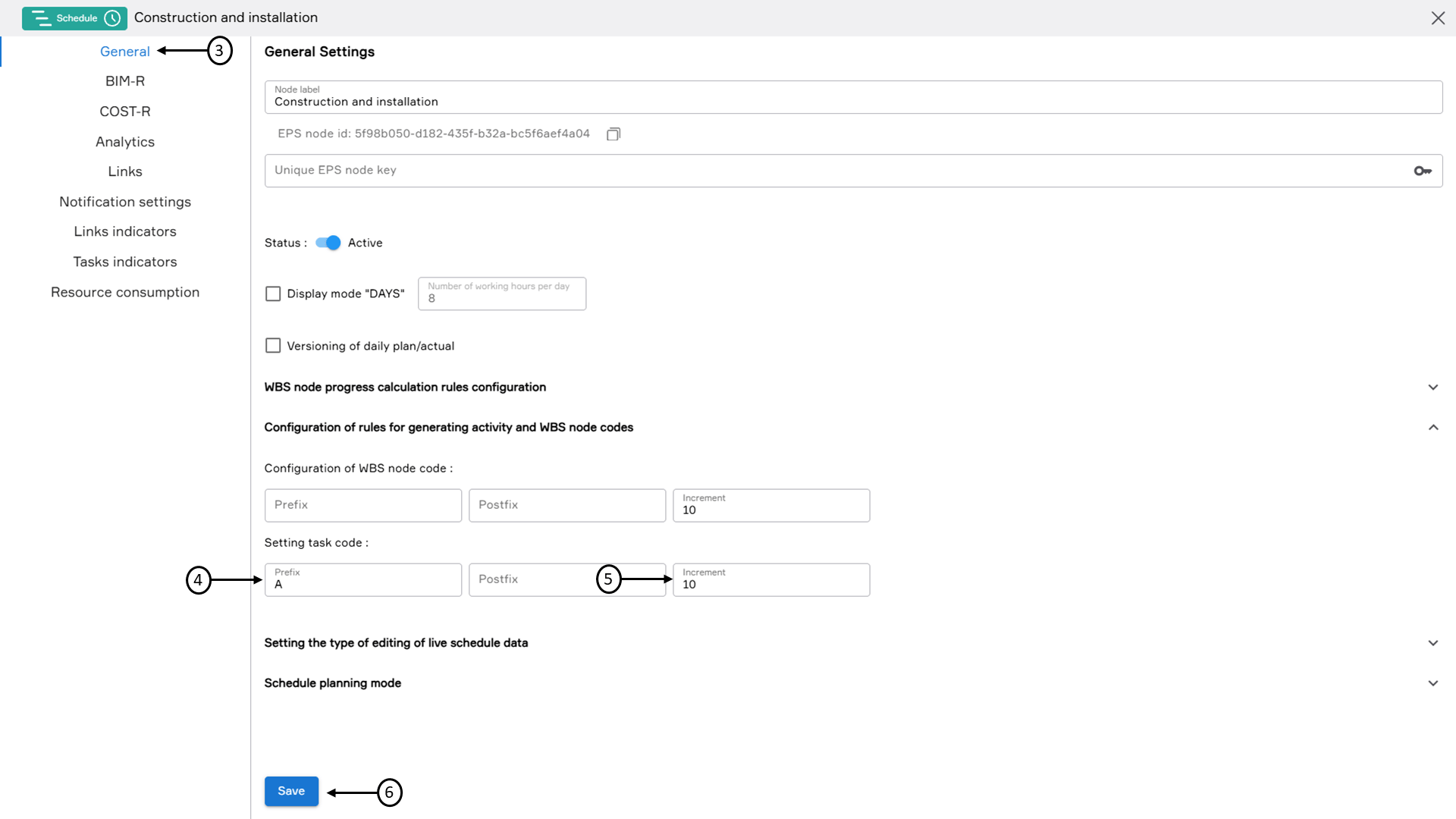 Configuring Activity and WBS Node Code Generation Rules
PLAN-R supports filling values for rows selected using checkboxes, allowing you to update an attribute across multiple rows quickly:
- Click the cell containing the value to copy (1).
- Select the activities whose attribute values should be replaced using their checkboxes (2).
- Click "Fill by checkbox" (3) or press Alt+E. In the confirmation dialog, click "Fill" to replace the values in the selected rows.
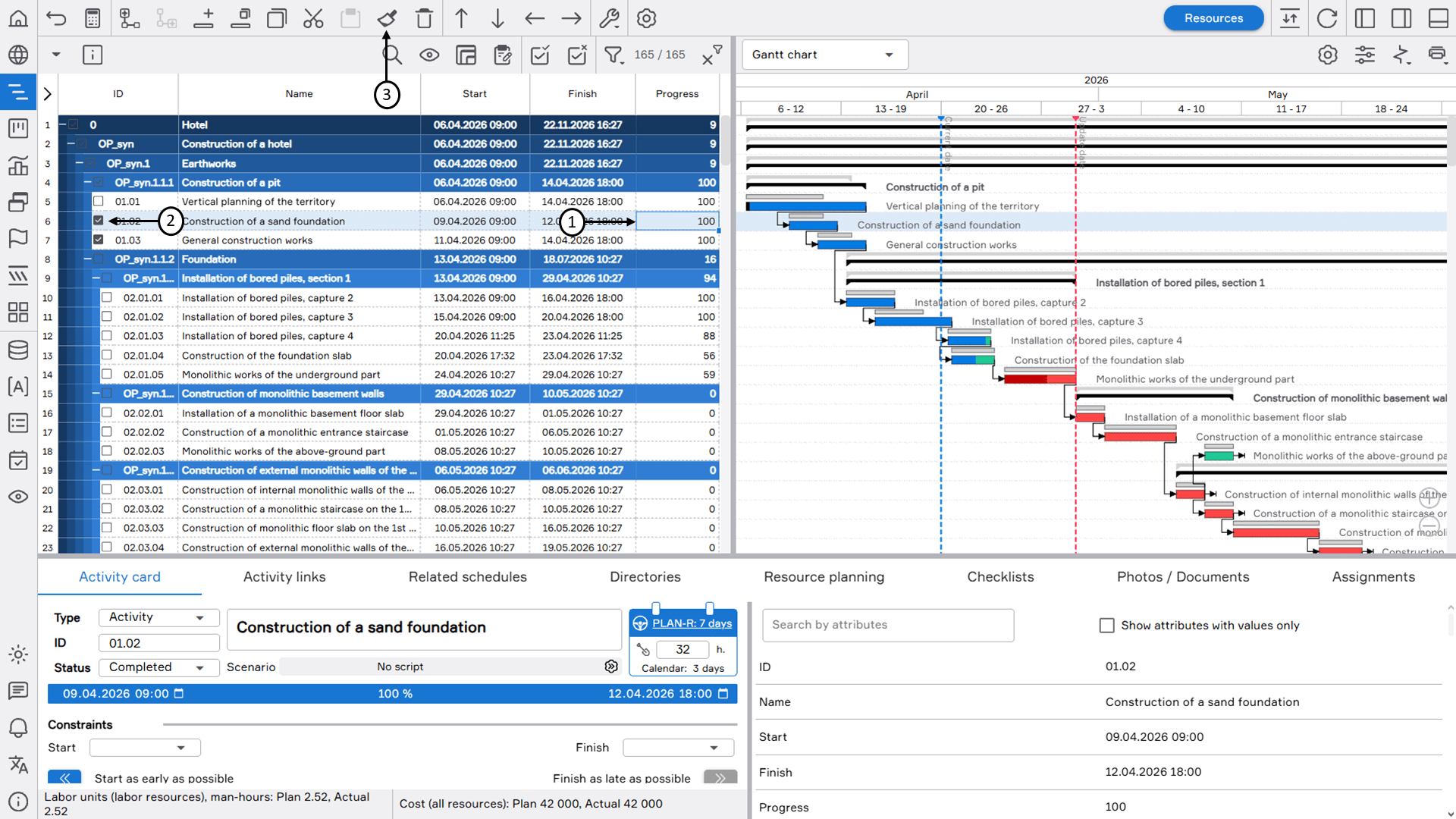 Filling Attribute Values Using Checkboxes
You can paste values into the WBS table by copying cells from MS Excel, MS Project, Primavera, and other applications.
Values are pasted only into visible cells. For example, when a filter is active, values are applied only to activities displayed by that filter. Values can be pasted into both activities and schedule nodes.
The pasted range may contain one column (1) or several columns (2). Select its destination by clicking the upper-left cell (3) of the target range in the WBS.
If the copied range exceeds the available rows or columns from the selected cell, only values that fit are pasted. For example, if you copy 10 cells in a column from MS Excel but only 8 rows are available in PLAN-R, 8 values are pasted and 2 are omitted. The same rule applies horizontally.
PLAN-R may skip cells where values cannot be pasted because of:
- Incompatible data types, such as text pasted into a Number cell;
- Internal validation rules, such as a finish date earlier than the start date;
- Insufficient user permissions, such as no permission to edit an attribute;
- Attributes that cannot be edited, such as PV % complete.
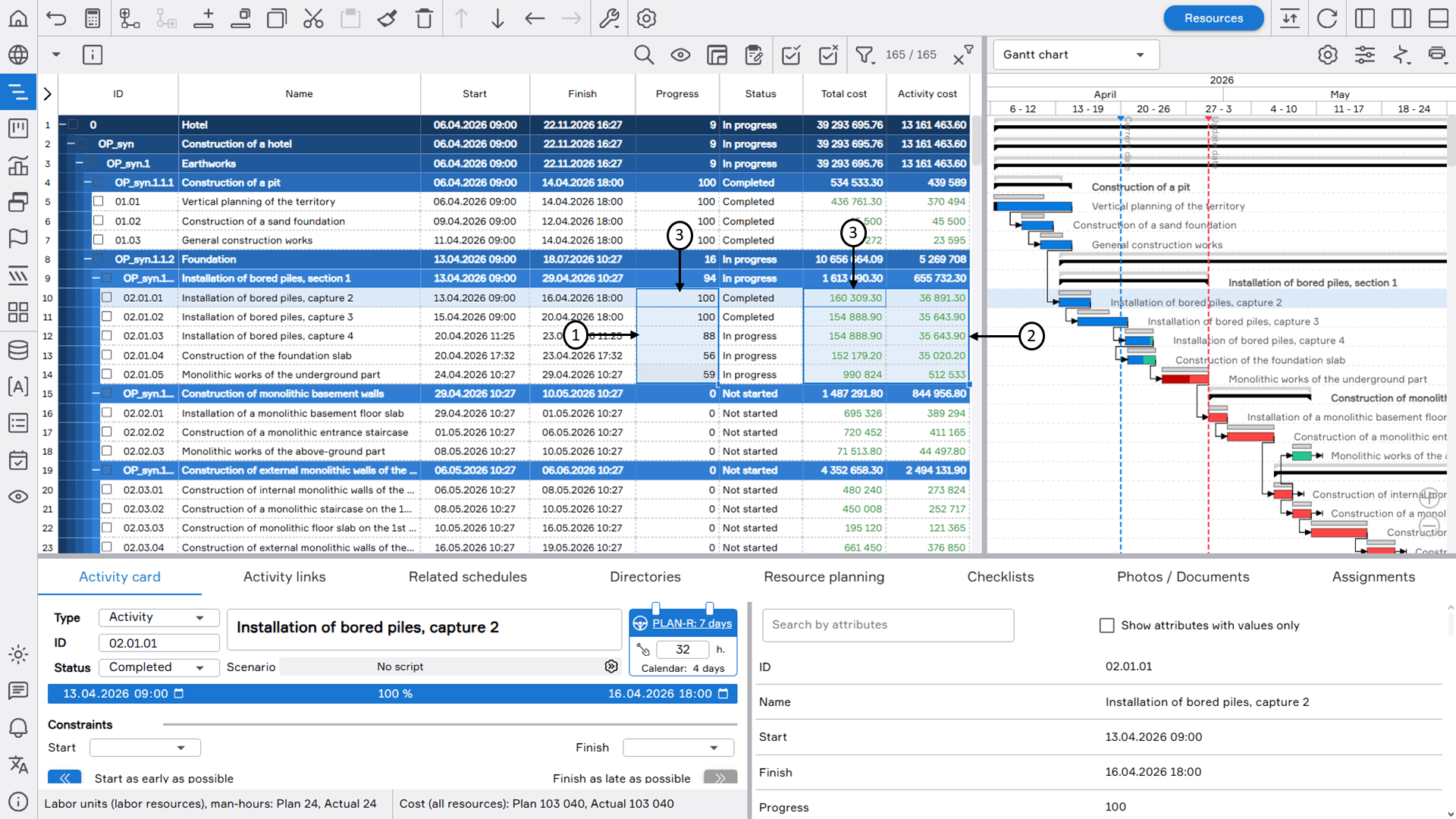 Pasting Values into the Work Breakdown Structure Table
Renaming Activity Attributes
System, custom, list, and calculated attributes can be renamed only on the node where they were created and are local.
System attribute names can be changed only on the Space node. A renamed system attribute is inherited by child elements. If names are changed on both a parent and a child element, the child's name takes precedence and is inherited further down the structure.
During file import, system attribute names are determined by the names specified in "Activity attributes".
To rename an attribute, select the node where it was created (1), double-click the required attribute in the list (2), edit its name, and press Enter. You can also delete the selected attribute (3).
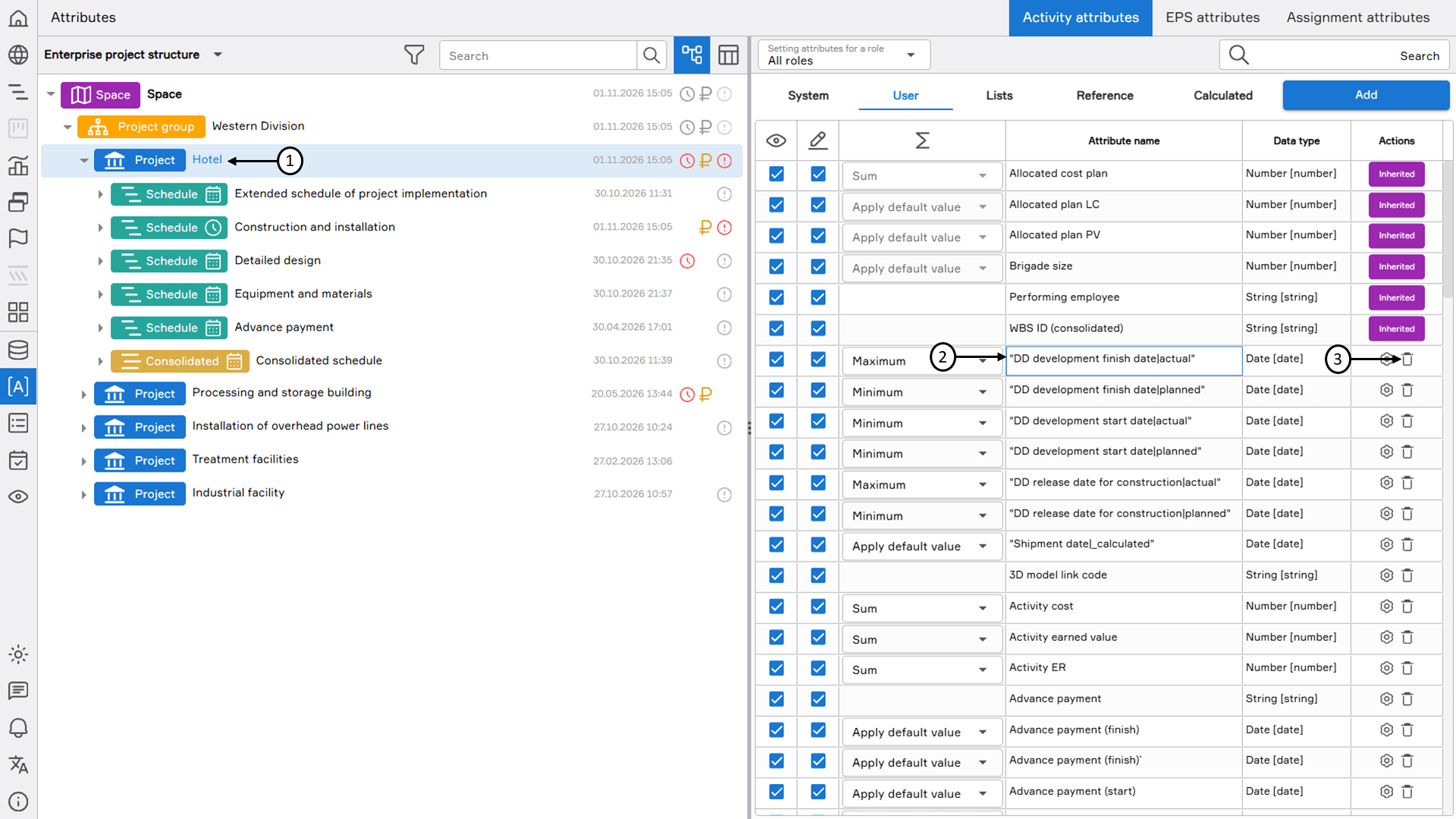 Renaming Attributes