EXPORTING DAILY PLANNING FORMS
To export a daily resource planning form as an .xlsx file in Simplified planning mode, select the activities using their checkboxes (1), click “Import/Export” (2), and select “Export daily plan/actual” (3). In the form that opens, specify the time interval for planned and actual data (4), columns to export (5), items to export (6), data layout in the file (7), and date range (8). Then click “Download” (9).
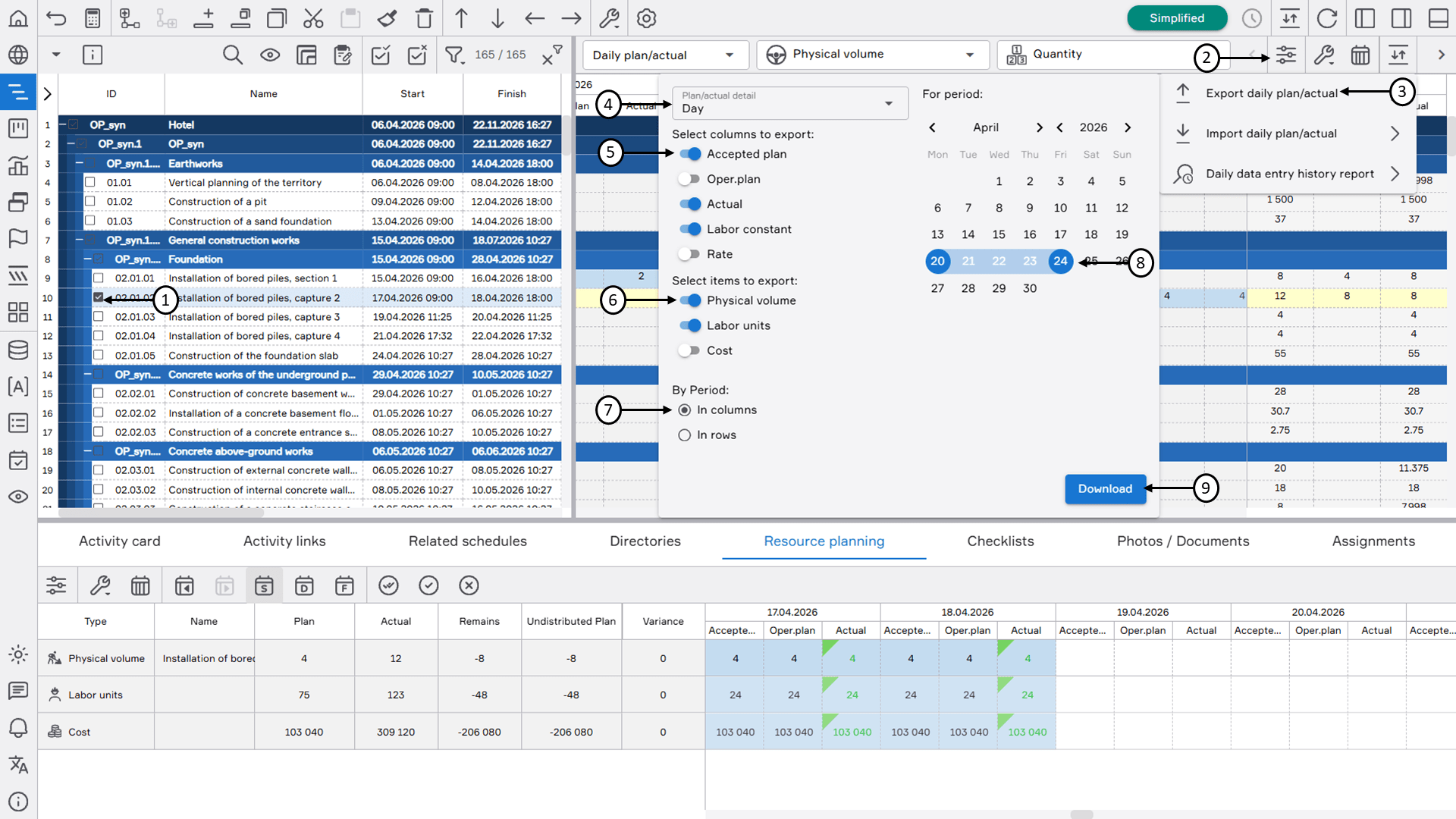 Exporting a daily plan/actual form in Simplified planning mode
To export a daily resource planning form in Resource planning mode, specify the time interval for planned and actual data (4), columns to export (5), resource directory (6), resource (7), data layout in the file (8), and date range (9). Then click “Download” (10).
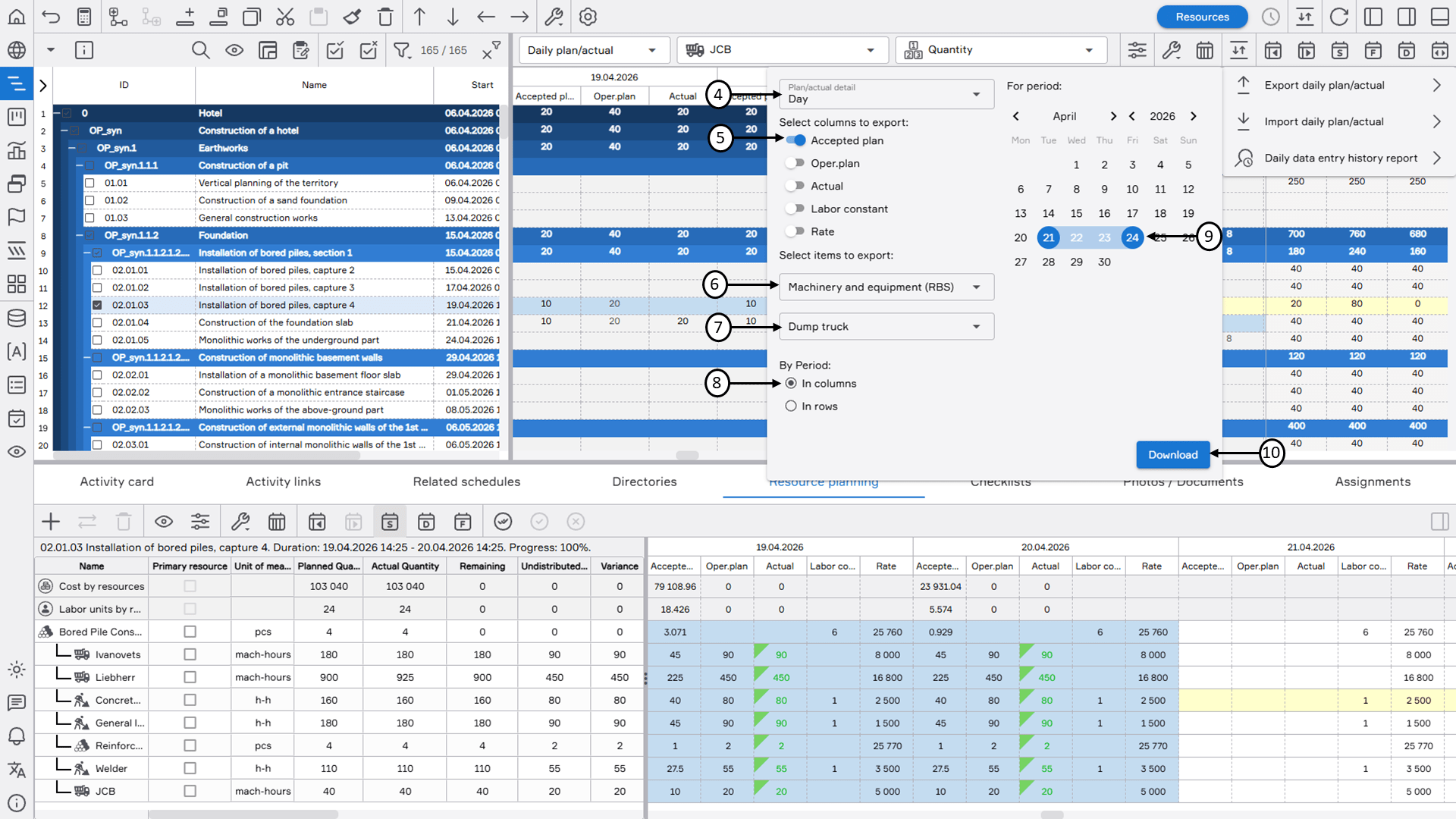 Exporting a daily plan/actual form in Resource planning mode
The exported table uses the same data layout as the resource planning area. The daily plan/actual report also displays the colors indicating actual data approval status (see “Managing Actual Data in Daily Planning”).
 Daily plan/actual report form
To see which users edited daily data, which activities they edited, and how the data was changed, generate the “Daily data entry history report” (1). Specify the required time range for the user and generate (2) an .xlsx file containing the relevant information.
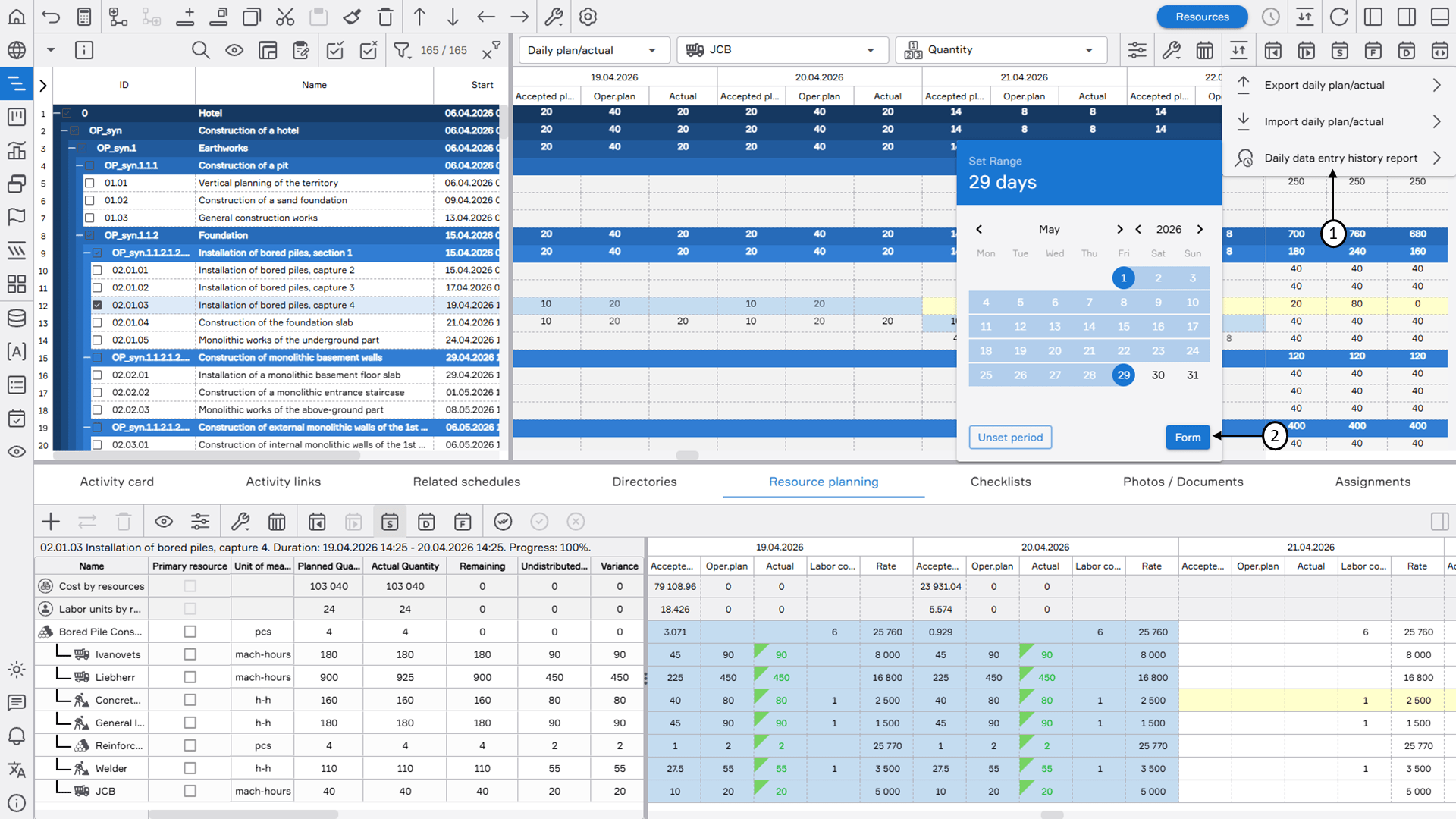 Daily data entry report
The daily data entry report shows the date and time when the user entered data, the activity code, and details of the changes: parameter type, parameter name, and the specific metric—operational plan, actual, or approved plan. Each record includes the date in the daily plan and the parameter’s previous and new values.
 Daily data entry report form