MANAGING ACTUAL DATA IN DAILY PLANNING
When you enter a value in an “Actual” cell on the “Resource planning” tab, a triangular flag indicates its approval status:
- Approved actual data — green (1);
- Approval required — yellow (2);
- Rejected actual data — red (3).
Newly entered actual data has the “Approval required” status, indicated in yellow. Editing an “Actual” cell changes its status to “Approval required”, regardless of its previous status. Imported actual values also receive the “Approval required” status by default.
To approve or reject actual data, use “Accepted daily actuals” (4) or “Reject daily actuals” (5), respectively.
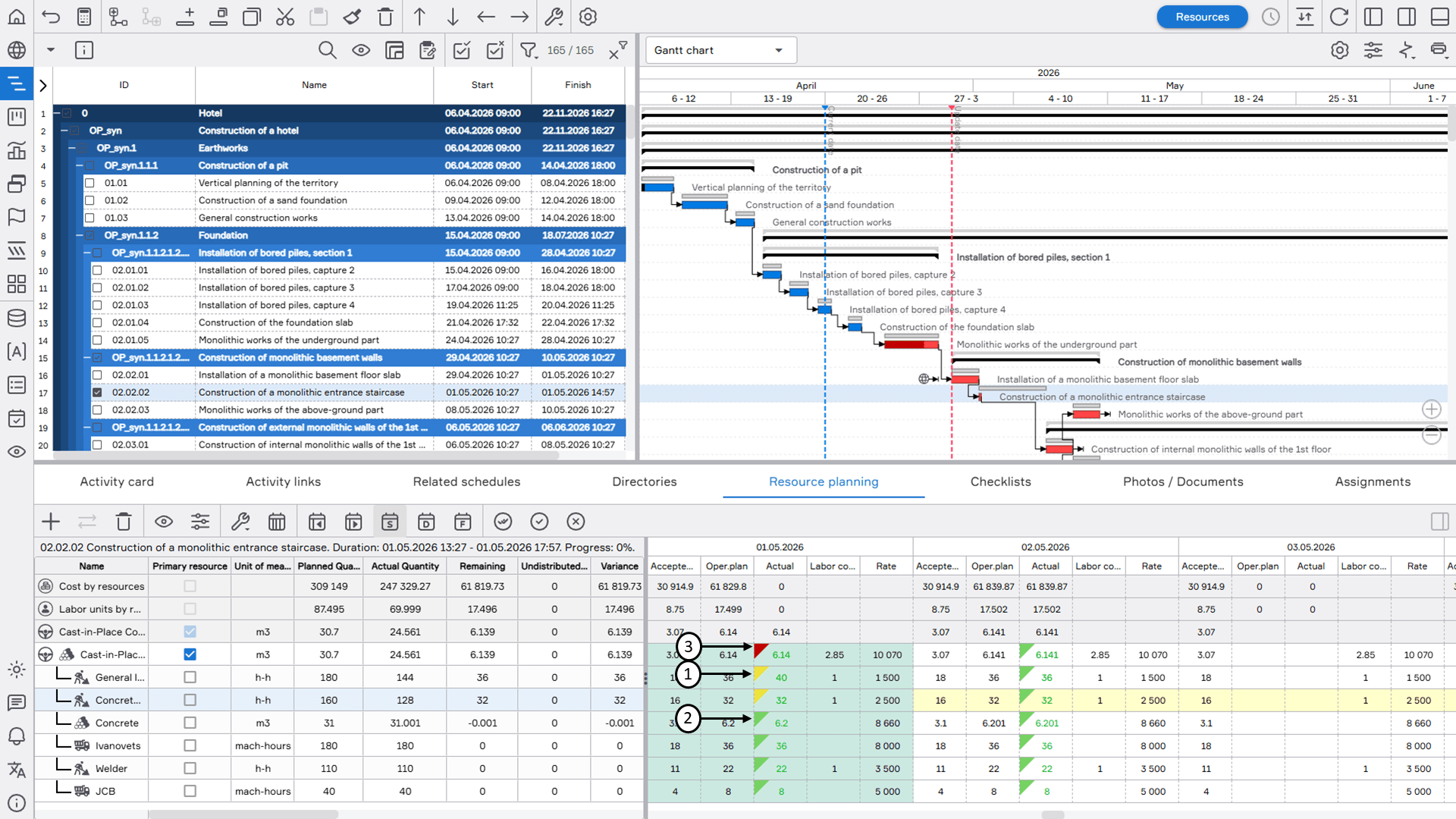 Actual cell status indicators in daily planning
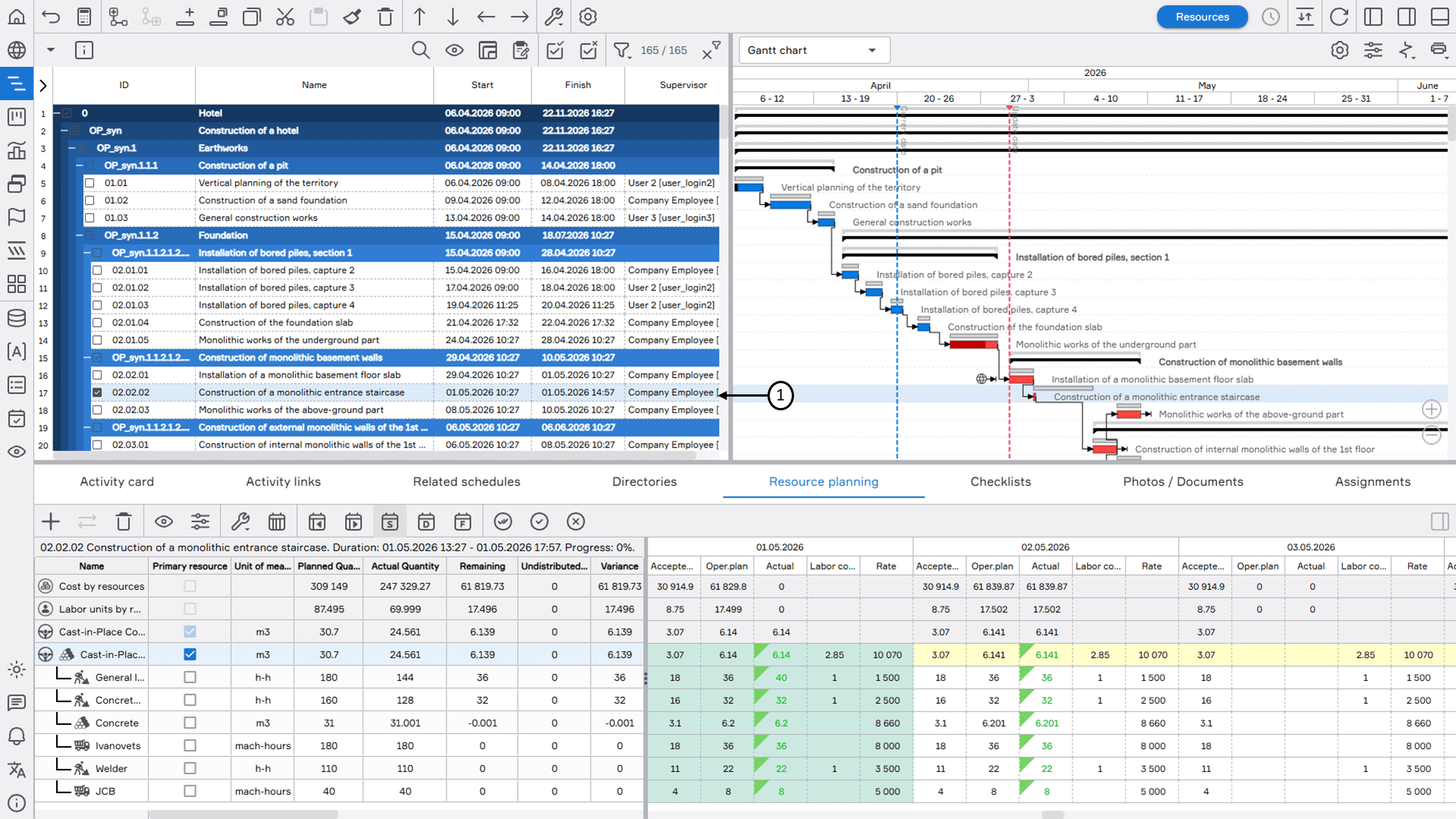
To change actual data statuses in bulk, select activities using their checkboxes (1) in the Work Breakdown Structure, then click “Daily actuals approval” (2) in “Resource planning”.
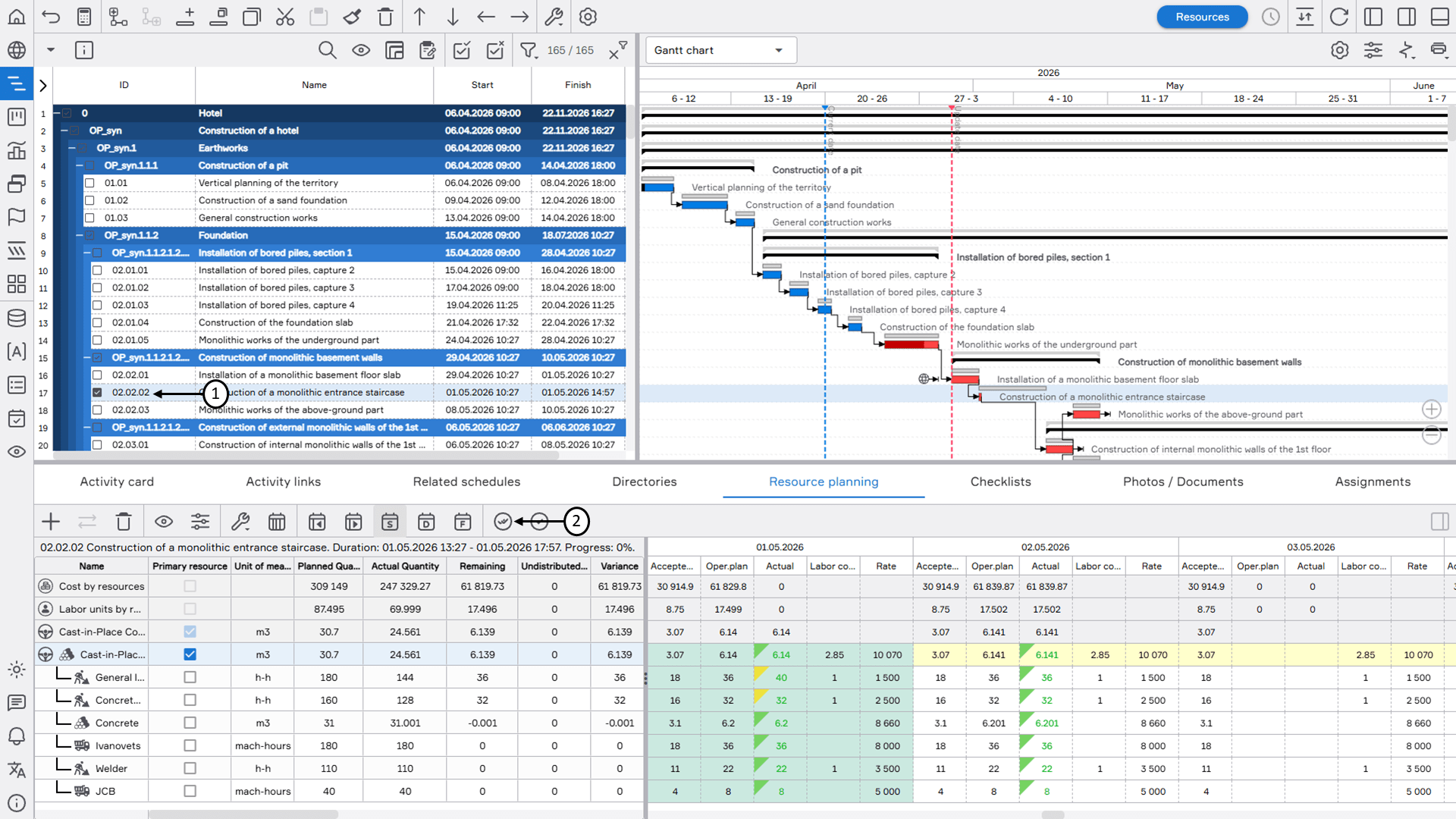 Daily actuals approval button for bulk status changes
The “Daily actuals approval” window shows the number of selected activities (1) whose data statuses will be changed.
In Simplified planning mode, select the row to update: physical volume, labor units, or cost (2). In Resource planning mode, select the resource directory and resource to update (2).
Next, select “All time” or “Select time” (3), then choose whether to approve (4) or reject (5) the data. Select “Including rejected actuals” (6) to approve previously rejected actual data. Click “Apply” (7) to apply the bulk status change.
Actual cells within the selected period receive the color corresponding to the chosen approval or rejection status.
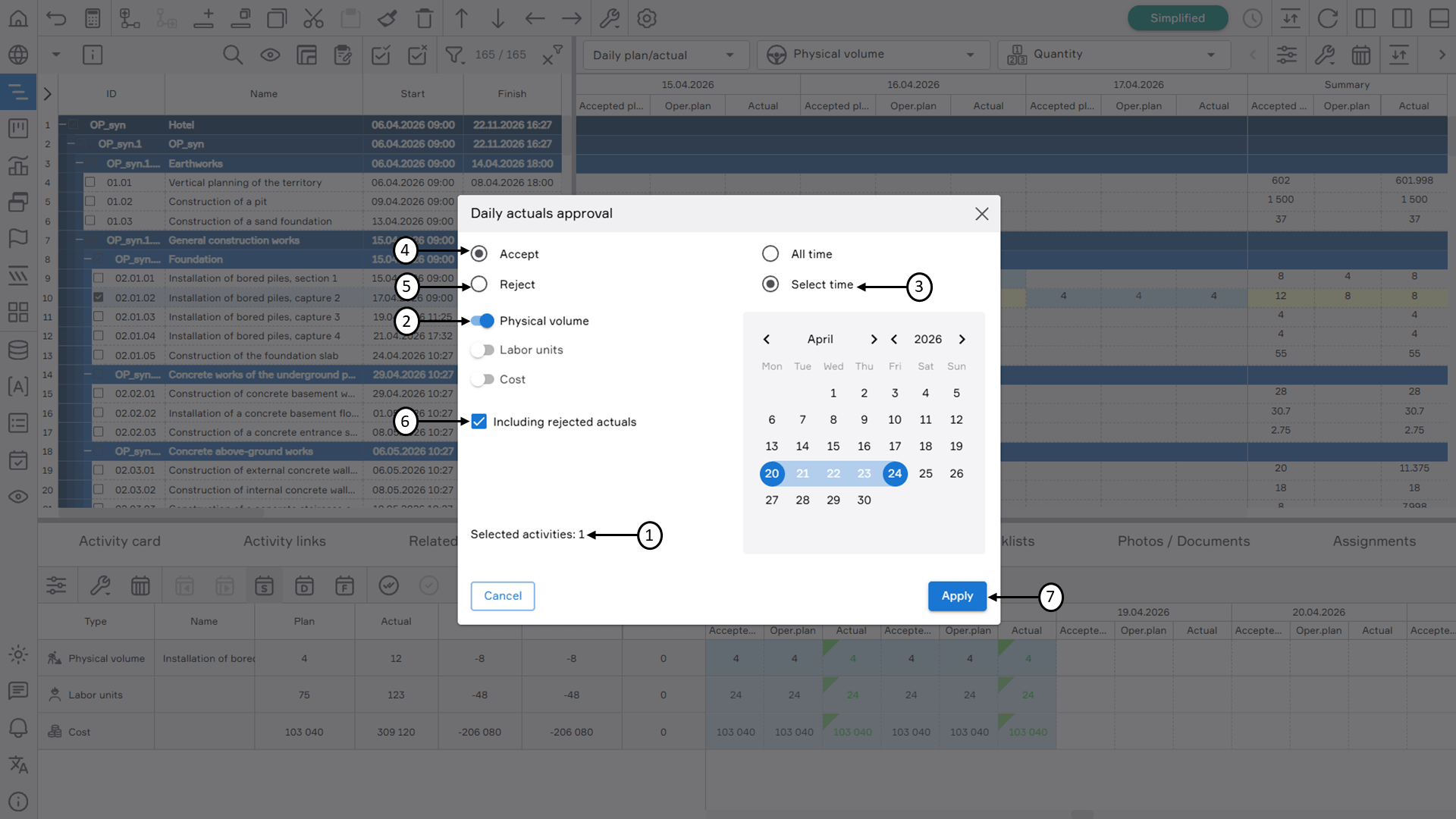 Bulk actual data status changes in Simplified planning mode
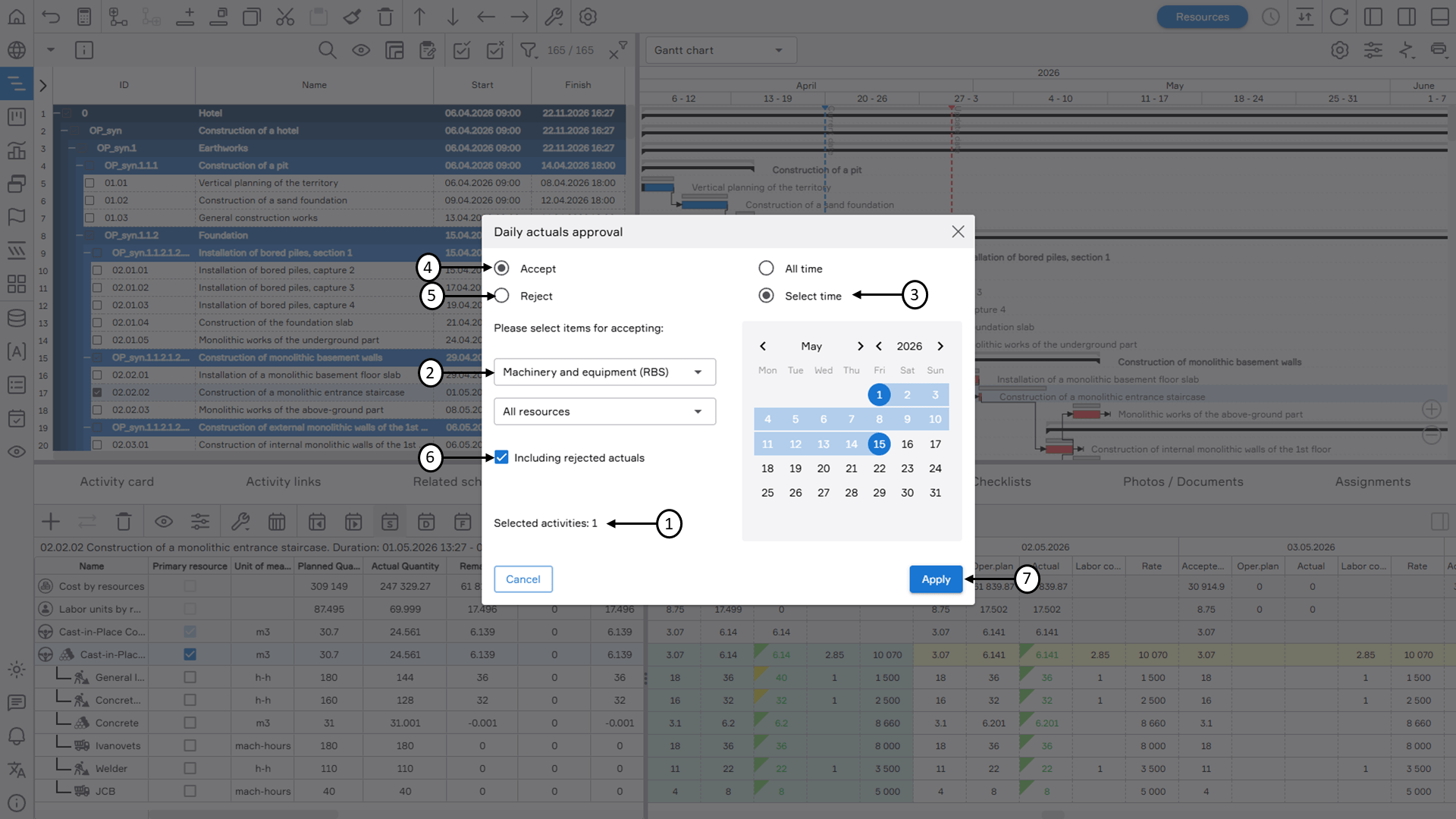 Bulk actual data status changes in Resource planning mode
When the “Supervisor” attribute (1) is added, only the assigned supervisors can approve actual data. Multiple supervisors can be assigned to each activity. Only employees (users) with access to the schedule can be selected as supervisors.
 Assigning a supervisor