SYSTEM CALCULATED COST ATTRIBUTES
PLAN-R provides system calculated attributes for calculating cost from physical volume in simplified planning or from the Controlling Resource in resource planning, using quantities and rates that vary by period (1). To add these attributes, open “View”, select the “System” tab (2), and move the required attributes between columns by dragging them or double-clicking them. Then click “Save changes” (3).
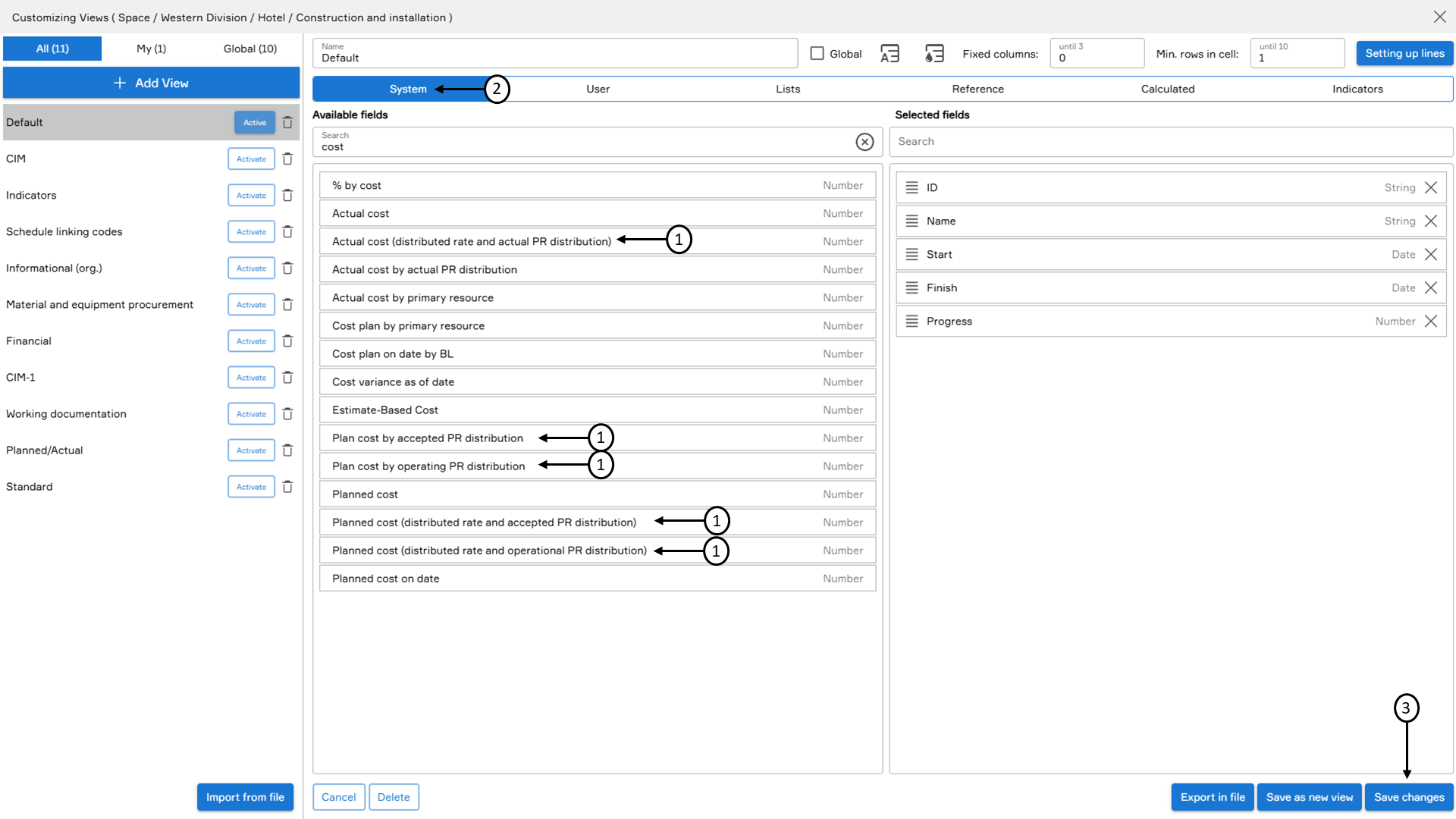 Adding system calculated attributes
The attributes are calculated as follows (2):
“Planned cost by approved CR (PV) distribution” = ∑ (“Approved CR (PV) plan” * “Rate”). Approved CR (PV) planned values are taken from resource planning for each day of the activity.
“Planned cost by operational CR (PV) distribution” = ∑ (“Operational CR (PV) plan” * “Rate”). Operational CR (PV) planned values are taken from resource planning for each day of the activity.
“Actual cost by actual CR (PV) distribution” = ∑ (“Actual CR (PV)” * “Rate”). Actual CR (PV) values are taken from resource planning for each day of the activity.
“Planned cost by distributed rate and approved CR (PV) distribution” = ∑ (“Approved CR (PV) plan” * “Distributed rate”). Distributed rates and approved CR (PV) planned values are taken from resource planning for each day of the activity.
“Planned cost by distributed rate and operational CR (PV) distribution” = ∑ (“Operational CR (PV) plan” * “Distributed rate”). Distributed rates and operational CR (PV) planned values are taken from resource planning for each day of the activity.
“Actual cost by distributed rate and actual CR (PV) distribution” = ∑ (“Actual CR (PV)” * “Distributed rate”). Distributed rates and actual CR (PV) values are taken from resource planning for each day of the activity.
Attention! System attributes cannot be calculated automatically after:
- Global replacement of “Rate” attribute values;
- Copying the approved plan to the operational plan;
- Automated distribution of the PV plan;
- Deletion of daily PV data;
- Changes to “Planned cost” attribute values, because the “Rate” attribute is recalculated based on the planned PV quantity.
To update cost attribute values, open the refresh drop-down menu (1) and click “Calculate cost” (2).
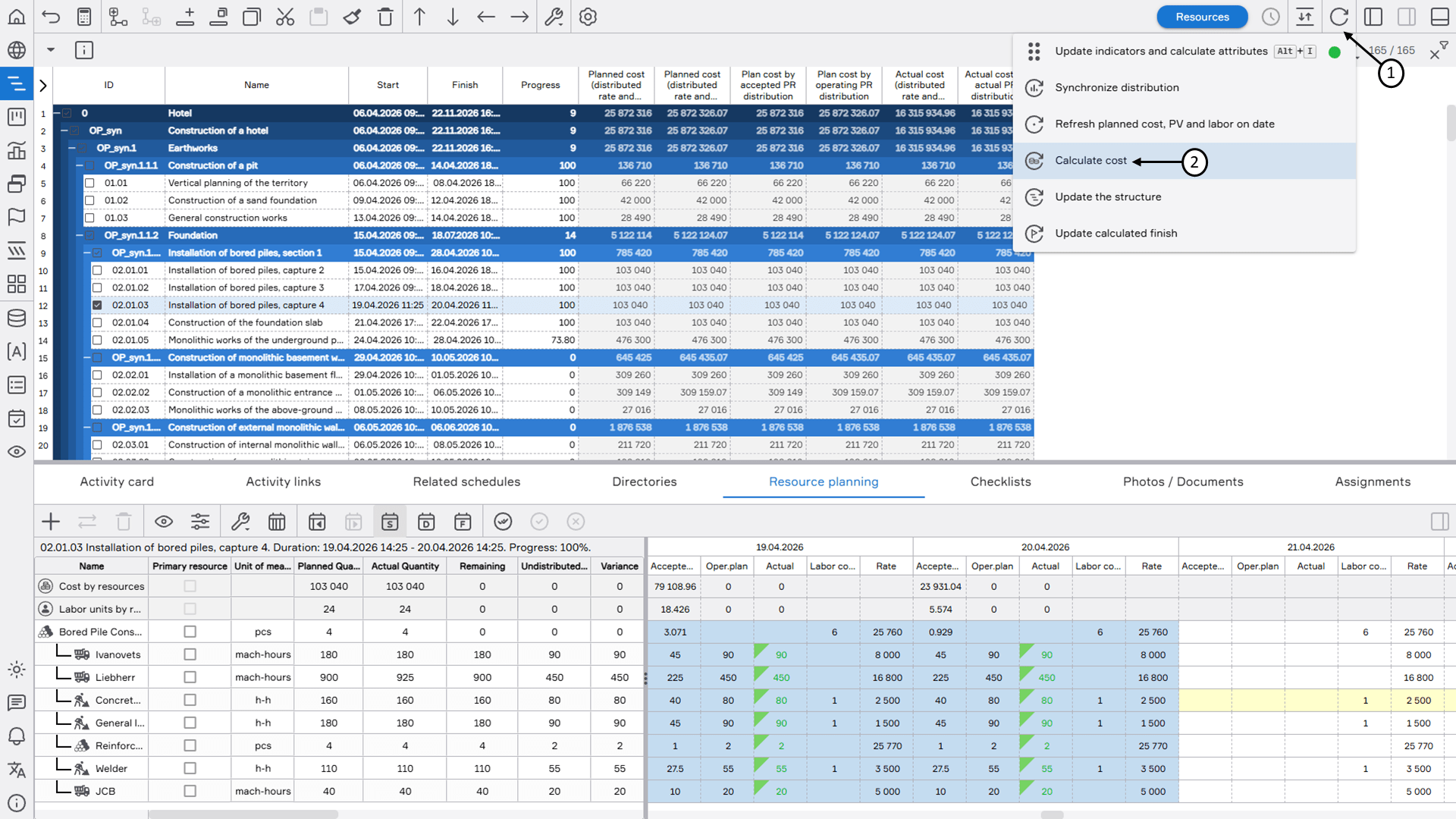 Updating cost attribute values