USER PERSONAL ACCOUNT
Viewing Requests and Assignments in the User Personal Account
Requests and assignments appear in your personal account if you are designated as their assignee or controller. To open the "Personal account" section, click "Personal account" (1) in the navigation bar and select the "Assignments" tab (2). Each assignment/request also shows the Project/Schedule (3) containing its associated objects (4) (unique activity IDs). To download the list of tasks assigned to the current PLAN-R user, click "Export" (5). PLAN-R also allows you to sort (6) and filter (7) the requests and assignments table.
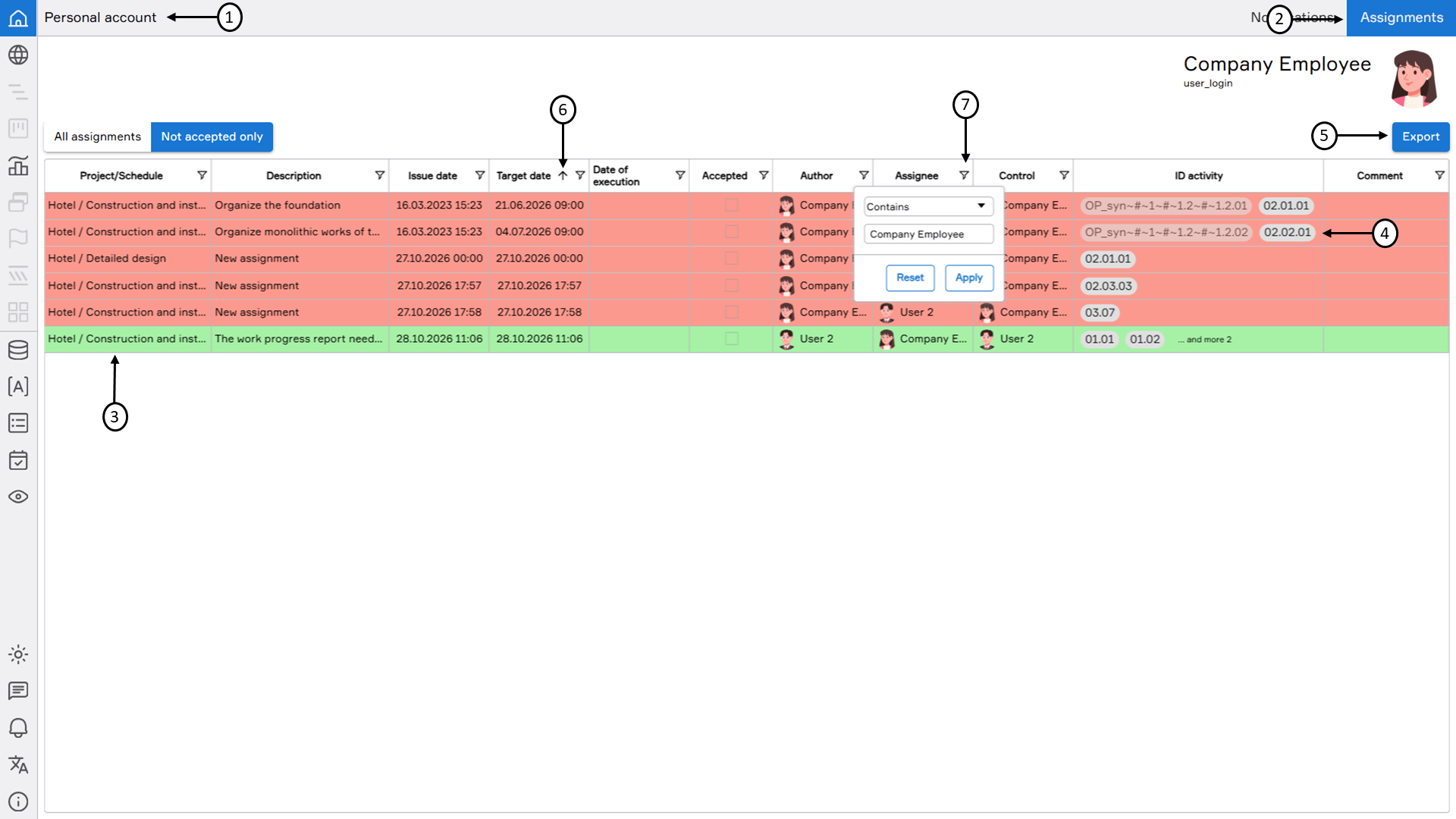 Requests and Assignments in the User Personal Account
If there are unread requests and assignments, a red indicator (1) appears on the "Personal account" icon. Within the user personal account, this indicator also appears next to the section containing changes (2).
 Unread Requests and Assignments Indicator
To configure the indicator display, select the "Space" node (1) and click "Node settings" (2).
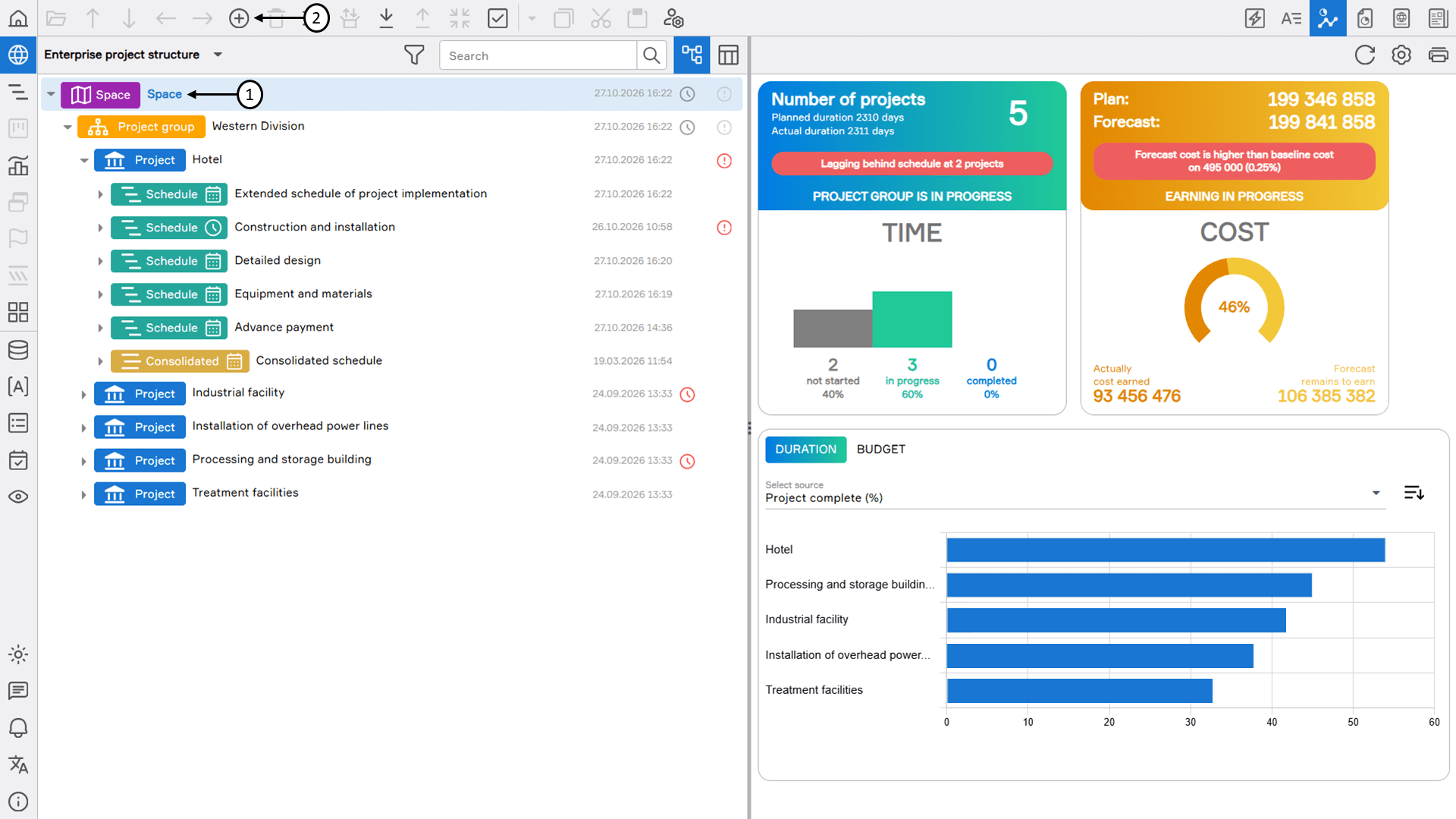 Opening the "Node settings" Menu
In the "General" section (1), you can disable the indicator by clearing the "Display a label on the personal account icon when there are unviewed notifications and assignments for all users of the space" checkbox (2) and clicking "Save" (3). This checkbox is selected by default.
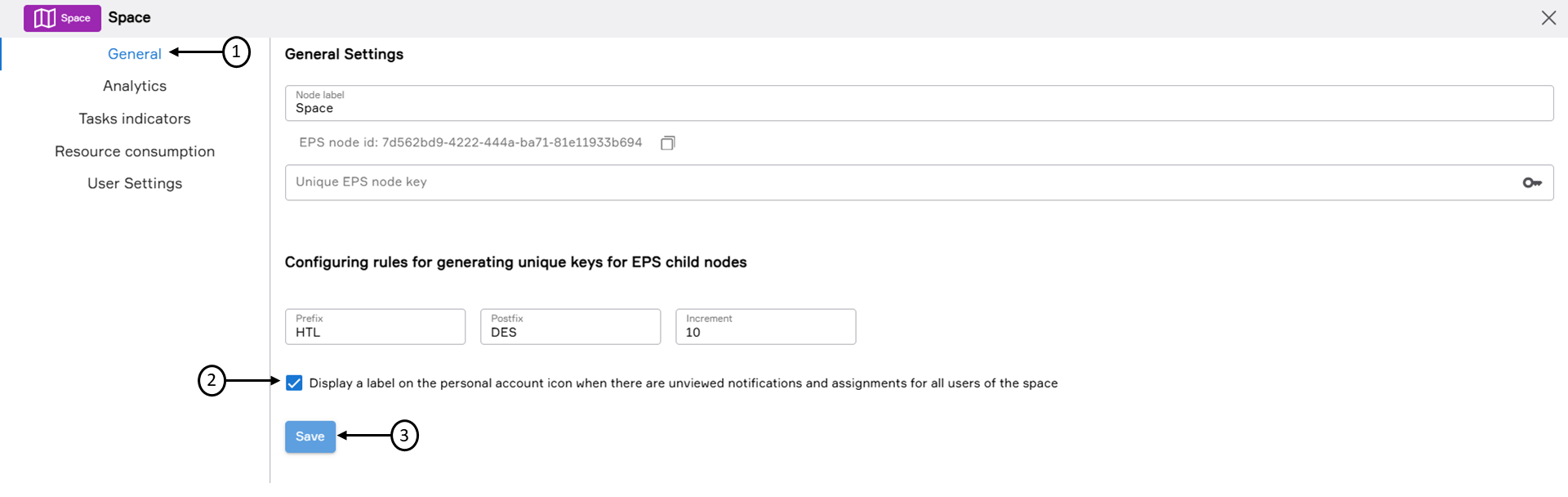 Unread Notifications and Requests/Assignments Indicator Settings
Viewing User Notifications in the Personal Account
Configured notifications (see "Configuring Notifications") appear in the user personal account (1) on the "Notifications" tab (2). They are displayed in a table containing the creation date, notification text, and the project and schedule containing the relevant activity. Each table entry includes a button for navigating to the specified activity (3). You can delete entries individually (4) or delete them all using "Delete all" (5).
PLAN-R also allows you to filter (6) and sort (7) the notifications table.
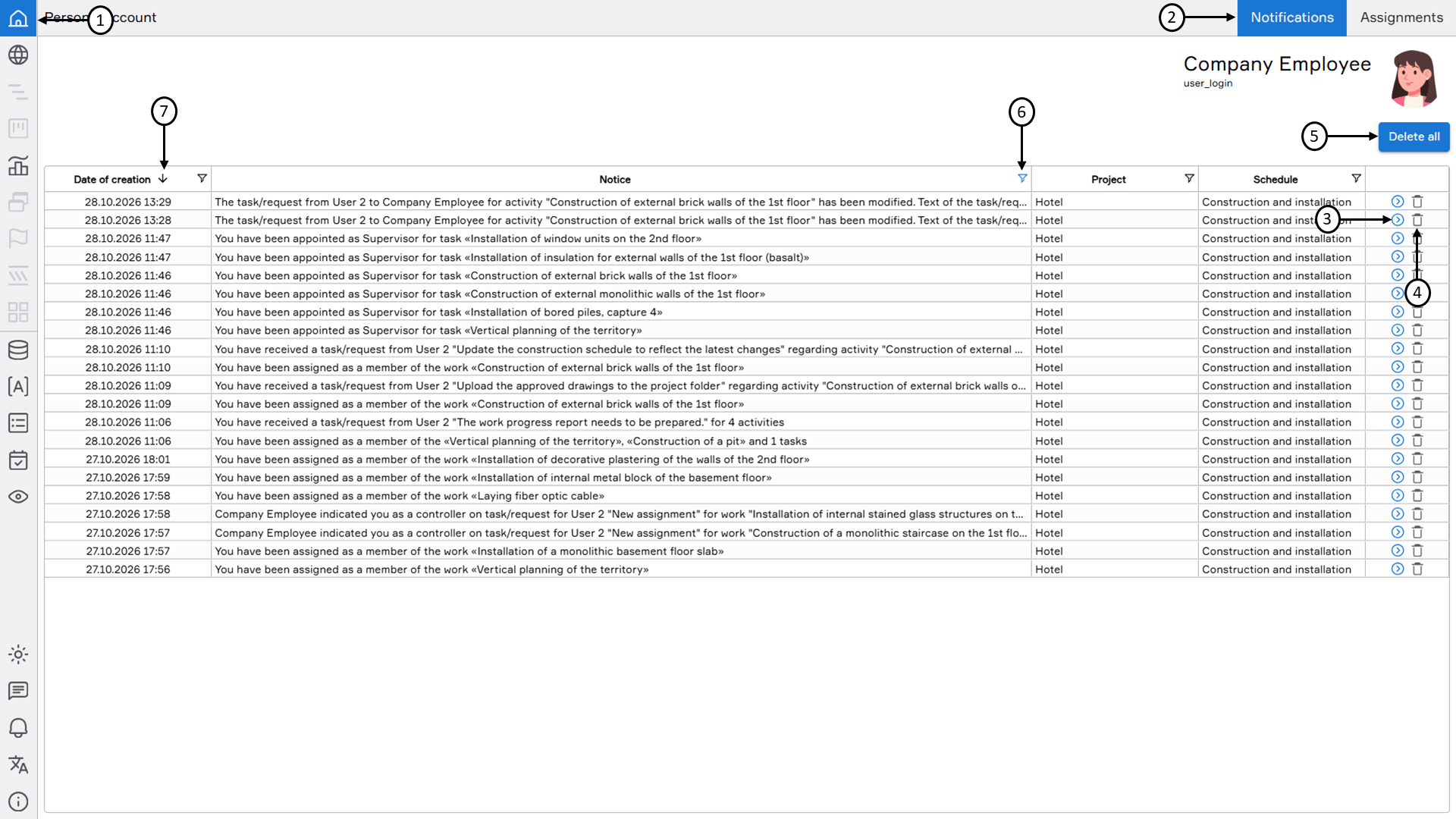 Notifications in the User Personal Account
Opening a notification requesting an update to activity data opens a data update form. This form allows you to enter estimated activity data: percent complete, start, and finish. The activity assignee who receives the notification can use this form even without access to the schedule.
If there are unread notifications, a red indicator (1) appears on the "Personal account" icon. Within the user personal account, this indicator also appears next to the section containing changes (2).
 Unread User Notifications Indicator
You can disable the indicator in the settings (see "Viewing Requests and Assignments in the User Personal Account").