CONFIGURING NOTIFICATIONS
PLAN-R notifications support timely communication, effective monitoring of activity progress, and prompt responses to schedule changes.
When a user is assigned to an activity as a participant or Supervisor, notifications about that activity's status appear in "Personal account".
To receive email notifications, click "Information" (1), open "User profile" (2), and enter an email address in the "Email" field (4) on the "Credentials" tab (3). Save the changes. If the Email field is empty, notifications appear only in Personal account (see Viewing User Notifications in Personal Account).
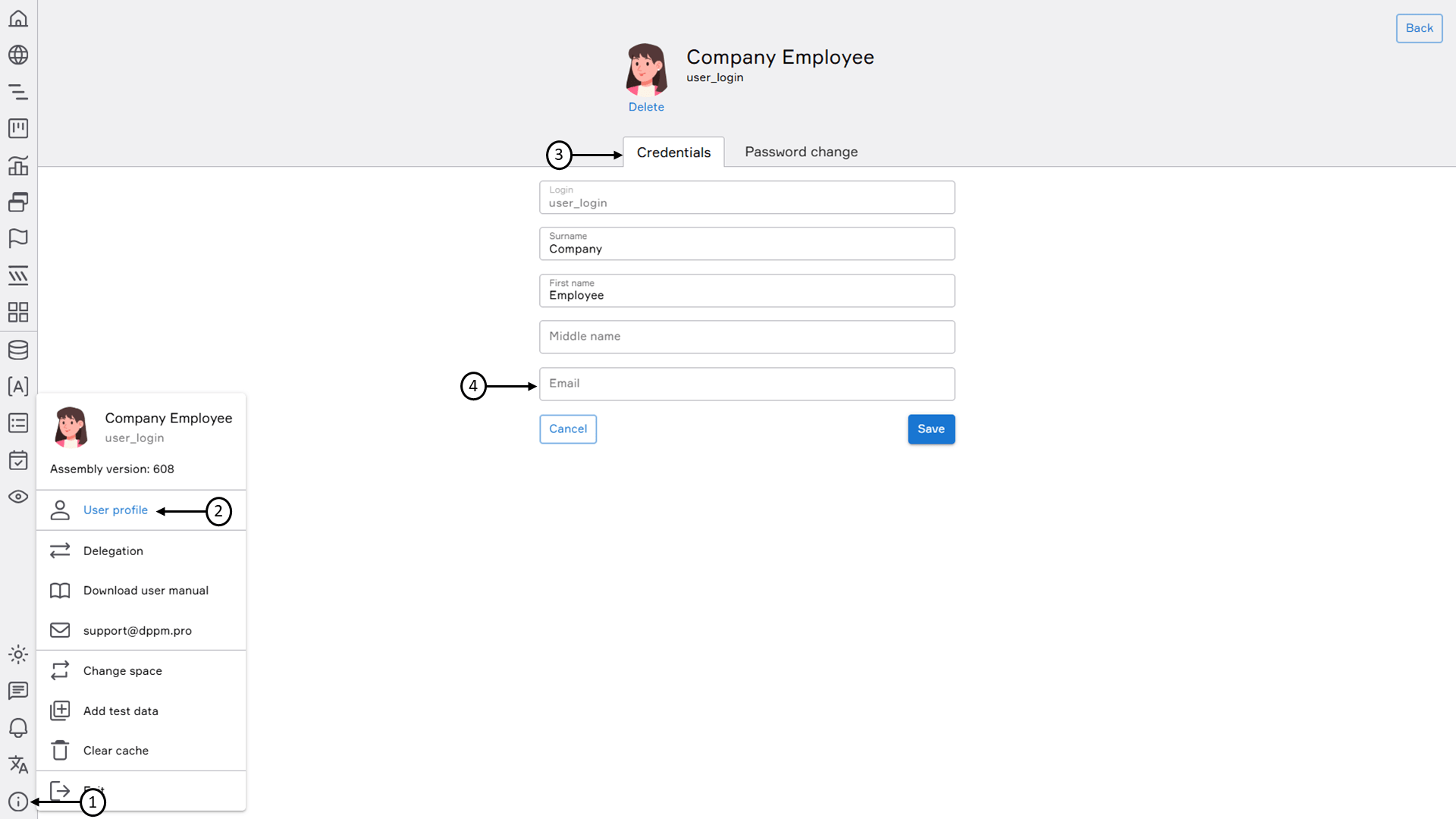 Entering an Email Address in the User Profile
To configure notifications, select a Schedule node in the Enterprise Project Structure and open "Node settings". In "Notification settings" (1), configure the following notification types:
- Data update;
- Acceptance;
- Assignments;
- Request or assignment;
- Warning.
Select "Duplicate in email" (2) to send configured notifications to the email address in the user's profile.
Select "Filter" (3) to configure notification filters.
Click "Notification test" (4) to check the configuration. Notifications are sent immediately if their triggering conditions are met. For example, suppose a data update reminder is configured for two days before an activity starts. If the user is assigned as a participant through Resource planning or Kanban, and the schedule contains activities starting two days from the current date, clicking Notification test sends the reminder. Otherwise, if the frequency is set to Daily, the notification is sent at 4:00 a.m. the following day.
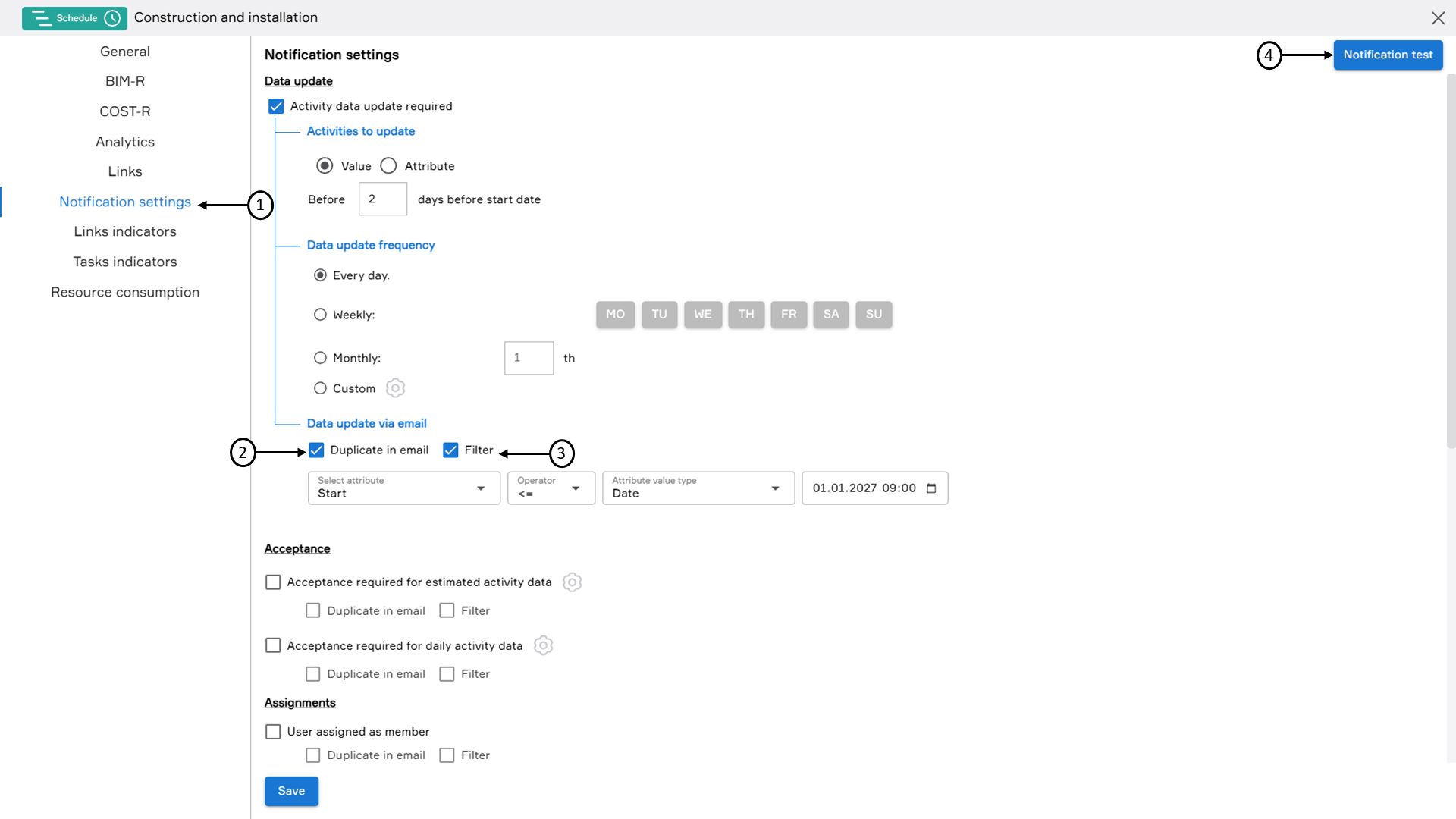 Notification Settings
Data Update Notifications
Select "Notification that activity data need to be updated" to receive reminders in Personal account. These notifications are sent to users assigned as activity participants through Resource planning or Kanban.
The following settings are available:
- Activities included in the update form — Values used to filter activities included in the form.
- Update frequency — Notification frequency for data updates.
- Data updates by email — Email delivery and notification filters.
Configuring Notifications by Update Frequency
The following update frequencies are available:
- Daily;
- Weekly;
- Monthly;
- Custom.
Custom frequency provides advanced scheduling of reminders for participants to update schedule daily planning data.
Select Custom (1) and click "Distribution settings" (2).
The "Distribution settings" dialog (3) contains the following tabs:
- Minutes;
- Hours;
- Days of the month;
- Month;
- Days of the week.
You can configure notification timing on several tabs simultaneously.
At the top, a line displays the selected notification schedule (4). By default, it shows PLAN-R's standard notification time: 4:00 a.m.
Each tab provides its own time selection controls.
The Cron schedule appears at the bottom (5). Click the copy button (6) to copy it. Click "Reset" (7) to reset all timing settings.
Click "Save" (8) to save the schedule. Click "Cancel" (9) to discard changes and close the dialog.
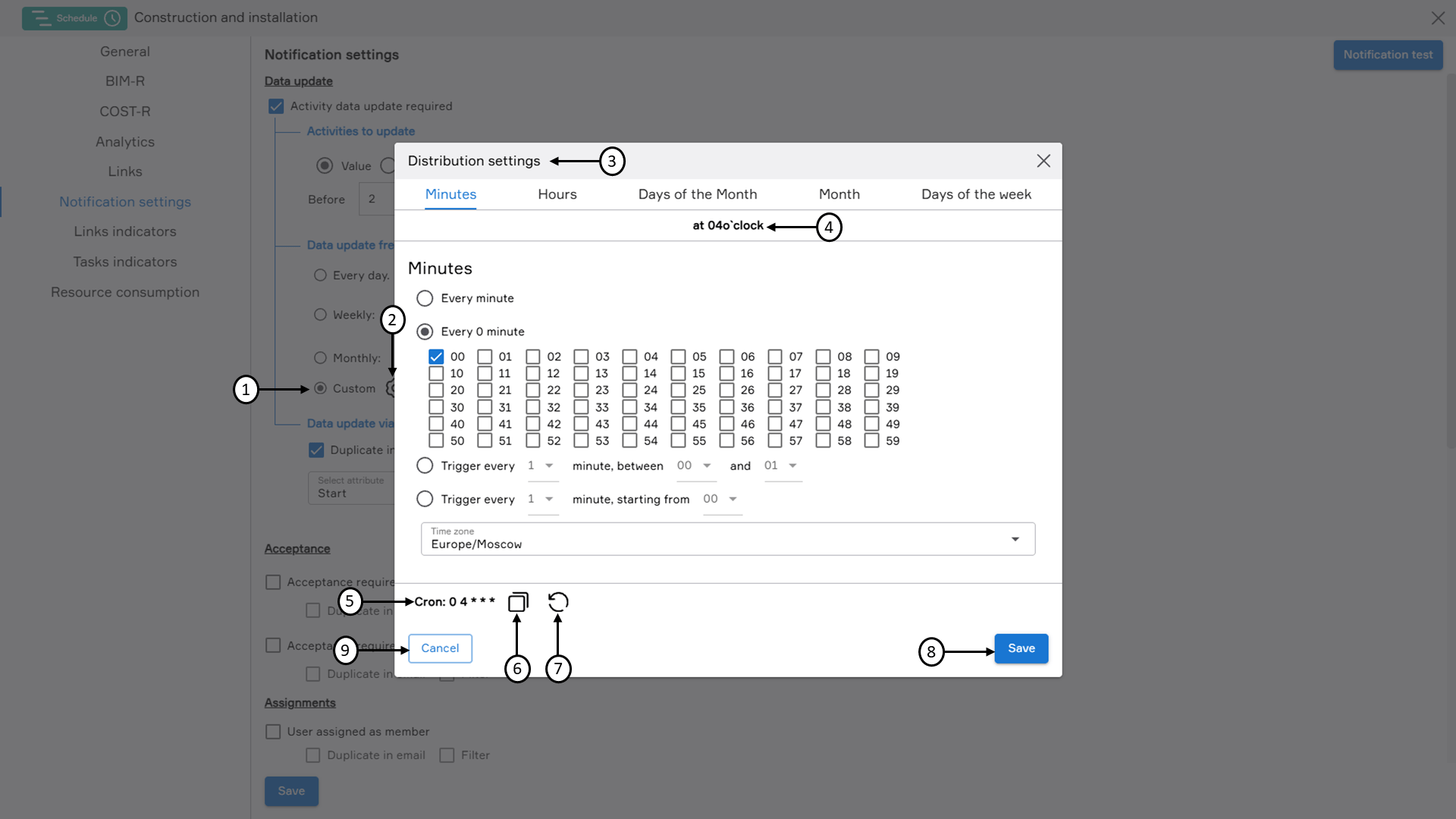 Distribution Settings Dialog
Acceptance Notifications
Select "Notification that estimated activity data need to be accepted" to receive reminders in Personal account to accept estimated activity data. These notifications are sent only to the activity's assigned Supervisor.
Select "Notification that daily activity data need to be accepted" to receive reminders to accept daily activity data. These notifications are also sent only to the activity's assigned Supervisor.
Assignment Notifications
Select "Notification when a user is assigned as an assignee" to notify users in Personal account that they have been assigned as participants to schedule activities.
Select "Notification when a user is assigned as a Supervisor" to notify users that they have been assigned as Supervisors to schedule activities.
Request or Assignment Notifications
Select "Notification of a new request or assignment" to notify users in Personal account that they have been assigned as a participant or controller (Supervisor) to a new request or assignment. You can also specify how many days before its due date the notification should be sent. Enter a custom value or select an attribute whose value is evaluated for each schedule activity.
Select "Notification of an approaching request or assignment due date" to notify users that the planned due date is approaching for a request or assignment associated with their activity.
Select "Notification of request or assignment acceptance or changes" to notify users about changes to its planned or actual completion date and its acceptance by the Supervisor.
Warning Notifications
Select "Notification of an upcoming activity start" to notify users in Personal account about an activity's planned start. Specify how many days in advance to send the notification by entering a custom value or selecting an attribute evaluated for each activity.
Select "Notification of an upcoming activity finish" to notify users about an activity's finish. Similarly, specify the number of days in advance or select an attribute evaluated for each activity.