PROJECT SCREEN SETTINGS
 Project screen settings
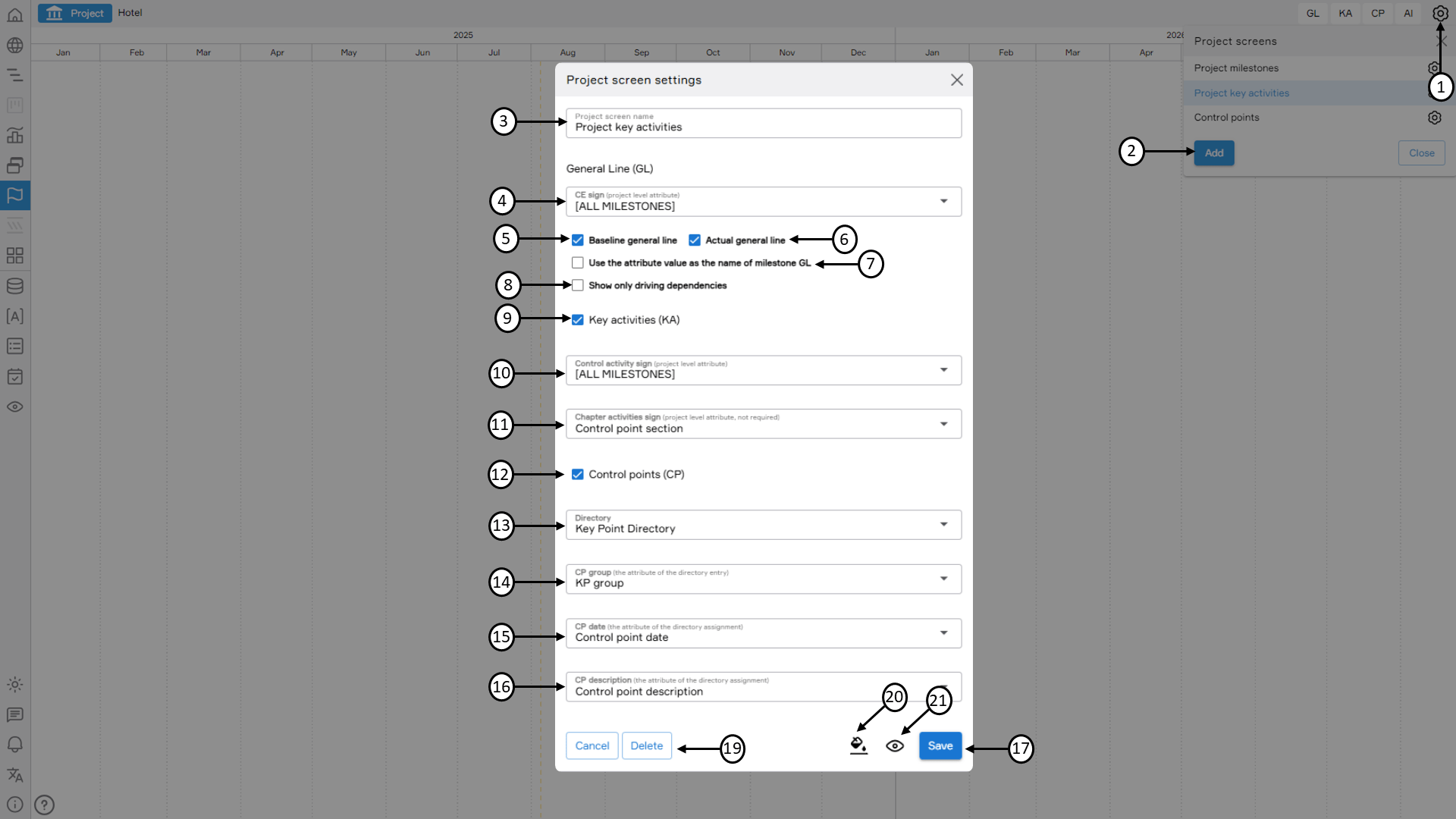
To create a project screen, go to the “Project screen” section and click “Settings” (1). In the menu that opens, click “Add” (2).
In the settings window, fill in the “Project screen name” field (3), then configure the required areas:
- To configure the General Line, complete the following settings:
- Select the “CE sign” attribute from the drop-down list: a project-level activity attribute identifying key events (4).
- Select or clear “Baseline general line” (5) to show or hide the baseline General Line.
- Select or clear “Actual general line” (6) to show or hide the actual General Line.
- Select “Use the attribute value as the name of milestone GL” (7) to use the values of the key event identification attribute as the names of key events.
- Select “Show only driving dependencies” (8) to display only driving activity chains when expanding a key event’s activity chain.
- To configure the display of key activities, select “Key activities (KA)” (9) and complete the following fields:
- Select the “Control activity sign” attribute from the drop-down list: a project-level activity attribute identifying key activities (10). This field is required.
- Select the “Chapter activities sign” attribute from the drop-down list: a project-level activity attribute containing the names of the KA sections to which schedule activities belong (11). This field is optional. When an attribute is selected, key activities are grouped into the corresponding sections in the KA area.
- To configure the display of control points, select “Control points (CP)” (12) and complete the following fields:
- “Directory” (13) — select the directory containing the list of control point groups.
- “CP group” (directory entry attribute) (14) — select the directory attribute defining the control point group.
- “CP date” (attribute of the directory entry assignment to an activity) (15) — select the assignment attribute defining the control point date.
- “CP description” (attribute of the directory entry assignment to an activity) (16) — select the assignment attribute containing the control point description.
After completing all required fields, click “Save” (17). To cancel project screen creation, click “Cancel” (18) or “Delete” (19). Click “Customize color scheme” (20) to change the General Line colors (see “Project General Line”).
Any activity attribute available at the project level and containing values in one or more project schedules can be used to identify key events on the General Line. If this attribute has a value, the activity or milestone is displayed as a key event. Click “Key Event View Setting” (21) to configure how key events appear on the General Line.
Any activity attribute available at the project level and containing values in one or more project schedules can be used to identify key activities. If this attribute has a value, the activity is displayed as a key activity.
Any activity attribute available at the project level and containing values in one or more project schedules can be used to define key activity sections. When an attribute is selected, key activities are grouped by its values. Each key activity is assigned to the section whose name matches that activity’s attribute value in the schedule.
To display control points in the “Project screen” section, one or more entries from the selected CP directory must be assigned to an activity identified as a key activity. The CP directory must contain a directory entry attribute with the “String” or “Name” data type and two assignment attributes with the “Date” and “String” data types. Directory entries contain CP group names.
When a project screen is created, each CP group is automatically assigned a color. PLAN-R automatically assigns red to the first directory entry. This color is generally used to mark risks on the project screen.
When assigning a directory entry, fill in the assignment attributes selected for the CP date and CP description. Control points are displayed as circular markers with continuous numbering, starting from the top.
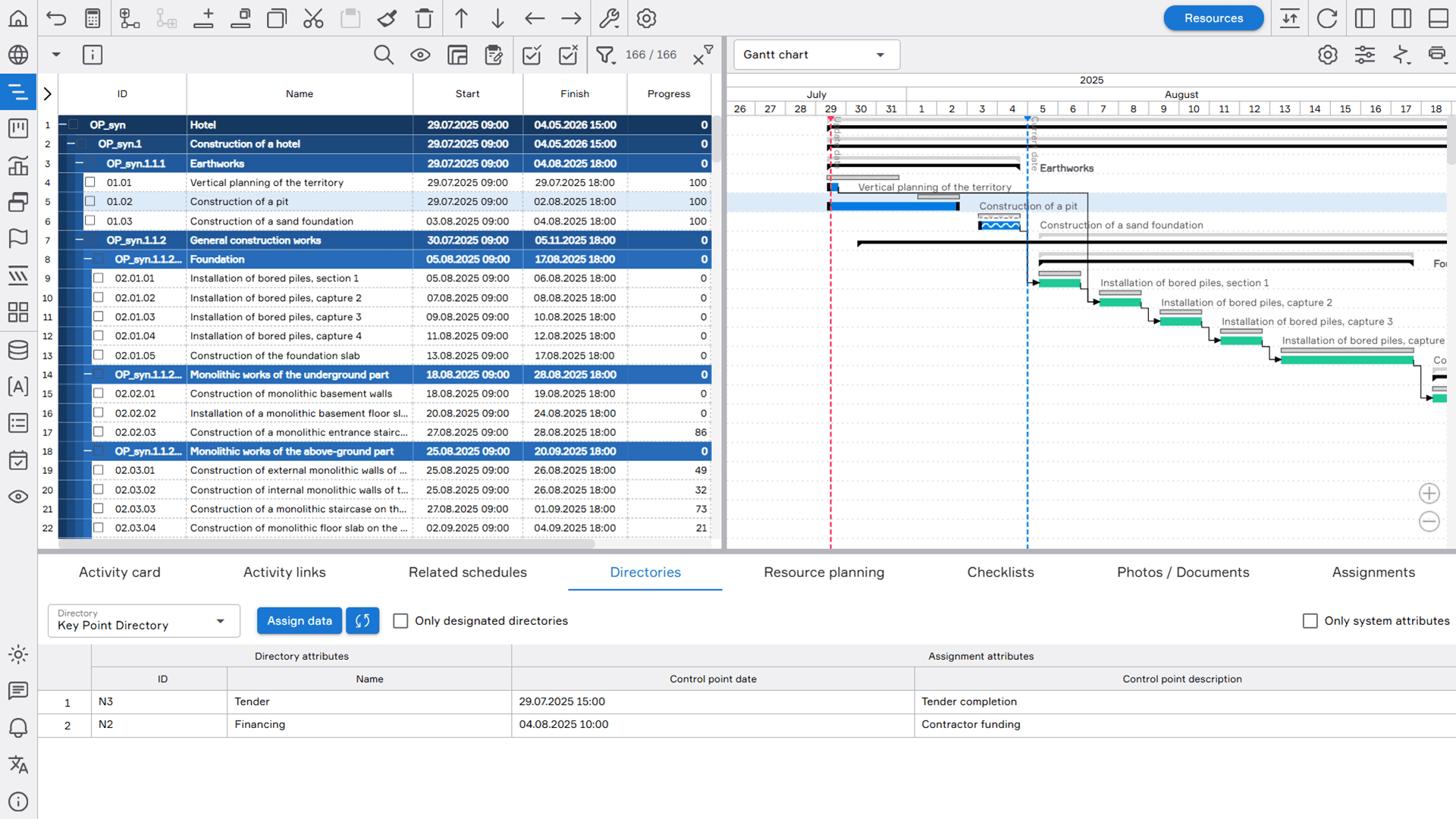 Example of schedule version data used to display activities on a project screen