CREATING A NEW TAB
You can create multiple tabs for working with resources. Tab names appear at the bottom of the interface (1). You can create a new tab and select a different resource directory for it. To do this, click “Create new tab” (2).
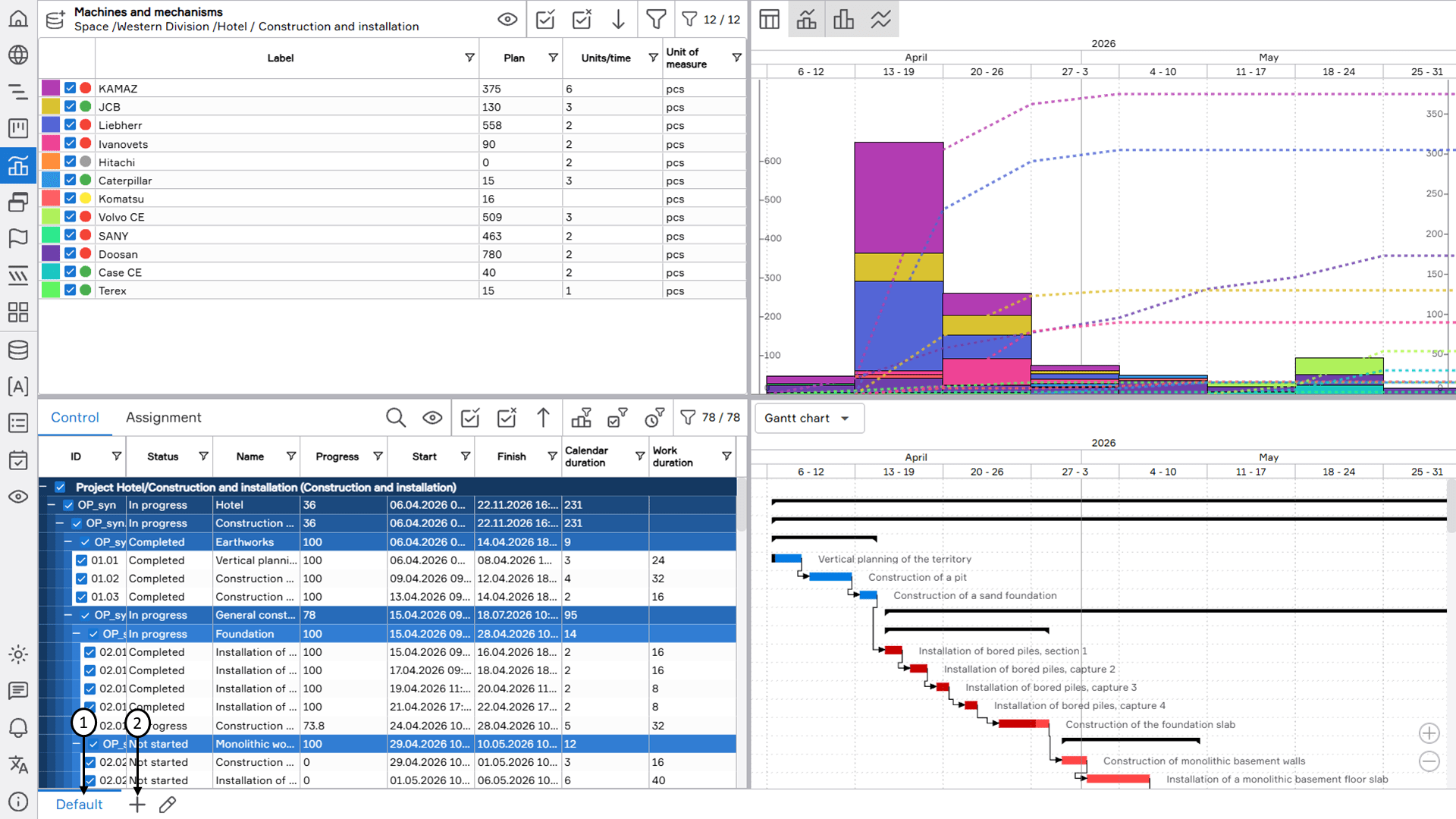 Creating a new resource planning tab (1)
In the window that opens, enter a tab name (1) and select a schedule to work with. You can select multiple schedules using their checkboxes (2), or select all schedules (3). A search function (4) helps you find a schedule quickly.
In the “Tab settings” window, you can change the order of schedules (5) for displaying their Work Breakdown Structures on the resource tab. You can also select the version type: Actual, Baseline, or Other (6). If you select Other (a draft version), the field for selecting a schedule version becomes active (7). Then click “Save” (8).
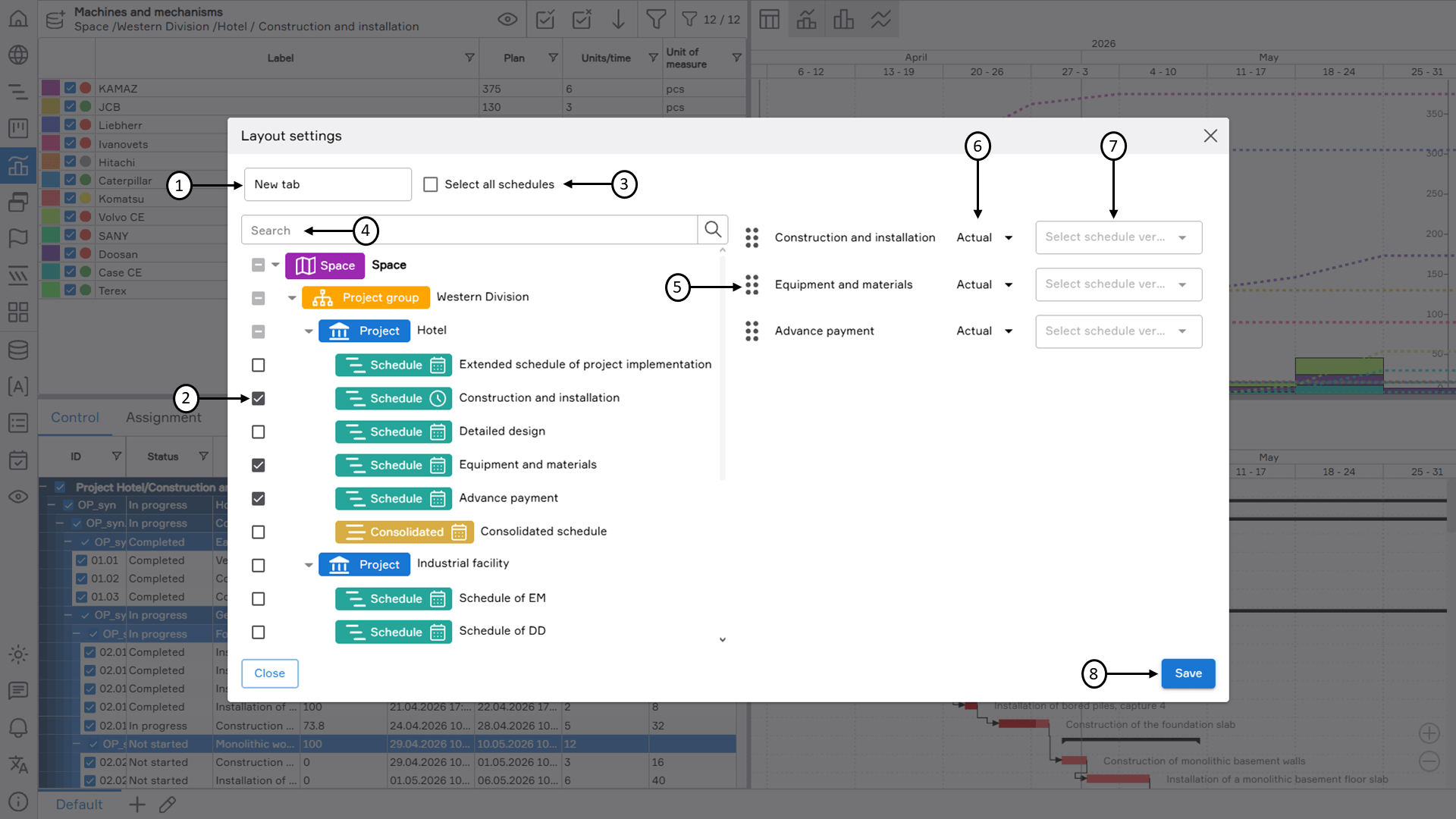 Creating a new resource planning tab (2)
PLAN-R automatically creates a new tab with your settings (1). To display resources in the window that opens, select a resource directory (2) and click “Select” (3).
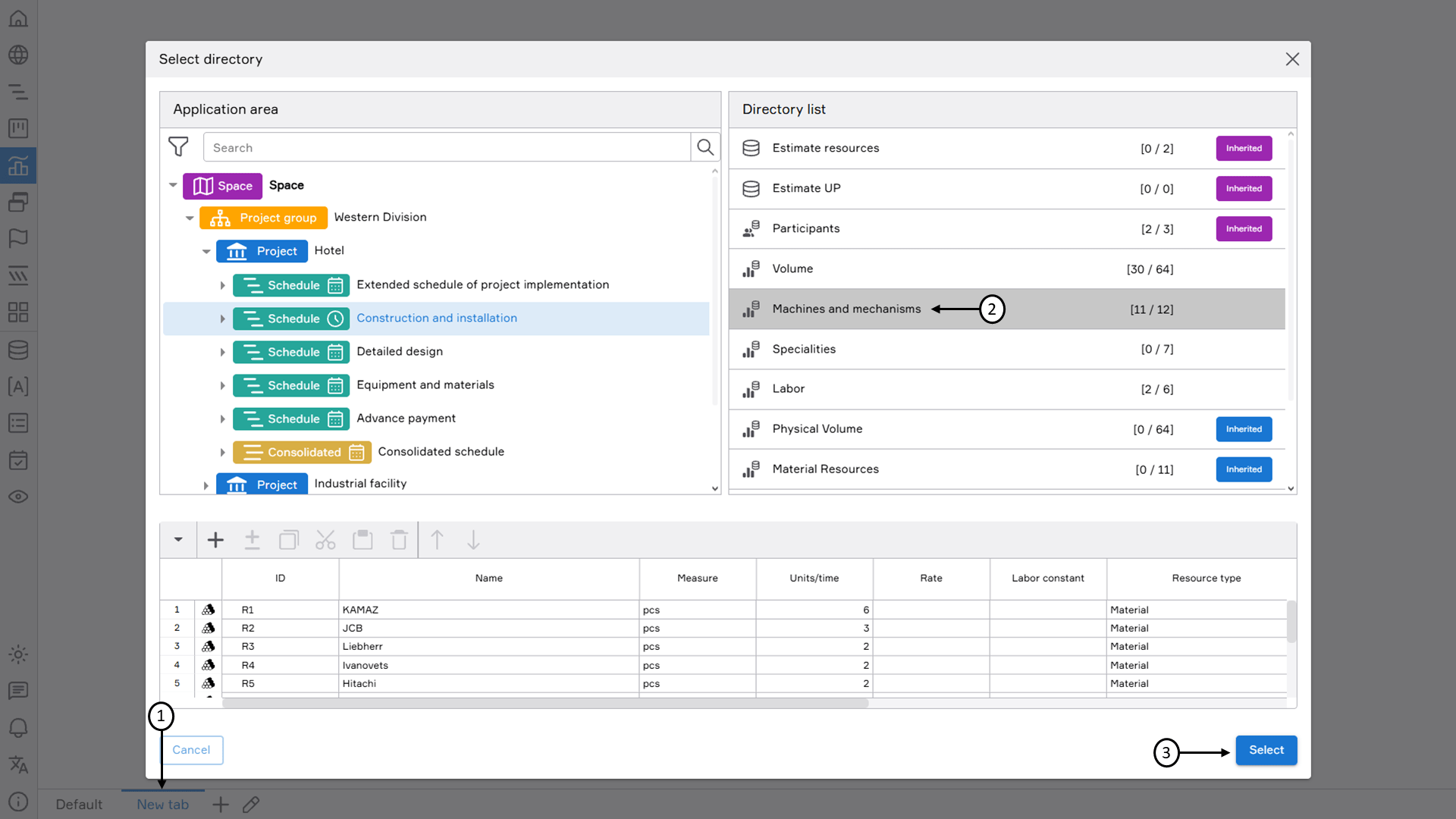 Selecting a resource directory for a new resource planning tab
To edit a tab, click the corresponding button (1). Closing the window does not save your changes. To apply them, click “Save” (2). To delete the tab, click “Delete” (3).
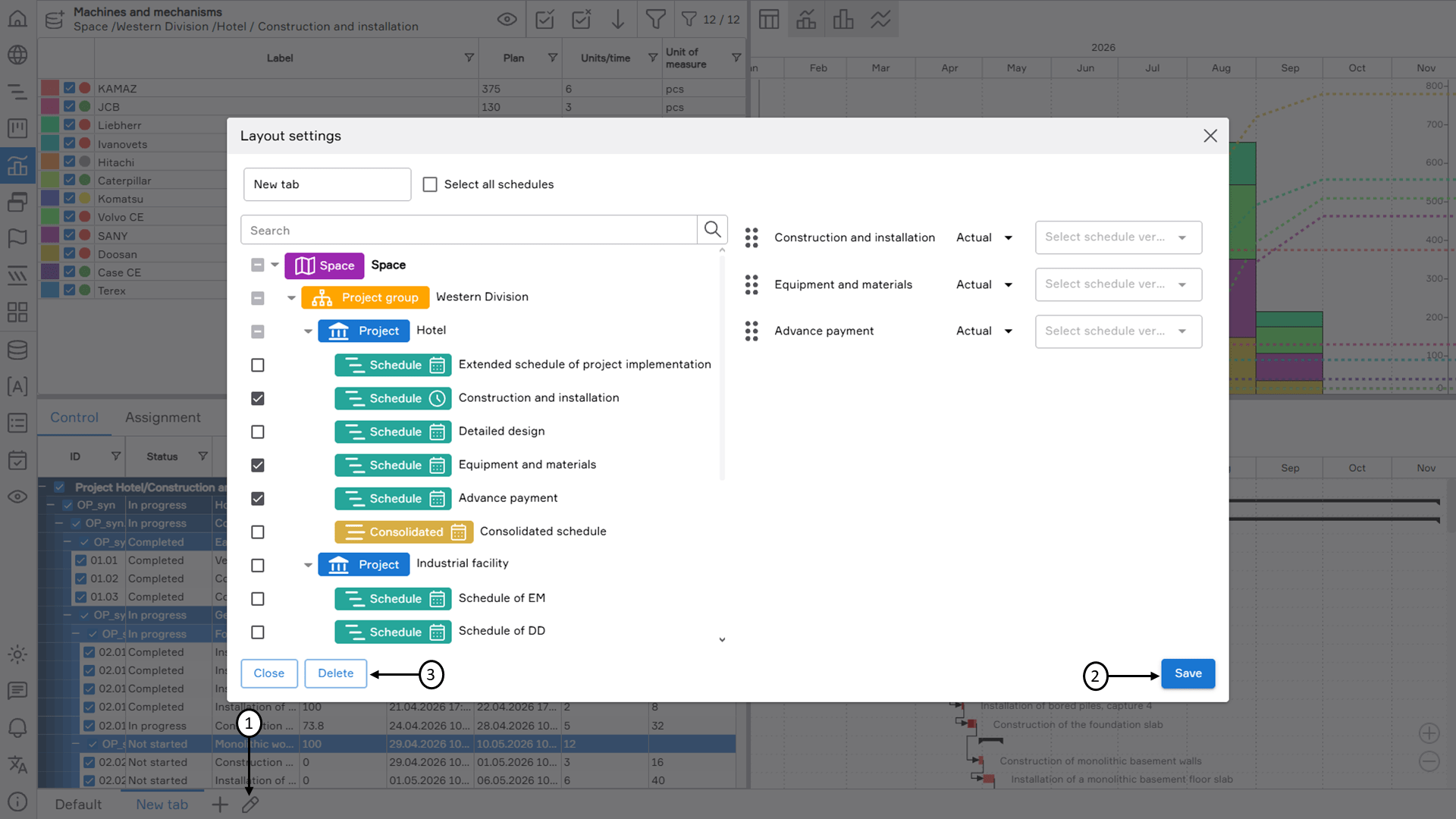 Editing a resource planning tab