RESOURCE CONTROL AND ASSIGNMENT
The Work Breakdown Structure table has two tabs: “Control” and “Assignment”. The “Control” tab (1) displays all schedule activities with assigned entries from the resource directory within the RBS selected when the resource tab was created. In this mode, you can open a pane on the right showing the Gantt chart (2), directory assignments to activities (3), or the resource’s daily distribution (4).
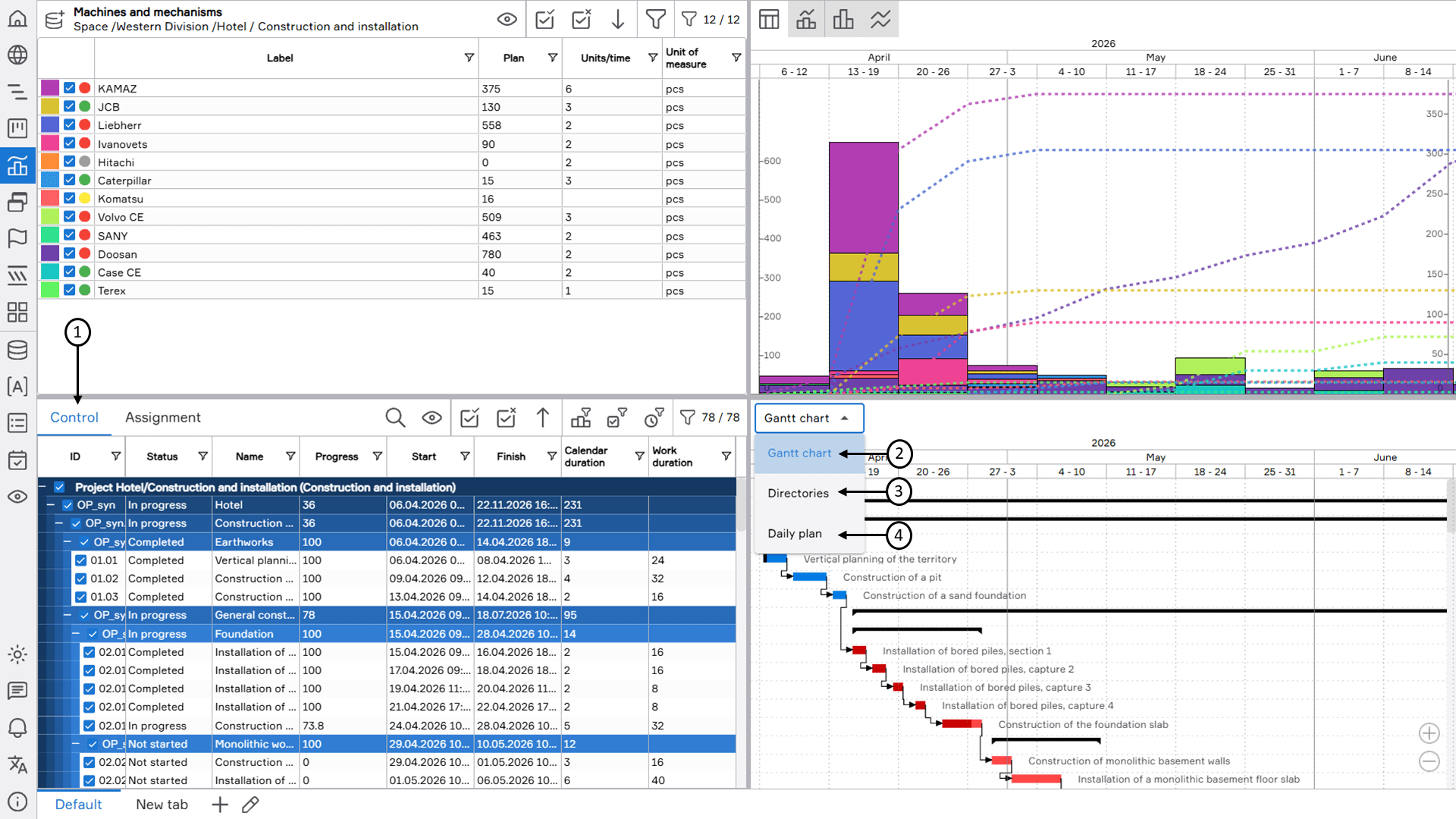 Control tab
The “Control” tab toolbar includes:
- Activity search (1);
- Schedule view settings (2);
- Select all schedule activity checkboxes (3);
- Clear all schedule activity checkboxes (4);
- “Select resources by tasks” (5) — selects the checkboxes of resources in the resource table that are used by the activities selected in the Work Breakdown Structure;
- “Filter by selected chart column” (6) — shows the activities to which a particular resource is assigned on a specific date. To apply the filter, click the required column in the resource chart;
- “Show only selected” (7) — displays only activities selected using their checkboxes;
- “Filter by % complete” (8) — filters activities by completion status.
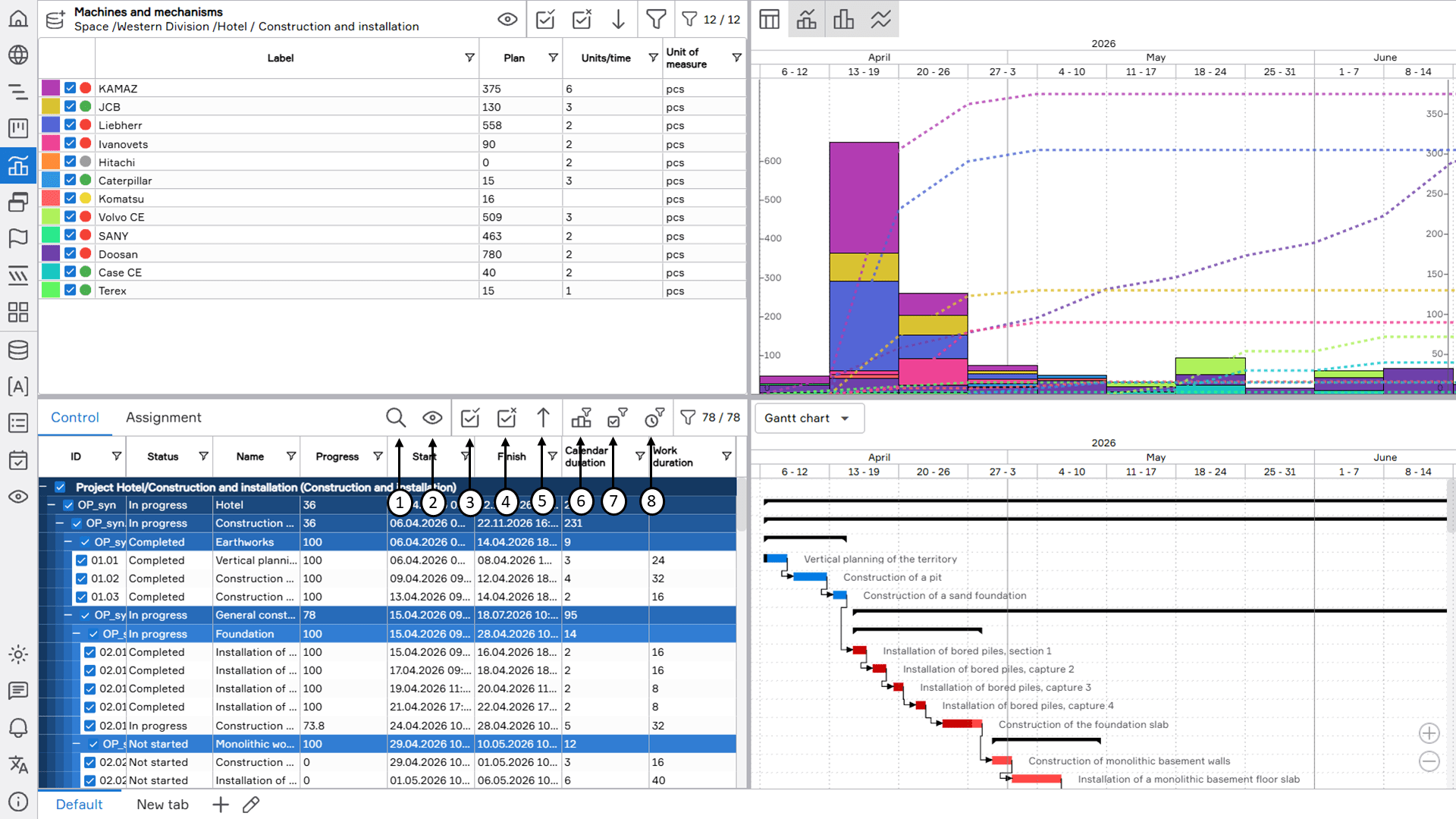 Control tab toolbar
When the “Control” tab is open, you can display the following panes on the right:
- “Gantt chart” (1). The Gantt chart displays activities and their dependencies. Activity colors depend on percent complete. This chart works the same way as the Gantt chart in the “Schedules” section. Changing the Gantt chart’s zoom level also changes the resource chart’s zoom level.
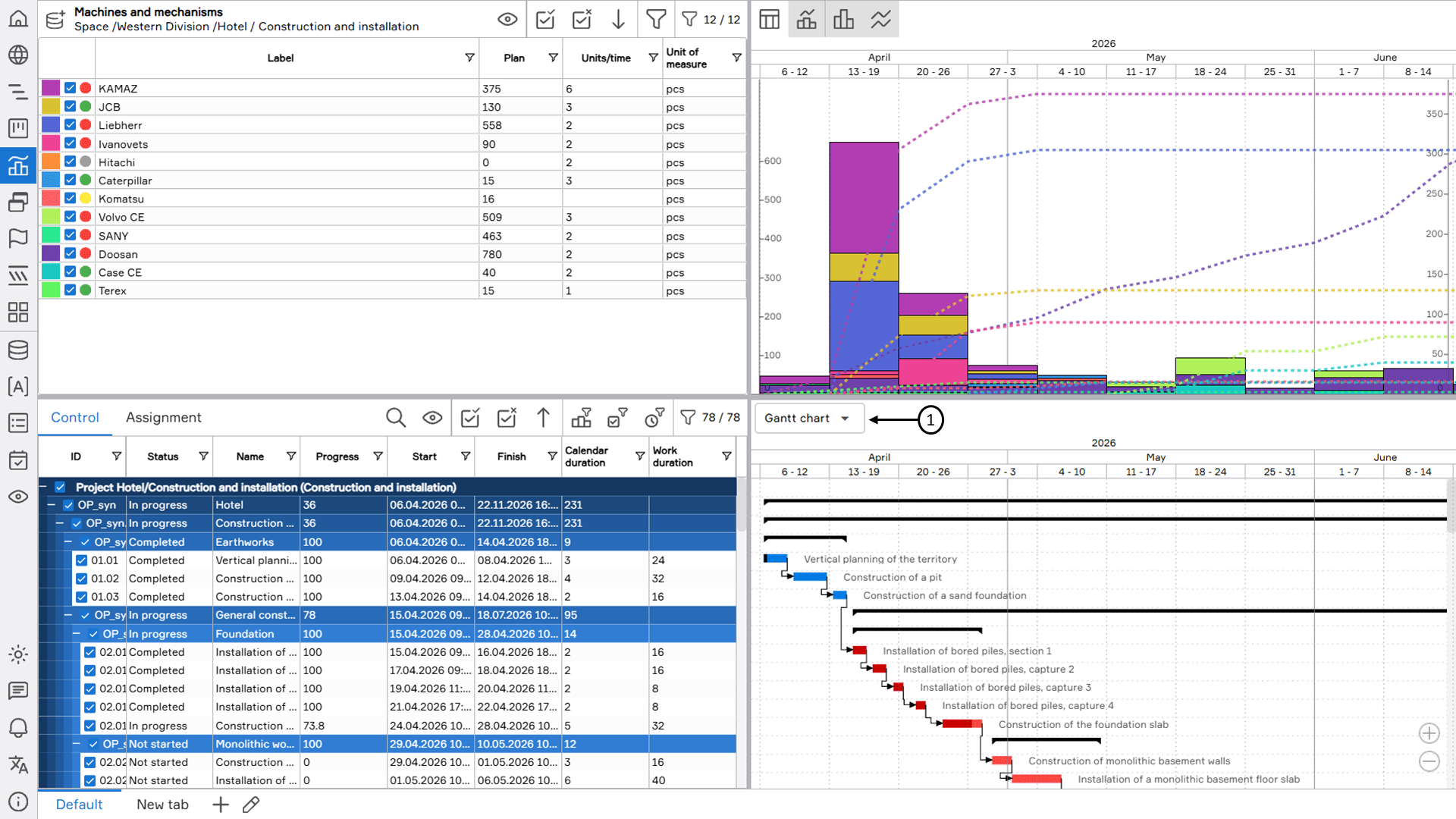 Gantt chart pane in the Resources section
- “Directories” (1). This tab displays resources assigned to the selected activity (2), the total assigned planned amount (3), and the total approved planned amount from resource planning (4).
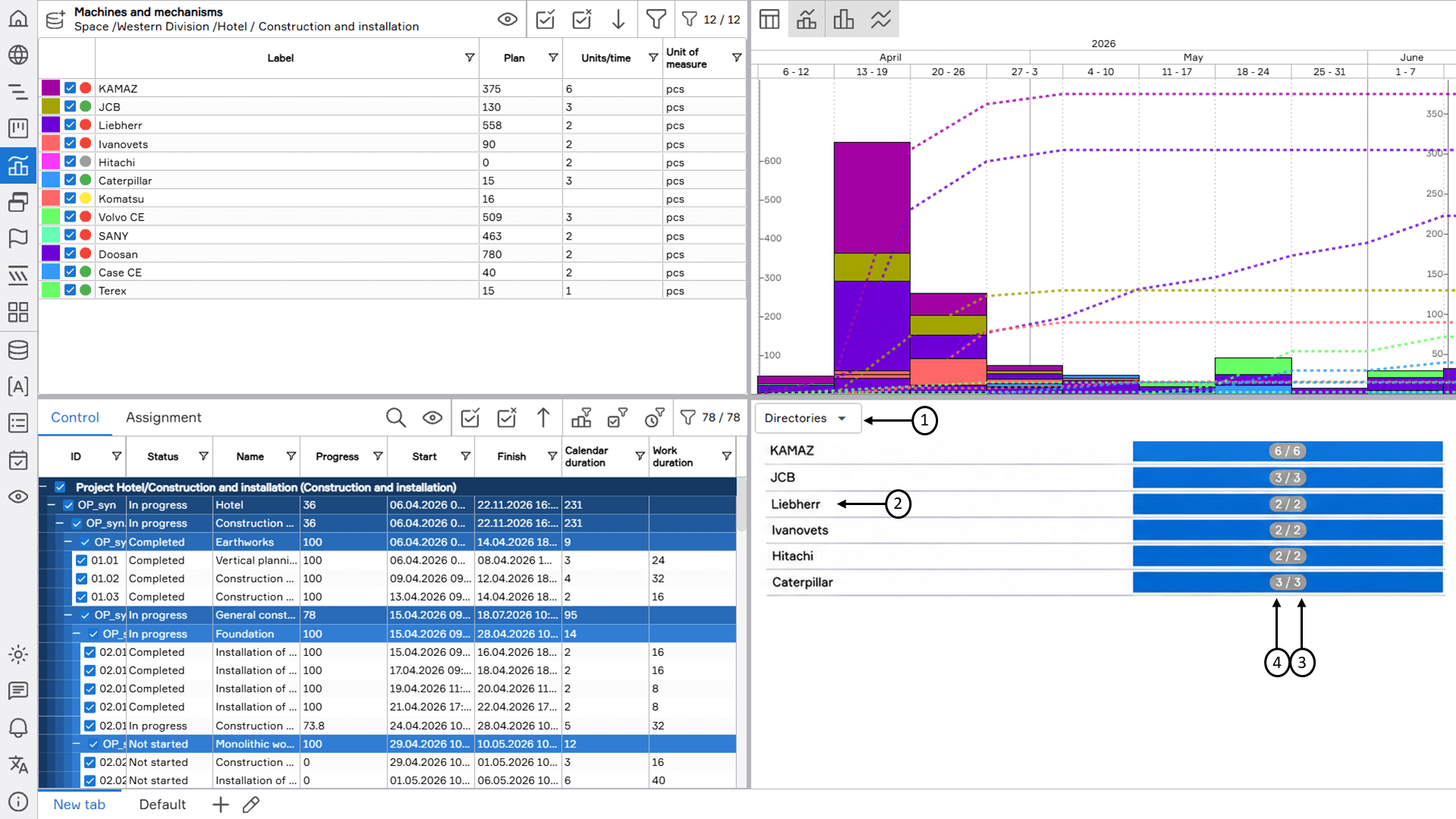 Directories pane in the Resources section
- “Daily plan” (1). This tab displays the daily distribution (2) of the selected resource (3) across activities. If the resource is assigned to an activity, the activity’s duration is highlighted in green in the table (2). If the resource is not assigned, the row is gray (4). Daily values are totaled at the node level. The “Daily plan” timeline changes together with the resource chart timeline.
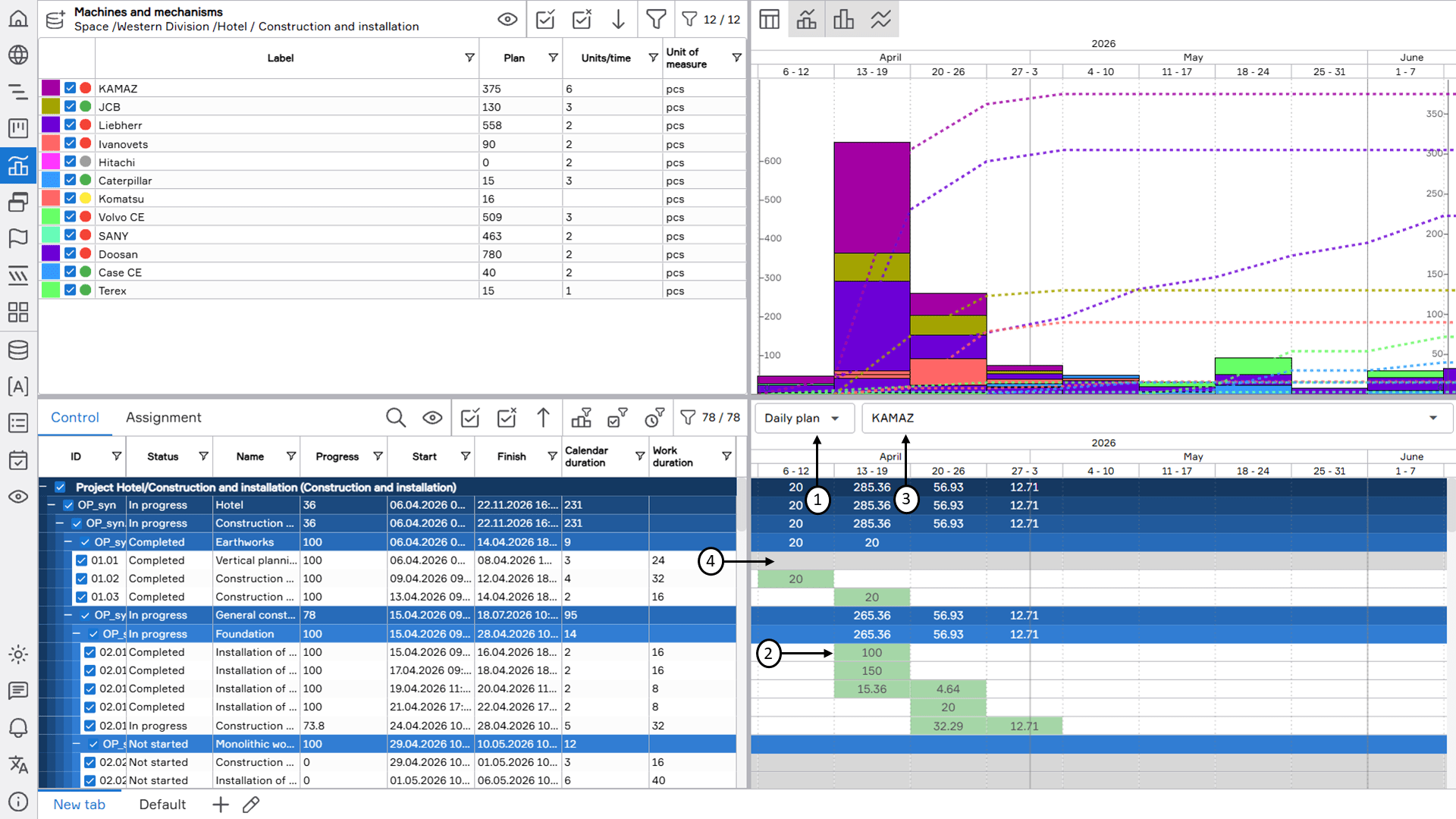 Daily plan pane in the Resources section
On the “Assignment” tab (1), you can assign an RBS resource to a schedule activity or edit an existing assignment. This tab is identical to the “Resource planning” tab in the “Schedule” section. For more information, see “Resource Planning”.
To assign a resource directory entry from the RBS to an activity, select a schedule (2), configure its view by adding or removing attributes as needed (3), and select an activity (4). Review the activity’s assigned resources on the right (5), then click “Add resource” (6) to assign a new resource.
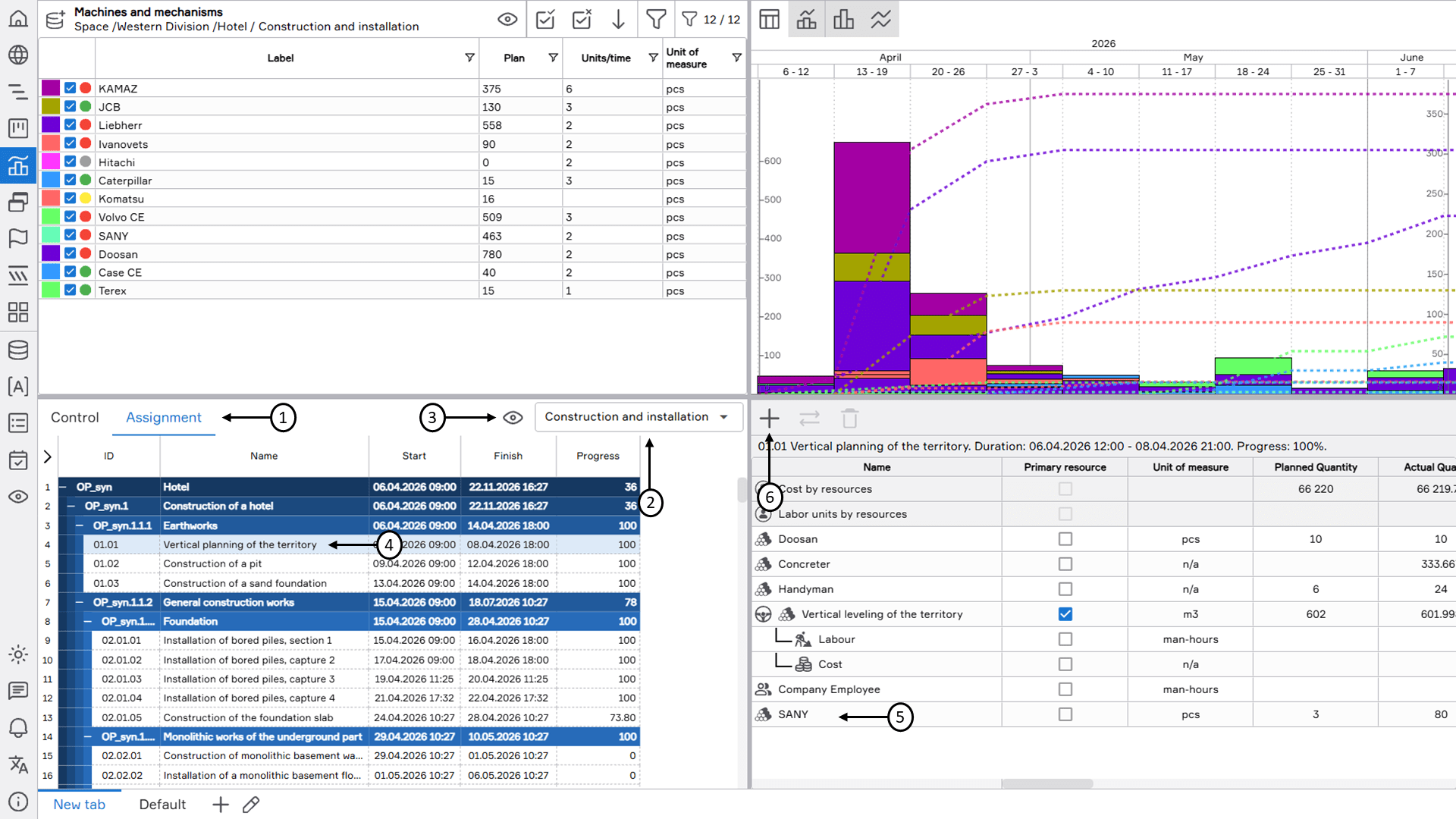 Assignment tab
In the assignment window, select an RBS from the drop-down list (1), select a resource (2), and fill in its assignment attributes if needed (3). Click “Assign” (4) to assign the resource to the schedule activity.
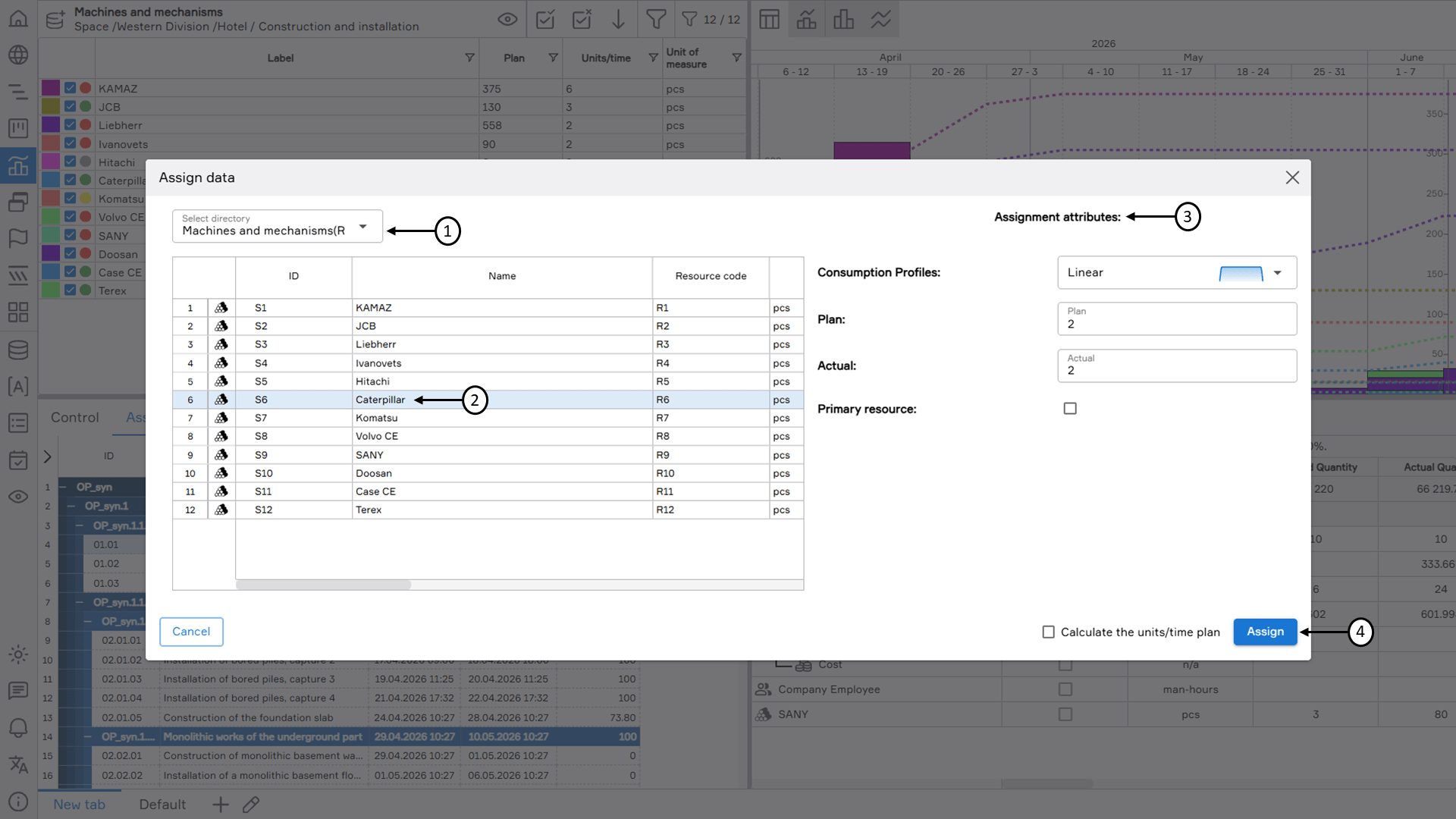 Assigning an RBS resource to a schedule activity
You can edit resource assignment attributes directly in the table on this tab. Double-click a value to change it (1). To remove an assigned resource, select it in the table and click “Delete” (2).
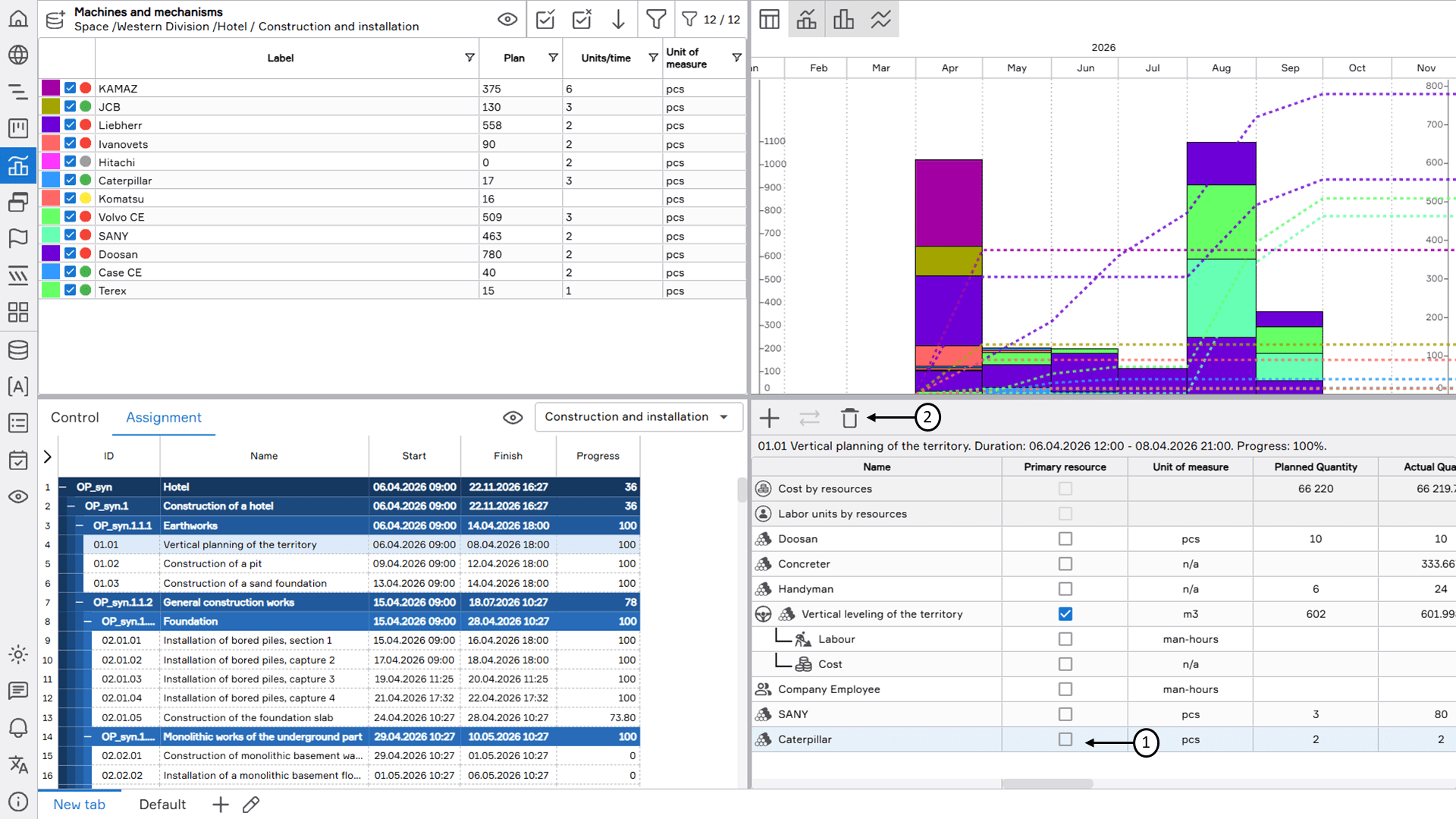 Editing resource assignment attributes on the Assignment tab