ROLE MODEL
Access to PLAN-R operations, reports, data, and functions is controlled through user roles (see Annex 1. Permission Tree).
Each role contains a set of permissions that determine access to PLAN-R functions, documents, reports, and data structures.
To manage roles, open the "Roles" tab (1), which displays the roles available in the space. The table lists each role's name and permissions.
Permission categories:
- PLAN — a paid role;
- FREE — a free role;
- BIM — permissions for the BIM-R module;
- COST — permissions for the COST-R module.
A license is used only when a user is assigned a paid role. Assigning a free role does not require a license.
To find a role quickly, sort the list by role name or use the search field above the table (2).
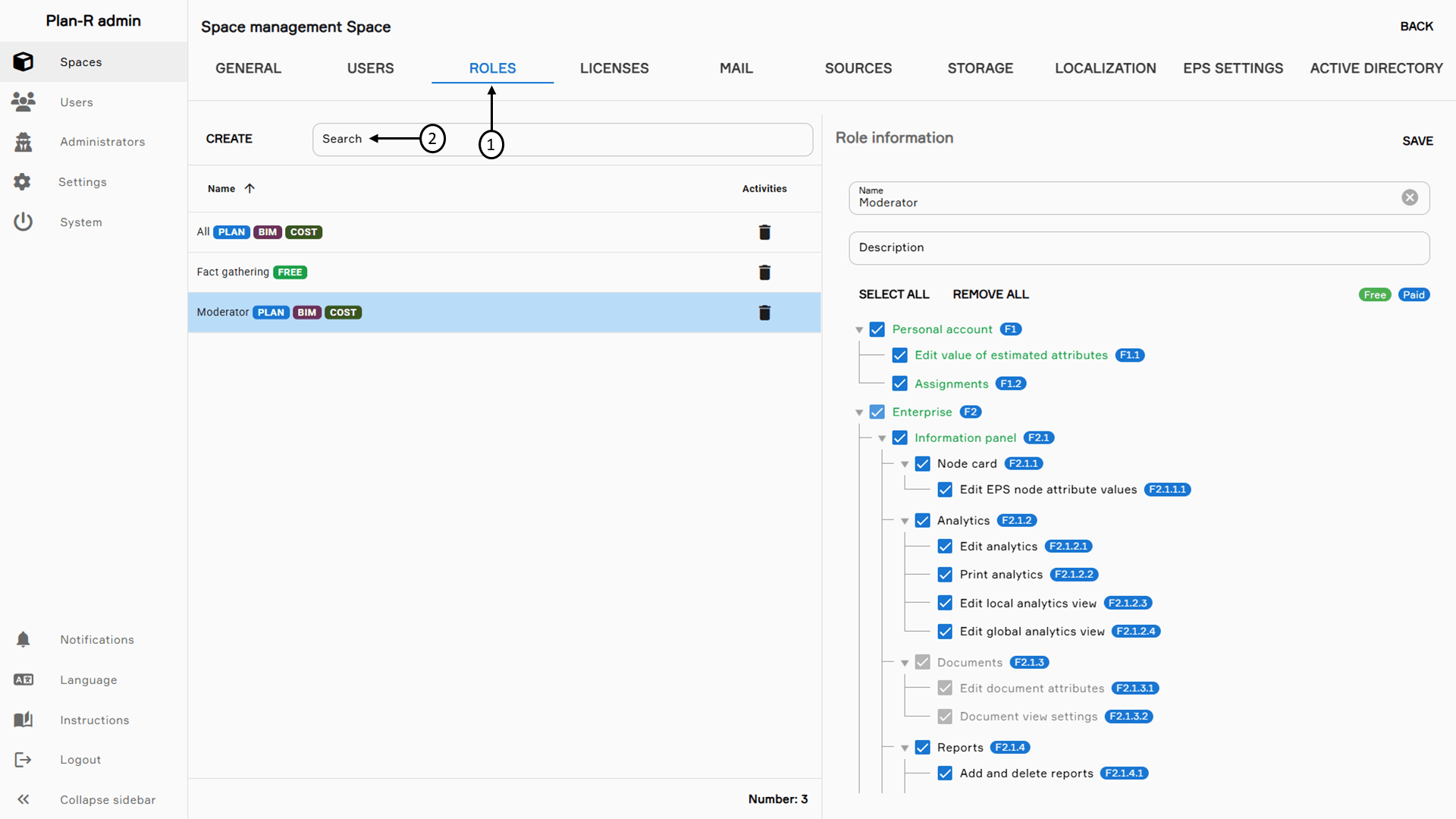 Space Roles
Creating a Role
To create a role, click "Create" (1). In the dialog that opens, enter a name (2) and description (3), then select the required permissions using the checkboxes (4). Click "Create" (5) to save the role.
A user assigned a role does not use a license if the role contains only permissions highlighted in green. Adding even one permission shown in black makes the role paid, and assigning it requires a license.
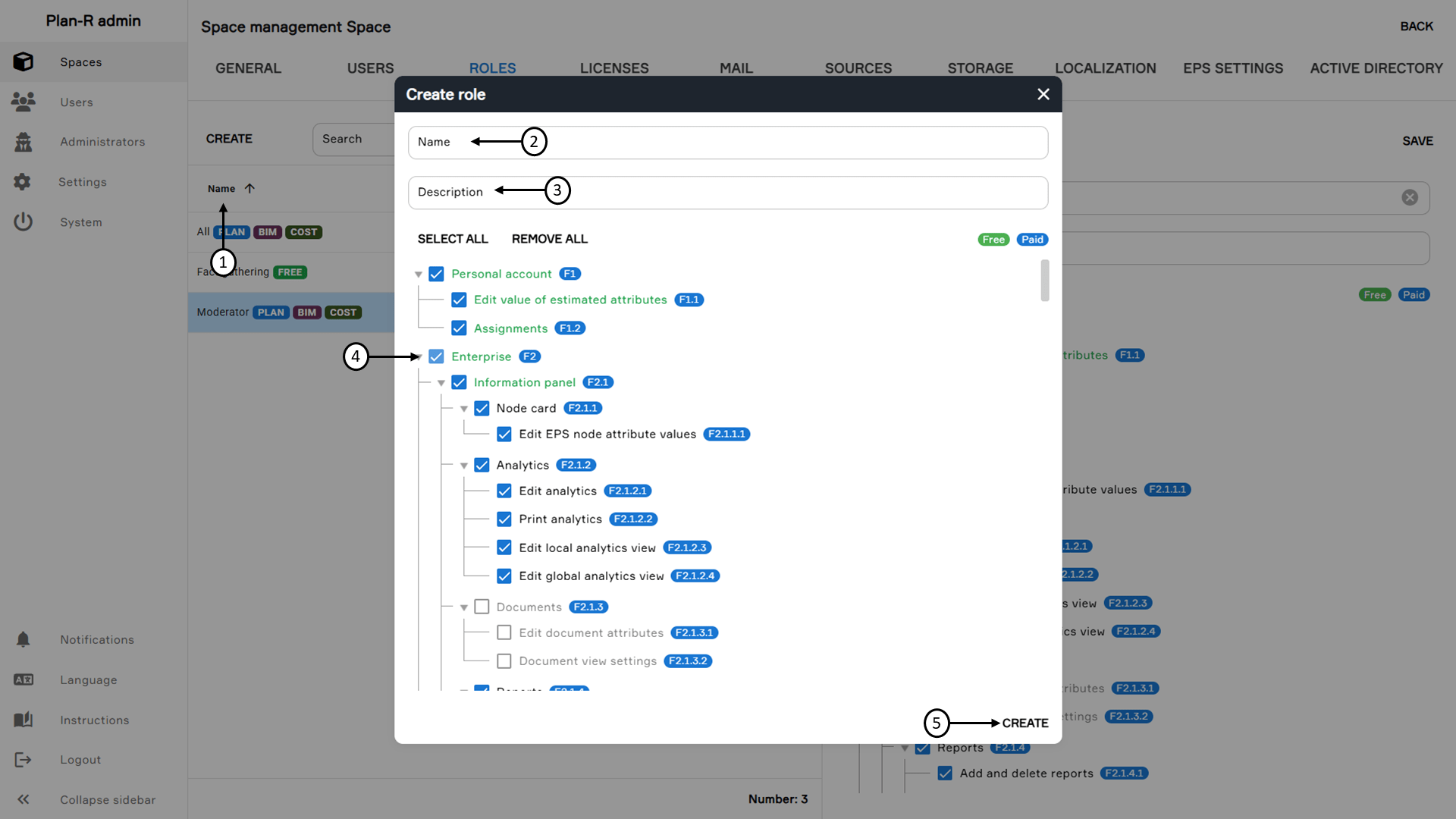 Creating a Role
Editing a Role
To edit an existing role, select it in the list of available roles (1).
On the right side of the screen, you can view or change the name (2) and description (3). Click "Save" (4) in the upper-right corner of the page to save your changes.
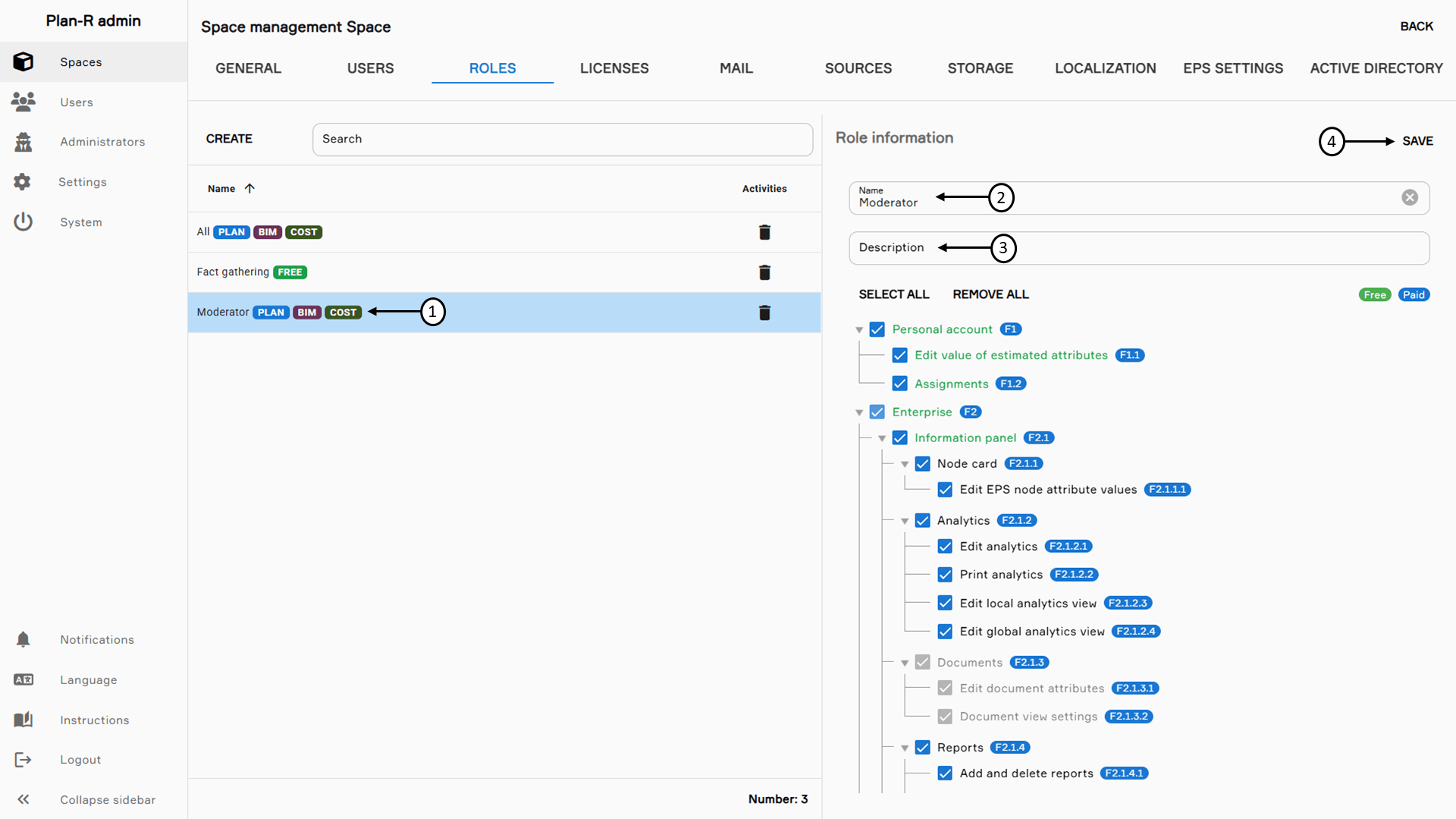 Editing a Role
Deleting a Role
To delete a role, click "Delete" (1). A dialog opens asking you to confirm the deletion (2).
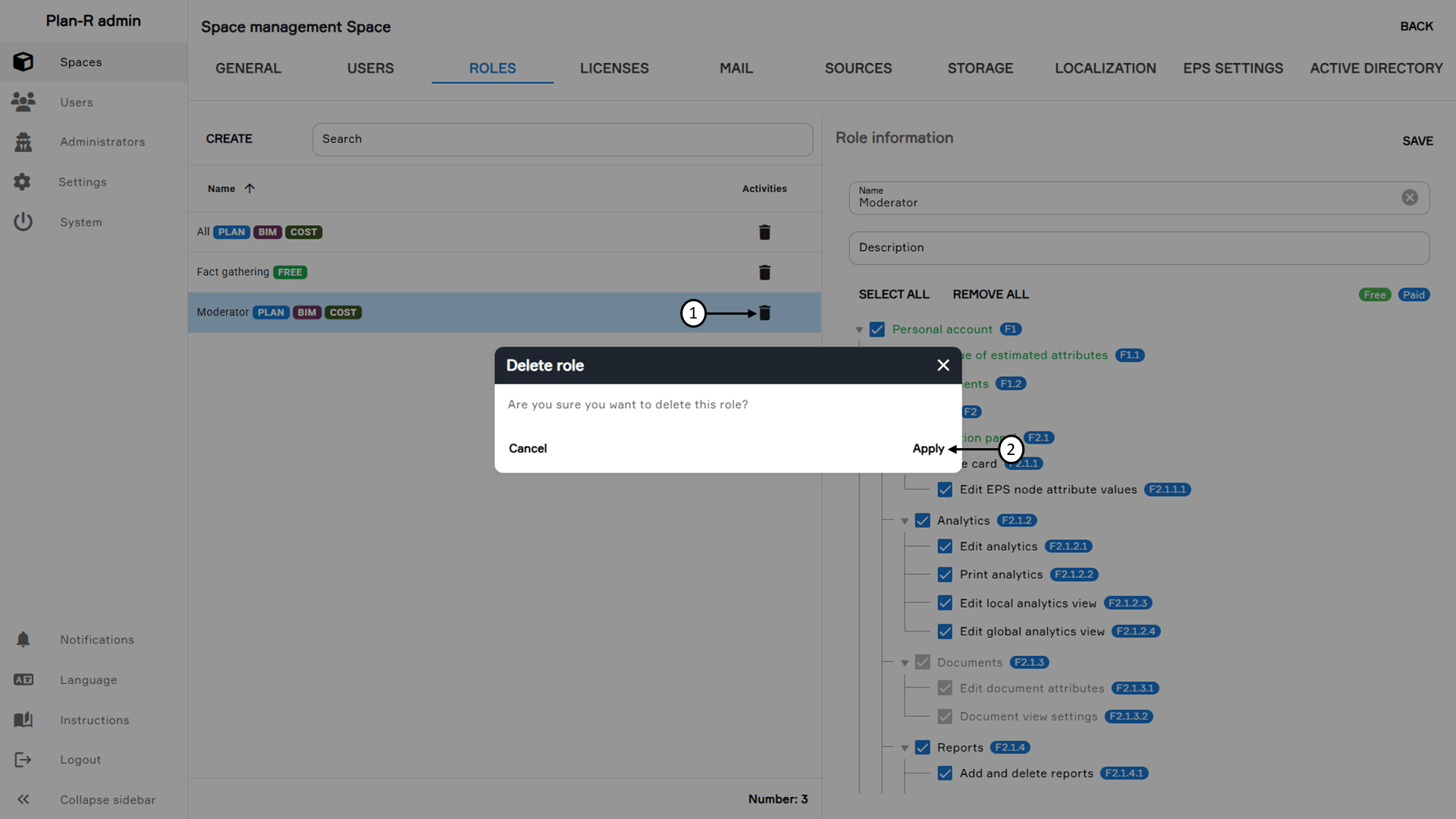 Deleting a Role