SYSTEM DEPLOYMENT. DOCKER
Preparing for Installation (Linux)
To install PLAN-R, complete the following steps:
- Verify that Docker 19.03.0+ and Docker Compose 1.27.1+ are installed.
# docker --version
Docker version 24.0.7, build afdd53b

# docker-compose –version
Docker Compose version v2.23.3-desktop.2
Attention! Starting with PLAN-R 509.0, if you do not plan to use your own external services, such as PostgreSQL, Redis, or Grafana, you must install the external services included in the distribution to run PLAN-R. Download the external_servises_XXX.zip archive and extract it using:
unzip external_servises_XXX.zip -d ./
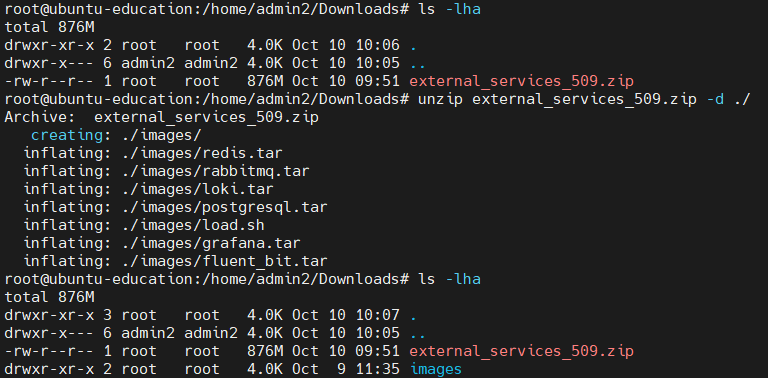 Extracting the External Services Archive
Next, open the images directory and load the external service images by running ./load.sh:
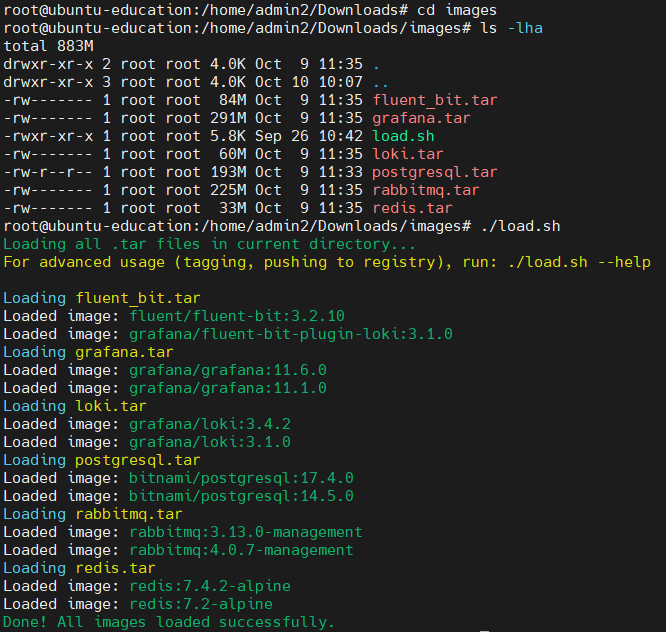 Loading External Service Images
- Prepare a directory structure for the deployment.
Recommended directory structure:
- /opt/dppm/ — the directory for the current deployment;
- /opt/dppm/distr — the directory for downloaded distribution packages;
- /opt/dppm/postgres_dump — the directory for database backups.
Create the directory structure by running the following commands.
# mkdir /opt/dppm && mkdir /opt/dppm/distr && mkdir /opt/dppm/postgres_dump
# cd /opt/dppm
# ls -lha

total 16K
drwxr-xr-x 4 root root 4.0K Mar 28 14:05 .
drwxr-xr-x 5 root root 4.0K Mar 28 14:05 ..
drwxr-xr-x 2 root root 4.0K Mar 28 14:05 distr
drwxr-xr-x 2 root root 4.0K Mar 28 14:05 postgres_dump
- Move the downloaded distribution package to /opt/dppm/distr/.
# mv <path*to_distr>/planr*<_version_>.zip /opt/dppm/distr/
# cd /opt/dppm/distr
# ls -la

total 2638584
drwxr-xr-x 2 root root       4096 Mar 28 14:05 .
drwxr-xr-x 4 root root       4096 Mar 28 14:05 ..
-rw-r-xr-x 1 root root 2701895280 Mar 28 14:05 planr_XXX.x.zip
- Extract the archive to /opt/dppm by running the following commands in order.
# unzip -P <_password_> /opt/dppm/distr/planr\_<_version_>.zip -d /opt/dppm/
# ls -lha
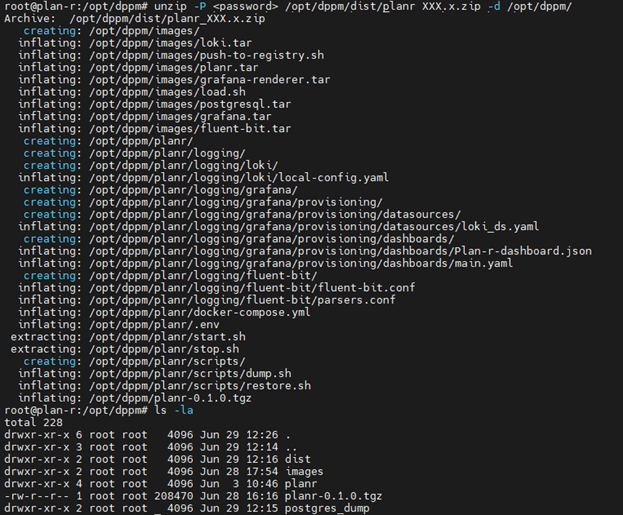 Extracting the Application Archive
- After extracting the archive, open /opt/dppm/images and load the Docker images using ./load.sh. Once the images have loaded successfully, you can delete the ./images directory.
- cd /opt/dppm/images
- ./load.sh
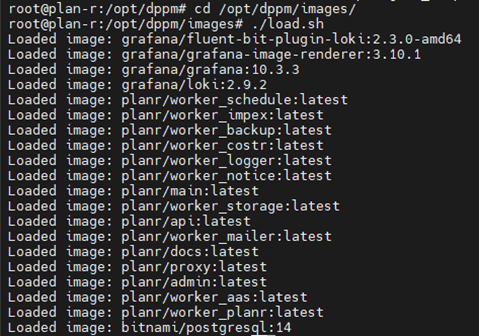 Unpacking PLAN-R Images
Configuring SSL/TLS Connections to Services (Docker)
To configure SSL/TLS encryption for connections to PostgreSQL, Redis, and RabbitMQ:
- Generate server certificates for the services you will connect to.
- Configure PostgreSQL, Redis, and RabbitMQ to use certificates.
- Update the connection strings in the environment variables file to use SSL.
Preparing and Generating Server Certificates
- Create a configuration file specifying the required extensions (req_ext) and parameters (alt_names).
- req_ext specifies the certificate type (extendedKeyUsage = serverAuth) and enables SAN (subjectAltName = @alt_names).
- alt_names specifies valid FQDNs for the server certificate, including localhost for health checks and the service names.
- Generate a .csr signing request and private key.
- Have the certificates signed by your organization's certificate authority.
Examples for each external service are provided below:
Postgres:
# Create the PostgreSQL certificate configuration.
cat > postgres.conf << EOF
[req]
default_bits = 2048
distinguished_name = req_distinguished_name
req_extensions = req_ext
prompt = no

[req_distinguished_name]
C = RU
ST = Moscow
L = Moscow
O = Planr
CN = postgres

[req_ext]
subjectAltName = @alt_names
keyUsage = digitalSignature, keyEncipherment
extendedKeyUsage = serverAuth

[alt_names]
DNS.1 = postgres
DNS.2 = localhost
IP.1 = 127.0.0.1
EOF

## Generate a .csr signing request and private key together.
openssl req -newkey rsa:2048 -nodes -keyout postgres.key -out postgres.csr -config postgres.conf
Redis:
# Create the certificate configuration.
cat > redis.conf << EOF
[req]
default_bits = 2048
distinguished_name = req_distinguished_name
req_extensions = req_ext
prompt = no

[req_distinguished_name]
C = RU
ST = Moscow
L = Moscow
O = Planr
CN = redis

[req_ext]
subjectAltName = @alt_names
keyUsage = digitalSignature, keyEncipherment
extendedKeyUsage = serverAuth

[alt_names]
DNS.1 = redis
DNS.2 = localhost
IP.1 = 127.0.0.1
EOF

## Generate a .csr signing request and private key together.
openssl req -newkey rsa:2048 -nodes -keyout redis.key -out redis.csr -config redis.conf
Rabbitmq:
# Create the certificate configuration.
cat > rabbitmq.conf << EOF
[req]
default_bits = 2048
distinguished_name = req_distinguished_name
req_extensions = req_ext
prompt = no

[req_distinguished_name]
C = RU
ST = Moscow
L = Moscow
O = Planr
CN = rabbitmq

[req_ext]
subjectAltName = @alt_names
keyUsage = digitalSignature, keyEncipherment
extendedKeyUsage = serverAuth

[alt_names]
DNS.1 = rabbitmq
DNS.2 = localhost
IP.1 = 127.0.0.1
EOF

## Generate a .csr signing request and private key together.
openssl req -newkey rsa:2048 -nodes -keyout rabbitmq.key -out rabbitmq.csr -config rabbitmq.conf
To sign the certificates using a root certificate, if its private key is available, run:
openssl x509 -req -in postgres.csr -CA <ca>.crt -CAkey <ca>.key -CAcreateserial -out postgres.crt -days 365 -sha256 -extfile postgres.conf -extensions req_ext
openssl x509 -req -in redis.csr -CA <ca>.crt -CAkey <ca>.key -CAcreateserial -out redis.crt -days 365 -sha256 -extfile redis.conf -extensions req_ext
openssl x509 -req -in rabbitmq.csr -CA <ca>.crt -CAkey <ca>.key -CAcreateserial -out rabbitmq.crt -days 365 -sha256 -extfile rabbitmq.conf -extensions req_ext
Configuring External Services for SSL/TLS
Configure PostgreSQL, Redis, and RabbitMQ to enable encryption. In /opt/dppm/planr, create a tls directory for certificates and a configs directory containing pg_hba.conf for PostgreSQL, rabbitmq.conf for RabbitMQ, and redis.conf for Redis. The directories should have the following structure:
./tls
├── ca.pem
├── postgres.key
├── postgres.pem
├── rabbitmq.key
├── rabbitmq.pem
├── redis.key
└── redis.pem
./configs
├── pg_hba.conf
├── rabbitmq.conf
└── redis.conf
Where:
- pg_hba.conf — configures authentication methods and access control for the PostgreSQL server.
- rabbitmq.conf — the main RabbitMQ service configuration file.
- redis.conf — the Redis service configuration file.
- ca.pem — the root certificate or root certificate chain.
- postgres.key — the private key for the PostgreSQL server certificate.
- postgres.pem — the PostgreSQL server certificate.
- rabbitmq.key — the private key for the RabbitMQ server certificate.
- rabbitmq.pem — the RabbitMQ server certificate.
- redis.key — the private key for the Redis certificate.
- redis.pem — the Redis server certificate.
The /opt/dppm/planr/tls directory must contain the server certificates and private keys generated in Preparing and Generating Server Certificates, along with the ca.pem root certificate.
Configuring backup-worker:
Update the backup-worker service configuration in docker-compose.yml, located at /opt/dppm/planr/docker-compose.yml by default. The resulting configuration should be:
  backup-worker:
    image: 'registry.dppm.pro/releases/planr/worker_backup:${TAG}'
    env_file:
      - ${ENV_FILE:-.env}
    networks: *default-network
    restart: *default-restart-policy
    profiles: *default-profile
    logging: *default-logging
    volumes:
      - 'planr-storage:/planr'
      - './tls/ca.pem:/etc/ssl/certs/ca.pem'
    environment:
      - NODE_EXTRA_CA_CERTS=/etc/ssl/certs/ca.pem
Where:
- ./tls/ca.pem:/etc/ssl/certs/ca.pem mounts the root certificate or certificate chain file in the container.
- NODE_EXTRA_CA_CERTS=/etc/ssl/certs/ca.pem is a Node.js environment variable that adds the root certificate to the trusted certificates.
Configuring PostgreSQL:
PostgreSQL requires permissions of 644 for certificates and 600 for private keys. Set these permissions using:
# Set the permissions required by PostgreSQL.
chmod 644 /opt/dppm/planr/tls/ca.pem
chmod 644 /opt/dppm/planr/tls/postgres.pem
chmod 600 /opt/dppm/planr/tls/postgres.key

# Change the owner of the tls directory to PostgreSQL.
chown -R 999:999 /opt/dppm/planr/tls
Contents of pg_hba.conf:
# TYPE  DATABASE        USER            ADDRESS                 METHOD

# "local" is for Unix domain socket connections only
local   all             all                                     trust
# IPv4 local connections:
host    all             all             127.0.0.1/32            trust
# IPv6 local connections:
host    all             all             ::1/128                 trust
# Allow replication connections from localhost, by a user with the
# replication privilege.
local   replication     all                                     trust
host    replication     all             127.0.0.1/32            trust
host    replication     all             ::1/128                 trust

hostssl all             all             0.0.0.0/0               scram-sha-256
In pg_hba.conf, hostssl all all 0.0.0.0/0 scram-sha-256 defines an authentication rule for database connections:
- hostssl — connections over SSL/TLS.
- DATABASE = all — allows access to all databases.
- USER = all — allows any PostgreSQL user to connect.
- ADDRESS = 0.0.0.0/0 — the subnet from which connections are allowed.
- METHOD = scram-sha-256 — the authentication method.
Next, update the PostgreSQL service configuration in docker-compose.yml, located at /opt/dppm/planr/docker-compose.yml by default. The resulting configuration should be:
  postgres:
    image: 'postgres:${POSTGRES_VERSION:-18.6}'
    container_name: postgres
    user: postgres
    environment:
      POSTGRES_USER: planr
      POSTGRES_PASSWORD: planr
      POSTGRES_DB: planr
      POSTGRES_MAX_CONNECTIONS: 800
# postgress ports
    # ports:
    #   - 5432:5432
    volumes:
      - postgresql:/var/lib/postgresql
      - ./configs/pg_hba.conf:/etc/postgresql/pg_hba.conf
      - ./tls:/tls
    command: >
      postgres
      -c ssl=on
      -c ssl_cert_file=/tls/postgres.pem
      -c ssl_key_file=/tls/postgres.key
      -c ssl_ca_file=/tls/ca.pem
      -c hba_file=/etc/postgresql/pg_hba.conf
    networks: *default-network
    restart: *default-restart-policy
    profiles: ['postgres', 'all']
    shm_size: '2gb'
    healthcheck:
      test: pg_isready -U planr
      interval: 10s
      retries: 20
      start_period: 10s
Configuring Redis:
Contents of redis.conf:
port 0
tls-port 6379
tls-cert-file /tls/redis.pem
tls-key-file  /tls/redis.key
tls-ca-cert-file /tls/ca.pem
tls-auth-clients no
replica-read-only no
save ""
appendonly no
The Redis service configuration in docker-compose.yml should be:
  redis:
    image: 'redis:8.10.0'
    container_name: redis
    hostname: redis
    networks: *default-network
    restart: *default-restart-policy
    command: >
      redis-server /usr/local/etc/redis/redis.conf
      --requirepass ${REDIS_PASSWORD}
    ports:
      - "6379:6379"
    volumes:
      - ./tls:/tls
      - ./configs/redis.conf:/usr/local/etc/redis/redis.conf
    profiles: ['redis', 'all']
    healthcheck:
      test: redis-cli --pass ${REDIS_PASSWORD} --raw incr ping
      interval: 10s
      retries: 20
      start_period: 10s
Similarly, set the certificate and key permissions:
chmod 644 /opt/dppm/planr/tls/redis.pem
chmod 600 /opt/dppm/planr/tls/redis.key
Configuring RabbitMQ:
Contents of rabbitmq.conf:
# disable anonymous auth
loopback_users = none
anonymous_login_user = none

# auth setup
# auth_mechanisms.1 = EXTERNAL
auth_backends.1 = internal
# ssl_cert_login_from = common_name

# ssl setup
listeners.tcp = none
listeners.ssl.default = 5672
ssl_options.cacertfile = /tls/ca.pem
ssl_options.certfile   = /tls/rabbitmq.pem
ssl_options.keyfile    = /tls/rabbitmq.key
ssl_options.verify     = verify_peer
ssl_options.fail_if_no_peer_cert = false
ssl_options.versions.1 = tlsv1.3
ssl_options.versions.2 = tlsv1.2
Set the certificate and key permissions:
chmod 644 /opt/dppm/planr/tls/rabbitmq.pem
chmod 600 /opt/dppm/planr/tls/rabbitmq.key
The RabbitMQ service configuration in docker-compose.yml should be:
  rabbitmq:
    container_name: rabbitmq
    hostname: rabbitmq
    image: 'rabbitmq:4.3.5-management'
    #  rabbitmq web UI ports
    # ports:
    #   - 15672:15672
    #   - 5672:5672
    environment:
      - RABBITMQ_DEFAULT_USER=planr
      - RABBITMQ_DEFAULT_PASS=planr
      - RABBITMQ_DEFAULT_VHOST=planr
    volumes:
      - ./tls:/tls
      - ./rabbitmq.conf:/etc/rabbitmq/rabbitmq.conf
    networks: *default-network
    restart: *default-restart-policy
    profiles: ['rabbitmq', 'all']
    healthcheck:
      test: rabbitmq-diagnostics -q ping
      interval: 10s
      retries: 20
      start_period: 10s
Configuring SSL/TLS Connection Strings in .env
To connect to PostgreSQL, RabbitMQ, and Redis over SSL/TLS, update the connection strings in the .env environment variables file as follows:
Postgres:
The PostgreSQL connection string should be:
Add the ?ssl=true parameter.
DB_URL=postgresql://planr:planr@postgres/planr?ssl=true
Redis:
Change the protocol from redis to rediss.
REDIS_URL=rediss://:${REDIS_PASSWORD}@redis:6379
Rabbitmq:
Change amqp to amqps and specify port 5672.
RABBIT_URL=amqps://planr:planr@rabbitmq:5672/planr
Start the system using ./start.sh.