CONFIGURING ACTIVITY DATE AND TIME DISPLAY IN THE SCHEDULE
PLAN-R supports two formats for scheduling activities:
- (dd.mm.yy.) — scheduling activities by day;
- (dd.mm.yy.; hh.mm) — scheduling activities with both dates and times.
Activity date and time display is configured in the Enterprise Project Structure. Select a schedule and click “Node settings”.
In the node settings window, the “General” tab contains the “Display mode "DAYS"” setting (1).
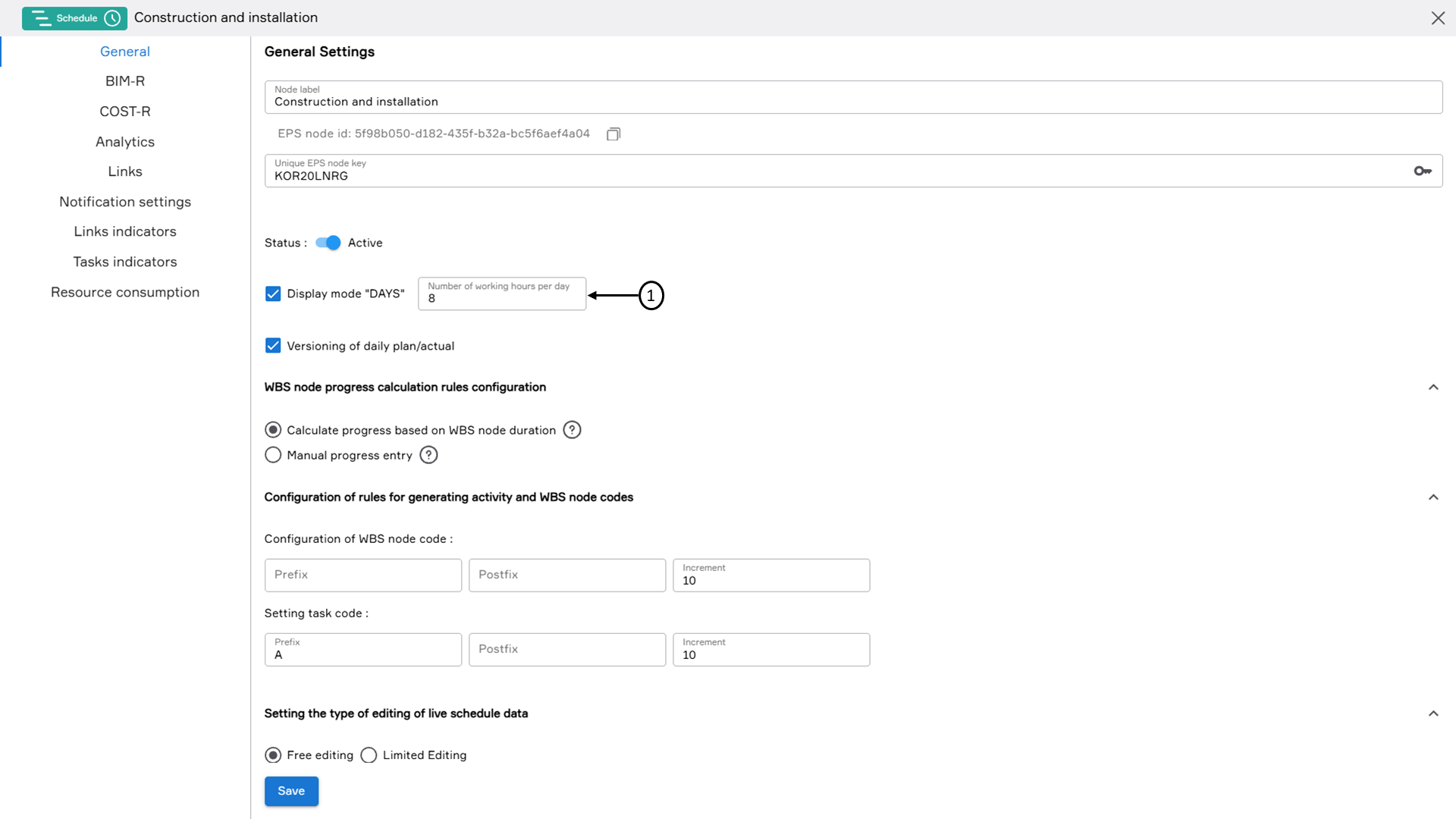 Configuring activity date and time display
By default, the “Display mode "DAYS"” checkbox is selected, and activities in the schedule are displayed by day (1):
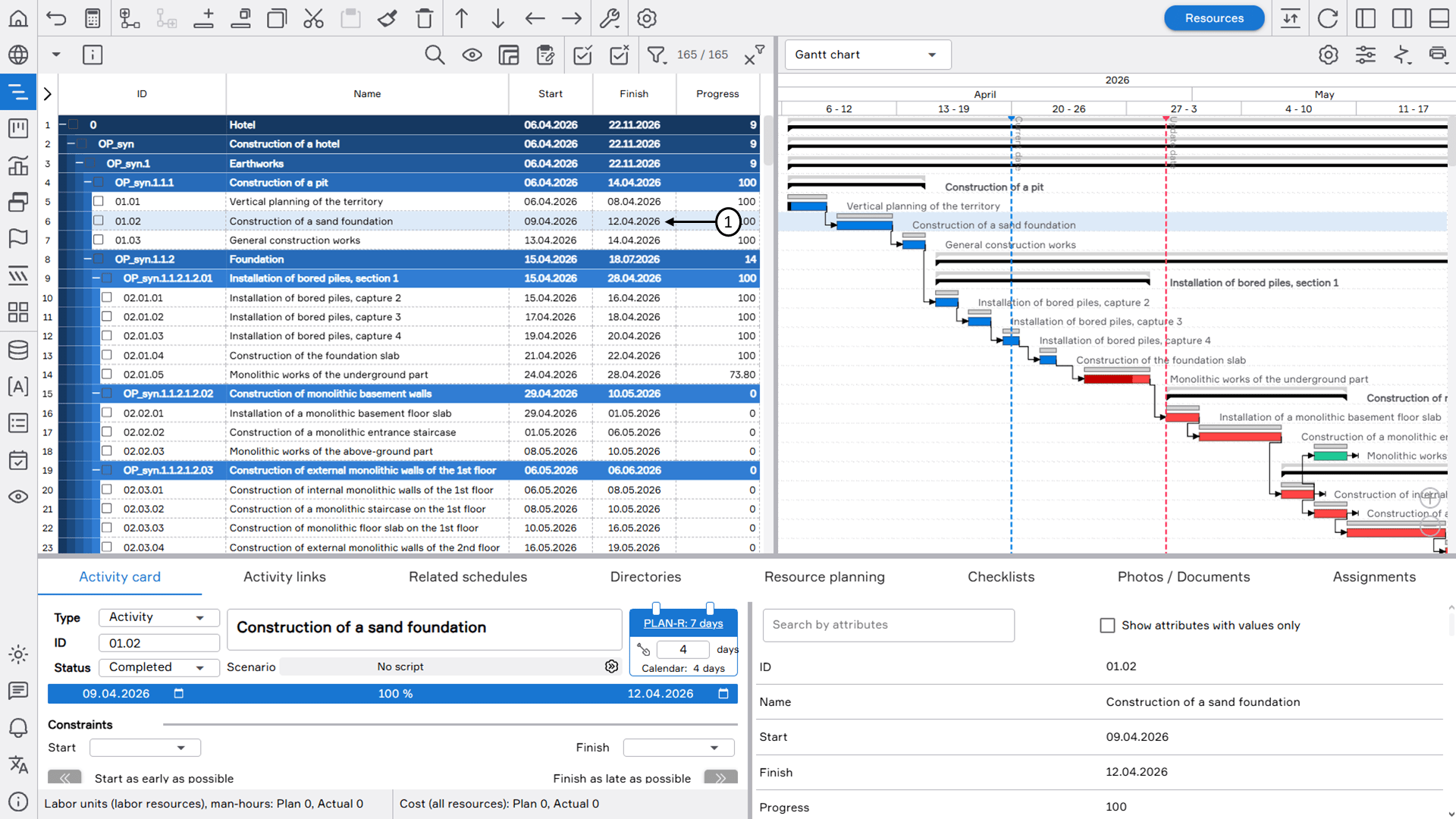 Displaying activities in the schedule by day
To disable “Display mode "DAYS"”, clear the checkbox.
When the checkbox is cleared, activities in the schedule are displayed with both dates and times (2):
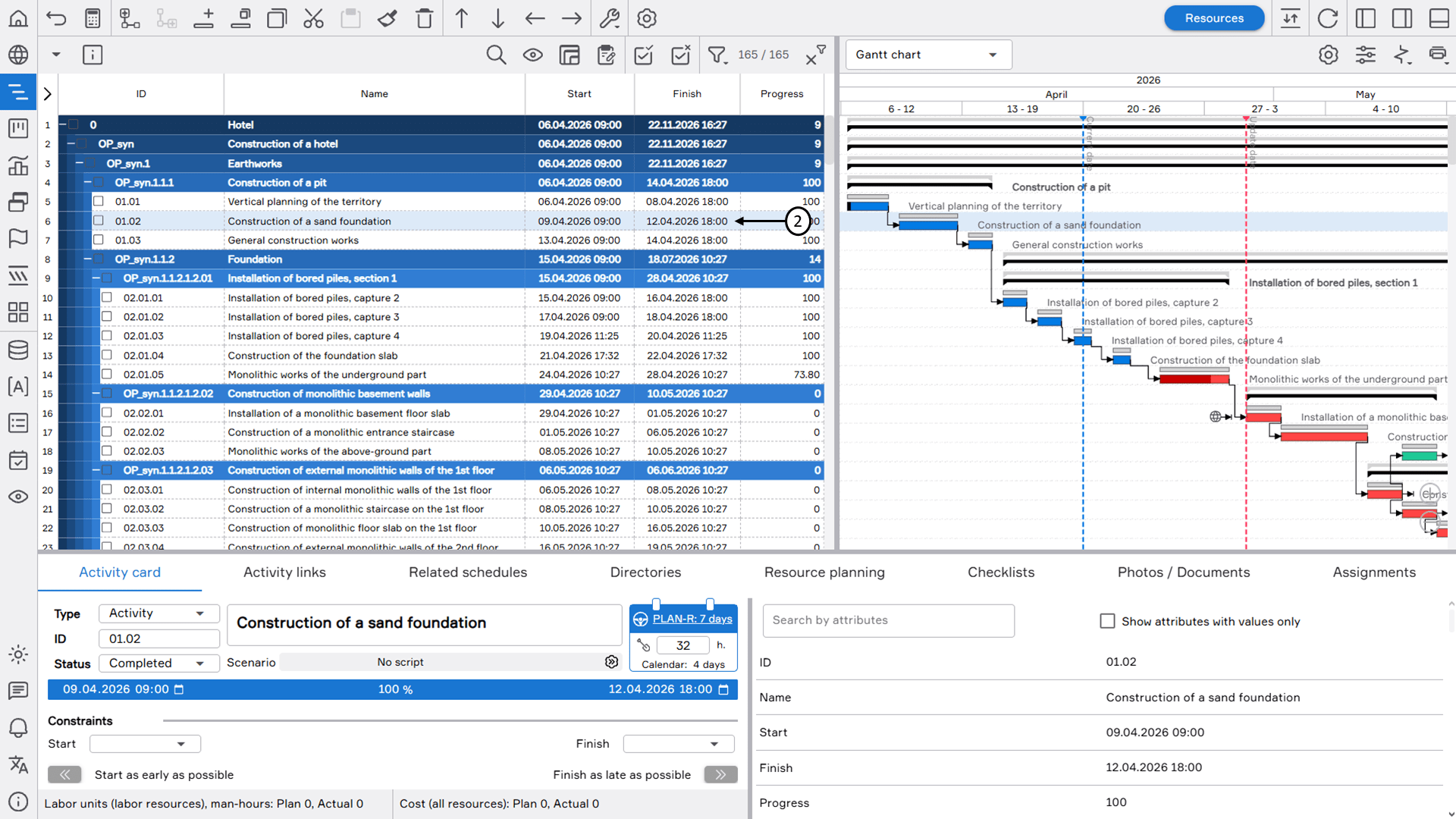 Displaying activities in the schedule with dates and times
Depending on the selected activity date and time display mode, the corresponding icon appears next to the schedule in the Enterprise Project Structure:
- Days icon (1) —
- Hours icon (2) —
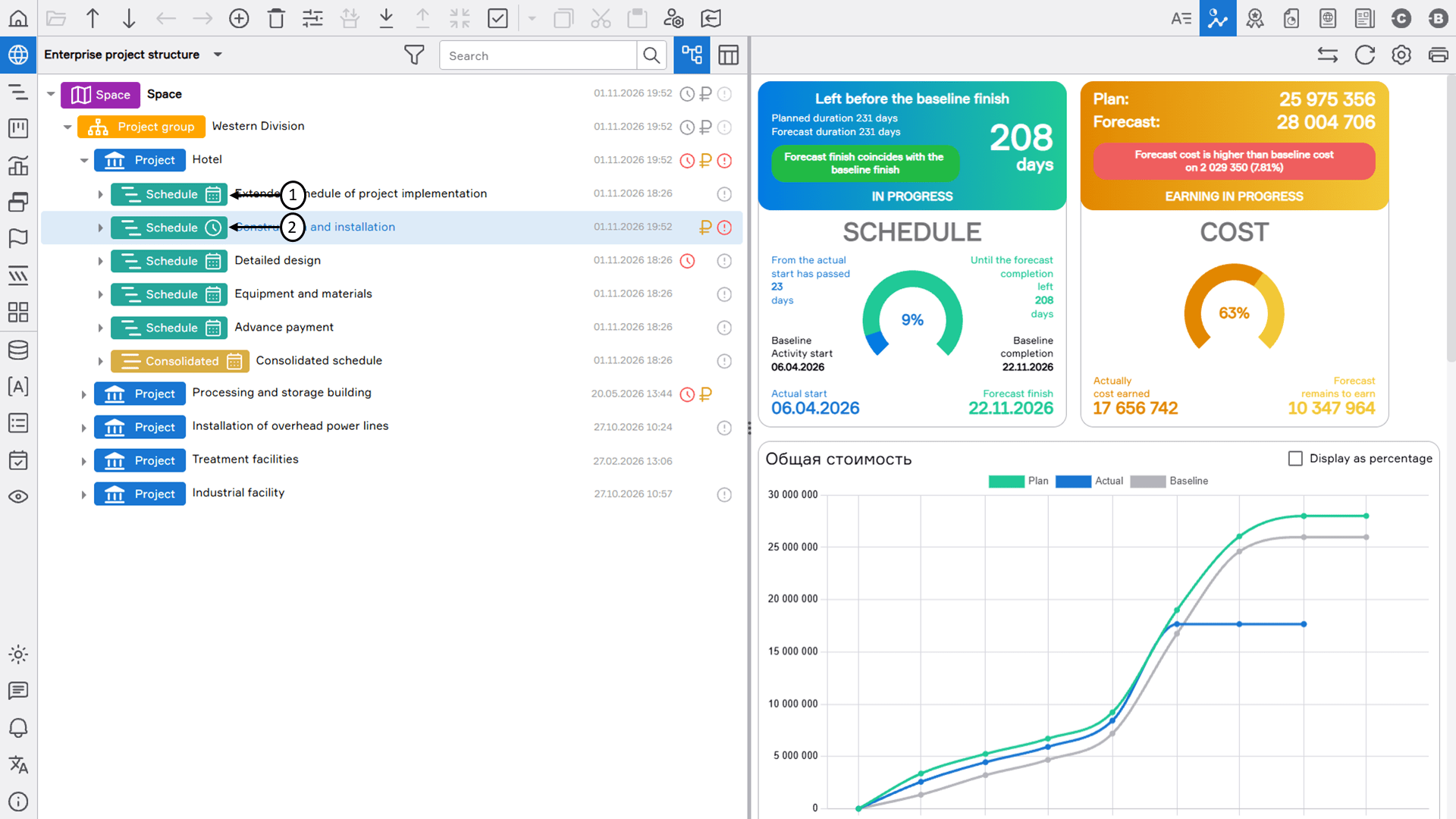 Displaying the setting on Schedule nodes in the Enterprise Project Structure
The times displayed in the Work Breakdown Structure depend on the activity’s work duration and assigned calendar.
When you change the time in the “Start” attribute, the time in the “Finish” attribute is recalculated based on the activity’s specified work duration and assigned calendar.
The Gantt chart shows the activity at an hourly scale (1), corresponding to the times specified in the Work Breakdown Structure (2).
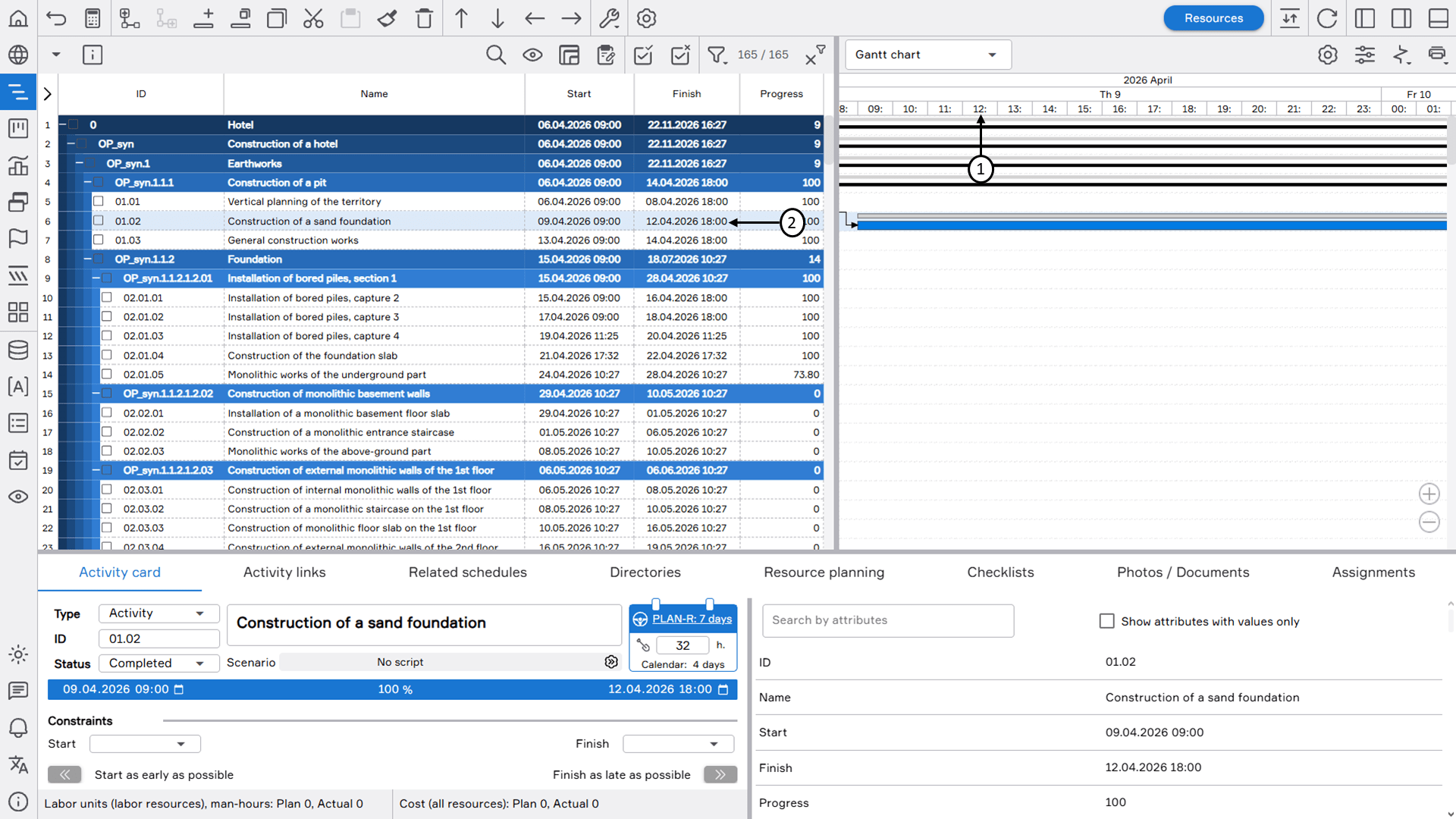 Viewing the setting in the activity schedule