IMPORTING A SCHEDULE VERSION FROM THE WORK BREAKDOWN STRUCTURE
PLAN-R allows you to import a schedule version from an .xlsx file through the WBS. The file must follow the PLAN-R notation governing its data structure. This notation includes mandatory requirements, without which the file cannot be imported, and optional requirements for creating a complete network schedule with a hierarchical structure, different types of activity dependencies, including lags, and various data types. Requirements for preparing an MS Excel schedule template are described in Annex 1. Source Data Requirements for Import into PLAN-R.
To import a version, click "Import/Export" (1) and select "Import version" (2). In the dialog, select an .xlsx file from your device (3) and specify the schedule version's update date (4). You can manually specify the input data encoding (5) to ensure correct file processing and prevent data corruption during parsing. PLAN-R uses win1251 by default. This encoding is suitable for displaying Cyrillic characters (Russian) and is standard for most text files created in Windows.
Select the schedule version import scenario (6):
- Update version data — Adds new activity data or updates existing activity data by matching Code attribute values with activities in the imported file.
- Delete version data — Deletes activities from the schedule version by matching Code attribute values with activities in the imported file.
In Resource planning mode, PLAN-R can import activities together with resources assigned from the Resource Breakdown Structure (see Assigning Resource Breakdown Structure Rows to Schedule Activities). Select "Import RBS assignments on activities" (7) to enable this.
When "Update version data" (8) is selected, activity attribute values are updated using data from the imported file. Records are matched by their Code attribute values. If "Update without changing the schedule structure" (9) is enabled, new activities cannot be created, and existing activities cannot be moved within the hierarchy. If disabled, the import can update activity data, add new records, and modify the WBS. The following attributes in the imported file can affect the schedule structure (see Schedule Structure Import Attributes):
- WBS level (
wbs-level) — Specifies the record's level in the WBS. Its numeric value determines the record's position and nesting level. - Code (
code) — Specifies the unique identifier of a schedule record. - Material path (
material-path) — Specifies the record's parent node. If no parent node is specified, PLAN-R automatically changes WBS level (wbs-level) values, which may cause the schedule structure to be imported incorrectly. - Type (
wbs-type) — Specifies the record type:work— WBS node;task— Activity;sum— Summary activity;milestone_start— Start milestone;milestone_finish— Finish milestone;draft— Draft.
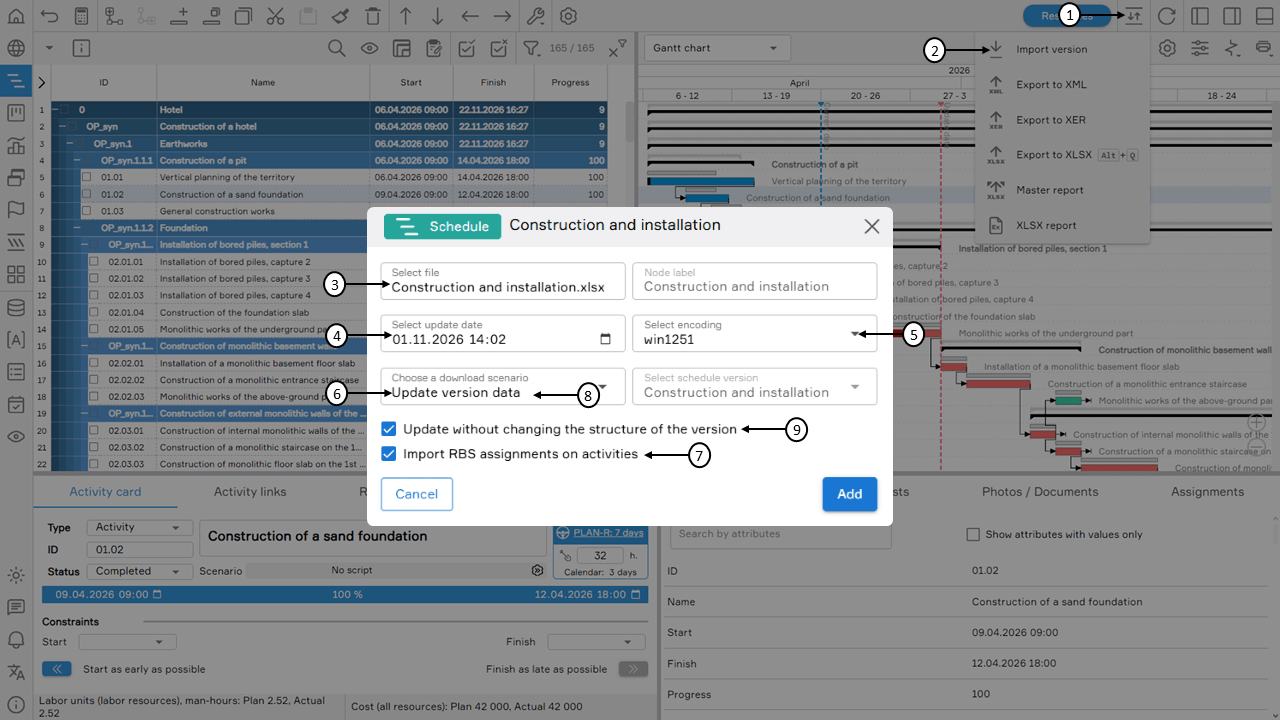 Importing a Schedule Version from the Work Breakdown Structure
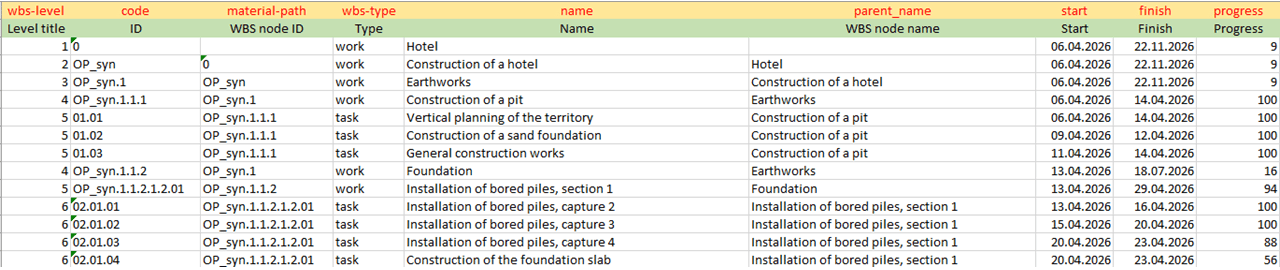 Schedule Structure Import Attributes
When "Delete version data" (1) is selected, activity attribute values are deleted based on the imported file. Records are matched by their Code attribute values. After selecting the import scenario, click "Add" (2). The schedule version is imported, and the notifications "Schedule version successfully updated" and "EPS tree updated" appear in the WBS.
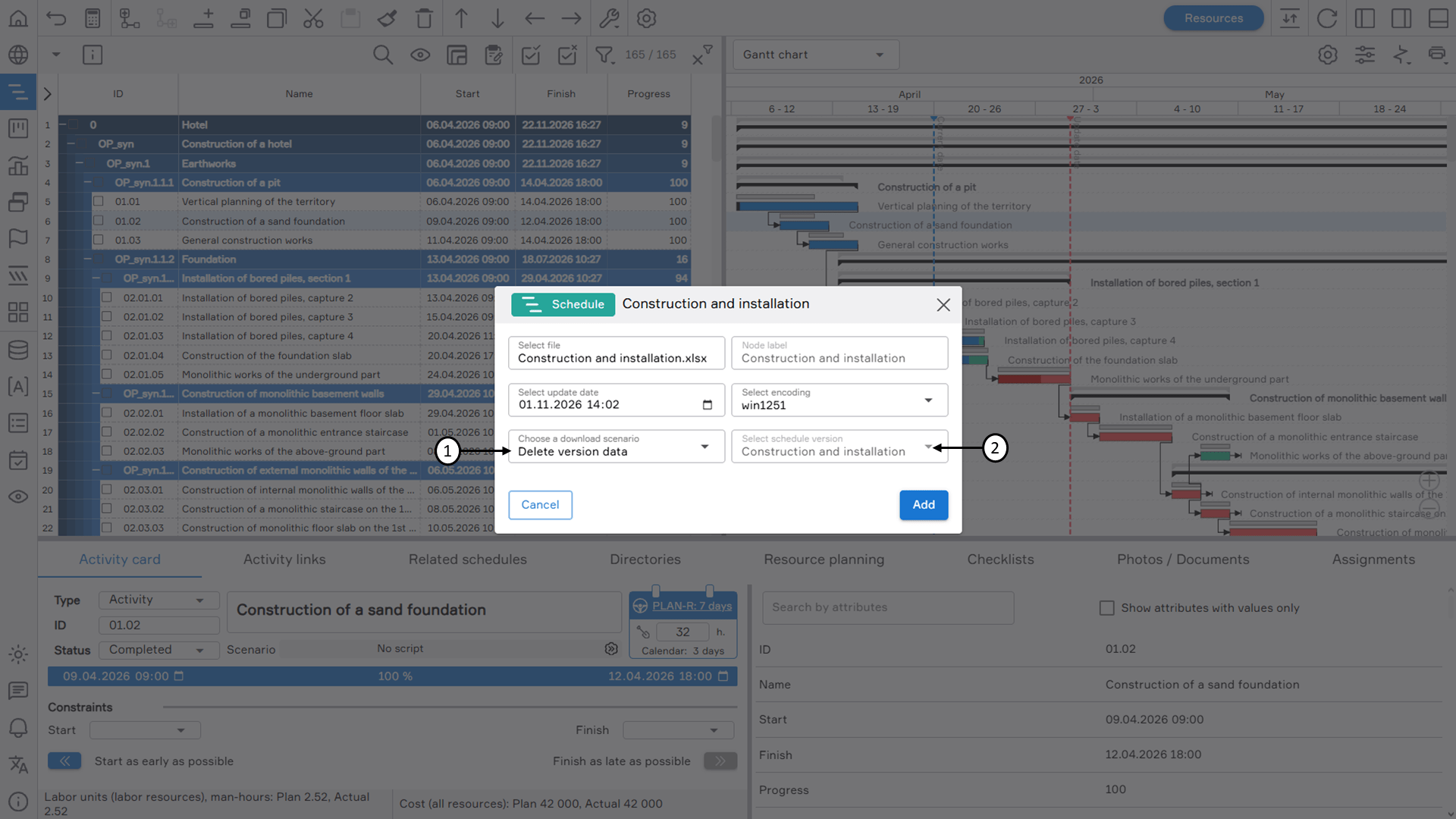 Deleting Schedule Version Data
You can view the import result in "Notifications" (1). Click "Click here to view details" (2) to view the operation's step-by-step progress (3). If an import error occurs, PLAN-R displays a red indicator (4). Hover over it to view the reason for the failed import.
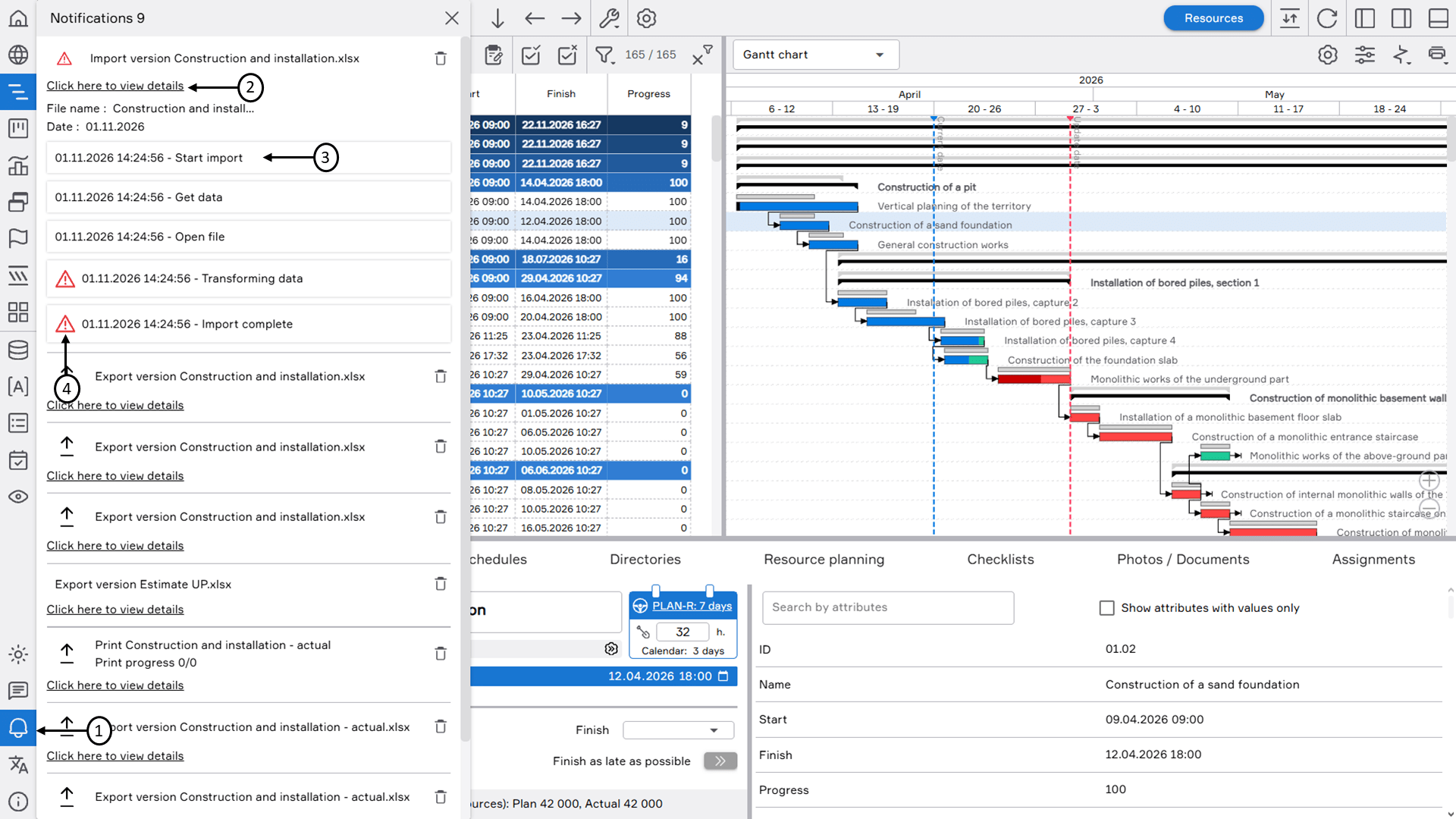 Schedule Version Import Notification