SCHEDULE CALCULATION
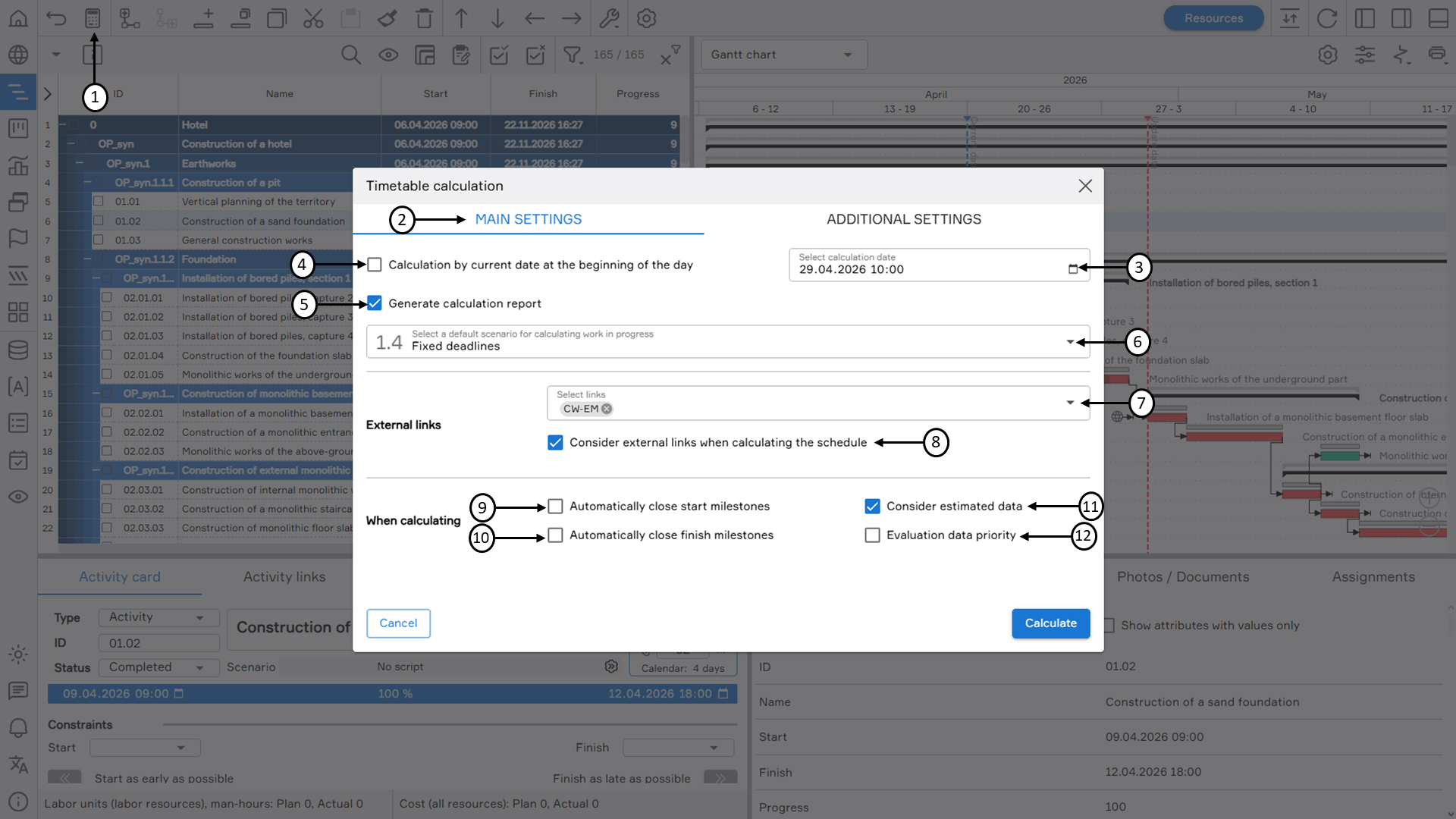
Click "Calculate" (1) on the schedule editing toolbar.
On the "Main settings" tab (2), specify:
- Schedule calculation date — A custom date (3) or the current date (4).
- Generate calculation report (5) — Creates a detailed .xlsx report.
- Select the default calculation scenario for started activities (6) — Selects the basis for calculating activity progress from the following groups.
By duration:
- 1.1. Estimated % - units/time by original duration;
1.2. Estimated % - units/time by baseline duration;
1.3. Estimated % - units/time by actual duration;
1.4. Fixed deadlines;
1.5. Estimated % - fixed units/time by remaining duration;
1.6. Fixed deadlines and % complete.
By total physical volume:
- 2.1. By physical volume units/time;
2.2. Physical volume - units/time by actual duration;
2.3. Physical volume - units/time by original duration;
2.4. Physical volume - units/time by baseline duration;
2.5 Physical volume - fixed units/time by remaining duration.
By daily physical volumes:
- 3.1. By physical volume units/time, start/finish by daily actuals;
3.2. Physical volume - units/time by actual duration, start/finish by daily actuals;
3.3. Physical volume - units/time by original duration, start/finish by daily actuals;
3.4. Physical volume - units/time by baseline duration, start/finish by daily actuals;
3.5 Physical volume - fixed units/time by remaining duration, start/finish by daily actuals.
By total labor units:
- 4.1. Labor units - units/time by actual duration;
4.2. Labor units - units/time by original duration;
4.3. Labor units - units/time by baseline duration;
4.4 Labor units - fixed units/time by remaining duration.
By daily labor units:
- 5.1 Labor units - units/time by actual duration, start/finish by daily actuals;
5.2 Labor units - units/time by original duration, start/finish by daily actuals;
5.3 Labor units - units/time by baseline duration, start/finish by daily actuals;
5.4 Labor units - fixed units/time by remaining duration, start/finish by daily actuals.
By total cost:
- 6.1. Cost - units/time by actual duration;
6.2. Cost - units/time by original duration;
6.3. Cost - units/time by baseline duration.
For detailed calculation algorithms, see Annex 2. Schedule Calculation Algorithms for Different Scenarios.
- Select links for supporting schedules (7) allows you to select configured project schedule links (see Section 7. Project Schedule Integration). Dates of supporting activities are used as No earlier than constraints when calculating the current schedule, if required.
Consider external links during schedule calculation (8)
Includes links to other schedules in the calculation.
Automatically complete start milestones (9)
Sets a start milestone to Completed when any successor activity has started. Its date is set to the start date of the first activity to start.
Automatically complete finish milestones (10)
Sets a finish milestone to Completed when all predecessor activities have finished. Its date is set to the finish date of the last activity to finish.
Take into account estimated data (11)
Uses Estimated start, Estimated finish, and Estimated % complete when calculating activity dates and durations. Before calculation begins, accepted estimated values are copied into the system Start, Finish, and Progress fields. Dependent parameters are recalculated: calendar duration, work duration, actual work duration, and remaining work duration. If estimated data are only partially populated, only populated values are copied. If this option is disabled, estimated values are not copied into system fields, and the schedule is calculated using the configured scenario.
Priority of estimated data when calculating (12)
When enabled, calculation does not move activities according to dependencies or recalculate remaining duration, finish, start, and other parameters based on the calculation date. The activity's scenario is disregarded, and its current parameters are retained. When disabled, normal scenario rules apply. System Start, Finish, and Progress values may therefore change after estimated values have been copied into them. This option is available only when Take into account estimated data is enabled.
Free float is calculated for each link according to its type:
Free Float Calculation by Link Type
| Link Type | Free Float Formula |
|---|---|
| Finish-to-Start | Successor early start − Current activity early finish − Link lag − 1 |
| Finish-to-Finish | Successor early finish − Current activity early finish − Link lag |
| Start-to-Start | Successor early start − Current activity early start − Link lag |
| Start-to-Finish | Successor early finish − Current activity early start − Link lag + 1 |
The resulting free float is the minimum of all calculated values.
 Schedule Calculation (1)
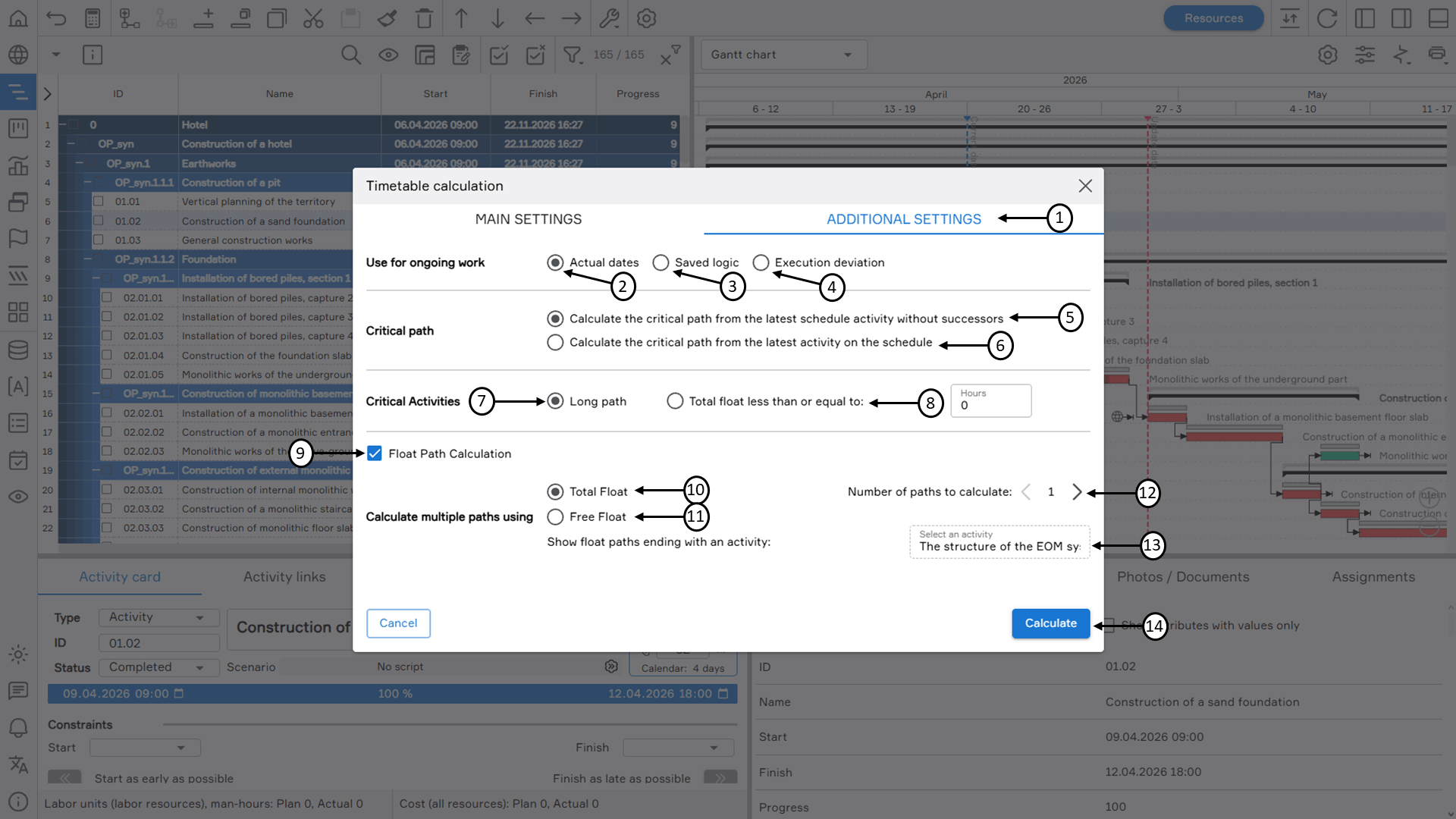
On "Additional settings" (1), select how in-progress activities are calculated:
- Actual dates (2)
- If an activity has started out of sequence and is In progress, its finish is calculated from the predecessor's finish or start, depending on link type, plus or minus link lag, if any, plus the activity's remaining duration.
- If an activity has completed out of sequence, successor dates are calculated from its finish or start, depending on link type, if that date is later than the calculation date. Otherwise, the calculation date is used.
- Saved logic (3)
- If an activity has started out of sequence and is In progress, its finish is calculated from the predecessor's finish or start, depending on link type, plus or minus link lag, if any, plus remaining duration.
- If an activity has completed out of sequence, all successor dates are determined from the latest incomplete activity in the entire predecessor chain. Its start or finish is used according to link type, then the lag from the out-of-sequence completed activity is added if nonzero. The number of preceding incomplete activities violating the logic does not affect this algorithm.
- Execution deviation (4)
- If an activity has started out of sequence, its finish ignores predecessor dates regardless of link type. It is calculated using only remaining duration and the current date.
- If an activity has completed out of sequence, its dates are ignored when calculating successor dates. Successors are scheduled from the calculation date.
Attention! These calculation modes do not apply to fixed-date scenarios.
Critical Path Calculation Settings
- Calculate the critical path from the latest schedule activity without successors (5) — Uses the latest activity without successors as the reference point for calculating late dates for all activities.
- Calculate the critical path from the latest schedule activity (6) — Uses the activity with the latest finish, regardless of whether it has successors. If it does, their total float, free float, and late dates are also calculated from that activity's dates.
Critical Activity Identification Settings
- Long path (7) — Uses Total Float excluding constraints and deadlines to determine the activity sequence that drives the project finish date.
- Total Float less than or equal to (8) — Uses Total Float and a specified threshold. For example, a threshold of 0 hours identifies activities with zero or negative total float as critical.
Float Path Calculation (9)
Select the float type:
- Total Float (10) — Identifies activity chains with the smallest overall time allowance relative to project completion.
- Combined float (11) — Analyzes activity chains whose delays directly affect subsequent activity start dates.
Specify the number of paths to calculate (12) and, optionally, an ending activity (13). If selected, paths are calculated only for activities preceding that activity. The calculation populates Float path rank, identifying the chain to which an activity belongs, and Float path position, identifying its position within that chain.
Click "Calculate" (14) to run the calculation.
 Schedule Calculation (2)
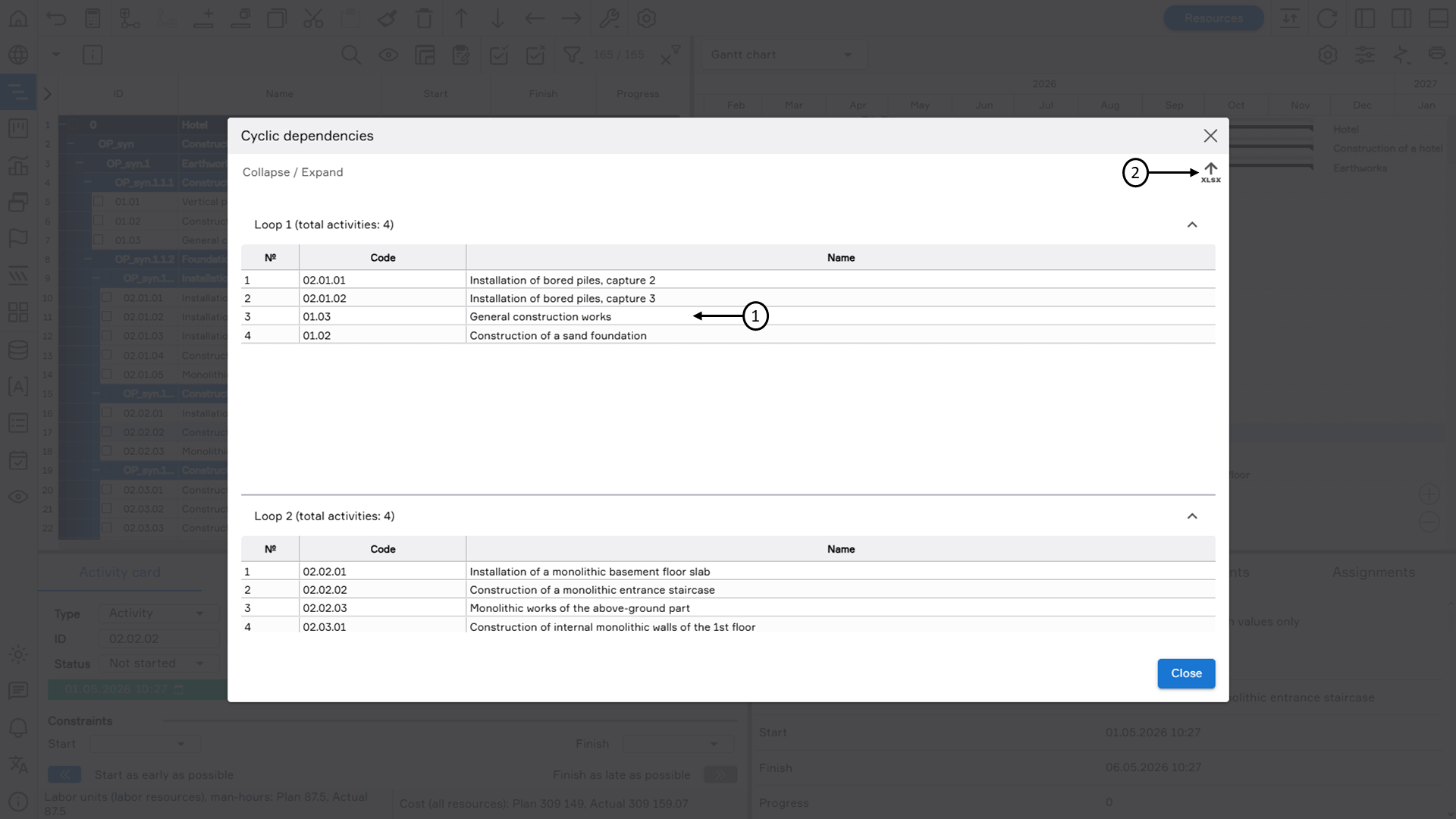
Attention! Schedule calculation cannot run when circular dependencies, or loops, cause activities to wait for one another to finish. This creates an endless logical cycle that blocks calculation. PLAN-R displays the detected circular dependencies (1). You can export their list to .xlsx (2).
 Detecting Circular Dependencies
The corporate version of PLAN-R supports automatic schedule calculation when:
- Activities are created or deleted;
- Links are added, edited, or deleted;
- Start, finish, work duration, progress, remaining or actual duration, activity type, estimated or baseline data, or initial duration are edited;
- Planned or actual physical volume, labor units, or cost values change.
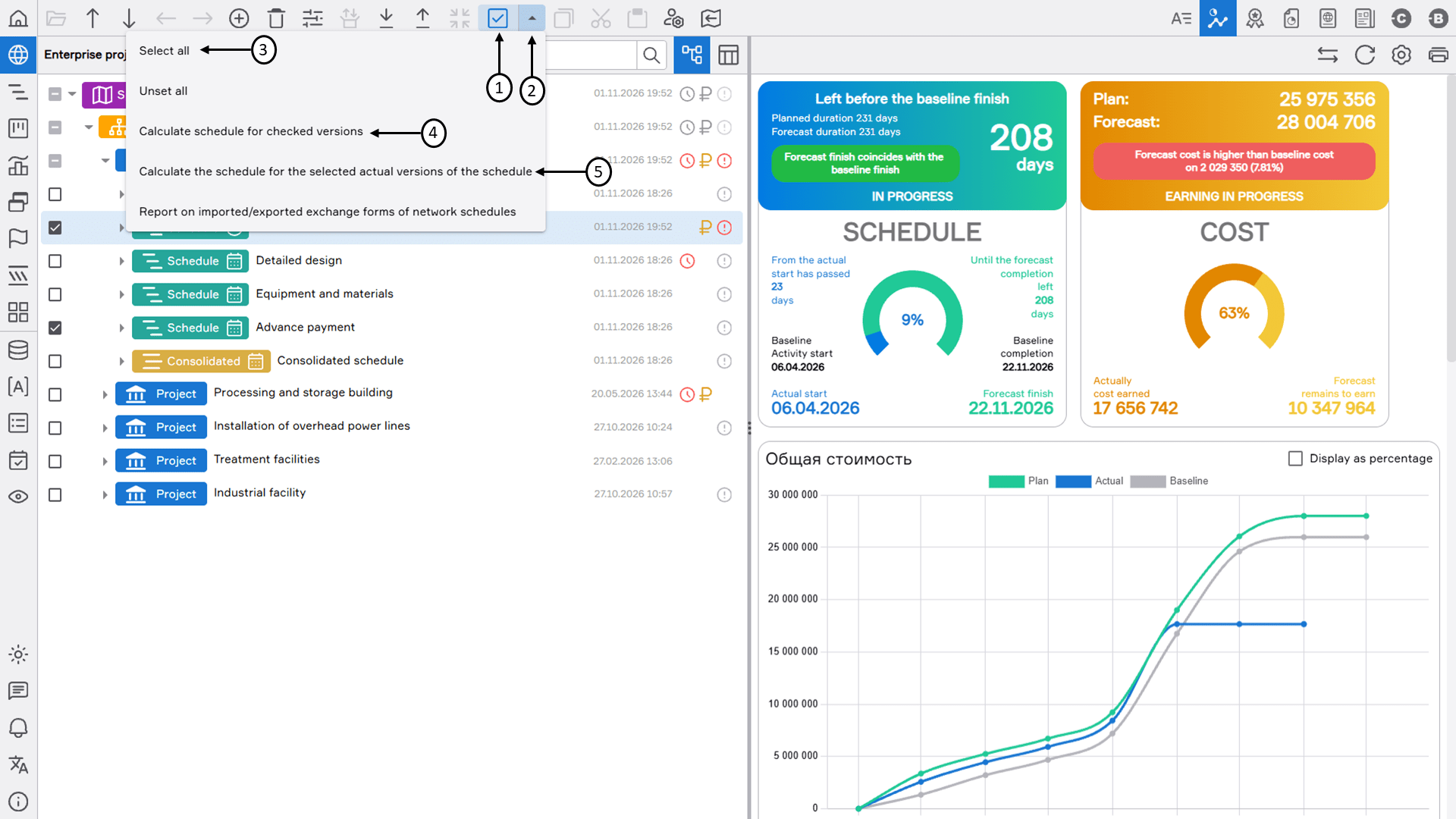
To calculate schedule versions in bulk, click "Select using checkboxes" (1) in the Enterprise Project Structure. Open the menu (2), select "Select all" (3), or select individual checkboxes. Then use "Calculate selected schedule versions" (4) or "Calculate selected Actual schedule versions" (5).
 Batch Calculation of Selected Schedule Versions
Selecting "Calculate selected schedule versions" (4) opens the same calculation dialog used within a project schedule.
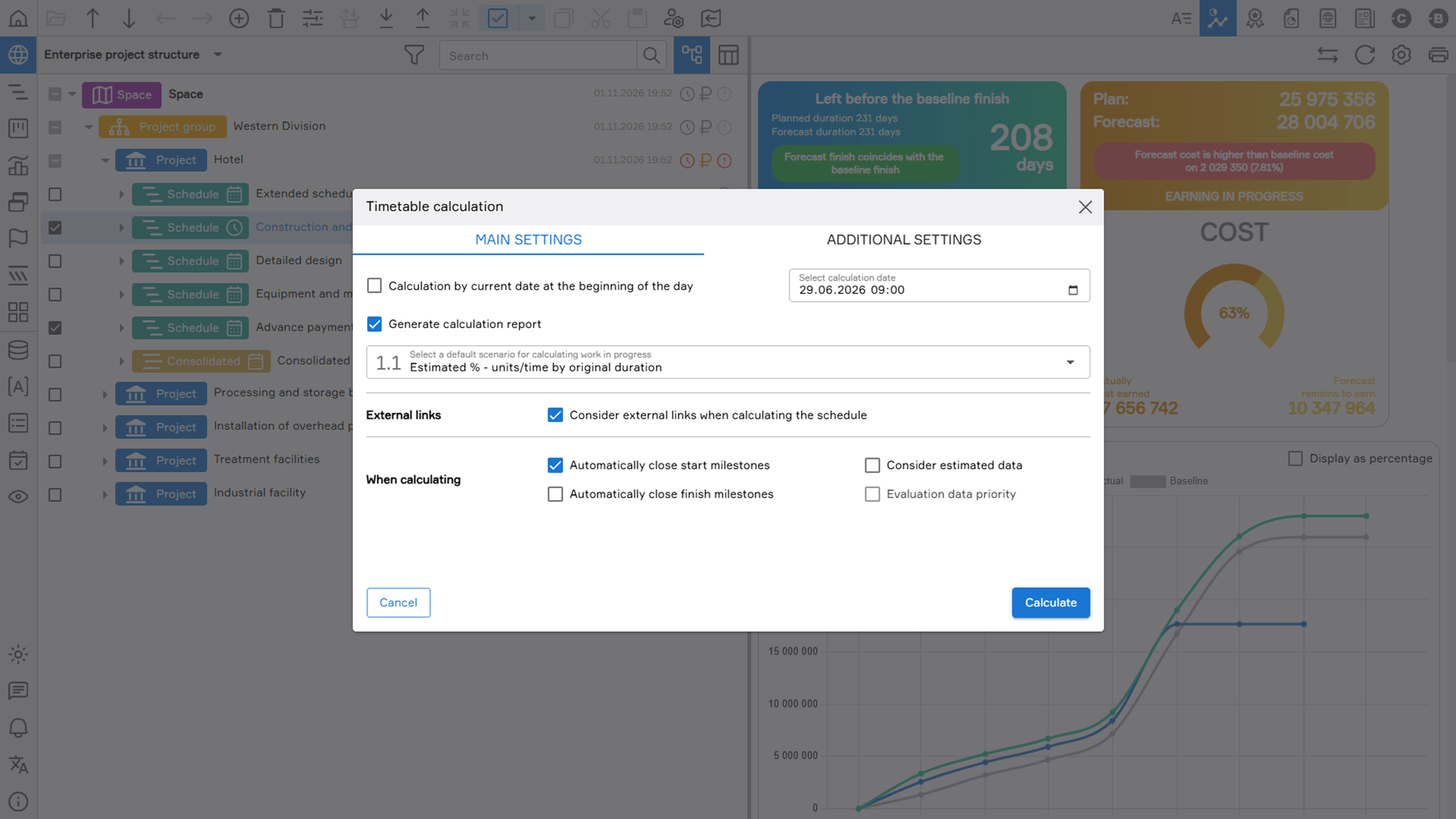 Schedule Calculation Dialog
Versions are calculated sequentially, following schedule order in the EPS. If calculation fails for one schedule, processing continues with the next.
After the batch operation, an .xlsx report lists the schedules and whether their calculations succeeded.
All users can access the checkbox menu, but calculation runs only for schedules for which they have the required permissions.